
Follow these steps to start your Microsoft Fabric (Preview) trial:
A Step-by-Step Guide on How to Get Started with Microsoft Fabric (Preview) for Existing Power BI users and Users who are new to Power BI
Microsoft Fabric, currently in public preview, is temporarily available for free with the Microsoft Fabric (Preview) trial. The trial grants access to Fabric product experiences and resources to create and host Fabric items, lasting for 60 days.
Requirements
Existing Power BI users can directly begin the Fabric (Preview) trial. For new users, a Power BI license is required. This can be acquired by signing up for a free license at https://app.fabric.microsoft.com.
Starting the Trial
To start the trial, users must open the Fabric homepage, select the Account manager, and click on “Start trial”. Once the trial capacity is ready, a confirmation message is received and the user can begin working in Fabric.
Trial Features
The trial offers a range of features, including:
- Creation of workspaces for projects supporting Fabric capabilities
- Sharing Fabric items such as datasets, warehouses, notebooks, and collaborating on them with other Fabric users
- Creation of analytics solutions using these items
Trial Capacity
Each trial includes 1 TB of OneLake storage and one 64 capacity unit (CU) trial capacity, which represents the amount of computation power reserved for users of that capacity. The trial capacity can be monitored using the Capacity Metrics app.
Other Considerations
The trial can be cancelled anytime, resulting in deletion of all workspaces and their contents. A trial cannot be started if the Power BI administrator has disabled access. There are also some known bugs associated with workspace assignment and region of the Fabric (Preview) trial capacity.
At the end of the trial, non-Power BI Fabric items are removed unless the trial is upgraded to a paid Fabric capacity. The Fabric (Preview) trial capacity does not support autoscale. For more compute capacity, a paid Fabric capacity can be purchased in Azure.
For existing Power BI users, migration of existing workspaces into a trial capacity is possible using workspace settings.
For existing Synapse users, the Fabric (Preview) trial is different from a Proof of Concept (POC), as it doesn’t require customization and financial investment, and doesn’t need an Azure subscription.
Introducing Microsoft Fabric: Exploring the Preview Trial
Welcome to the ever-evolving world of data analytics! Today, we’re taking an in-depth look at the much-anticipated Microsoft Fabric, currently in its public preview stage. Microsoft Fabric is offering a free trial that brings users a fascinating array of resources, experiences, and capabilities. Ready to dive in? Let’s get started!
What is Microsoft Fabric?
Microsoft Fabric is an innovative platform from Microsoft, designed to take data analytics to new heights. Currently in the preview stage, it’s accessible to anyone interested in exploring its vast array of features and functionalities for a duration of 60 days, absolutely free.
How to Begin?
To get started with the Microsoft Fabric (Preview) trial, existing Power BI users can simply start their journey from the Fabric homepage. For those new to Power BI, obtaining a Power BI license is a pre-requisite. It’s easily accessible and free, just visit https://app.fabric.microsoft.com to sign up.
Once the license is in place, beginning the Fabric trial is straightforward. Just select the Account Manager on the Fabric homepage and click on “Start trial”. A confirmation message will arrive shortly, signalling the readiness of your trial capacity. From here, you’re all set to start your Fabric adventure!
Follow these steps to start your Microsoft Fabric (Preview) trial:
For Existing Power BI Users:
- Navigate to the Fabric homepage.
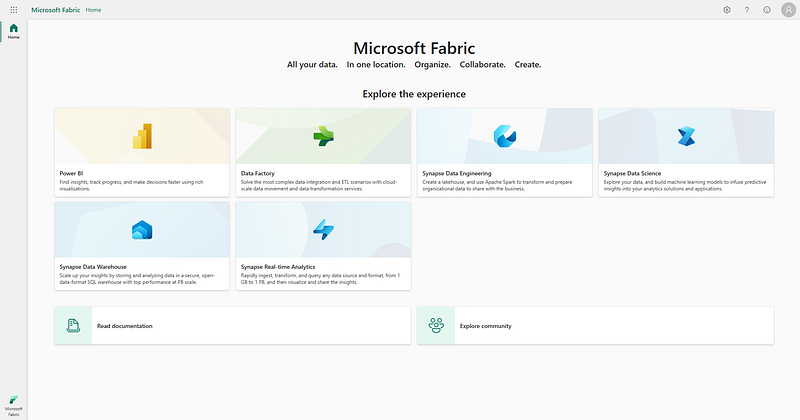
- Select the “Account Manager”.
- Click on “Start Trial”.
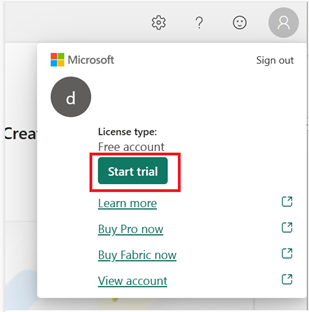
- Agree to the terms if prompted and click on “Start Trial” again.
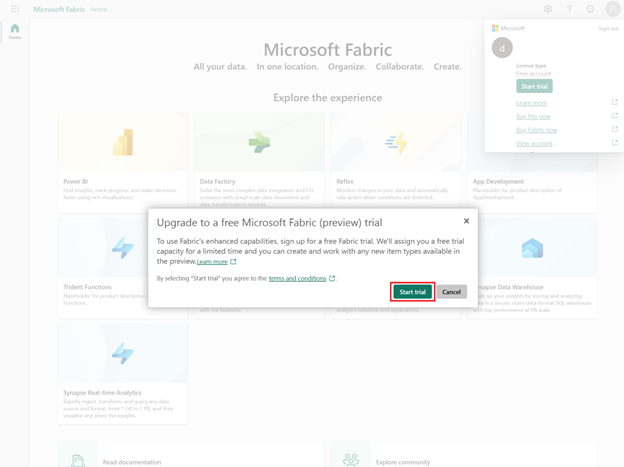
- You’ll receive a confirmation message once your trial capacity is ready. Click on “Got it” to start using Fabric.
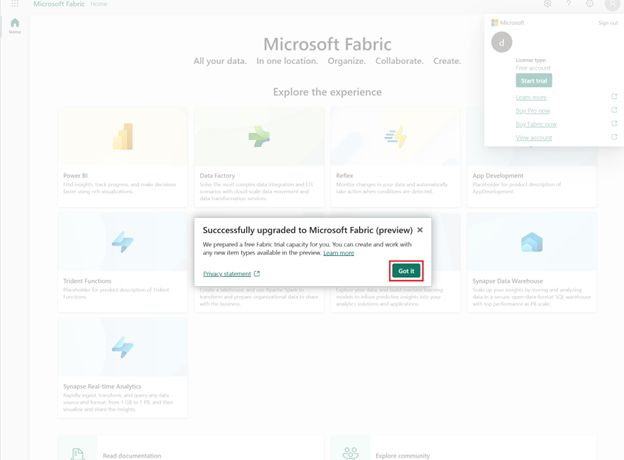
For Users New to Power BI:
- Start by getting a Power BI license.
- Visit https://app.fabric.microsoft.com to sign up for a Power BI free license.
- Once you have a Power BI license, follow the same steps as existing Power BI users to start the Fabric (Preview) trial.
After starting the trial, you’ll find a heading for “Trial Status” in your Account Manager. This keeps track of the number of days remaining in your trial. You’ll also see the countdown in your Fabric menu bar when you work in a product experience.
Remember, your trial includes access to all of the Fabric experiences and features, including OneLake storage up to 1 TB, the ability to create workspaces for projects that support Fabric capabilities, share Fabric items and collaborate with others, and create analytics solutions using Fabric items.
So, enjoy exploring the power of data with the Microsoft Fabric (Preview) trial!
Inside the Microsoft Fabric (Preview) Trial
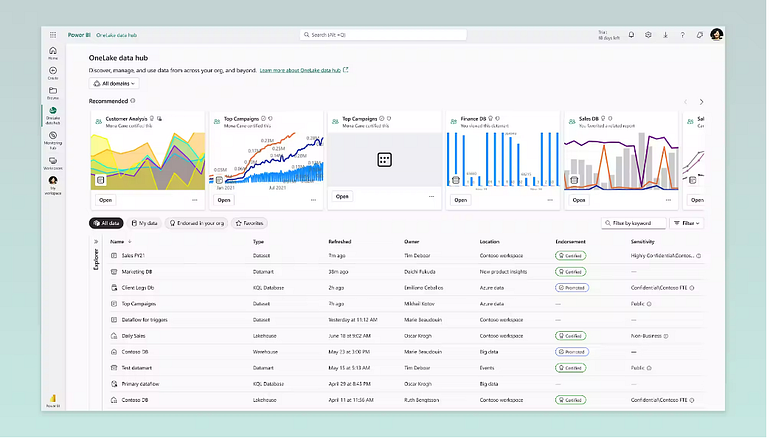
The trial presents a myriad of features to explore. Let’s check out what’s in store:
- Workspaces: These are akin to folders where you can create projects supporting Fabric capabilities.
- Collaborative Tools: Fabric facilitates seamless collaboration. You can share items such as datasets, warehouses, notebooks and collaborate on them with other Fabric users.
- Analytics Solutions: You can even create analytics solutions using the Fabric items you have, adding yet another dimension to your data exploration journey.
What’s more, the trial also comes with a generous offering of OneLake storage, up to 1 TB, and a 64 capacity unit (CU) trial capacity. This represents the amount of computation power reserved exclusively for your use.
A Word on Trial Capacity
Your trial capacity is like your personal pool of computational resources. You can monitor it using the Capacity Metrics app, which provides a detailed and transparent report on how the capacity units are being consumed.
It’s also worth noting that you’re the sole owner of your trial capacity. This means you have the freedom and control to utilize these resources as per your requirements.
Navigating Through the Trial
While exploring the trial, remember that you can cancel it anytime. However, cancellation results in deletion of all your workspaces and their contents. Furthermore, once cancelled, you may not have the option to start another trial.
If you wish to continue using Microsoft Fabric (Preview) after the trial, you can migrate to a paid capacity and continue using your workspaces.
Lastly, please keep in mind that starting a trial might not be possible if your Power BI administrator has disabled access, or if your tenant has exhausted its limit of trial capacities. If this happens, you have a couple of alternatives to explore, such as purchasing a Fabric capacity from Azure, or requesting another trial capacity user to share their trial capacity with you.
What’s More?
As a part of the trial, Microsoft Fabric (Preview) brings numerous features and possibilities. However, it’s crucial to note that it does not currently support autoscale. If you require additional computational capacity, you may have to purchase a Fabric capacity in Azure.
Existing Power BI users can easily migrate their existing workspaces into a trial capacity using workspace settings.
In a nutshell, Microsoft Fabric (Preview) opens up a new frontier of data analytics for existing Power BI users as well as novices in the field. It’s a great opportunity to explore, learn, collaborate and create robust analytical solutions. So, why wait? Embark on your journey with Microsoft Fabric today!
Here are some additional pieces of information you might find helpful as you start your trial:
Understanding the Fabric (Preview) Trial Capacity:
- A trial capacity is a pool of resources allocated for your Microsoft Fabric use. The size of the capacity determines the computational power reserved for users of that capacity.
- You’ll have full access to all of the Fabric experiences, features, and up to 1 TB of OneLake storage.
- You can create workspaces for projects that support Fabric capabilities, share Fabric items, and create analytics solutions using these items.
- You are the owner for your trial capacity and can access a detailed report on how capacity units are consumed via the Capacity Metrics app.
Managing your Fabric (Preview) Trial:
- Power BI administrators can enable and disable trials for Fabric at a tenant level.
- Each trial user is the capacity admin for their trial capacity.
- As of now, Microsoft doesn’t support multiple capacity administrators per trial capacity, but they do have plans to support this feature in the future.
Ending a Fabric (Preview) Trial:
- You can cancel your trial at any time from the Account Manager.
- Note that when you cancel your free Fabric (Preview) trial, the trial capacity, along with all of its workspaces and their contents, is deleted.
- If you cancel your trial, you might not be able to start another trial. If you want to continue using Microsoft Fabric (Preview), you can purchase a capacity and migrate your workspaces to that capacity.
Other Considerations and Limitations:
- If you don’t see the “Start Trial” button in your Account Manager, your Power BI administrator might have disabled access. You can contact them for assistance.
- You can’t start a trial if your tenant has exhausted its limit of trial capacities. In this case, you have options like purchasing a Fabric capacity from Azure, requesting another trial capacity user to share their trial capacity with you, or reaching out to your Power BI administrator to create a Microsoft support ticket to increase tenant trial capacity limits.
These steps should provide you with a strong foundation as you begin exploring Microsoft Fabric’s capabilities. Happy exploring!
I hope this article has been helpful to you. Thank you for taking the time to read it.
💰 Free E-Book 💰
If you enjoyed this article, you can help me share this knowledge with others by:👏claps, 💬comment, and be sure to 👤+ follow.
Who am I? I’m Gabe A, a seasoned data visualization architect and writer with over a decade of experience. My goal is to provide you with easy-to-understand guides and articles on various data science topics. With over 250+ articles published across 25+ publications on Medium, I’m a trusted voice in the data science industry.
💰 Free E-Book 💰
Stay up to date. with the latest news and updates in the Programming space — follow the Everything Programming publication.