FlutterFlow and like filtering using Supabase

I wanted to add a filter to my grid, this works with other items like listview too, and I didn’t really see a way to filter on multiple columns using a single textfield input.
So to start I have a table with many columns that are varchar. I want to use LIKE statements. This will allow my user to filter by any of the varchar columns.
First let's make a DataType, on the left column. First, we need to make a type that matches the column names exactly in supabase. Make them all lowercase.

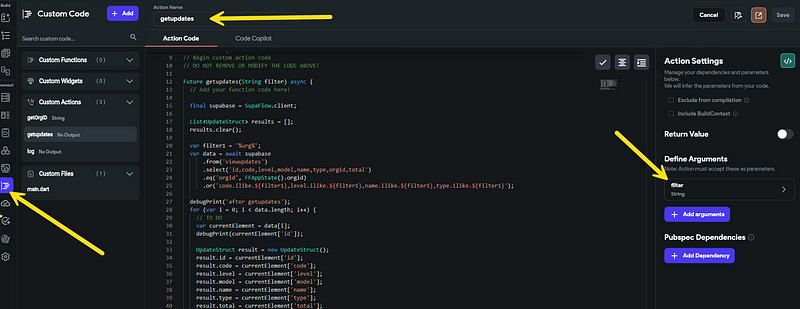
Now that we have the variable I had to make a custom action. We won’t use this action and it can be removed later but it helped me build the query. The queries in POSTGRest aren’t what I am used to so this Action helped me figure it out.
Future getupdates(String filter) async {
  // Add your function code here!

  final supabase = SupaFlow.client;


  var filter1 = '%urg%';
  var data = await supabase
      .from('viewupdates')
      .select('id,code,level,model,name,type,orgid,total')
      .eq('orgid', FFAppState().orgid)
      .or('code.ilike.${filter1},level.ilike.${filter1},name.ilike.${filter1},type.ilike.${filter1}');

  debugPrint('after getupdates');
  for (var i = 0; i < data.length; i++) {
    // TO DO
    var currentElement = data[i];
    debugPrint(currentElement['id']);


  }

}
I did make the action require an input field, but in the end I didn’t use it as I hard-coded it with filter1 variable. What I did was make this function to test my query. Set the .from to your view or table, .select is for the columns. These match the new data type we made. The first .eq filter is a required filter I needed, but the .or is where the magic is. The .or takes a single quoted parameter. Each or is separated by a comma
code.ilike.${filter1}Above is a single filter from the set. I use ‘ilike’ because I want to ignore case making it case-insensitive. The ${filter1} is my variable. The like is just like any other like statement in SQL, so if you look up in the code, I started it with a % and ended with a %. This will match it anywhere in a query. I repeated this for every field I wanted to filter.
Then I set this action to run at page load or via button, whatever you need to test it. The function will output results to the browser console. Once the query acts as expected, we need to view the actual fetch request. So let’s open browser tools.
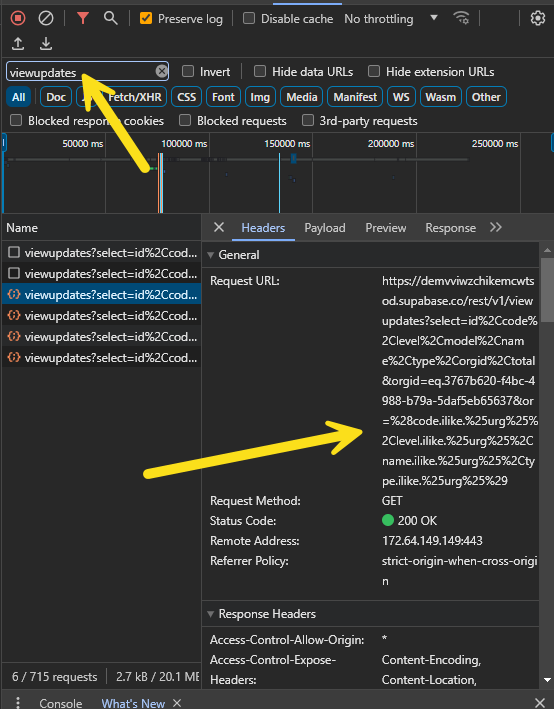
Filter by the name of the table. This will show you the request. Grab this URL and save it. In this URL we can see %25urg%25. My filter was urg so what I want to do is replace %25urg%25 with %25[filter]%25.
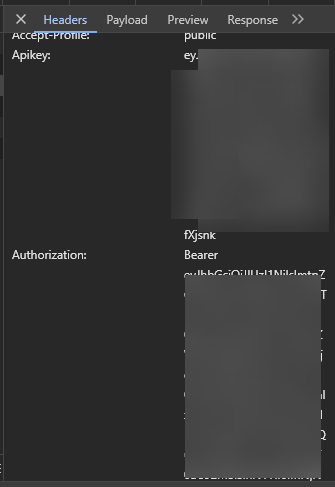
Also you can see the needed authorization data in the headers

And this is the response. As you an see it matched the urg in the field level. Perfect we got the data we wanted.
So the next step is to make an API call.

Set up a new API call, give it a name, set the API URL as the URL you made from the browser. Then add the two headers.
Now we need to set the variables

Make sure the filter variable name matches the variable name you placed in the get string.
Now we move on to the response section. Set it to parse result as a data type and pick the data type you made and check the is list box.

So what we just made is our own API call that acts just like the supabase query action. And now we can set our UI element to use this API call.

Set the source as an API call, and set your variables. Filter should come from a textfield. It could be hard coded during testing too. Orgid is just my additional filter, it’s a user derived parameter from another query. Apikey is your supabase key. You can grab it from your supabase account or grab it from that fetch request. The authorization is the JWT Token from the authentication of the user.
Once this is set. We need to set the values to be set from the response.

Set the variable name. Set the parameters like I have. Make sure the data type is set to the correct one. Now we can select the “items” variable for our fields.
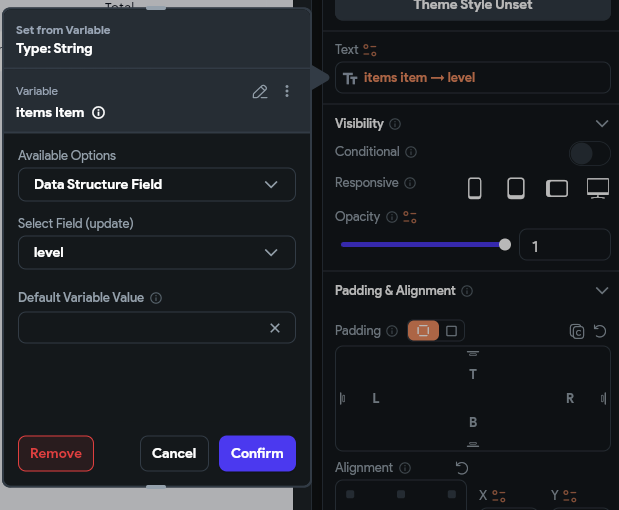
You can find the values like the above example.
I added a button next to my search box and it’s action is set to refresh the data request.
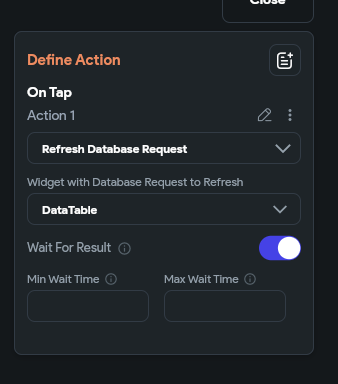
That’s it. Now we can use a like filter in FlutterFlow and we can use it on multiple columns. If the filter is blank it matches everything


