
Flutter : Widget Size and Position
I have read many questions about how we can obtain the dimensions or positions of the widgets that we have on screen.
In some cases we find ourselves in situations in which we want to achieve that for any reason.
The widget doesn’t have position or size by itself, in order to achieve this it’s necessary that we obtain the RenderBox associated with the context of our Widget.
But how do we do this?
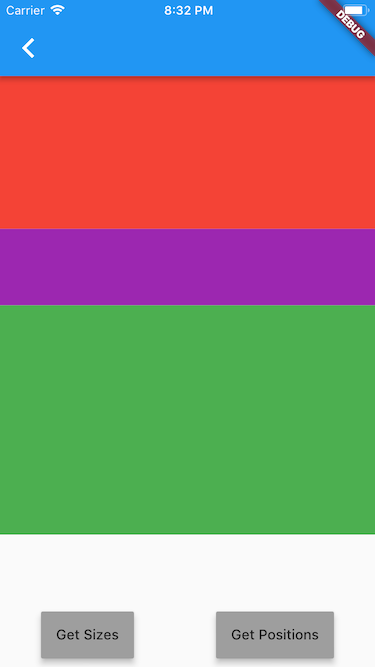
Let’s start building a demo app which has 3 panels of different colors, Red, Purple and Green inside a Column and we have two buttons at the bottom to get the Size and Position.
This is the code of the demo app:
And the result:
Ok so now the question is : How can I get the size and position of each panel?
Let’s focus on just one panel for this post (Red panel) , after we know how to get the size and position for one panel it should be easy for the others.
Get the size of a Widget
In order to do that, we need our Widget to have a Key, for this we create a GlobalKey and assign it to our Widget.
//creating Key for red panel
GlobalKey _keyRed = GlobalKey();
...
//set key
    Flexible(
             flex: 2,
             child: Container(
               key: _keyRed,
               color: Colors.red,
             ),
     ),
Once our Widget already has a Key, we can use this Key to be able to obtain the size in the following way:
_getSizes() {
    final RenderBox renderBoxRed = _keyRed.currentContext.findRenderObject();
    final sizeRed = renderBoxRed.size;
    print("SIZE of Red: $sizeRed");
 }
If we press the Get Sizes button, you’ll get this result in the console:
flutter: SIZE of Red: Size(375.0, 152.9)now we know that our Red panel has 375.0 as width and 152.9 as height
It was easy, right?
Let’s go to obtain the position in which our Widget is located.
Get the position of a Widget
In the same way that we did previously, our Widget must have an associated Key.
Now we update the method to obtain the position of the Widget relative to the top-left of the defined position (in this case we are using 0.0 it means the top-left corner of our current screen).
_getPositions() {
    final RenderBox renderBoxRed = _keyRed.currentContext.findRenderObject();
    final positionRed = renderBoxRed.localToGlobal(Offset.zero);
    print("POSITION of Red: $positionRed ");
  }
If we press the Get Positions button, you’ll get this result in the console:
flutter: POSITION of Red: Offset(0.0, 76.0)It means our Widget start from 0.0 from the X axis and 76.0 from the Y axis from TOP-LEFT.
Why 76.0? That’s because there is an AppBar above that has a height of 76.0.

So we already know how to get the size and position of our Widgets, well so far. Yay!!
But what happens if I’m interested in getting the size or position at the beginning, without having to press a button for it.

Ok then let’s call our methods in our constructor.
_MainSizeAndPositionState(){
     _getSizes();
     _getPositions();
   }
Run the app and …. oh we have an error here:
flutter: The following NoSuchMethodError was thrown building Builder:
flutter: The method 'findRenderObject' was called on null.
flutter: Receiver: null
flutter: Tried calling: findRenderObject()
Ok let’s try calling the methods from the initState , it should work ….. or no
@override
  void initState() {
    _getSizes();
    _getPositions();
    super.initState();
  }
Run the app and … a little different but the same error:
flutter: Another exception was thrown: NoSuchMethodError: The method 'findRenderObject' was called on null.So, we have a problem, we can not get the size or position at the beginning, so how do I do it?

This happens because the context is not yet associated with our state.
You can find more information about the lifecycle of the Widgets here: https://readmedium.com/widget-state-buildcontext-inheritedwidget-898d671b7956
So we have to wait for our Widget to finish rendering, but how can achieve that?
There is a simple way, as I show you below.
@override
  void initState() {
    WidgetsBinding.instance.addPostFrameCallback(_afterLayout);
    super.initState();
} _afterLayout(_) {
_getSizes();
_getPositions();
}With this you make sure to call your methods after the layout is completed.
If we run our app again, this is the result:
flutter: SIZE of Red: Size(375.0, 152.9)
flutter: POSITION of Red: Offset(0.0, 76.0)
Finally!!!
You can also review this package created by my friend Simon Lightfoot here: https://pub.dartlang.org/packages/after_layout
Conclusion
Many times, we get complicated by things that are very simple, it is necessary to read the documentation that Flutter provides, anyway every day we learn new things.
You can check the source code in my flutter-samples repo https://github.com/diegoveloper/flutter-samples
References
https://docs.flutter.io/flutter/rendering/RenderBox-class.html https://readmedium.com/widget-state-buildcontext-inheritedwidget-898d671b7956 https://pub.dartlang.org/packages/after_layout


