
Flutter: My favourite keyboard shortcuts
Auto-format, refactor, navigate your code with ease

Motivation
Life is short. Time is precious. Make the most of it.
There’s a really good article on WaitBuyWhy about how the weeks in your life are like diamonds.
You have this small spoonful of diamonds and you really want to create a life in which they’re making you happy.
I’m happy when I’m coding in the zone. And I see my IDE as a powerful extension of my brain.
Here I share some of my favourite shortcuts for Flutter development, so that I can save myself and everyone else a lot of time. 😉
This list applies to IntelliJ IDEA, but also to Android Studio as it is based on the IntelliJ platform. Let me know if I missed any good shortcuts. 💪
First things first
IntelliJ IDEA is extremely configurable and I use as my IDE of choice for Flutter development.
You can see the default keymaps by selecting Help → Keymap Reference, which links to this handy PDF reference.
Spend some time getting familiar with existing keymaps. Then, you can optimise your workflow and bind your own keys. It’s totally worth it!
You can configure custom keymaps in the preferences:
IntelliJ IDEA→Preferencesor⌘,, thenKeymap:
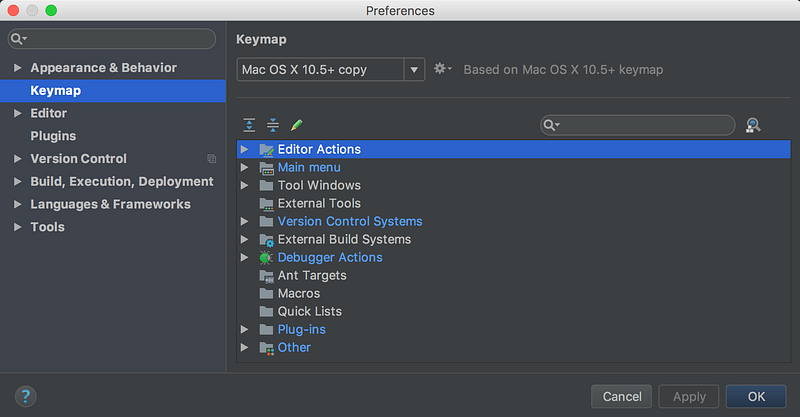
My favourite keymaps
This list is a combination of generic and Flutter-specific shortcuts that I use in my workflow.
Reformat Code with dartfmt
Made changes to a source file and want to reformat code?
Code→Reformat Code with dartfmt- My keymap:
⌥⌘L
How does it work? Say your indentation is a bit messy, like this:
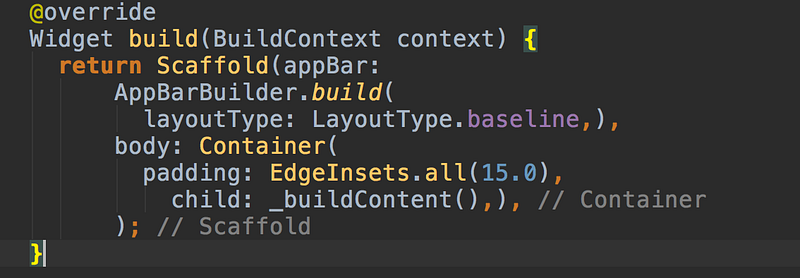
Fixing indentation by hand? Forget it.
Automated and consistent formatting is just one shortcut away.
Hot Tips
Adding a comma on the last parameter will format the code across multiple lines:
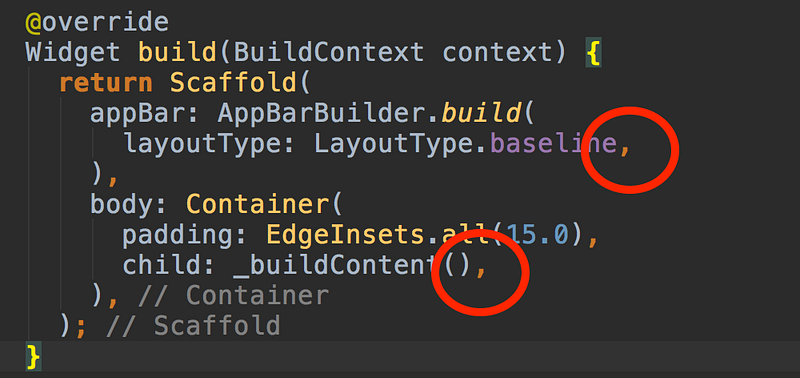
Omitting the comma on the last parameter will keep the code inline:

Most stock widgets in Flutter have a lot of optional parameters, so keeping them in separate lines can be a big win.
Extend / Shrink Selection
No need to use your trackpad to select a code block. Try this out instead:
Edit→Extend Selectionor⌥↑Edit→Shrink Selectionor⌥↓
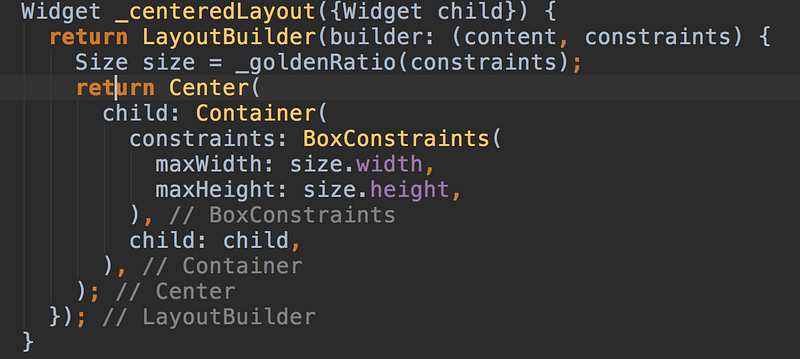
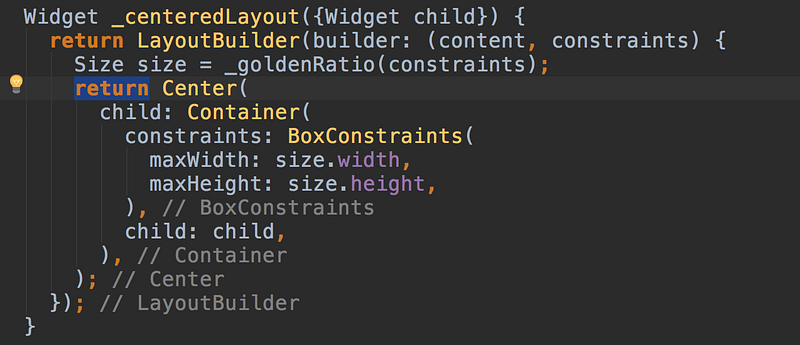
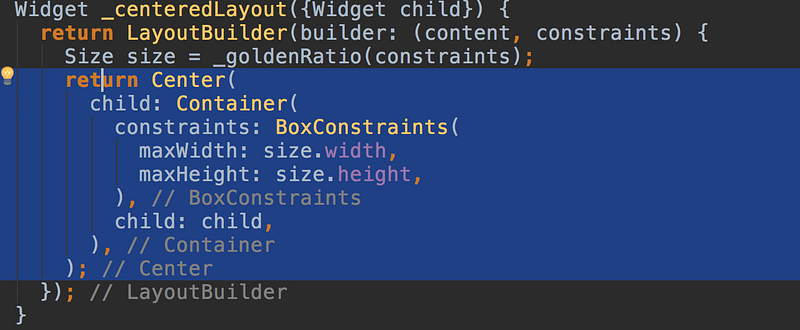
You can use this in combination with Extract to Method.
Extract to Method
Select a block of code (make sure the parentheses are balanced), then:
⌃ Click→Refactor→Extract→Method...- My keymap:
⌥⌘M
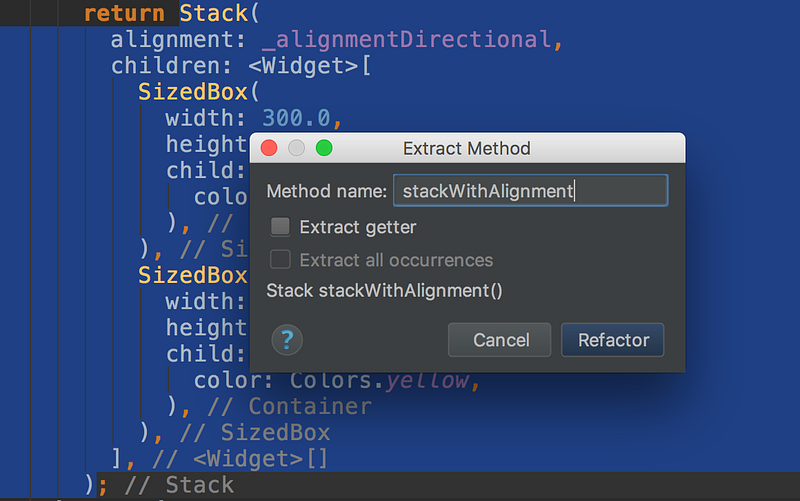
Super useful to decompose nested widget trees.
Wrap code options
Select a widget in your widget tree, then: ⌥⏎
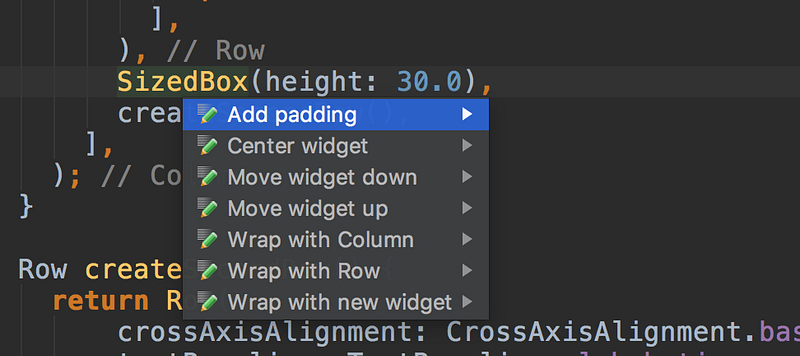
Rename symbol
⌃ Click→Refactor→Rename- Default keymap:
⇧F6
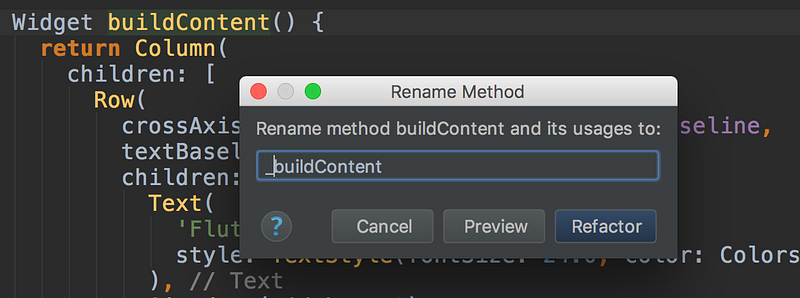
I use this all the time — especially when I forget to make things private.
Import library
Creating a new widget? You can quickly import the required library without adding the import manually. Just hit ⌥⏎:
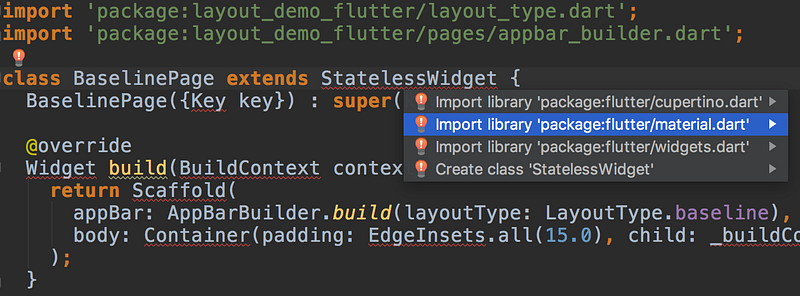
This one is a Godsend! ⏱
Optimise imports
As your code evolves, you may find that it has unused imports:
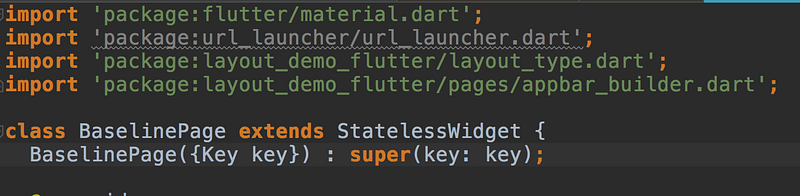
Clearing them away is just one shortcut away with ⌃⌥O or Code → Optimize Imports.
Implementing overrides
Just start typing the name of the method to be overriden / implemented:
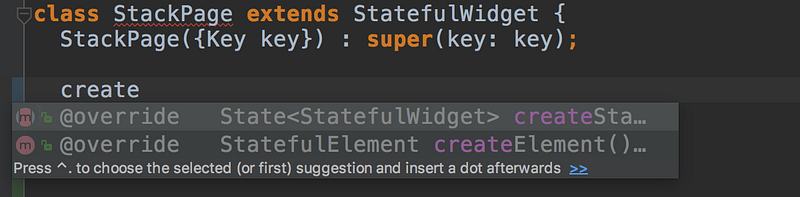
IntelliJ will suggest all candidates — choose one and hit Enter.
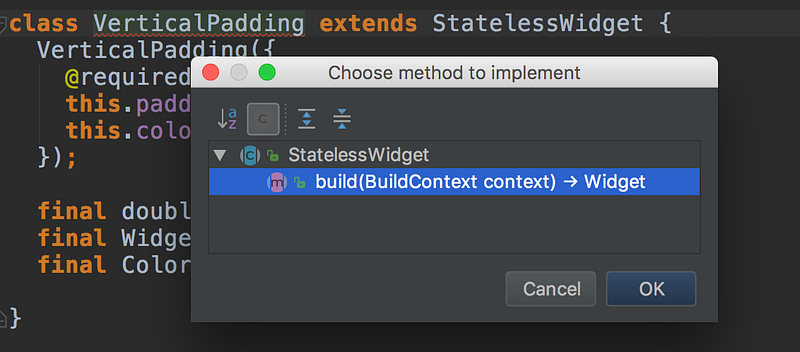
Implement methods
Similar to the above, use this to quickly add methods that are not yet implemented in a class. Mapped to ⌃I.
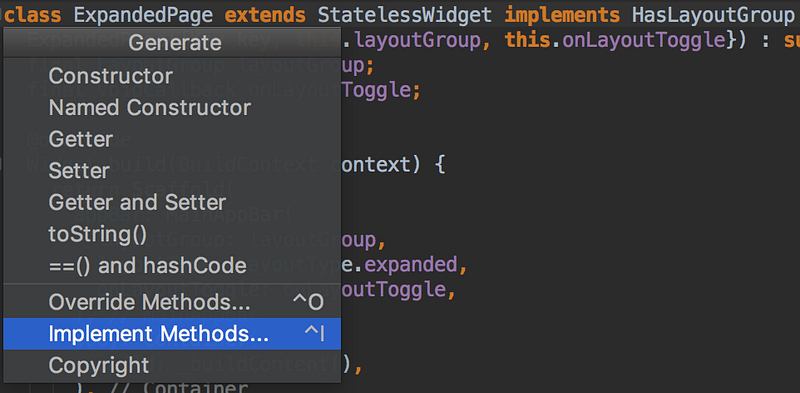
Generate
Handy shortcut to generate common class methods and members. Mapped to ⌥N.
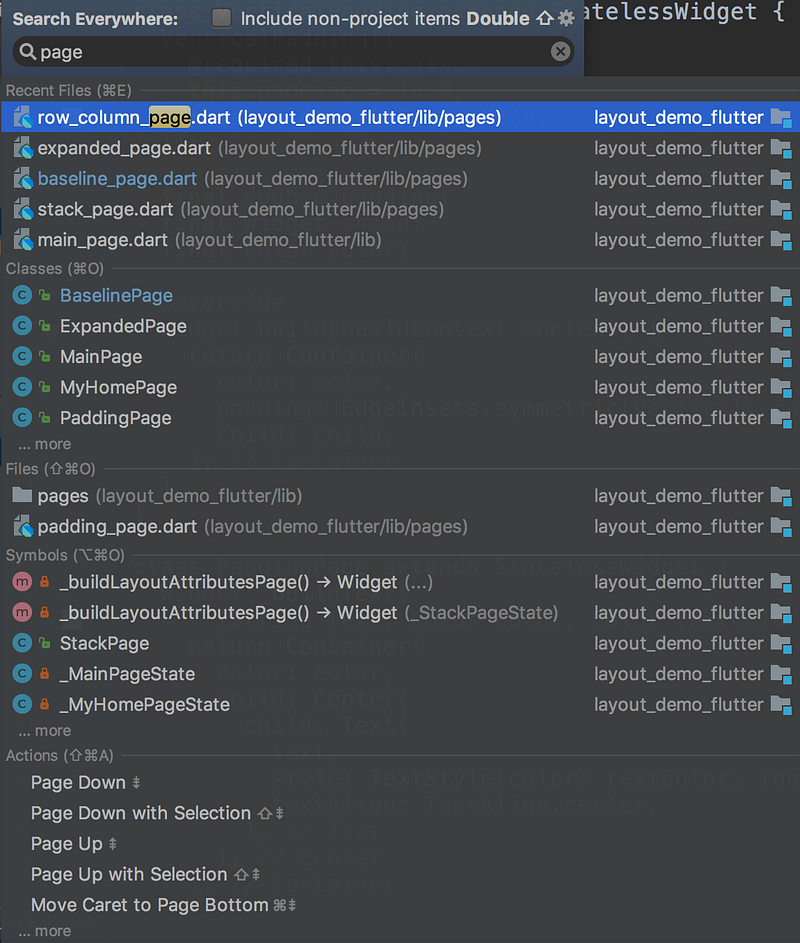
Search Everywhere
I use this as a quick file switcher or to find symbols by name within my code.
Just press Double ⇧ to show this window:
Switcher
This is very useful to switch between recent files.
Press ⌃⇥ to show, then again ⌃⇥ to select the next tab or ⌃⇧⇥ to select the previous tab:
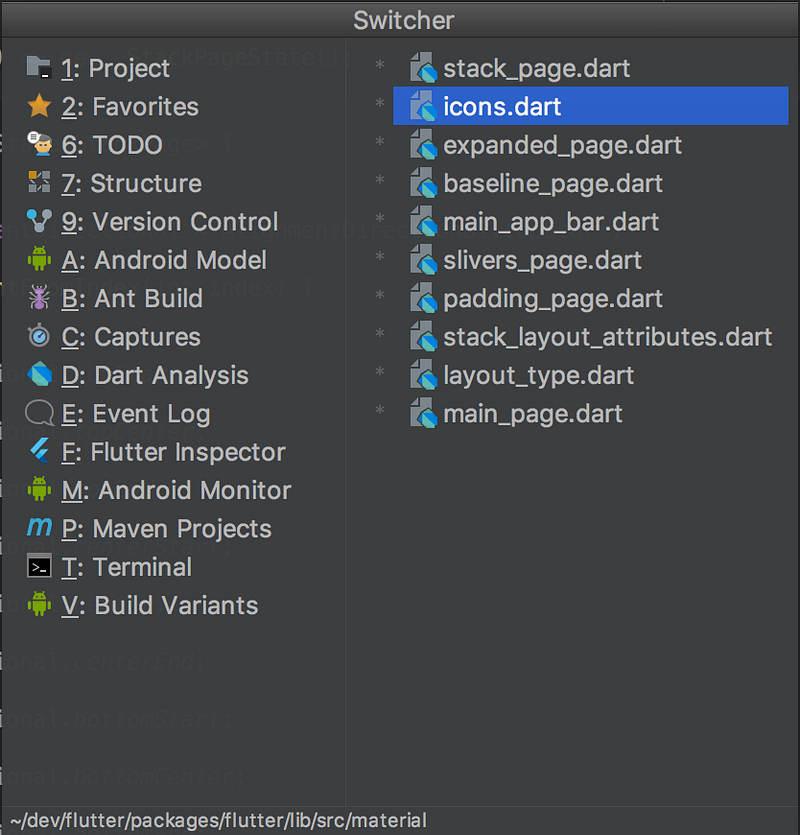
Also note the tabs on the left. Each one of these can be selected directly. So it would be ⌥1 for Project, ⌥2 for Favourites and so on.
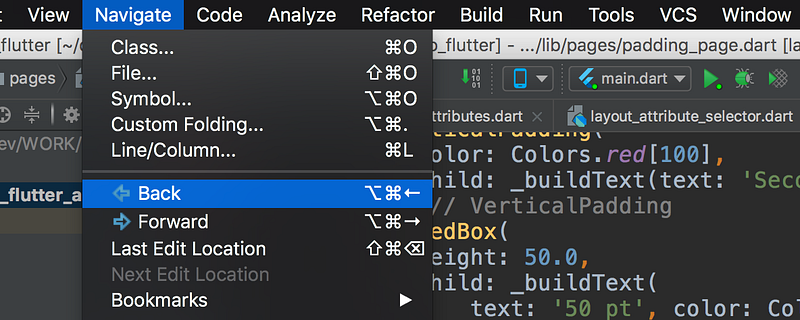
Move Back / Forward
Very useful for source code navigation. For example to return to previous scope after clicking through a method definition.
This is mapped to ⌥⌘← and ⌥⌘→ by default.
Find Usages
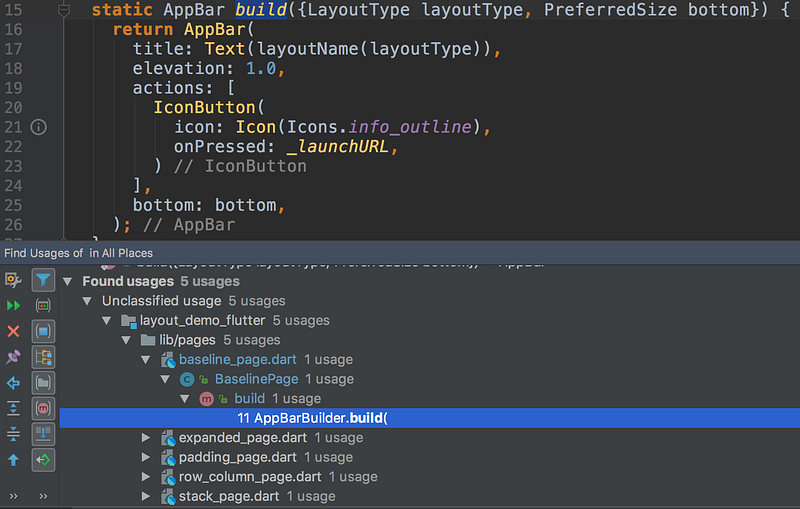
This one is super useful in bigger projects or if you’re new to a codebase. Finds all usages of a given method or class:
Edit → Find → Find Usages or ⌥F7.
Open project in Xcode / Android Studio
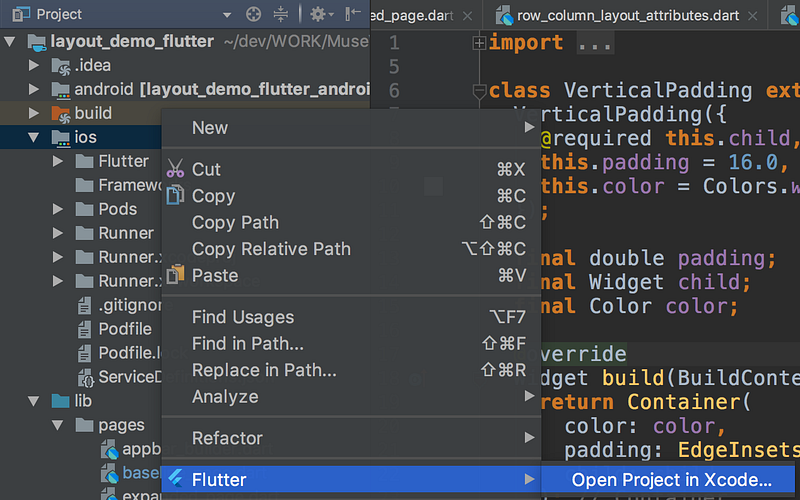
Ever need to jump over to Xcode to edit your iOS code / settings?
Head over to the ios folder, then ⌃ Click → Flutter → Open Project in Xcode...:
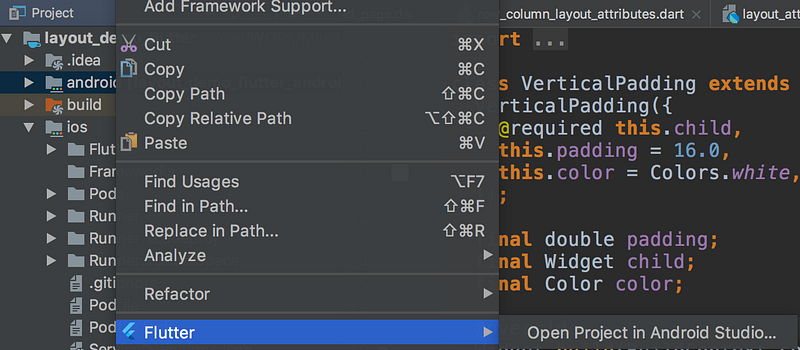
Or jump over to Android Studio to edit your Android project?
Head over to the android folder, then ⌃ Click → Flutter → Open Project in Android Studio...:
Hide All Tool Windows & Distraction free mode
IntelliJ has a lot of useful tool windows. But sometimes they get on the way.
Hiding them is just on shortcut away with ⇧⌘F12:
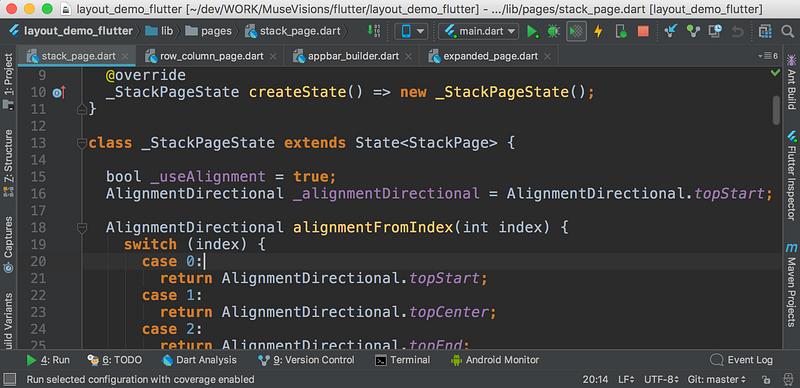
What this does it collapse them to the side (while still keeping them accessible).
To hide them entirely, you can use Distraction Free Mode. (View → Enter Distraction Free Mode). I have mapped this to ⇧⌘F11:
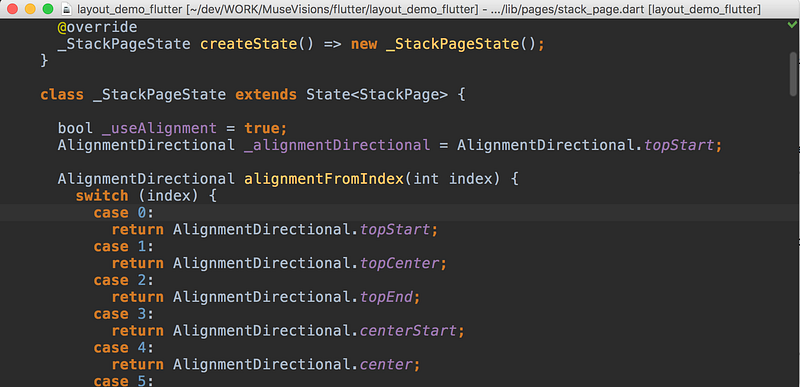
One more thing
Hot Reloading in Flutter is awesome. I get the best of it by running my IDE and the Simulator side by side:
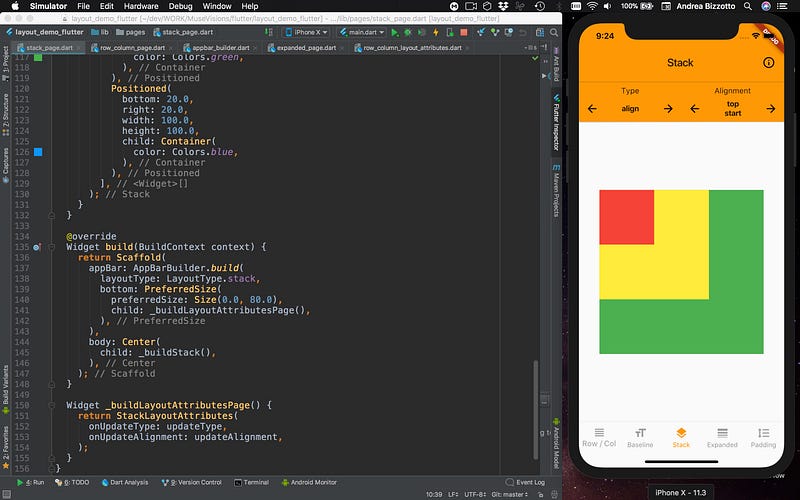
With this setup I get super rapid feedback and my Flutter workflow is a breeze. 🚀
I hear some Xcode folks out there are jealous… 😁
What are your favourite shortcuts? Let me know in the comments.
Happy coding!
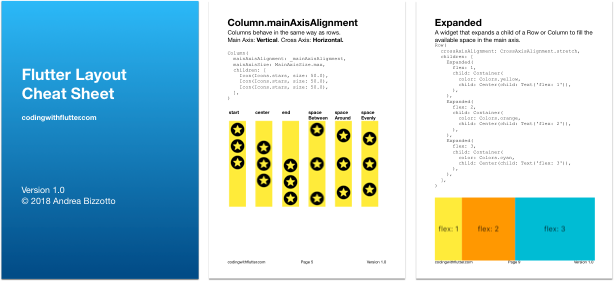
For more articles and video tutorials, check out Code With Andrea.
I’m @biz84 on Twitter. You can also see my GitHub page. If you liked this article, send me some 👏👏👏. It motivates me to write more content and helps others discover it.


