
Fluttering Up
Flutter 2020: The State of Cross-Platform
Promises (almost) delivered
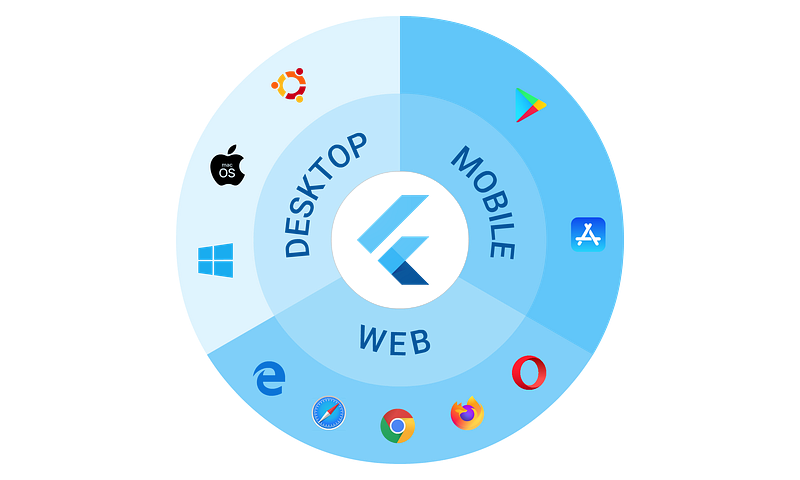
Flutter is a Google-backed cross-platform framework that enables cross-platform software development.
That means a Flutter app can be developed, built for, and deployed on multiple platforms from a single codebase.
The promise
The single codebase promise is very tempting. The fact that you can consistently ”do it all” with fewer resources, in less time, and sometimes with fewer skills (not less skill) is a plus that can’t be ignored.
Making an app that keeps the same look&feel across devices (same platform) is a challenge in itself. Achieving this across platforms, while keeping the subtle UI/UX mechanics specific to each platform, can quickly turn into a nightmare when you have different technologies and approaches for each of the target platforms.
Nobody wants to spend more money if they can spend less. Most of the clients want their ideas transformed into products as accurate and as soon as possible, so that is true also when it comes to spending time.
As time translates into money is simple math that proves cross-platform development to be more time and cost-effective, considering you need your app on more than one platform and that the cross-platform technology you chose provides the right support for the functionalities you need your app to provide.
If a single platform is targeted and/or there is some core functionality in your app that is hard/next to impossible to get using X cross-platform technology, then cross-platform might not be the right choice for you.
Sometimes getting things right for a single platform using a cross-platform technology might be more expensive than getting it right using native development.
A lot of clients think in advance of the costs and skill set their software will require down the line: how costly/easy is it to update?
Let’s say you had a large budget, everything went well and your apps are built natively and deployed on all platforms: mobile, web, and desktop. They look and work as intended and everyone is happy.
After a while (2–3 years) you want to update these apps and the original developers are not available or their support for those technologies ended. Now it is time to search for people with the right skills to update your Android (Java), iOS (Objective-C/Swift), web (HTML/CSS/JS + some at-that-time popular frontend framework), Windows (C++/C#), and macOS (Objective-C/Swift) apps (considering the backend APIs don’t need to be updated as well). It might be a huge challenge only to find the right people with the right skills, get them on the right page and get this update you want to be included and deployed consistently on all platforms.
Let’s be optimistic and say those devs are still around and they can offer their support. How much time will it take to communicate requirements, get all the apps updated, and deployed across all platforms?
Now let’s say all these apps are from a single codebase all in Dart/Flutter and you only need a team with the ability to work with Flutter, probably one person, that’s able to update all the apps.
Flutter strives to deliver this promise.
Flutter, at this stage, is very capable and promises to become the go-to solution for cross-platform software development.
Delivered
1st of all, you need an editor to write your app code in. You can use any text editor and the command-line tools for compiling your app, though that would be a bit tedious and waste your time. There are some options for editors: Visual Studio Code (VS Code), Android Studio, IntelliJ, and more. I use the VS Code (free) and sometimes IntelliJ (paid). IntelliJ offers a lot of nice features like auto-saving and is the best IDE I’ve used, though I don’t use it for Flutter projects at this time. My editor of choice for Flutter is VS Code.
2nd, you’ll want, and need, to install Flutter. You can do this on macOS, Windows, Linux, and Chrome OS.
Flutter has 4 main channels (branches): stable, beta, dev, and master. From left to right, the number of new features and capabilities increases, and the level of support and overall stability decreases. We’re going to use the latest and (not always) greatest master channel of Flutter.
To see on which channel you are you can use the command flutter channel in your TERMINAL tab. The output will be:
Flutter channels:
  master
  dev
  beta
* stable
For switching the channel to master you should use the flutter channel master followed by the flutter upgrade in your TERMINAL tab. There will be a short download and a summary output with the status.
3rd, and last step, is to test that you can create a project with everything now in place. Using View — Command Palette… and then typing Flutter you can choose Flutter: New Project. If no errors pop-up in your OUTPUT tab, you’re good to go.
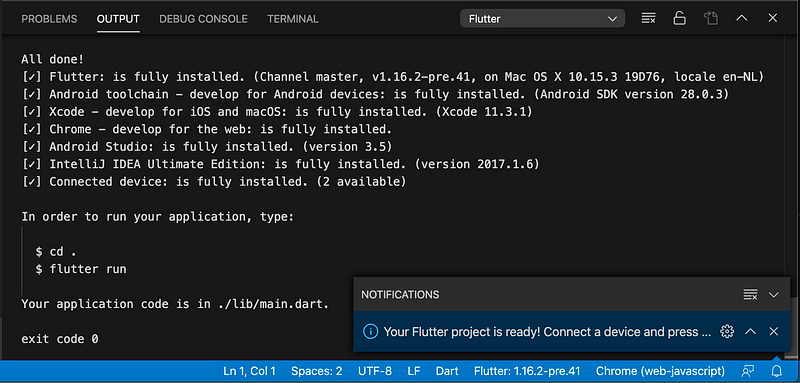
So, let’s dive into what Flutter can do in 2020:
Mobile
Flutter can use a single codebase to compile your app for iOS and Android.
By default, when we create a project from any channel of Flutter we can compile this project for mobile (phones/tablets) iOS/Android.
The command flutter devices will display available devices (connected to the development machine). For example, on my machine it outputs:
4 connected devices:AndroidDevice
• 94dcba0c
• android-arm64
• Android 10 (API 29)
iOSDevice
• 000507e0a52252f43eaa151dcbc4ebfa52bd92f0
• ios
• iOS 13.3.1
Chrome
• chrome
• web-javascript
• Google Chrome 80.0.3987.149
Web Server
• web-server
• web-javascript
• Flutter ToolsIf we run the flutter run command the project will compile and run in debug mode (the default mode) on the first device on the above list. In my case, that device is the Android device.
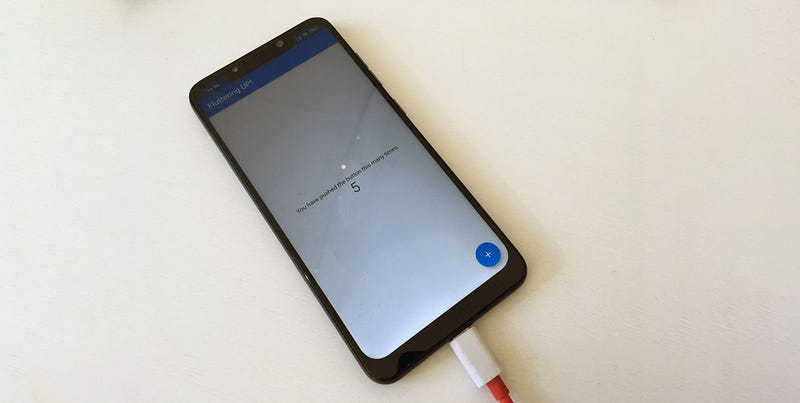
To run on a specific device you can use the device id (first in each sub-list). For example, to run on my iOS device, I’ll use the flutter run -d 000507e0a52252f43eaa151dcbc4ebfa52bd92f0 command.
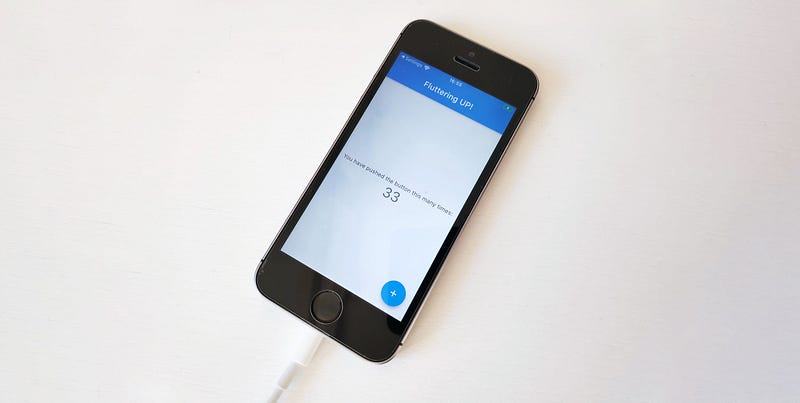
To run on iOS you’ll need a machine running macOS. There’s no need for an actual iOS device. A simulator will do the job for iOS and an emulator will do it for Android.
Web
With all the channels of Flutter (except stable) you will also have the option to run & build for the web platform.
To run on the web-javascript platform, we either use flutter run -d chrome or flutter run -d web-server.
The first option runs the app in the Chrome browser. The second runs the app, as the name suggests, on a web server.
The difference between the options is that the first one launches the app in Chrome and the other option just provides an address that you can navigate to with your preferred browser. Also, the Chrome option allows for advanced debugging and profiling.
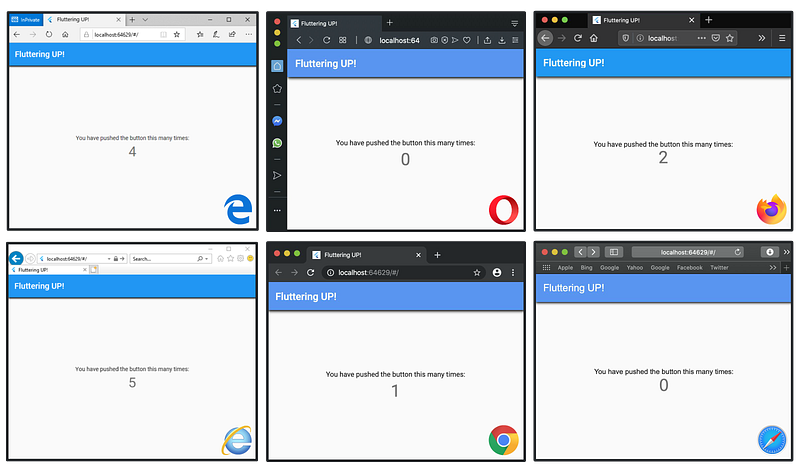
Warning: Flutter’s support for web development is not stable yet and hasn’t been thoroughly tested in production environments.
Desktop
Unlike the web platform, which is in beta, the desktop platform is at best in an early alpha state regarding its development/capabilities/support.
We’ll go through the supported operating systems from most developed to the least:
- macOS
From the project we just created using the master channel, the command flutter config --enable-macos-desktop will enable the support for desktop applications development on macOS (note that running and building such applications is possible only on a machine running macOS).
If we run the flutter devices, with no physical devices attached, we get:
3 connected devices:macOS
• macOS
• darwin-x64
• Mac OS X 10.15.3 19D76
Chrome
• chrome
• web-javascript
• Google Chrome 80.0.3987.149
Web Server
• web-server
• web-javascript
• Flutter ToolsTo add a build specific folder to our project we have to run flutter create ..
Finally, to run our desktop application on macOS we use the flutter run -d macOS command.
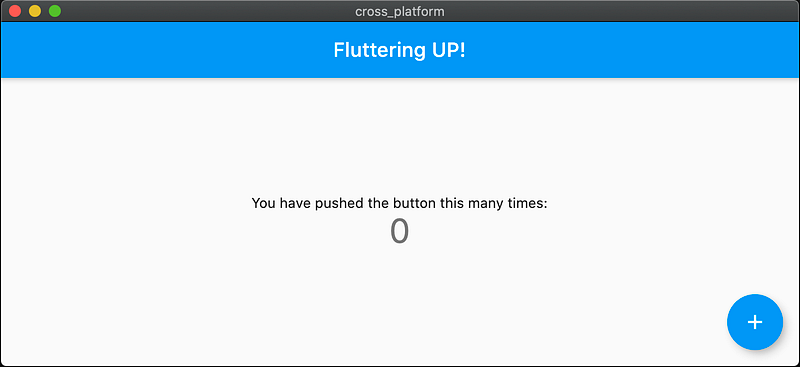
Warning: macOS, although is the most developed of the desktop platforms, is still in alpha.
- Windows
From the project we just created using the master channel, the command flutter config --enable-windows-desktop will enable the support for desktop application development on Windows (note that running and building such applications is possible only on a machine running Windows).
If we run the flutter devices, with no physical devices attached, we get:
3 connected devices:Windows
• Windows
• windows-x64
• Microsoft Windows [Version 10.0.18362.720]
Chrome
• chrome
• web-javascript
• Google Chrome 80.0.3987.149
Web Server
• web-server
• web-javascript
• Flutter ToolsTo add a build specific folder to our project we have to run flutter create ..
Finally, to run our desktop application on Windows we use the flutter run -d Windows command.
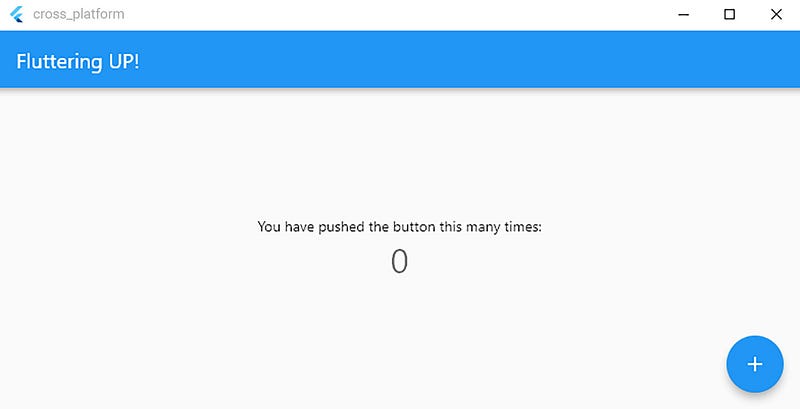
Warning: The current Windows shell is an early technical preview. The APIs for the final embedding may be significantly different from the current API surface.
- Linux
From the project we just created using the master channel, the command flutter config --enable-linux-desktop the will enable the support for desktop applications development on Linux (note that running and building such applications is possible only on a machine running Linux).
If we run the flutter devices, with no physical devices attached, we get:
1 connected device:Linux
• Linux
• linux-x64
• LinuxTo add a build specific folder to our project we have to run flutter create ..
Finally, to run our desktop application on Linux we use the flutter run -d Linux command.
I’ve set up Ubuntu 18.04 LTS as WSL (Windows Subsystem for Linux) on my Windows 10 machine. For some time now it is possible to run a Linux inside Windows. Unfortunately, I couldn’t successfully get Xming UI to run the sample app.
Then turned on to use VirtualBox on Windows which, for some reason, failed to install Ubuntu.
Finally, I managed to get VirtualBox running Ubuntu fine on macOS.
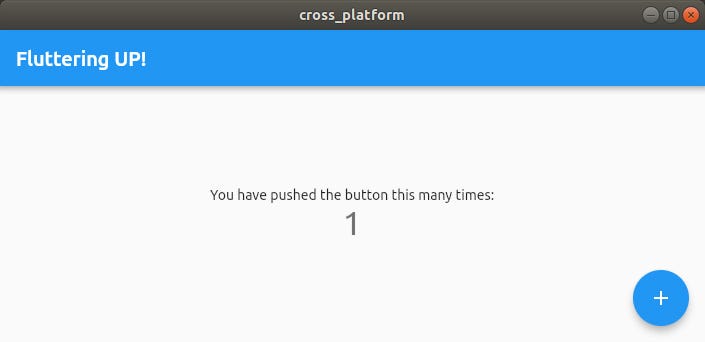
Warning: The current Linux shell is a GLFW placeholder, to allow early experimentation. The APIs for the final shell will be radically different from the current implementation.
Wrap-up
We managed to get the sample app running on mobile (iOS & Android), web (in Microsoft Edge & Internet Explorer 11, Opera, Chrome, Firefox, and Safari browsers), and desktop (macOS, Windows, and Linux systems).
With a bit of hacking, although not officially supported, we could even get the sample app run on a Raspberry Pi (IoT context).
You might have noticed that I modified only the default title of the app to Fluttering UP! (more on this at a later time) and removed the debug banner by using the debugShowCheckedModeBanner: false for the MaterialApp.
Also, another thing to notice is that there are small differences in rendering the sample app that comes with Flutter (color, font, shadows, sizes are rendered a bit different from platform to platform, and in the case of the web platform/browsers, from browser to browser).
The desktop platforms are not there yet regarding stability and usability but are on the right track.
If you want to get started with Flutter you can jump right into the default sample app and start from there. There are plenty of resources to discover and use for building your app(s). You can also start with some Dart fundamentals, Dart being the secret sauce (programming language) that makes it all possible.
Flutter, at this stage, is very capable and promises to become the go-to solution for cross-platform software development.
An updated review of Flutter's cross-platform capabilities in early 2021 is here:
Tha(nk|t’)s all!