
Fine-tuning YOLOv9
Step-by-step guide for training and fine-tuning YOLOv9 on custom datasets in Google Colab
Not a member yet? Read for free here!
In this guide, we’ll go through fine-tuning YOLOv9 on your custom datasets. Optionally, you can use Google Colab to speed up training.
Task
Begin by choosing the appropriate task. YOLOv9 is an object detection model. Start by defining which objects you want to detect. Let’s create the training configuration YAML file:
# train_model.yaml
path: /content/gdrive/MyDrive/path/to/dataset
train: train
val: val
nc: 1
names:
0: hands- path, train, val: The path to our training and validation data.
- nc: The number of classes.
- names: The names of all classes.
Dataset
After choosing a task, we’ll select a dataset to work with. I’ll be working with grayscale images. Choose whatever dataset suits your project. The dataset needs to be in YOLO object detection format, meaning each image shall have a corresponding text file:
<class> <center_x> <center_y> <width> <height>
...
<class> <center_x> <center_y> <width> <height>
The text annotation file contains one or more rows. Each row contains a detected object of a class with its bounding box in normalized (0–1) coordinates.
Let’s continue by organizing the data into training and validation:
path/to/data/
├─ train/
│  ├─ img_0000.jpg
│  ├─ img_0000.txt
│  ├─ ...
│  ├─ img_0999.jpg
│  ├─ img_0999.txt
├─ val/
│  ├─ img_1000.jpg
│  ├─ img_1000.txt
│  ├─ ...
│  ├─ img_1099.jpg
│  ├─ img_1099.txt
Don’t forget to upload the dataset and the training YAML file to your Google Drive.
Environment
We’ll use Google Colab in this tutorial, but feel free to run the training locally. Begin by installing Ultralytics in your environment:
# Google Colab
!pip install ultralytics

# Local Terminal
pip install ultralytics
Next, import the YOLO model:
from ultralytics import YOLOIf you’re using Google Colab, mount the Google Drive to access all files:
from google.colab import drive
drive.mount('/content/gdrive')
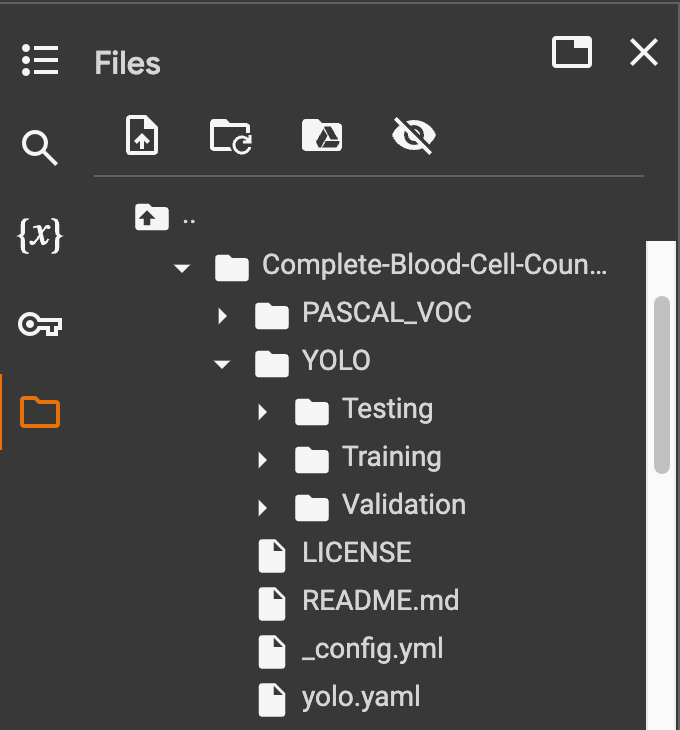
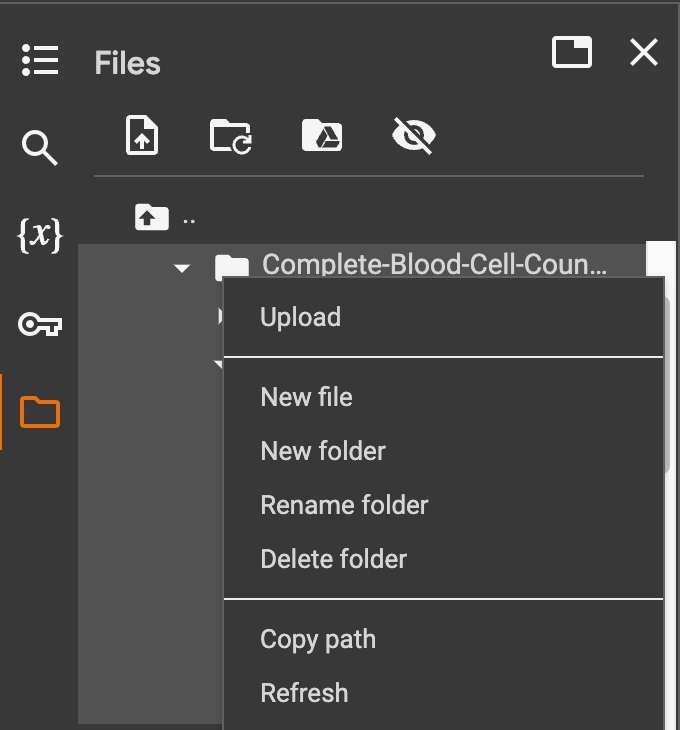
Now you can access all your files, including your dataset, in Google Colab:
Training
Training with YOLOv9 is straightforward. Specify the path to your YAML configuration and the number of epochs for your model’s training:
model = YOLO("yolov9c.yaml")
model.train(data="/content/gdrive/MyDrive/path/to/train_model.yaml", epochs=10)
There are two YOLOv9 models available in the Ultralytics repository:
- yolov9c.yaml
- yolov9e.yaml
You should see training progress:
Epoch    GPU_mem   box_loss   cls_loss   dfl_loss  Instances       Size
1/10       3.7G      1.408      2.853      1.454        132        640: 100%|██████████| 19/19 [00:11<00:00,  1.61it/s]
           Class     Images  Instances      Box(P          R      mAP50  mAP50-95): 100%|██████████| 2/2 [00:02<00:00,  1.22s/it]
             all         60        812     0.0416      0.641      0.396      0.264
...
Fine-tune
Now you can fine-tune your YOLOv9 model by setting resume=True:
model.train(data="/content/gdrive/MyDrive/path/to/train_model.yaml", resume=True, epochs=10)- (Optional): Use
freeze=Nto freeze the N first layers of the model.
Result
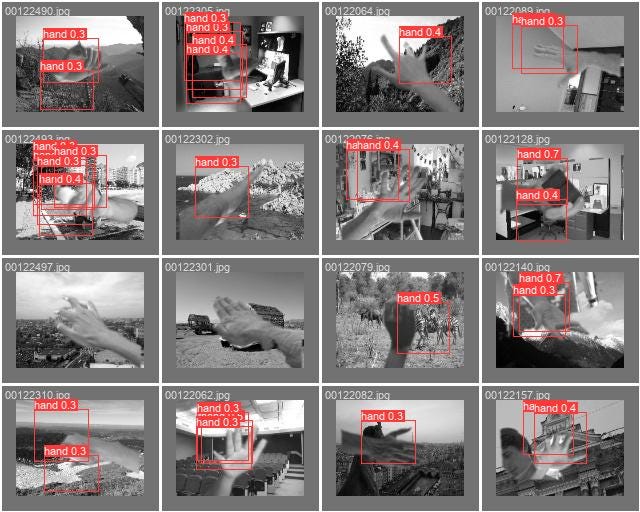
After training for 10 epochs:
Thank you for reading!


