Fine-Tune Qwen 2.5 on Custom Data using Free Google Colab: A Step-by-Step Guide
In the evolving landscape of AI, fine-tuning large language models (LLMs) has become essential for businesses and researchers looking to adapt models to specific tasks. Today, we’ll dive into fine-tuning Alibaba’s Qwen 2.5 model on custom data using Google Colab and Unsloth — an efficient tool for quickly fine-tuning models. Even if you’re new to the fine-tuning space, this guide will walk you through the entire process, making it easier to follow.
Introduction to Qwen 2.5
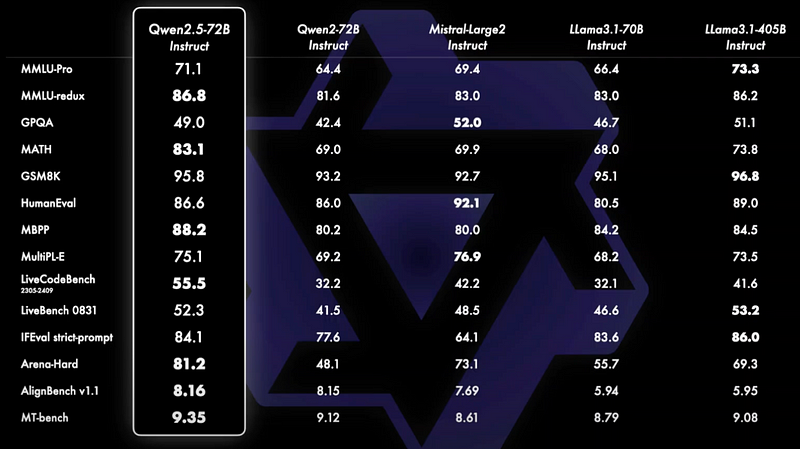
Alibaba’s Qwen 2.5 is part of their recent suite of language models that range from 500 million to 72 billion parameters, catering to a variety of tasks. These models can be adapted to different use cases, such as general language processing, code understanding, and mathematical computations. For this tutorial, we’ll focus on a smaller version of Qwen 2.5 for practical reasons, but the same methodology applies to larger models if you have the resources.
Why Fine-Tune Qwen 2.5?
Fine-tuning is essential when you want to adapt a general-purpose LLM like Qwen to a specific domain or dataset. Whether it’s for corporate knowledge, proprietary data, or specialized tasks, fine-tuning helps your model understand and respond more accurately based on your unique dataset.
Fine-tuning can be done using techniques like LoRA (Low-Rank Adaptation), which allows for parameter-efficient tuning. This is the method we’ll use here, as it’s effective for adapting large models without needing to adjust all the parameters.
Prerequisites
Before diving into fine-tuning, here’s what you need:
- A Google Colab account with access to free GPUs (T4 or better).
- Familiarity with Unsloth, a fine-tuning tool for LLMs.
- Some basic understanding of LoRA and fine-tuning concepts.
Getting Started: Setting Up Google Colab
To run this project, open the following Colab Notebook for 2x faster inference using Llama-3.1 8b. Once you’ve opened the notebook, simply follow these steps:
- Go to Runtime and click Run all.
- This will set up the notebook with Unsloth and allow you to finetune AI models on a free Tesla T4 instance.
Step 1: Creating a Google Colab Account
If you don’t already have a Google Colab account, create one by visiting Google Colab. It’s free and comes with a GPU runtime, making it ideal for model training.
Step 2: Configuring the Environment
Once inside Colab, you’ll need to configure it to use the GPU. Head over to:
- Runtime > Change runtime type and select GPU (T4 recommended).
- Now, you’re ready to install the necessary libraries and start fine-tuning.
Step 3: Installing Unsloth
Unsloth is a robust and quick fine-tuning tool that we’ll use for this tutorial. To install it, run the following command in your Colab notebook:
!pip install unsloth
# Get the latest nightly version
!pip uninstall unsloth -y && pip install --upgrade --no-cache-dir "unsloth[colab-new] @ git+https://github.com/unslothai/unsloth.git"
Unsloth comes with several pre-configured models and optimization techniques, including LoRA, making it perfect for quick fine-tuning jobs. Once installed, we can proceed to set up the Qwen 2.5 model.
Fine-Tuning Qwen 2.5 with LoRA
Step 4: Downloading Qwen 2.5 Model
Now, let’s download and load the pre-trained Qwen 2.5 model. The quantized version of Qwen 2.5 is available and optimized for Colab usage:
from unsloth import FastLanguageModel
import torch
max_seq_length = 2048 # Choose any! We auto support RoPE Scaling internally!
dtype = None # None for auto detection. Float16 for Tesla T4, V100, Bfloat16 for Ampere+
load_in_4bit = True # Use 4bit quantization to reduce memory usage. Can be False.

# 4bit pre quantized models we support for 4x faster downloading + no OOMs.
fourbit_models = [
    "unsloth/Meta-Llama-3.1-8B-bnb-4bit",      # Llama-3.1 15 trillion tokens model 2x faster!
    "unsloth/Meta-Llama-3.1-8B-Instruct-bnb-4bit",
    "unsloth/Meta-Llama-3.1-70B-bnb-4bit",
    "unsloth/Meta-Llama-3.1-405B-bnb-4bit",    # We also uploaded 4bit for 405b!
    "unsloth/Mistral-Nemo-Base-2407-bnb-4bit", # New Mistral 12b 2x faster!
    "unsloth/Mistral-Nemo-Instruct-2407-bnb-4bit",
    "unsloth/mistral-7b-v0.3-bnb-4bit",        # Mistral v3 2x faster!
    "unsloth/mistral-7b-instruct-v0.3-bnb-4bit",
    "unsloth/Phi-3.5-mini-instruct",           # Phi-3.5 2x faster!
    "unsloth/Phi-3-medium-4k-instruct",
    "unsloth/gemma-2-9b-bnb-4bit",
    "unsloth/gemma-2-27b-bnb-4bit",            # Gemma 2x faster!
] # More models at https://huggingface.co/unsloth

model, tokenizer = FastLanguageModel.from_pretrained(
    # Can select any from the below:
    # "unsloth/Qwen2.5-0.5B", "unsloth/Qwen2.5-1.5B", "unsloth/Qwen2.5-3B"
    # "unsloth/Qwen2.5-14B",  "unsloth/Qwen2.5-32B",  "unsloth/Qwen2.5-72B",
    # And also all Instruct versions and Math. Coding verisons!
    model_name = "unsloth/Qwen2.5-7B-Instruct",
    max_seq_length = max_seq_length,
    dtype = dtype,
    load_in_4bit = load_in_4bit,
    # token = "hf_...", # use one if using gated models like meta-llama/Llama-2-7b-hf
)
This loads a smaller version of the Qwen 2.5 model (500 million parameters), but if your system has more resources, you can scale up to a larger model.
Step 5: Applying LoRA Adapters
LoRA is a technique for parameter-efficient fine-tuning. Instead of fine-tuning the entire model, LoRA adds adapters on top of specific layers and fine-tunes only those, saving both time and resources.
Here’s how to apply LoRA adapters:
model = FastLanguageModel.get_peft_model(
    model,
    r = 16, # Choose any number > 0 ! Suggested 8, 16, 32, 64, 128
    target_modules = ["q_proj", "k_proj", "v_proj", "o_proj",
                      "gate_proj", "up_proj", "down_proj",],
    lora_alpha = 16,
    lora_dropout = 0, # Supports any, but = 0 is optimized
    bias = "none",    # Supports any, but = "none" is optimized
    # [NEW] "unsloth" uses 30% less VRAM, fits 2x larger batch sizes!
    use_gradient_checkpointing = "unsloth", # True or "unsloth" for very long context
    random_state = 3407,
    use_rslora = False,  # We support rank stabilized LoRA
    loftq_config = None, # And LoftQ
)
Here’s a quick breakdown:
- rank: Controls the degree of dimensionality reduction in LoRA.
- alpha: Scaling factor for the LoRA matrix.
- dropout: Helps prevent overfitting.
- target_modules: Specifies which layers to fine-tune (query, key, value, output projection layers).
Step 6: Preparing Your Custom Dataset
To fine-tune a conversation-style model like Qwen-2.5, it’s essential to format your dataset correctly. In this example, we will use Maxime Labonne’s FineTome-100k dataset, which follows a ShareGPT conversation format. We’ll convert this into Hugging Face’s standard multi-turn format for finetuning.
The original dataset format might look like this:
{"from": "system", "value": "You are an assistant"}
{"from": "human", "value": "What is 2+2?"}
{"from": "gpt", "value": "It's 4."}
Our goal is to convert it into Hugging Face’s format, which uses “role” and “content” instead of “from” and “value”:
{"role": "system", "content": "You are an assistant"}
{"role": "user", "content": "What is 2+2?"}
{"role": "assistant", "content": "It's 4."}
This is crucial for correctly representing multi-turn conversations in formats like Qwen-2.5, which renders dialogues as follows:
<|im_start|>system
You are Qwen, created by Alibaba Cloud. You are a helpful assistant.<|im_end|>
<|im_start|>user
Hello!<|im_end|>
<|im_start|>assistant
Hey there! How are you?<|im_end|>
<|im_start|>user
I'm great thanks!<|im_end|>
Applying the Correct Chat Template
We use Unsloth’s get_chat_template function to format conversations according to various templates, including zephyr, chatml, mistral, llama, and qwen-2.5.
Here’s how to apply the correct chat template for Qwen-2.5:
from unsloth.chat_templates import get_chat_template

# Applying the Qwen-2.5 template to the tokenizer
tokenizer = get_chat_template(
    tokenizer,
    chat_template="qwen-2.5",
)
Next, we define a formatting_prompts_func to structure the dataset conversations according to the selected template:
def formatting_prompts_func(examples):
    convos = examples["conversations"]
    texts = [
        tokenizer.apply_chat_template(convo, tokenize=False, add_generation_prompt=False)
        for convo in convos
    ]
    return {"text": texts}
Loading and Standardizing the Dataset
Once we’ve applied the chat template, we need to load the dataset and convert it from the ShareGPT format to Hugging Face’s standard multi-turn format. Unsloth provides a utility function called standardize_sharegpt to make this conversion seamless:
pythonfrom datasets import load_dataset

# Loading the FineTome-100k dataset
dataset = load_dataset("mlabonne/FineTome-100k", split="train")

# Standardizing the ShareGPT format
dataset = standardize_sharegpt(dataset)
After running this, the dataset will be structured in a format suitable for training:
Original format:
{"from": "system", "value": "You are an assistant"}
{"from": "human", "value": "What is 2+2?"}
{"from": "gpt", "value": "It's 4."}
Converted format:
{"role": "system", "content": "You are an assistant"}
{"role": "user", "content": "What is 2+2?"}
{"role": "assistant", "content": "It's 4."}
Step 7: Fine-Tuning the Model
With the dataset and model ready, we can start fine-tuning. First, define your training configuration:
from trl import SFTTrainer
from transformers import TrainingArguments, DataCollatorForSeq2Seq
from unsloth import is_bfloat16_supported

trainer = SFTTrainer(
    model = model,
    tokenizer = tokenizer,
    train_dataset = dataset,
    dataset_text_field = "text",
    max_seq_length = max_seq_length,
    data_collator = DataCollatorForSeq2Seq(tokenizer = tokenizer),
    dataset_num_proc = 2,
    packing = False, # Can make training 5x faster for short sequences.
    args = TrainingArguments(
        per_device_train_batch_size = 2,
        gradient_accumulation_steps = 4,
        warmup_steps = 5,
        # num_train_epochs = 1, # Set this for 1 full training run.
        max_steps = 60,
        learning_rate = 2e-4,
        fp16 = not is_bfloat16_supported(),
        bf16 = is_bfloat16_supported(),
        logging_steps = 1,
        optim = "adamw_8bit",
        weight_decay = 0.01,
        lr_scheduler_type = "linear",
        seed = 3407,
        output_dir = "outputs",
    ),
)

trainer_stats = trainer.train()
This will start fine-tuning the model. Due to the efficient nature of LoRA, fine-tuning on even a modest dataset should complete relatively quickly.
Step 8: Verifying the Fine-Tuning Results
After fine-tuning, test your model:
from unsloth.chat_templates import get_chat_template

tokenizer = get_chat_template(
    tokenizer,
    chat_template = "qwen-2.5",
)
FastLanguageModel.for_inference(model) # Enable native 2x faster inference

messages = [
    {"role": "user", "content": "Continue the fibonnaci sequence: 1, 1, 2, 3, 5, 8,"},
]
inputs = tokenizer.apply_chat_template(
    messages,
    tokenize = True,
    add_generation_prompt = True, # Must add for generation
    return_tensors = "pt",
).to("cuda")

outputs = model.generate(input_ids = inputs, max_new_tokens = 64, use_cache = True,
                         temperature = 1.5, min_p = 0.1)
tokenizer.batch_decode(outputs)
If the fine-tuning is successful, the model should respond accurately based on the custom dataset you provided.
Saving and Deploying Your Model
Step 9: Saving the Fine-Tuned Model
Once you’re satisfied with the results, you can save the model either locally or on Hugging Face for future use or public sharing.
To save the model locally:
model.save_pretrained("lora_model") # Local saving
tokenizer.save_pretrained("lora_model")
To upload it to Hugging Face:
from huggingface_hub import HfApi
api = HfApi()
api.upload_model("your_model_name", token="your_hf_token")
This makes your fine-tuned model accessible to others and reusable in future projects.
Conclusion
Fine-tuning Qwen 2.5 using Google Colab and Unsloth is an excellent way to customize your language models on a budget. This process, powered by parameter-efficient fine-tuning techniques like LoRA, ensures that you can adapt even large-scale models for specific tasks without extensive resources.
Key Takeaways:
- Qwen 2.5 from Alibaba offers flexible model sizes and is perfect for various use cases.
- Google Colab provides free GPUs to fine-tune large models without incurring additional costs.
- Unsloth is an efficient tool that simplifies the fine-tuning process.
- Techniques like LoRA allow for resource-efficient model adaptation.
With the right tools and guidance, you can quickly fine-tune powerful models like Qwen 2.5, enabling them to tackle custom tasks with high accuracy. If you found this tutorial helpful, be sure to follow and share with your network!
Follow me on LinkedIn for more insights: Kramik Nakrani on LinkedIn
#MachineLearning #AI #ArtificialIntelligence #NaturalLanguageProcessing #NLP #AITraining #GPT #LLM #DeepLearning #OpenAI #HuggingFace #Qwen2_5 #DataScience #AIModels #TechBlog #GenerativeAI #AIResearch #Finetuning #AICommunity #MediumBlog


