
Finding Your Story’s Distribution Topic
How to know what topic your story was curated into
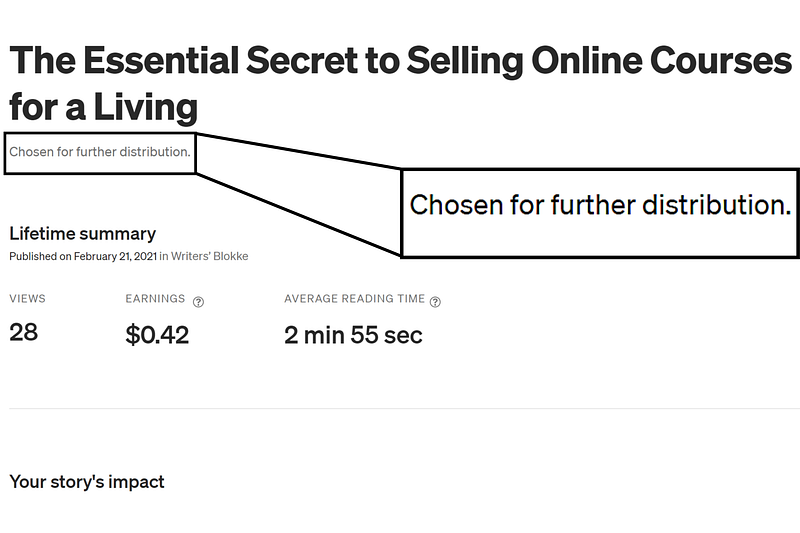
When you see that your story has been chosen for further distribution, we all get very excited. However, a question that quickly surfaces is “in what topic?”.
I have been searching for a way to find out where my stories are being curated into. I have seen articles about going into the page source and searching topic. This did not work for me so I am guessing that Medium has changed how they denote curated or distributed topics.
However, I have recently found a way to determine what topics your story has been curated into. So for all those wondering, here is a simple way to determine what topic your story was distributed in.
To show you an example, I am going to be determining what topic my recent story was curated into.
Step 1: Convert Your Page Into JSON
You do not need to know anything about coding to be able to do this. However, JSON stands for JavaScript Object Notation and is a way to format a website that both humans and machines can easily read.
When we convert our site into JSON formatting, we can get access to code that is not available when looking at the webpage.
To convert your story, you simply need to go to your story.
Add the code “?format=json” to the end of your story's URL.
For example, my story’s URL is: https://readmedium.com/the-essential-secret-to-selling-online-courses-for-a-living-c50ae6ef5554
I add the code to the end to produce this URL: https://readmedium.com/the-essential-secret-to-selling-online-courses-for-a-living-c50ae6ef5554?format=json
Then, press enter. You will see a set of code that may be difficult to read, but don’t worry you do not need to read it.
Step 2: Search for “PrimaryTopic”
The next step to search the code to find out the topic your story was distributed in.
To do this, press ctrl+F or cmd+F. This will present a search bar at the top of your web browser, which you can see in the top right corner of the image below.
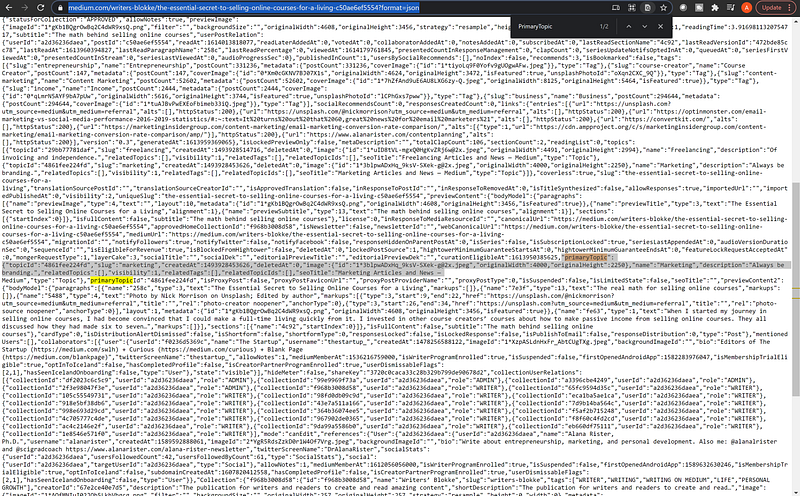
In the search bar, you want to type “primaryTopic”. This will lead you to a piece of code similar to the one below.
"primaryTopic":{"topicId":"4861fee224fd","slug":"marketing","createdAt":1493928453626,"deletedAt":0,"image":{"id":"1*[email protected]","originalWidth":4000,"originalHeight":2250},"name":"Marketing","description":"Always be branding.","relatedTopics":[],"visibility":1,"relatedTags":[],"relatedTopicIds":[],"seoTitle":"Marketing Articles and News —Step 3: Determine Your Topic
Within this code, you want to look for the “name” key and look at the topic next to it, which I have bolded below.
"primaryTopic":{"topicId":"4861fee224fd","slug":"marketing","createdAt":1493928453626,"deletedAt":0,"image":{"id":"1*[email protected]","originalWidth":4000,"originalHeight":2250},"name":"Marketing","description":"Always be branding.","relatedTopics":[],"visibility":1,"relatedTags":[],"relatedTopicIds":[],"seoTitle":"Marketing Articles and News —This means that my recent article was distributed into the topic of Marketing.
If your story has not been distributed, then there will be no results for “primaryTopic” when you search.
Once you have completed these steps you can now find distribution topics for any story!