
Mastering Figma: Advanced Tips & Tricks in 2023. Part #2
Unleashing the Full Potential of Figma: A Comprehensive Guide for UX/UI, Product and Web Designers
Welcome back to the second installment of our deep dive into Figma’s world!
In “Mastering Figma: Advanced Tips & Tricks in 2023. Part #2,” we’re going to elevate your design game even further.
However, I highly recommend you to read also my previous part about Figma Advanced Tips & Tricks
Whether you’re a seasoned pro or still getting the hang of this powerful tool, these tips and tricks are designed to streamline your workflow, enhance your designs, and unlock new levels of creativity.
Let’s jump right in and explore more ways to make your Figma experience even more efficient and enjoyable!
#1: Adapt the Text Layer Size to the Content just by Double Tapping!
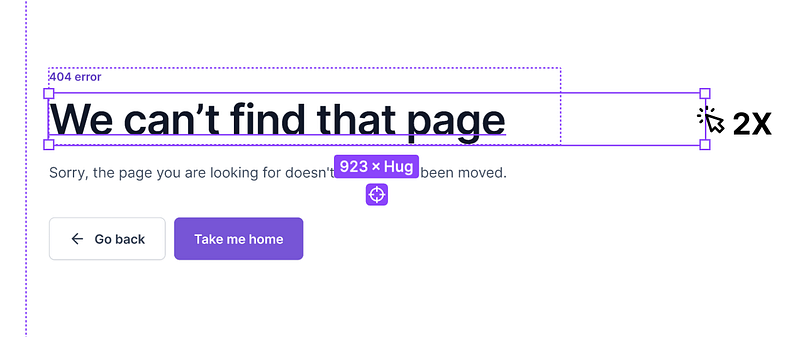
Ensure your text layers are always the perfect size for their content, eliminating unnecessary white space and keeping your designs clean and professional by just double tapping in the corner of a frame
#2 Switching Variants — Learn how to transform component variants into intuitive switch toggles for a more user-friendly design experience.
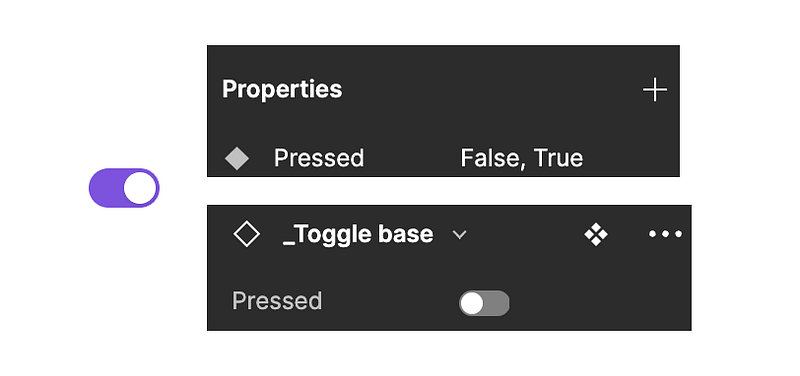
Variants of components are displayed as dropdowns in the specific component instance. If you want them to look like switch toggles, name one “Yes”, “True” or “On”, and the second one “No”, “False” or “Off”.
#3 Setting the Nudge Amount to 8px
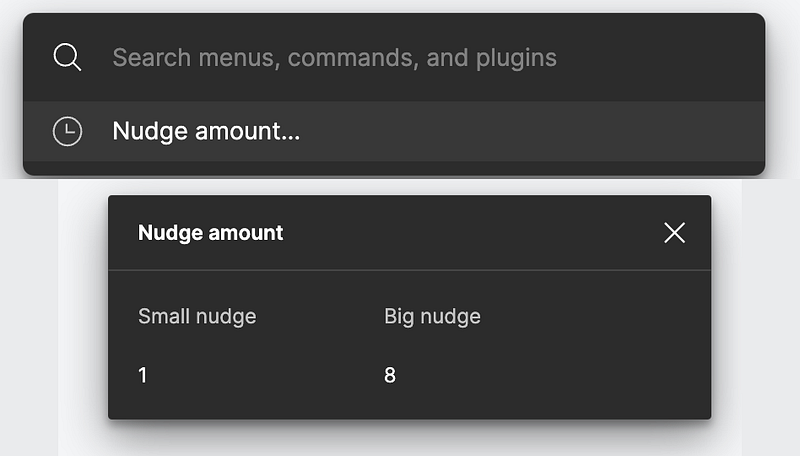
The recommended base unit size in Figma is 8px. To use it consistently, set the nudge amount option to 8px. To change the nudge amount, press Shift + arrow key and go to Menu > Preferences > Nudge amount > choose the number 8.
#4 Finding and Zooming to Any Layer
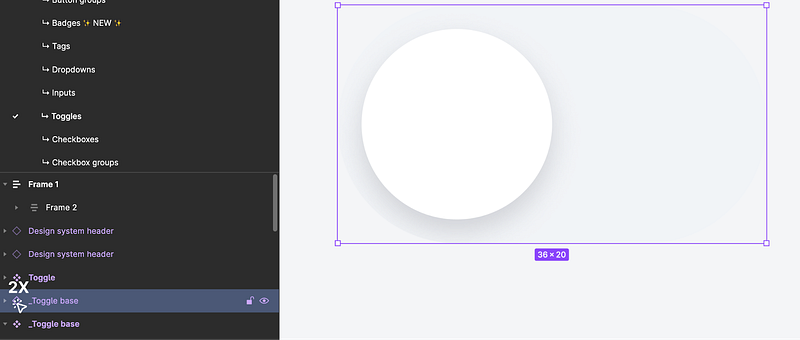
Automatically find and zoom to any layer from your Layers panel. Simply double-click on the layer icon to be taken directly to it.
#5 Performing Math Operations in Properties
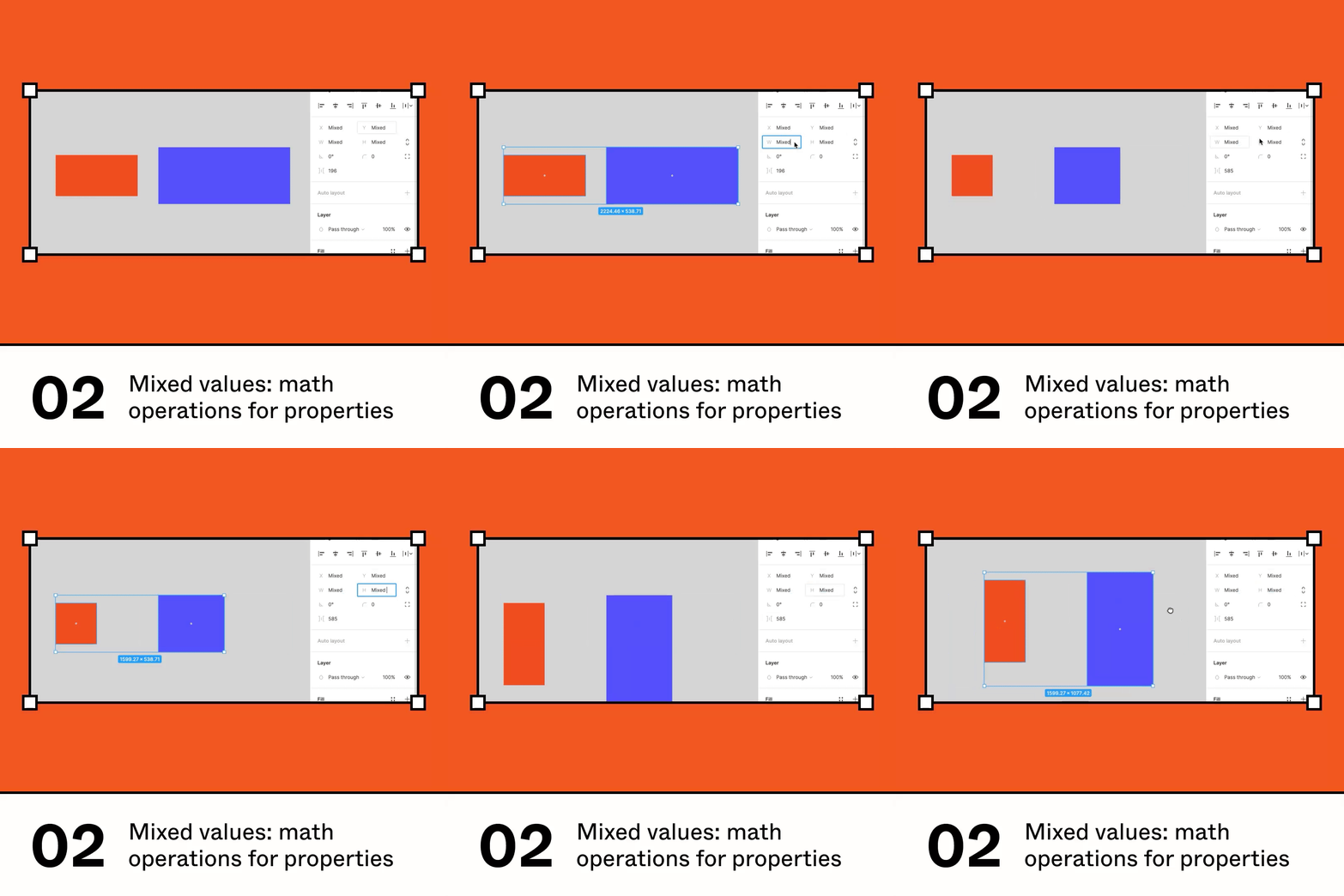
2/30 Bigger? Smaller? Left? Right? You can now use math operations to adjust properties with a mixed value.
Figma allows you to perform math operations in properties. This feature can be a real time-saver when working with complex designs.
#6 Creating Private Components with plugin
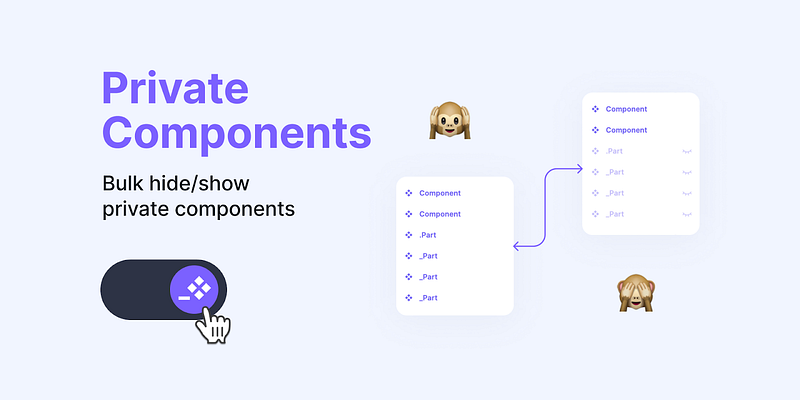
Hide/Show all the private components in your file with one click.
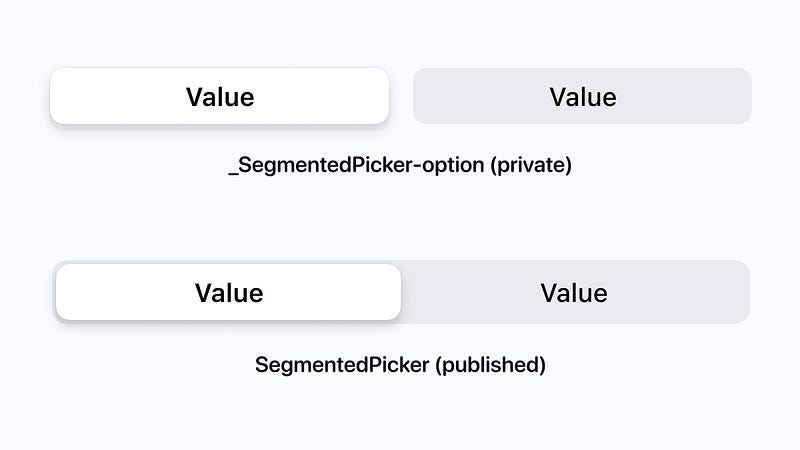
In Design Systems adding a “_” or “.” to the beginning of the name to hide components from libraries is a smart way to keep complex components separated from their smaller parts.
In some cases you’ll also want to hide those secondary components from the design system user’s eye so he doesn’t get distracted with secondary information.
This plugin simply hides and shows all the private components for you.
#7 Struggling with performance in Figma?
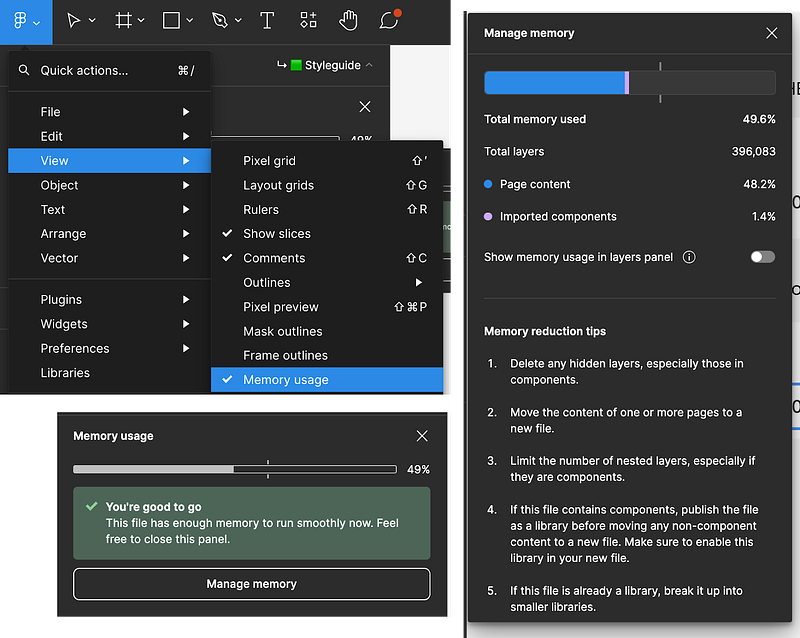
By hitting CMD + / and searching for “Memory Use” you can see what is the status of resources in your Figma file
And there you have it — another set of invaluable tips and tricks to make your Figma experience even more rewarding.
By incorporating these techniques into your design process, you’re not just saving time; you’re also elevating the quality of your work and staying ahead in the ever-evolving world of digital design.
Remember, the key to mastery is continuous learning and experimentation. So, keep exploring, keep innovating, and most importantly, keep creating stunning designs with Figma!
Stay tuned for more insights and tricks in my upcoming articles.
Until then, ⚡ happy designing ⚡ ️


