avatarChristina Piccoli

Free AI web copilot to create summaries, insights and extended knowledge, download it at here

883

Abstract

of options.</p><figure id="e8cb"><img src="https://cdn-images-1.readmedium.com/v2/resize:fit:800/1*czfQabGmoyvkmHLzgzyKPQ.png"><figcaption>Screenshot taken by the author.</figcaption></figure><h2 id="2873">3. Load your pin to Pinterest.</h2><p id="7e7d">Your Pinterest screen might look slightly different, but will still have “Create Pin”.</p><figure id="e0c3"><img src="https://cdn-images-1.readmedium.com/v2/resize:fit:800/1*MdyiyNooOCcIttnNV18a4A.png"><figcaption>Screenshot taken by the author.</figcaption></figure><h2 id="4e27">4. Fill out your pin details:</h2><ul><li><b>Title</b> — Tip: Add keywords people are looking for.</li><li><b>Description</b> — What your article is about? Want to simplify? Have ChatGPT help you.</li></ul><figure id="c16e"><img src="https://cdn-images-1.readmedium.com/v2/resize:fit:800/1*m9EbFLpV2ourauUBhLkOVg.png"><figcaption>Screenshot taken b

Options

y the author.</figcaption></figure><ul><li><b>Link</b> — The link to your Medium article.</li><li><b>Board</b> — Pick a board where you want your pin to live. I created a board called “Medium Article Blogging.”</li><li><b>Tags</b> — N/A — these are not tags other people see.</li></ul><h2 id="3bc5">Finally</h2><blockquote id="4e95"><p><b><i>Once your pin is set up, you can publish it or schedule it to be published later.</i></b></p></blockquote><h1 id="aba4">About the Author</h1><p id="6e55">Hey! I’m Christina. I’m a married mom to two teenagers. I love drinking coffee, listening to rock music <b>🤘</b>, and reading murder mysteries. I also love creating quick, easy-to-digest newsletters to help busy people find simple side income ideas online. Check it out! <b>👉</b> <a href="http://intellectualists.com/newsletter">intellectualists.com/newsletter</a></p></article></body>

4 Simple Steps to Creating Pinterest Pins for Your Medium Articles

Get more traffic to your articles.
Image Created by Minimalist Side Hustles Editor with Canva Pro

Let me show you how to create pins to link back to your Medium articles in 4 easy steps!

1. Go to Canva.

Click the “Create a design” button and pick a Pinterest template.
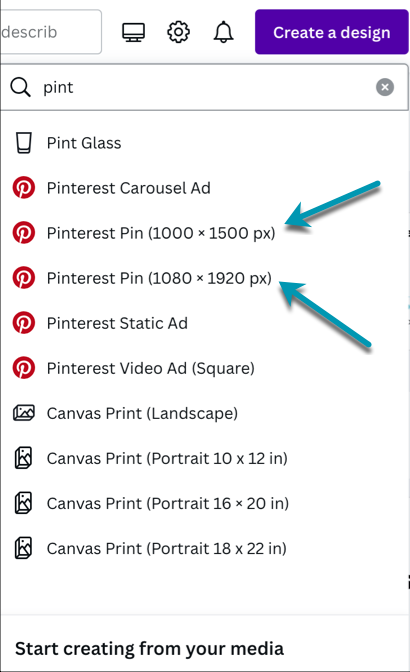
Screenshot taken by the author.

2. Design your pin.

I used Midjourney to create the image of the woman, but Canva has plenty of options.
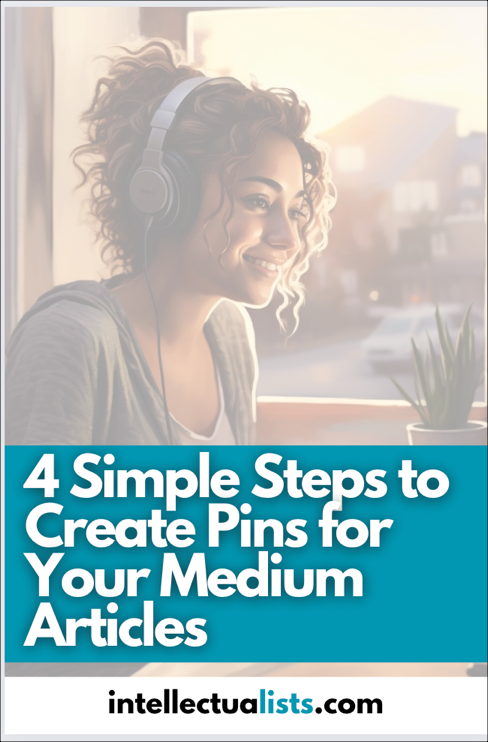
Screenshot taken by the author.

3. Load your pin to Pinterest.

Your Pinterest screen might look slightly different, but will still have “Create Pin”.
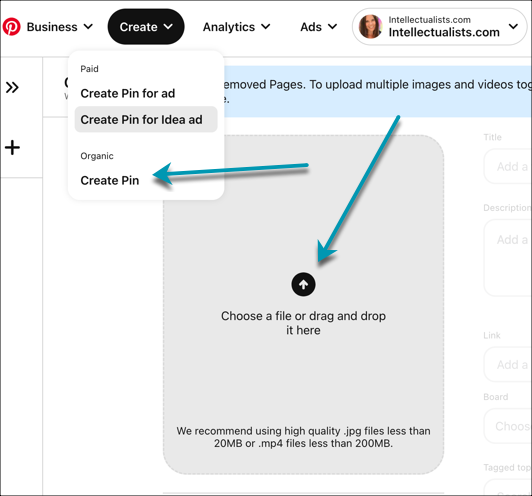
Screenshot taken by the author.

4. Fill out your pin details:

  • Title — Tip: Add keywords people are looking for.
  • Description — What your article is about? Want to simplify? Have ChatGPT help you.
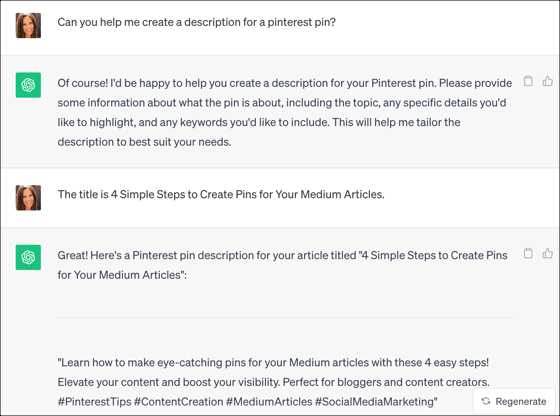
Screenshot taken by the author.
  • Link — The link to your Medium article.
  • Board — Pick a board where you want your pin to live. I created a board called “Medium Article Blogging.”
  • Tags — N/A — these are not tags other people see.

Finally

Once your pin is set up, you can publish it or schedule it to be published later.

About the Author

Hey! I’m Christina. I’m a married mom to two teenagers. I love drinking coffee, listening to rock music 🤘, and reading murder mysteries. I also love creating quick, easy-to-digest newsletters to help busy people find simple side income ideas online. Check it out! 👉 intellectualists.com/newsletter

Side Hustle
Pinterest
Pinterest Marketing
Canva
Side Hustle Tips
Recommended from ReadMedium