
How to Install MongoDB Community and Compass on Windows
A step-by-step guide for beginners
Table of Contents
▸ Overview ▸ System Requirements ▸ Download the installer ▸ Run the Installer ▸ Follow the Installation Wizard ▸ Interact with MongoDB ▸ Summary ▸ References
Overview
MongoDB is a popular open-source NoSQL database management system that handles unstructured or semi-structured data. Unlike traditional relational databases, MongoDB uses a flexible, document-oriented approach, making it well-suited for storing, retrieving, and managing large volumes of diverse data types.
MongoDB is available in two server editions: Community and Enterprise. See the previous article.
MongoDB Compass is a graphical user interface (GUI) tool provided by MongoDB, Inc. It’s designed to make it easier for developers, database administrators, and other users to interact with MongoDB databases visually without using command-line tools or writing complex queries.
This article guides you on installing MongoDB Community and Compass on Windows. The steps are: ▹ Check system requirements ▹ Download the installer ▹ Run the installer ▹ Follow the Installation Wizard ▹ Interact with MongoDB
System Requirements
You must meet certain system requirements to install MongoDB on a Windows system. You can check here for details. Here are the general system requirements:
- Operating System: MongoDB runs on various Windows versions, including Windows 7, 8, 8.1, 10, 11, Windows Server 2008 R2, 2012, 2112 R2, 2019, 2022, and later.
- System Architecture: — 32-bit for MongoDB versions before 3.4 — 64-bit for MongoDB versions 3.4 and later.
- RAM: Minimum 4 GB of RAM (8 GB or more recommended).
- Disk Space: At least 1 GB of free disk space for MongoDB installation.
- Processor: A modern multi-core processor is recommended.
Download the installer
- Go to MongoDB Download Center.

- Click the Select package button.

- In the Version dropdown, select the version of MongoDB to download.
- In the Platform dropdown, select Windows x64.
- In the Package dropdown, select msi.
- Click Download.
Run the Installer
- Open the File Explorer.
- Go to the directory where you downloaded the MongoDB installer (
.msifile). - Double-click the
.msifile.
Follow the Installation Wizard
The wizard steps you through the installation of MongoDB and MongoDB Compass.

- Click
Nextbutton.
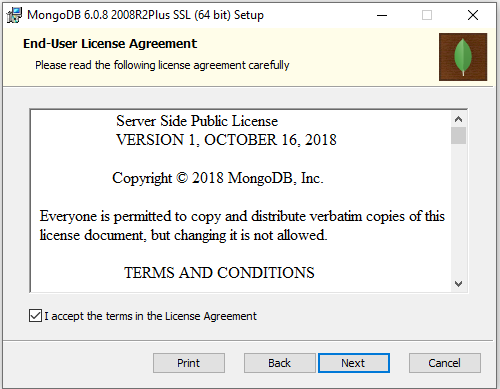
- Check I accept the terms in the License Agreement check box.
- Click
Nextbutton.

Choose Setup Type You can select the Complete setup type (suggested for most users) or the Custom setup type. The Complete setup choice installs both MongoDB and the MongoDB tools in their default location. Alternatively, the Custom setup option enables you to indicate the specific executables you want to install and their preferred installation path.

- If you don’t want to install it to drive C, click the Custom button.

- Click the Browse button.

- In the Folder name text box, change drive C to D and click OK.
- In the Choose Setup Type window, click Next.

- Click the Next button.

- Click the Next button.

- Click the Install button.

- Installation in progress.

- Click Finish to end the installation.
Interact with MongoDB
You can interact with MongoDB in two ways: ▹ MongoDB Compass ▹ MongoDB Shell
You can’t use MongoDB Shell. You must install it first. I will discuss it at another time. So, for now, use MongoDB Compass.

- Click Start button

MongoDB Compass provides a visual way to interact with the database, build queries, and explore your data. It benefits those less comfortable with command-line interfaces or who want to visualize and manipulate data quickly without writing code.
The following are some of the key features of MongoDB Compass.
Visual Data Exploration Compass allows you to explore your MongoDB data visually. You can view collections, documents, and fields more intuitively, making it easier to understand the structure of your data.
Query Builder Compass provides a user-friendly interface to build queries without needing to write MongoDB’s query language (JSON-based). This is particularly helpful for users unfamiliar with MongoDB’s query syntax.
Aggregation Pipeline Builder MongoDB’s aggregation framework allows you to perform complex data transformations and computations on your data. Compass includes a GUI for building aggregation pipelines, simplifying intricate data processing operations.
Index Management You can create, modify, and delete indexes on collections using Compass. Indexes are crucial for optimizing query performance in databases.
Schema Visualization Compass can analyze your data and provide insights into the structure of your collections and the relationships between them.
Document Validation You can define validation rules for your collections directly through the Compass interface, ensuring that data entering the database meets specific criteria.
Real-time Performance Monitoring Compass offers performance monitoring capabilities, allowing you to monitor the performance of your MongoDB server in real-time.
Connection Management You can manage your MongoDB connections through Compass, making connecting to multiple databases and servers easy.
You can learn more about MongoDB Compass here.
Summary
By default, installing MongoDB Community automatically also install MongoDB Compass. You can choose between the Complete or the Custom setup option. The Complete setup will install MongoDB and Compass in their default directory. On the other hand, the Custom setup lets you specify the executables you wish to install and where you want to install them.
Hopefully beneficial. Your feedback will be precious.


