
Extract Tables from PDFs with Python in a Snap!
Have you ever had to extract a table from a PDF file and found it to be a daunting task? You’re not alone! PDF files are widely used for sharing data, but extracting tables from them can be a challenge, especially when dealing with complex tables. Luckily, Python has several libraries that can help extract tables from PDF files efficiently.
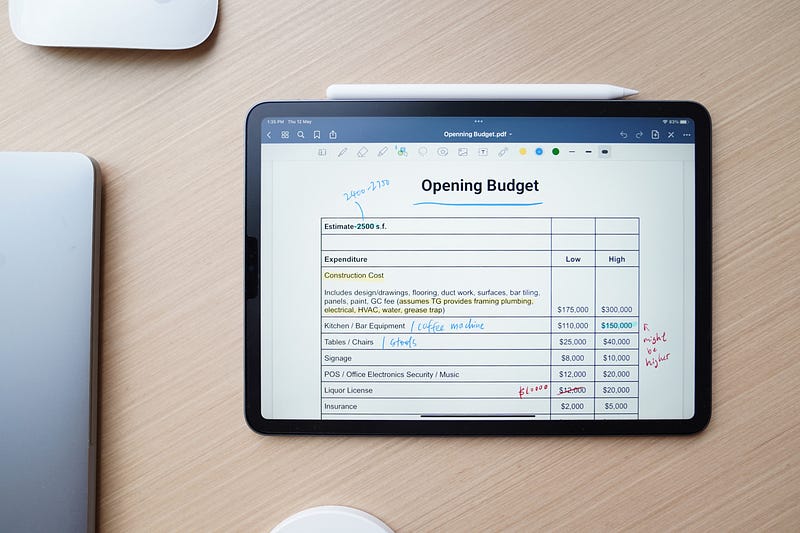
In this article, we’ll introduce you to a Python library for this task and provide step-by-step instructions on how to use them. Whether you’re a data analyst, researcher, or just someone who works with PDF files regularly, this article will give you the knowledge and tools you need to extract tables from PDF files quickly and easily using Python.
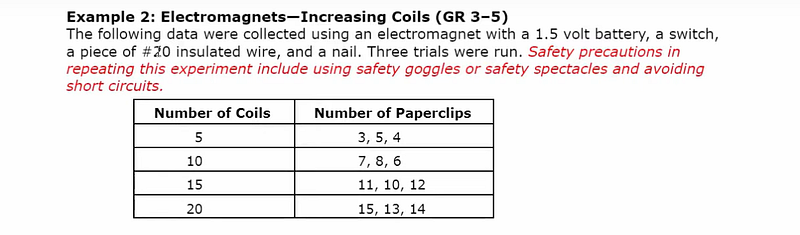
We will be using the Tabula library to extract tables from pdf. The following is the sample table from a pdf which we will use to extract using Tabula.
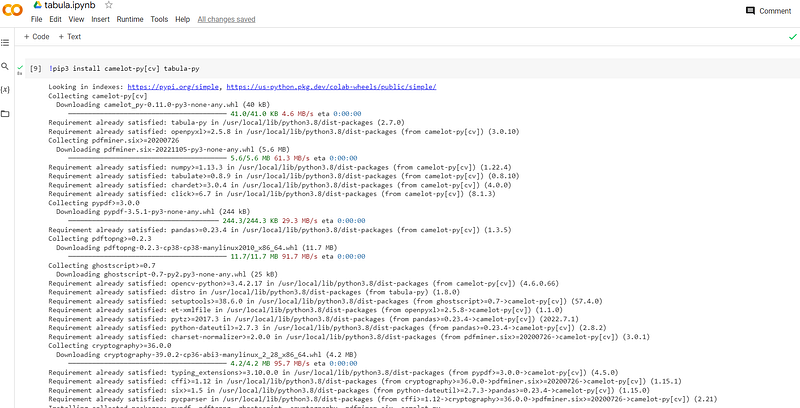
We will be using google colab for this task. Let’s install tabula in google colab by using the following command.
!pip3 install camelot-py[cv] tabula-pyThis will install tabula-py and all the python libraries required. You should see something like this when the installation completes.
The following three lines of code read the pdf table and convert and extract it.
import tabula
pdf_path="https://sedl.org/afterschool/toolkits/science/pdf/ast_sci_data_tables_sample.pdf"
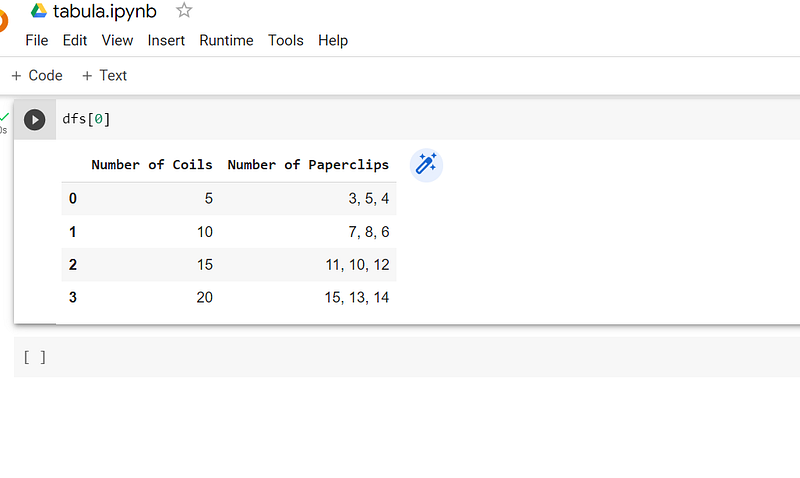
dfs = tabula.io.read_pdf(pdf_path, pages='1')
here’s a line-by-line explanation of the code:
- import tabula: This line imports the Python library ‘tabula’, which is used for extracting tables from PDF files.
- pdf_path=”https://sedl.org/afterschool/toolkits/science/pdf/ast_sci_data_tables_sample.pdf": This line creates a string variable ‘pdf_path’ and assigns it the URL of the PDF file that contains the data tables we want to extract.
- dfs = tabula.io.read_pdf(pdf_path, pages=’1'): This line calls the ‘read_pdf’ function from the ‘tabula.io’ module and passes it two arguments: ‘pdf_path’ (the URL of the PDF file) and ‘pages’ (the page number(s) from which we want to extract the table(s)). In this case, ‘pages’ is set to ‘1’, which means we only want to extract tables from the first page of the PDF file. The ‘read_pdf’ function returns one or more DataFrames (depending on the number of tables extracted).
after the execution, you will see something like this.
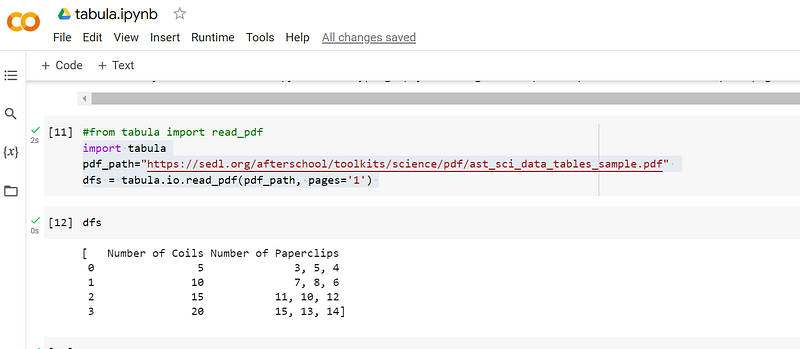
You can save it into CSV using the following code:
df[0].to_csv("table.csv")This will save the table in CSV format which can be used for data analysis and exploration later on.
In conclusion, extracting tables from PDF files can be a challenging task, By using Python libraries like tabula, you can automate this task and save yourself a lot of time and effort. We hope this article has been helpful in getting you started on your journey of extracting tables from PDF files using Python.
Level Up Coding
Thanks for being a part of our community! Before you go:
- 👏 Clap for the story and follow the author 👉
- 📰 View more content in the Level Up Coding publication
- 💰 Free coding interview course ⇒ View Course
- 🔔 Follow us: Twitter | LinkedIn | Newsletter
🚀👉 Join the Level Up talent collective and find an amazing job