
Extract Passwords & Other User Credentials with LaZagne

In this tutorial, I will show you how to retrieve all saved passwords from your computer or an exploited system using a tool called “LaZagne”.
LaZagne is an open-source recovery tool used for extracting passwords from various software and operating systems. It can be run on Windows, Linux, and macOS.
LaZagne supports various applications, including browsers, messaging apps, databases, email software, Wi-Fi, and many more. The tool extracts the passwords stored locally on the system, decrypts them, and gives the output in a readable format.
Get LaZagne
If you’re looking to use LaZagne on a Windows machine, you can download the tool using the following link.
https://github.com/AlessandroZ/LaZagne/releases/Make sure to select the .exe format for Windows. After downloading this program in Windows or Linux, change the directory to the location where the LaZagne file is saved using the command line.
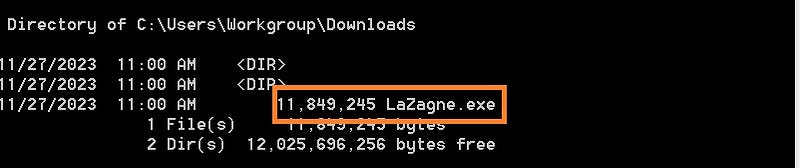
In my case, the file is located in “C:\Users\Workgroup\Downloads. To see all the available options use “LaZagne –h” in the terminal.
Now if you want to extract the browser's passwords, type the following.
LaZagne.exe browsers
Here you can see my login information.
Retrieve All Passwords
You could specify which option you want to use, but LaZagne includes a convenient all option. Obviously, I want all the passwords I can get my hands on, so I’ll be using LaZagne with the all option.
LaZagne.exe all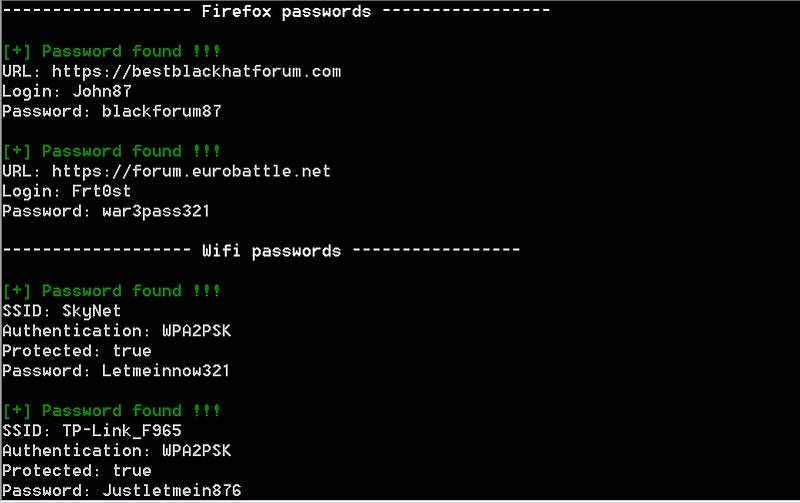
This command will dump all the passwords from the system. You can also see my WiFi passwords.
Conclusion
This tool could be useful for extracting passwords that have been saved in browsers as well as databases, email accounts, wireless configurations, and so on. It is a great tool for the day when you cannot remember the passwords.
This information shall only be used to expand knowledge and not to cause malicious or damaging attacks.
Thank you!


