Export Me Disappointed: Exporting Notes from the Kindle Scribe
Sometimes, I use my Kindle Scribe to make notes that nobody else needs to see and that remain hidden deep inside the device’s memory. More often, however, I use the Scribe to make notes that I need to organise elsewhere. And often, I despair at the process.
I’ve been using my Kindle Scribe for around six months. It is serves as my notebooks for work, my reader of professional and personal documents, my notebook for language lessons, and something I like to sit down with in the evening to settle into reading a good book (from the Amazon Kindle bookstore only, of course). My needs are relatively basic, but one task has raised some hiccups to the generally smooth experience of using the Scribe: exporting notes to PDF to be saved and used elsewhere away from the Scribe.
After a raft of small updates, the Scribe allows one to export either a single page or a full notebook to PDF and to get it off device by email. This is the only way to realistically get a large amount of information off the device…The alternative is to use the notebooks feature of the Kindle app and take a screenshot of each page individually (no, I’m not joking).
The good news: first, the files arrive quickly in your inbox. Second, there is now a setting whereby one can send their notes as plain text files or as PDFs that include Optical Character Recognition (OCR): this allows you to search your handwriting by keyword. This is rather nifty and is explained in more detail by the excellent MyDeepGuide YouTube channel. Being able to search by keyword, to navigate your handwritten scrawl with some semblance of order is fabulous and is not something offered by other e-ink notetaking devices…yet.
Let us return to the exported PDFs themselfves. Once you’ve opened the exported PDF you will instantly notice that the resolution of the text is remarkably poor. You don’t even need to look closely: simply export your notes as a PDF and view them on a 13- or 14-inch laptop screen. The results are not pleasant. From a regular reading distance and shrunk down, the image looks passable. Unfortunately, when using it on a computer screen, the quality of the document is well, well below par. In the image below, note the uneven nature of the underlining of the title.

When compared to other, similarly-priced, e-ink notetaking devices and the difference is startling. The image on the right hand side is from a Boox Note Air 2 Plus, same Zoom level. Pen thickness on both devices was set as closely as I could.
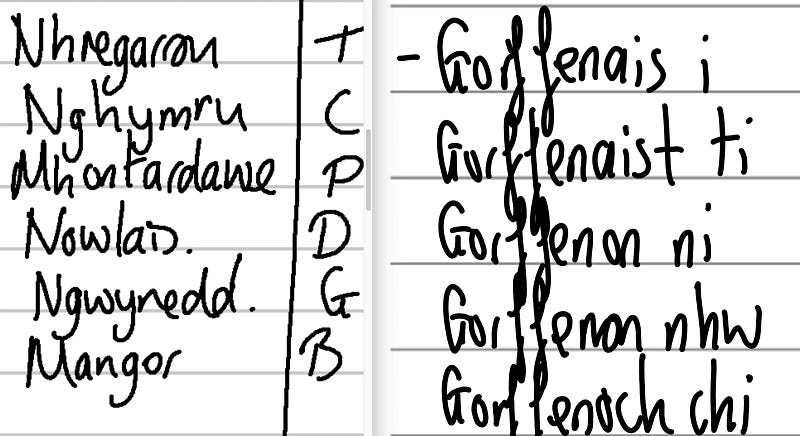
The lack of any sort of anti-aliasing on the text renders the exported notes on the Scribe quite unpleasant to use. The Boox device, by contrast, produces much higher quality exports, with each pen stroke appearing deep and lustrous in comparison.
One of the reasons for the poor comparison with the Boox devices is that the Scribe exports notes as basic PDFs, whereas the Boox products export each pen stroke as a vector graphic. While this means that the resulting PDFs from the Boox devices are much bigger, it also leads to greater detail being captured.
The exported PDFs do no justice whatsoever to a device that has a glorious 300DPI screen. Indeed, looking at the same note on the device itself is far more satisfying that seeing it blown up and full of uneven scratches on your computer screen. This is such a pity because the Scribe feels like a premium-ish device to use: the clarity of the screen is one of the reasons people (me included) buy it. Unfortunately, like so many digital notetaking features on the Scribe, the overall quality of the exported notes feels like a bolt-on and an afterthought.


