
Canva | Solopreneur Support | Creativity | Art | Mindful Expressions
Examples of How I Create My Images on Medium Using Canva
Tutorial #2 Canva Background Remover
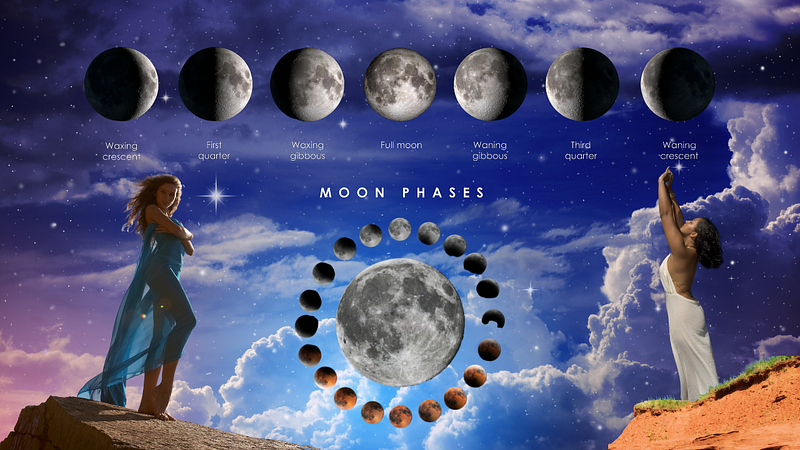
Today is your lucky day. I am finally answering the question of how I create my images in Canva. Let me start by saying, I have been using Canva for three years now and a lot of it comes from trial and error. One of my absolutely favorite tools on Canva is the background remover function. I have not tried the background remover for videos yet. It was just added a few months ago. But it is on the list.
The bad news is its only available on Canva Pro. I can tell you, for me, my monthly subscription fee to the Pro version is worth its weight in gold. I am in it every day and it helps with my solopreneur creative ideas!
Enough about that — let’s get on to the tutorial
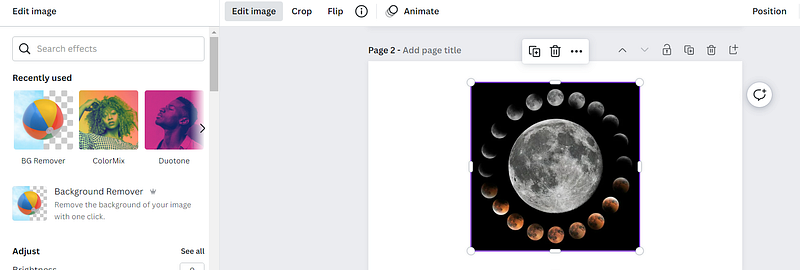
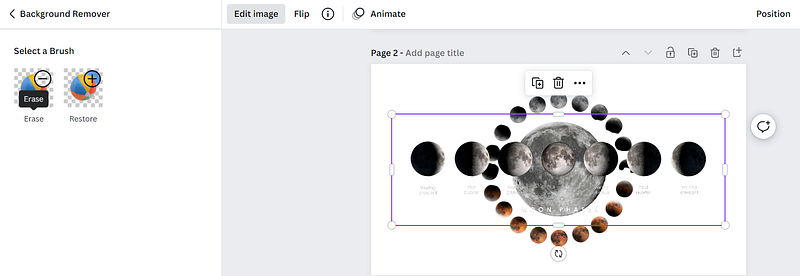
I was writing a post about moon phases so my search in photos started there. I found two images I liked and could see in my head how they would work together for my article. The first style I chose was the circle of phases. 1. Click on Edit Image and the left side bar popped up. 2. Click on BG Remover.
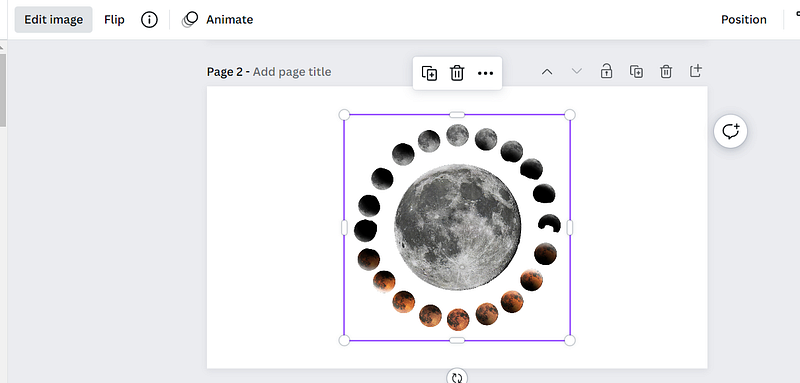
This is the result. Next I brought in the second image.
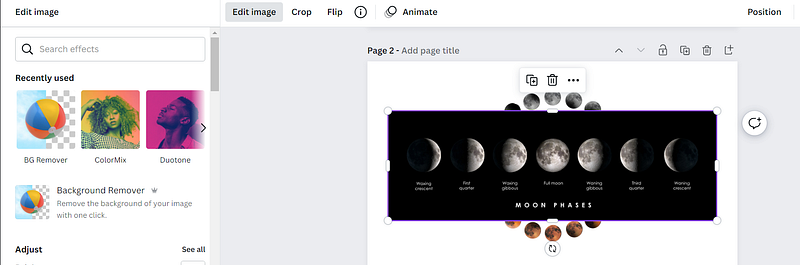
I followed the same background remover steps.
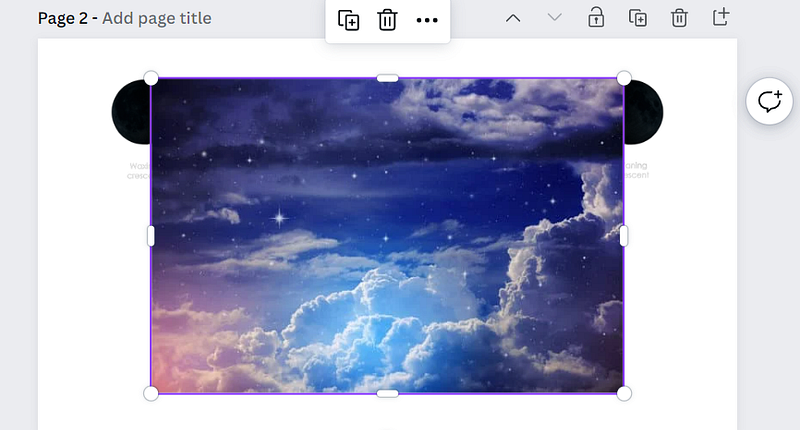
Next I chose a background
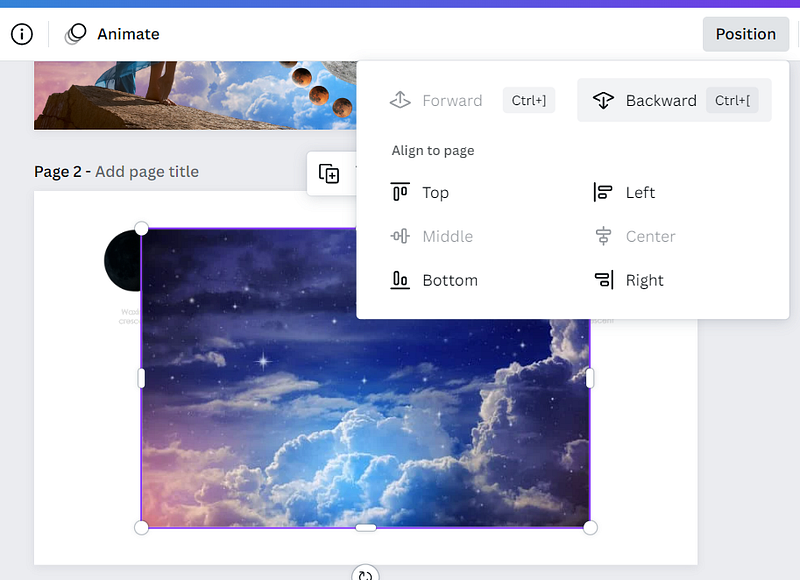
Next step is to send the background to the back of the images. You click on the “position” button and choose Backward.
Now it’s time to adjust my image placements and size.
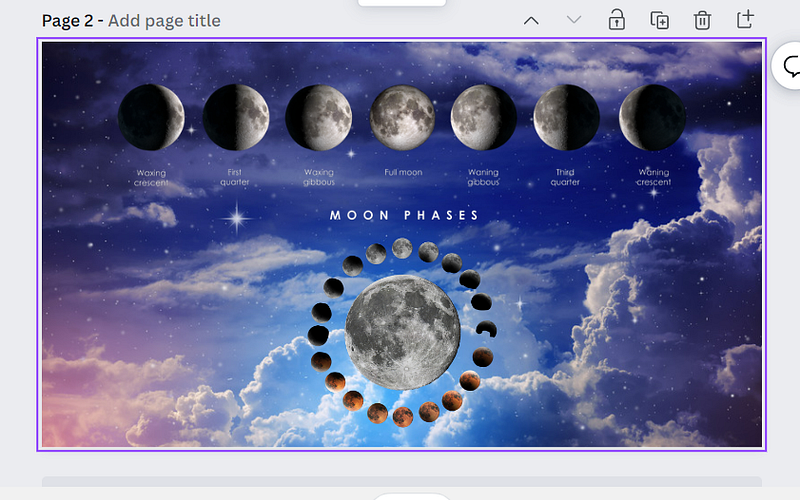
While this looked great, I decided I wanted a moon goddess, feel to the image.
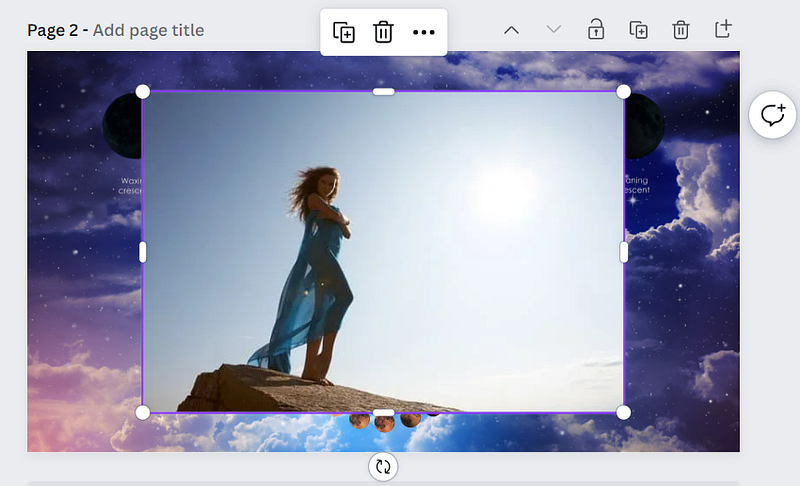
I followed the steps to remove the background again. But once I did that, I felt it was unbalanced, so I added a second image.
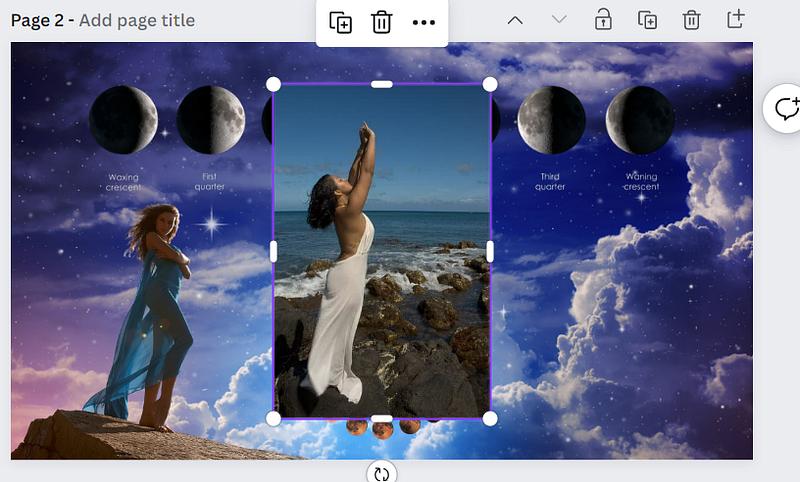
I liked this picture, but I needed her to face the moon. Instead of looking for a different image, after I removed the background, I used the flip tool to have her face the moon.
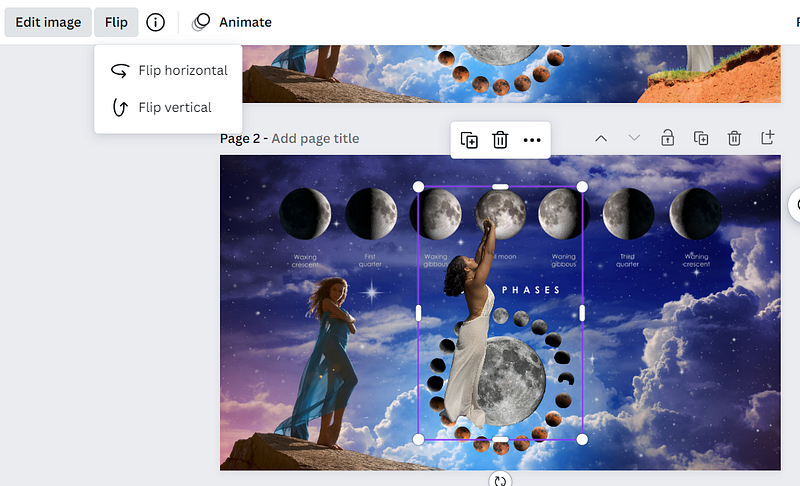
Once I placed the image in the bottom right corner, I decided she needed to be standing on a rock formation as well. So back to photos I went.
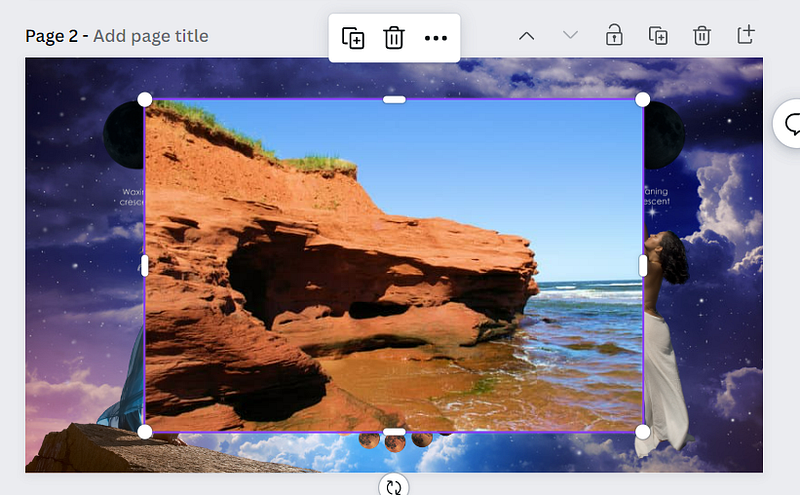
I used the background remover tool then flipped the image and adjusted it so it balanced out on the image.
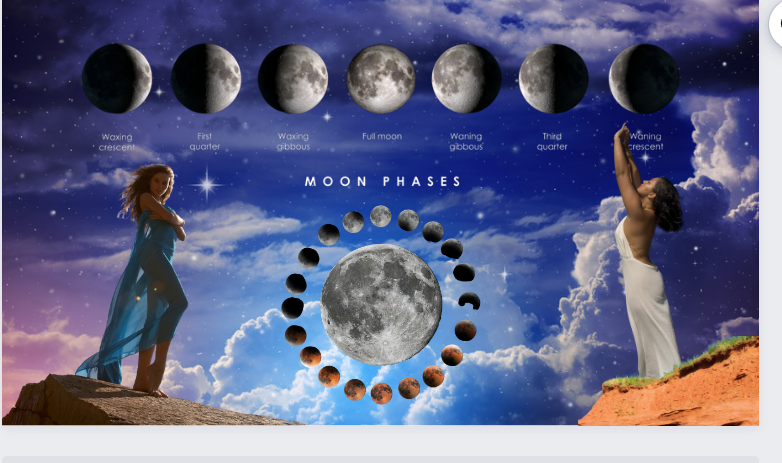
The final image.
That is how I create them. So, if you have Canva Pro, I challenge you to try it and tag me with your results. If you don’t have the Pro version, there is a link below for a free 30 day trial.
Let me know in the comments if this helped you and if you have any other things you want to learn about Canva
If you would like to try it and see the beauty and support Canva Pro can give you as an artist, writer, or solopreneur, I encourage you to use my affiliate link (I do receive a small monetary support for those that join Canva Pro through my link) to try Canva Pro for thirty days.