
ESP32 with SD card modules — The master guide

Using SD cards with an ESP32 is simple, right? In reality you might find some shortcomings; this article explores common drawbacks and provides an in-depth view of the SD library.
Connecting to the SD card module

Most SD card modules are like the one in the picture above. They connect through a protocol known as Serial Peripheral Interface (SPI) and accept either 5V or 3.3V (note most modules won’t work with 3.3V).
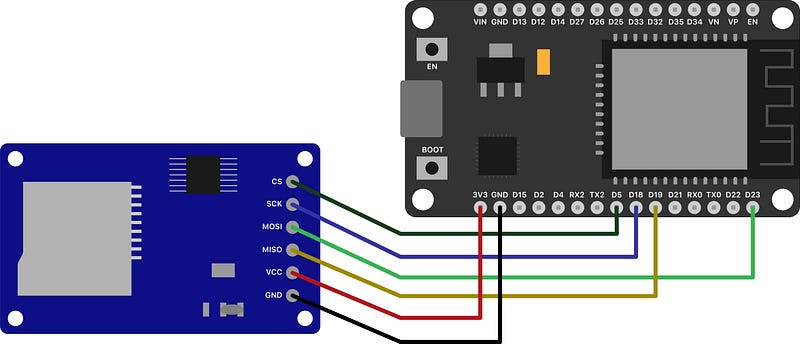
For testing, you can connect the module to the ESP32 as indicated in the diagram above. For reference, the SPI pins of the ESP32 are: MOSI GPIO23, MISO GPIO 19, SCK GPIO 18 and CS GPIO 5. Note the Clock Select (CS) pin is not fixed as the other SPI pins. You can practically use any pin as the CS pin.
Now, plug in a microSD card and try the code below. You can ignore #include
Help! The SD card module is not working
As explained above, most modules don’t work with 3.3V; even though some sites advertise they do. The reason is that these modules contain a Low Drop Out (LDO) Voltage regulator, which produces a voltage drop of about 0.5V to 1V. Making the module fail, when supplied with 3.3V.
Please note your module might still work at this voltage, but in my experience the module becomes unstable; it sometimes works and sometimes it doesn’t. There are two fixes to this problem: Using a 5V supply for the module (which is available in some ESP32 boards) or bypassing the voltage regulator.
Bypassing the voltage regulator
If you’re planning to use the SD card for an application that runs on batteries, I definitely recommend this method. Voltage regulators always dissipate power.

Technically speaking, it is not necessary remove the voltage regulator (as shown above). You only need to solder the VCC and 3.3V terminals of the regulator (current takes the path of least resistance, so in theory it should not pass through the regulator); however I prefer to extract the regulator, as it is easier to recognize the modified modules.
Using the SD card module
With the SD module working, it is time to start testing the SD library. Writing or reading a file is easy. You only need to open it in the appropriate mode.
Reading, writing and appending to a file
As shown above, there are three modes in which a file can be opened: FILE_WRITE, FILE_APPEND and FILE_READ. Note the mode limits the operations you can perform on a file.
- FILE_WRITE and FILE_APPEND allow writing operations: like print, println and write.
- A file opened in FILE_WRITE will always override the data of the previous file, if it exists. If you try to read a file in FILE_WRITE mode, the data of that file will be lost.
- Use FILE_APPEND to add data to the existing file. Reading data in FILE_APPEND mode won’t delete the data of that file, but the operation will fail.
- FILE_WRITE and FILE_APPEND will create the file if it doesn’t exist; only if the parent directory exists.
- Use FILE_READ only to read data.
Additionally you should take care of the following considerations when reading and writing to files:
- When using the ESP32 the root directory (/), needs to be specified. For exmple; hello.txt is not valid, while /hello.txt is valid. Note this is not required for the Arduino, as the SD library assumes that all paths are relative to the root directory. For more information check the Arduino SD reference.
- The file is created if it doesn’t exists; however you can only create a file if the parent directory exists. For example in an empty SD /hello.txt will be created when opened; while /parent/hello.txt will return a null File.
- Be sure to check that the opened files exists or is created. This can be done by handling the returned file as a bool. Where true means the file was created or already existed, and false means the file couldn’t be created.
- You might be tempted to use SD.exists(path), which returns true if a file or directory exist; but it won’t tell you if the file can be created. So it is better to check the result returned by SD.open.
// File will be null/false if /parent directory doesn't exist
File file = SD.open("/parent/hello-sd.txt", FILE_WRITE);
if (!file) { // the /parent directory doesn't exist, hence the file can't be created}// Perform operations on the filefile.close(); // Never forget to close!Manipulating files and directories
The previous section gives you the basics to use files; however sometimes you need a more complex structure (like grouping files in directories) and more complex operations (like moving or deleting).
bool didCreate = SD.mkdir("/test-dir");
bool didMove = SD.rename("/test-dir", "/test");
bool didRemoveDir = SD.rmdir("/test");
bool didRemoveFile = SD.remove("hello.txt");
mkdir(path)
Creates a directory at the specified path. Note that the operation fails if the parent directory doesn’t exist. For example /test-dir would be created without problems, but /parent/test-dir wouldn’t be created.
SD.mkdir("/test-dir"); //true
SD.mkdir("/parent/test-dir"); //false
If you want to create a nested directory structure, you must go from top to bottom.
SD.mkdir("/parent"); // true
SD.mkdir("/parent/test-dir"); // true, now that /parent exists
rename(previousPath, targetPath)
Use it to rename and move, files and directories (it can even rename and move at the same time). Returns true if the operation is successful. The operation will fail when: the previousPath doesn’t exist, when the targetPath already exists or if the parent directory of the targetPath doesn’t exist.
For the following example lets assume we have two files, located at: /hello.txt and /top/hello.txt
SD.rename("/hello.txt", "/top/hello.txt"); // false, target path already existsSD.rename("/hello-world.txt", "/hw.txt"); // false, /hello-world.txt doesn't existSD.rename("/hello.txt", "/top2/hello.txt"); // false, /top2 doesn't existSD.rename("/hello.txt", "/top/hello-world.txt"); // true, we're moving and renaming /hello.txtSD.rename("/top", "/top2/top-mod"); // false, /top2 doesn't existSD.rename("/top", "/top-mod"); // true, we're renaming the /top directory to /top-modrmdir(path)
Allows you to remove the directory at the specified path. Returns true if the operation is successful. The operation might fail when: the directory doesn’t exist, the directory contains a file or the directory contains another directory.
For the following example lets assume we have the following structure: /top-dir/nested-dir and /top-dir2/hello.txt
SD.rmdir("/parent"); false, /parent directory doesn't existSD.rmdir("/top-dir"); false, /top-dir contains a directory /nested-dirSD.rmdir("/top-dir2"); false, /top-dir2 contains a file hello.txtSD.rmdir("/top-dir/nested-dir"); true, /nested-dir can be deleted, it doesn't contain files or other directoriesSD.rmdir("/top-dir"); true, /top-dir can NOW be deleted, as it doesn't contain sub-directoriesremove(filePath)
Removes the file at the given filePath. Returns true if the operation is successful. Fails when the file at the given path doesn’t exist; though it seems to throw an exception instead of returning false.
Final thoughts and full testing code
Using SD cards with the ESP32 is practically the same as with the Arduino, but you have to be careful about the problems when feeding a SD card module with 3.3V and to always specify the root directory (/). Aside from that, the SD card library works the same for the Arduino, than for the ESP32. It provides powerful yet simple mechanisms to manipulate files and directories.
This article is not a full review of the SD and File APIs; although it foucuses on the most common use cases and provides an in-depth discussion of the methods analyzed. I hope this article can solve most (if not all) of the problems you find when using SD cards with the ESP32. Additionally, I’m including the code of all the tests I’ve performed in preparation for this article. Feel free to play with it, to cover any doubt left.


