avatarElye - A One Eye Developer

Free AI web copilot to create summaries, insights and extended knowledge, download it at here

1969

Abstract

p id="b41d">The entire setup can be summarized by the diagram below</p><figure id="dbdf"><img src="https://cdn-images-1.readmedium.com/v2/resize:fit:800/1*g-H6yxhRaMbWDdynLXqO2A.png"><figcaption></figcaption></figure><ol><li>Setup the Billings (you can have more than 1 if you like)</li><li>Create a project and attached to which one you like to be billed</li><li>In the Project, you then select what API you would like to enable (e.g. Google Map, Place API)</li><li>Lastly, create the API Keys, and decide if the Keys should access to all API or restrict it to some of it.</li></ol><h1 id="78ae">If my App is signed differently, do I need a new API Key?</h1><p id="6f50">Now, the problem I faced is, given I’m using the App Bundle, and it is signed differently before uploading. For internal testing, we have a local APK that is signed with the uploading Keystore.</p><p id="e562">So how can I get it to have access to all the same access as the main App to be upload to the store?</p><h2 id="9c59">Option 1: Create a different key for the internal App.</h2><p id="7070">To enable this to work, other than create the new key, I need to</p><ol><li>Change my build Gradle to have different Key Access for my internal testing app vs the production version</li><li>Need to set all the API Key restrictions the original key has. Any future changes need to be catered to as well.</li></ol><p id="9ee3">The pro of this approach though is, you can have separate control of which API services to be access by Internal and Production.</p><h2 id="e7aa">Option 2: Sign the APK with the same original Keystore</h2><p id="5d40">This is back to square one, where the internal App Keystore signature is the same as production. No changes to Gradle, nor need to introduce a new API Key.</p><p id="9dfb">The drawback is the benefit App Bundle, where we no longer need to have the original Keystore has been discarded.</p><h2 id="8999">Option 3: Use the same API Key, but support for dif

Options

ferent Keystore signature.</h2><p id="3847">Wow, actually this is possible.</p><figure id="ee76"><img src="https://cdn-images-1.readmedium.com/v2/resize:fit:800/1*yJ2aFfYKp5IiE68fuE0JQg.png"><figcaption></figcaption></figure><p id="a957">To do so, you can go to menu →APIs & Services →Credentials</p><figure id="14db"><img src="https://cdn-images-1.readmedium.com/v2/resize:fit:800/1*AvC4hzJMwOecwzLakZcU_w.png"><figcaption></figcaption></figure><p id="0011">From there you’ll get a list of API Keys. Select the one that you’re currently using</p><figure id="e634"><img src="https://cdn-images-1.readmedium.com/v2/resize:fit:800/1*lPsp_u6wfTM8e7qlKHqJew.png"><figcaption></figcaption></figure><p id="0454">After getting into the API key detail page, you can add the new SHA1 of your new Keystore in the <b>Application restrictions</b> section through the <b>ADD AN ITEM</b> button.</p><figure id="faf2"><img src="https://cdn-images-1.readmedium.com/v2/resize:fit:800/1*AeOri4j-QB45pt56dg_21w.png"><figcaption></figcaption></figure><p id="6574">From the diagram above, you’ll notice you can have more than one SHA1s in it. To generate your SHA1 from your Keystore, just use the <i>keytool</i> command</p><div id="ea05"><pre>keytool -list -v -keystore <span class="hljs-tag"><<span class="hljs-name">your</span>></span>.keystore -alias <span class="hljs-tag"><<span class="hljs-name">your-alias</span>></span> -storepass <span class="hljs-tag"><<span class="hljs-name">your-store-pass</span>></span> -keypass <span class="hljs-tag"><<span class="hljs-name">your-key-pass</span>></span></pre></div><p id="e45a">After adding to it, now your App compiled with your new KeyStore can access the Google Cloud Service.</p><blockquote id="3f35"><p>If it doesn’t access still, it might due to caching issue. Restart the apps several times, and let the Google Play Service retrieve it again, and you’ll get it all now.</p></blockquote></article></body>

Understanding Mobile Development

Enable Multiple Apps Access to the same Google Cloud Services

Google Cloud Services can be shared

Photo by Alex Machado on Unsplash

It has been some time since I worked on GoogleMap. The key is there, and everything is working fine. There’s no need to access to Google Cloud Console.

Lately, I work on introducing App Bundle and uses a different Key to Upload the App.

For internal testing, I sign with the upload key. All works fine until I notice that the Google Map is no longer working!!

Forgotten how enabling the map work, I wonder if I need a new key, a new certificate, etc? Try google around, and nothing speaks of this question I have.

Google Cloud Services

After quick hunting around, Google Map is part of Google Cloud Services. To enable any services, do check out the formal guide by Google.

The entire setup can be summarized by the diagram below

  1. Setup the Billings (you can have more than 1 if you like)
  2. Create a project and attached to which one you like to be billed
  3. In the Project, you then select what API you would like to enable (e.g. Google Map, Place API)
  4. Lastly, create the API Keys, and decide if the Keys should access to all API or restrict it to some of it.

If my App is signed differently, do I need a new API Key?

Now, the problem I faced is, given I’m using the App Bundle, and it is signed differently before uploading. For internal testing, we have a local APK that is signed with the uploading Keystore.

So how can I get it to have access to all the same access as the main App to be upload to the store?

Option 1: Create a different key for the internal App.

To enable this to work, other than create the new key, I need to

  1. Change my build Gradle to have different Key Access for my internal testing app vs the production version
  2. Need to set all the API Key restrictions the original key has. Any future changes need to be catered to as well.

The pro of this approach though is, you can have separate control of which API services to be access by Internal and Production.

Option 2: Sign the APK with the same original Keystore

This is back to square one, where the internal App Keystore signature is the same as production. No changes to Gradle, nor need to introduce a new API Key.

The drawback is the benefit App Bundle, where we no longer need to have the original Keystore has been discarded.

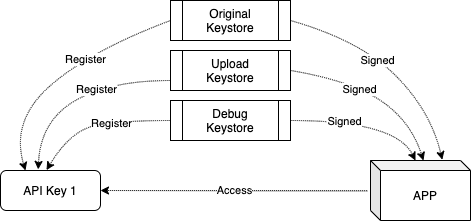
Option 3: Use the same API Key, but support for different Keystore signature.

Wow, actually this is possible.
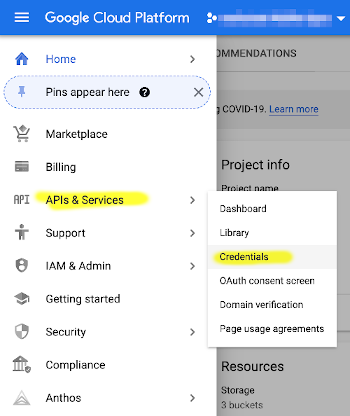
To do so, you can go to menu →APIs & Services →Credentials
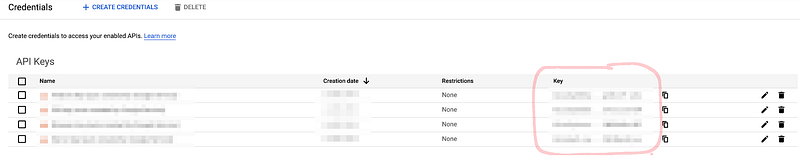
From there you’ll get a list of API Keys. Select the one that you’re currently using
After getting into the API key detail page, you can add the new SHA1 of your new Keystore in the Application restrictions section through the ADD AN ITEM button.
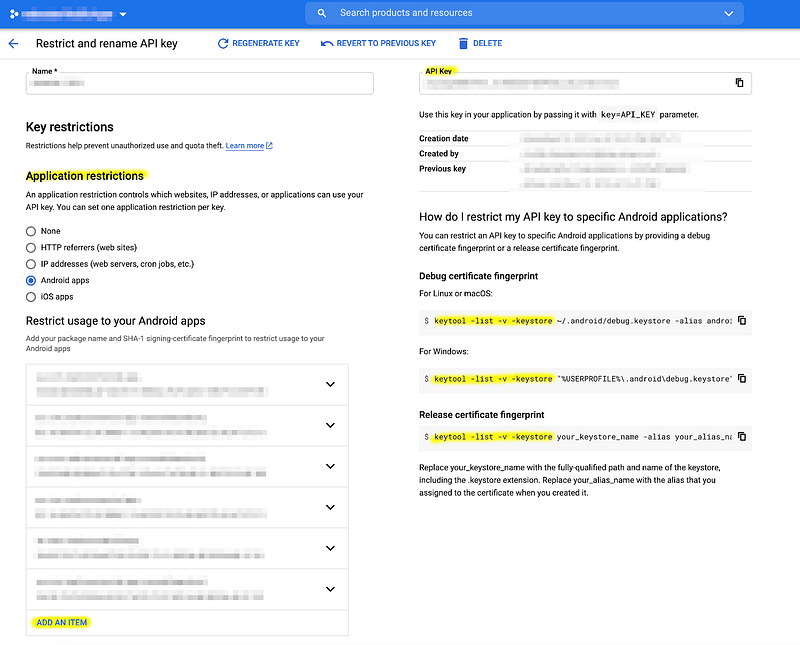
From the diagram above, you’ll notice you can have more than one SHA1s in it. To generate your SHA1 from your Keystore, just use the keytool command

keytool -list -v -keystore <your>.keystore -alias <your-alias> 
-storepass <your-store-pass> -keypass <your-key-pass>

After adding to it, now your App compiled with your new KeyStore can access the Google Cloud Service.

If it doesn’t access still, it might due to caching issue. Restart the apps several times, and let the Google Play Service retrieve it again, and you’ll get it all now.

Google Cloud Platform
Google
Mobile App Development
Android App Development
Android
Recommended from ReadMedium