The Beginner’s Guide to DATAVIEW Obsidian Plugin — 10 areas where things can go wrong and how to fix them
Obsidian Beginner’s Series: Plugins > Dataview
Don’t let DATAVIEW scare you. Beginners can benefit from it too. It is a powerful and versatile plugin for Obsidian that enables you to see your notes in a report format.
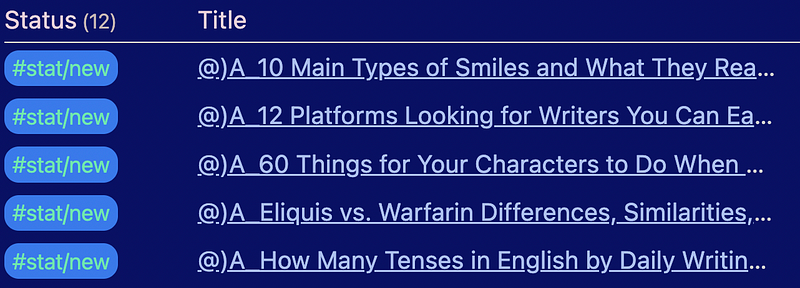
The official documentation states: “Dataview is a live index and query engine over your knowledge base. You can associate data (like tags, dates, snippets, numbers, and so on) with your markdown pages, and then query (like filter, sort, transform) this data.”
Got that? Yeah, me neither.
Let’s simplify it for us beginners. Think of data view as a report generator. It can produce a list/report of things like:
- books you’re reading, or want to read
- people you know, or need to follow up with
- work contacts and with their phone numbers
- software you own and associated renewal dates and amounts
- upcoming expenses, when they are due, with the amount due
Basically, Dataview reads your Obsidian vault and selects and spits out the information you tell it to in a table/report/list format.
Your selection may be based on notes:
- in a folder,
- with a specific tag,
- in a specific file,
- with specific outgoing or incoming links, or
- with tasks.
From there, you can even sub-select certain notes from your selection, or exclude certain notes based on tags, filenames, folders, or links.
For example, you might want DATAVIEW to look at all the books you have in your database but report only on books that were recommended to you, and that you haven’t read yet.
Very cool, eh?
You accomplish this by entering a block of information that looks like programming code.
I know, I lost you at “code.” The dreaded “C” word! Hang in there, you got this. 👍
According to the Dataview documentation, the format of a Dataview Query (DVQ) or “code” is:
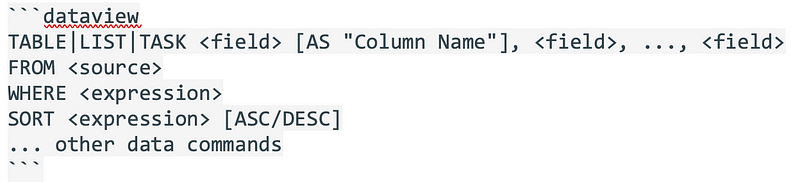
Clear as mud, right? I thought so too!
Don’t be scared off. Trust me, you can do this. How do I know? Because I did it, and I’m no programmer. And I did it when I was a complete Obsidian novice. We’ll walk through it step by step. You’ll get the hang of it in no time.
This article assumes you have Obsidian.md installed, and the Dataview plugin installed. It also assumes you’ve experimented with Dataview and if you’re like me, you’ve experienced frustration in getting your Dataview code to work. 😖
Good grief — why aren’t my DATAVIEW queries working? 🤬
This article outlines the mistakes I made. My hope is this guide helps you to avoid the frustration many beginners feel.
Before we start, let’s make sure we understand the terms.
What is a field?
The word “field” is used throughout this article.
A field has two parts: the field-name and the field-value.
The format of a field is: field-name:: field-value
In addition, fields can be defined in the 1) body of your note — called Inline-fields; or 2) front matter of your note — called YAML-fields.
Although functionally they are practically the same, they do have slightly different formatting rules that are mentioned throughout this article.
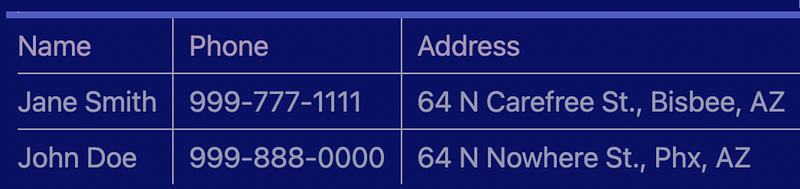
Think of a field-name like you would column headers in a report. In the below report example, the fields-names are “Name”, “Phone”, and “Address”.
I’ll explain more later, but for now, understand that everything to the left of the double colons the DVQ will read as field-name. This comes into play in the Section 7 Field Formats, “Fields with two words.”
The field-values are John Doe, 999–888–0000, and 64 N Nowhere St., Phx, AZ.

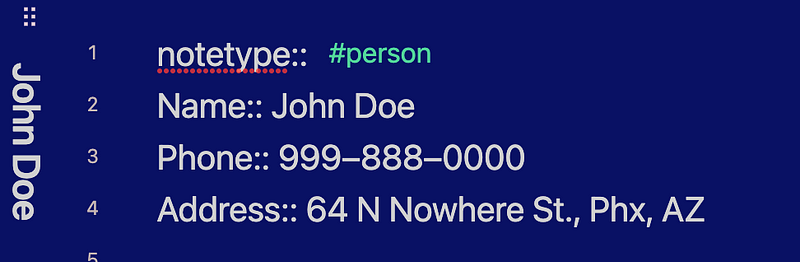
In order to produce the above report, your vault would include a note for each person, and on each note, you would have the following fields. Note that each field-name:: field-value combination must be on its own line.
notetype:: #person
Name::
Phone::
Address::
Each note would have field-values such as a specific person’s name, phone and address after the field-names, like this:
notetype:: #person
Name:: John Doe
Phone:: 999-888-0000
Address:: 64 N Nowhere St., Phx, AZ
notetype:: #person
Name:: Jane Smith
Phone:: 999-777-1111
Address:: 64 N Carefree St., Bisbee, AZ
Note: You can add these fields manually each time you create a note for a person, but it’s more efficient to use a core plugin: templates or community plugin: Templater
Throughout this article, most of the examples are based on the two notes above.
The following DVQ will search your vault for all notes that have the notetype:: #person
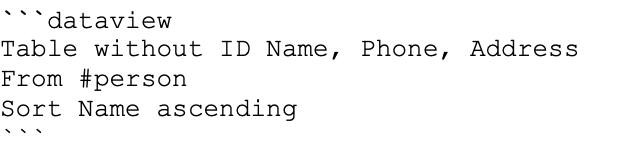
The above DVQ would render in Live Preview as:
Let’s dig in.
With terminology out of the way, let’s get started. We’ll break down that “code” bit by bit, read between the lines, and highlight what might go wrong,
1) BACKTICK mark is not the same as an APOSTROPHE or SINGLE QUOTE mark.
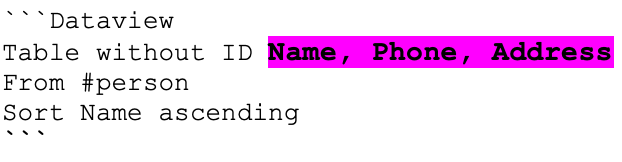
The very first thing in the DVQ code block is three backticks as highlighted in pink below:

A DVQ code block is required to begin and end with three BACKTICKS.
For us beginners, a backtick is NOT an apostrophe, even though they can look similar.
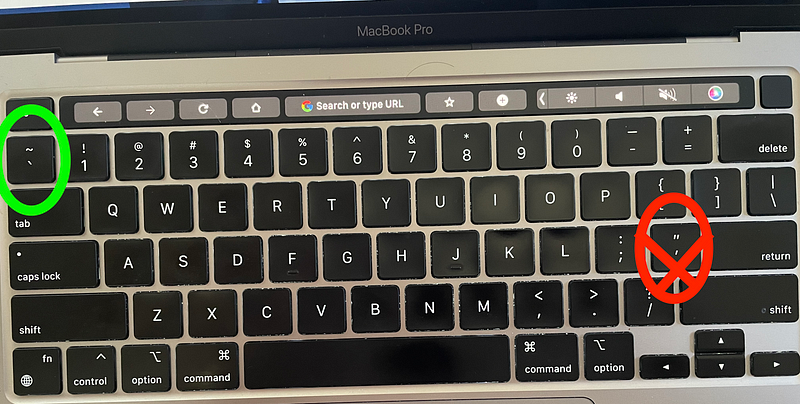
The BACKTICK (on most keyboards) is in the upper left-hand corner of your keyboard. Whereas the APOSTROPHE is usually located somewhere to the left of the ENTER or RETURN key (see the diagram below).
Your keyboard may be slightly different, so look around and find it — and know BACKTICT is NOT your APOSTROPHE key.
2) The first line of the code block must include the word “dataview” immediately after the three BACKTICKS
The next thing in the DATAVIEW query block is the word — dataview.
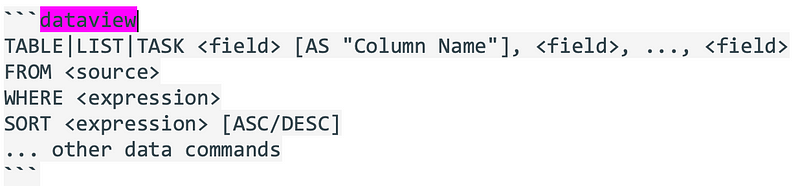
This word must be on the same line as the three backticks.

3) The word “dataview” must be in lowercase letters
The DVQ will run only if all the letters in the word “dataview” are lowercase, as shown below:

4) TABLE/LIST/TASK (and CALENDAR)
The next part of the code tells the DVQ what you want to see. You only choose one of Table, List or Task. These words, although shown in ALL CAPS, are NOT case sensitive.
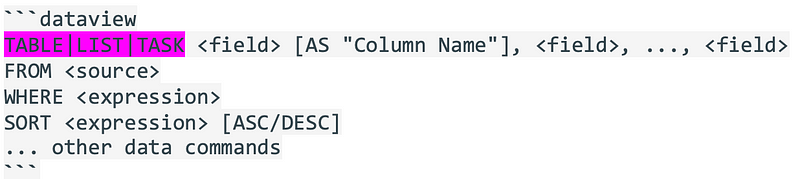
List and table differ only in that a table has more than one column, whereas a list only shows one field (usually the note title).
The TASK type is specific to Obsidian tasks and will not be covered here.
For me, I always use TABLE.
There is one other option note shown in the query block example and it is “CALENDAR”. According to the DATAVIEW documentation,
Calendar views render all pages which match the query in a calendar view, using the given date expression to choose which date to render a page on.
The DVQ below, looks at everything in my “20 RESOURCE” folder and for each note modified in the month of April, a dot appears. It gives me a nice representation of how often I’m processing my notes.

The above DVQ renders like this:
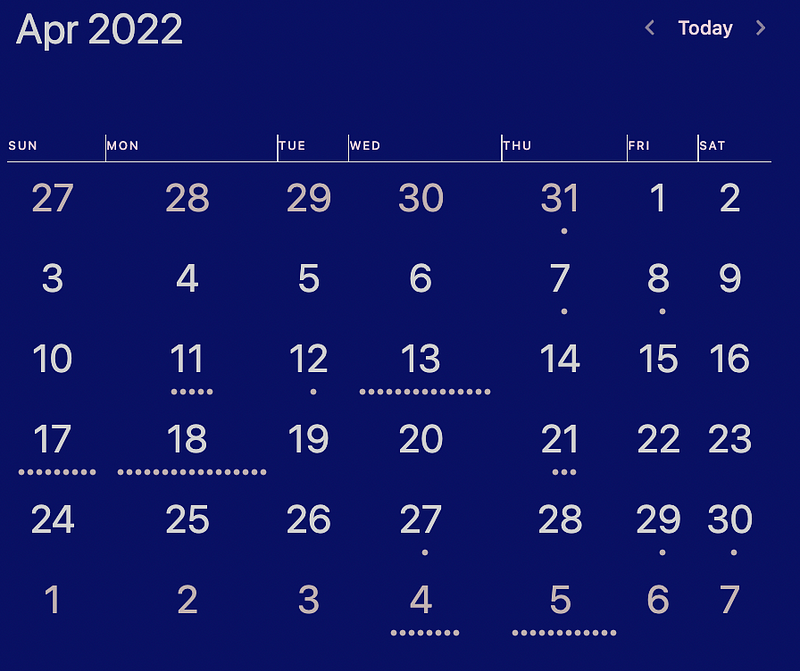
CALENDAR is a cool feature that can help you visualize your progress.
5) Report Columns
As mentioned, think of fields as the column headers of a report. The next section of the DVQ code is where you list the fields that represent those columns.

List out the fields, separated by a comma. In our example, the fields (or column headings) are Name, Phone, and Address.
Remember these fields are defined in your note, as shown below. We will discuss the field format later on. Below is an example of the note “John Doe”
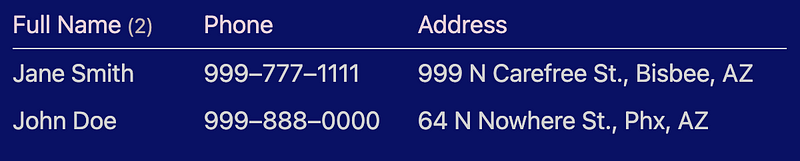
If you wanted the report to show the column heading “Full Name” instead of “Name”, then you would use the optional [As] feature:

This renders as:
6) Without ID
Notice the words “without ID” in our example. This is optional.
The “id” of a note is the note name. Which in our example is the same as the field “Name.”
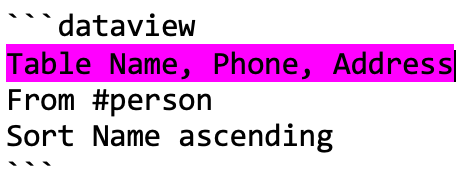
Thus, if we don’t include the “without ID” option, this happens:
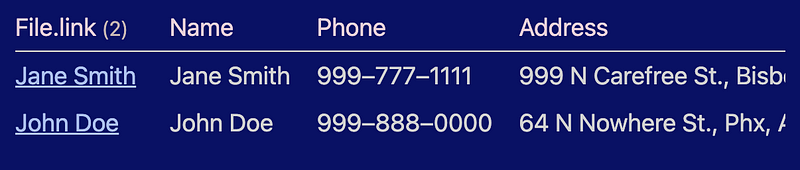
You can see the file.link column is the same as the Name column, except that file.link renders as an actual link to that note, and the field NAME does not. In order to clean this up, and retain the link, you’d change the DVQ to:

Renders as:
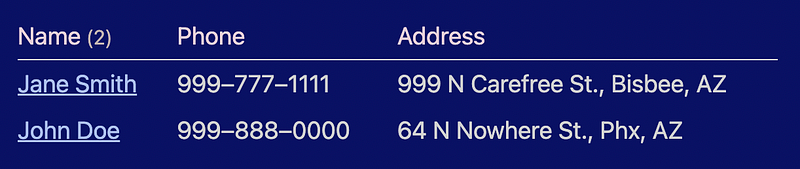
7) Field Formats
There are some format requirements for fields that might mess you up if you don’t realize what they are.
Field names are NOT case sensitive, but treat them like they are.
The field-names in our notes were entered using initial caps, except for notetype which was all lower case:
However, in the DVQ, you have some flexibility:
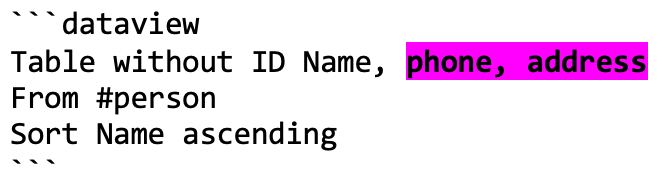
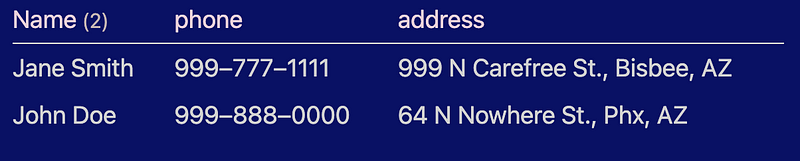
The above DVQ, renders correctly. Note, however, that the column headings are now lower case, even though in the note itself they have initial caps.
The DVQ will use the field case shown in the query, not the case used in the note itself.
Case rules allow some flexibility, but the rules aren’t a Gumby doll (and if you know what that is, you’re my age!).
As @scholarintraining helped me understand in the Obsidian forum, Dataview has two valid names for any field include:
(1) the original name and (2) all-lower-case-with-dashes-instead-of-spaces-and-no-special-characters.
Thus, in our note field-name Address has an initial cap, so based on the rules above it can be referenced in the DVQ as “Address” or “address”, but not “ADDRESS” as shown below.
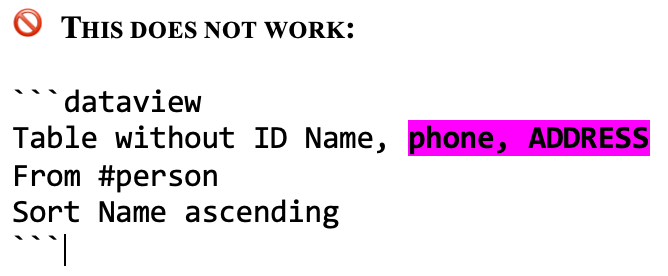
Since the field ADDRESS is now all caps, for some reason DVQ cannot figure it out and leaves the address field-values blank when it renders:

The TL;DR of field name case sensitivity:
- treat them as if they are case-sensitive, and save yourself frustration 🥴
- enter the field names in the note with the case you want them rendered in the report. If you want the column heading to be all caps, then use all caps in your note
- use the “AS” option in your DVQ to specifically name the columns as shown in #5 above
- If you don’t follow #1 know the rules. Valid names include: (a) the original name and (b) all-lower-case-with-dashes-instead-of-spaces-and-no-special-characters.
Field names with two words
Here’s where things get a little tricky. You can have field-names that are two or more words in your note, but not in the DVQ itself.
In the DVQ, multiple-word field-names cannot have spaces, thus you need to concatenate with something like a dash or an underline or smashed together.
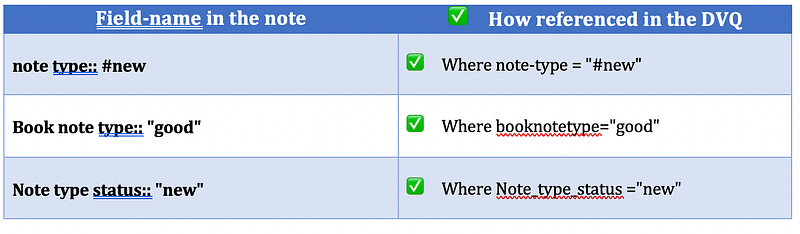
Field-name examples. As in the note versus used in the DVQ ✅ Note-type:: ✅ Notetype:: 🚫 Note type::
Field names with space(s) before it
Although you need to watch your spaces, in general, extra spaces between field-name and field-value don’t matter.
✅ name:: “John Doe” ✅ name:: “John Doe”
Implicit Fields
Behind the scene, Dataview assigns certain field names and values to each of your notes. You don’t see them, but you can use them. Most are especially helpful when using the WHERE filter (see below).
A complete list of Implicit fields is here, but the ones I use most are:
- file.name = title of your note
- file.folder = the folder where your note is located
- file.cdate = the date the file was created
- file.mdate = the date the file was last modified
Note: you cannot use implicit fields with the FROM filter.
Fields — yaml or inline field formats
Earlier, when we defined what a field was, I mentioned fields could be in the body of the note, or in the YAML (aka front matter) of the note. And I noted that regardless of which you use, they act the same but are formatted differently.
There are some reasons why you might want to use YAML over inline fields. However, that is beyond a beginner’s scope.
I mention the format differences here because you might see YAML used in some queries you might want to copy. So having a basic understanding of the format difference can benefit you.
All of the examples have used Inline fields. They can be anywhere in the body of your note. The format for an inline field is—
Field-name:: Field-value (note the use of TWO colons)
YAML fields can be listed only in the front matter of a note.
Front matter must
- be the very first thing in your note
- fenced off with three dashes
The format of a YAML field is —
Field-name: Field-value (note the use of only ONE colon)
EXAMPLES. Look carefully at the examples below and note the number of colons in each.
Inline: ✅ Notetype:: “Literature” 🚫 Notetype: “Literature”
YAML: ✅ notetype: “Literature” 🚫 notetype:: “Literature”
See section “More on YAML” below if you want to dig into YAML.
Now, let’s get back to our DVQ format.
8) FROM & WHERE
The next two rows in our DVQ format are the FROM and WHERE filters. The words “FROM” and “WHERE” are commands as they tell DATAVIEW what to do.
Both of these commands filter notes on different items within your note.

In plain English, think of it this way: I want to select all notes FROM my “Book” folder, but only those notes WHERE a #new exists. In that example the FROM-filter selects notes from the folder titled “Books”, then further narrows it down to only notes in that folder where (WHERE-filter) #new is on the note.
Let’s look at each one separately.
The FROM-filter tells the DVQ which notes you want it to look at. Think of it as your primary selection, upon which you can do further sub-selections.
The next word following FROM in the DVQ is
We’ll talk about the first three below.
If you want the DVQ to search your entire vault, then follow the word FROM by open and closed quotes, like this: FROM “”
WHERE, filters pages on fields. The WHERE command isn’t about location (“where is the note?”), as one might think, it’s more of a “condition” (or filter as mentioned). Think of it as “find all notes WHERE the notetype field meets the following condition: notetype=”#new”.
Some general notes on FROM and WHERE:
- FROM and WHERE can be used individually or together
- If used together, they can be one long run-on line, or separated into two lines — doesn’t matter.
- You can use all cap, lowercase, or combinations for the words FROM or WHERE. Case does not matter.
✅ from “30 PEOPLE” ✅ wHErE notetype = “#person” ✅ from “30 PEOPLE” WHERE notetype=”#person”
Following FROM and WHERE
FROM-filter is followed by a SOURCE: whereas the WHERE-filter is followed by an EXPRESSION. Thus, there are some things you can do with a FROM-filter that you can’t accomplish with WHERE-filter and visa- versa. But some things can work in both, but the syntax is different.
WHERE-filter EXPRESSIONS are what you might think like: A=B. So if you need some sort of comparison (think a list of notes that were created this week, where you’d have to compare the create data to a date range for this week), then the WHERE-filter is your tool.
Let’s dig into sources and expressions.
FROM & WHERE filters using tags
In our examples above, our FROM-filter looks at all notes with the tag #people.
Format of FROM-filter using a tag
FROM #stat/new
Remember, with a WHERE-filter you need an EXPRESSION so the TAG has to be compared to something else. If you look back at the note itself, you’ll see that the tag is a field-value of the field-name “notetype”. Thus the format is:
Format of WHERE-filter using a tag
notetype:: "#person"
Note that the tag is within double quotes, and includes the # symbol.
✅ FROM #stat/new ✅ WHERE notetype= “#person”
FROM & WHERE filters using filenames
When you reference another note, within a note, you put the note name within double brackets. Right?
But with a DVQ, it depends. You’ll use double brackets, the “.md” extension, or double quotes based on which filter you’re using.
Remember, above when I suggested you can sub-select from your primary FROM-filter? Well, the WHERE-filter is how you accomplish the sub-select.
The way you reference a filename when using a FROM-filter differs when using a WHERE-filter.
- With FROM-filters, a file name and its full path must be enclosed within DOUBLE QUOTES
- With WHERE-filters, a file name must be enclosed within double quotes (full path not required)
✅ Where file.name=”Fractured Novel” 🚫 Where file.name=
[[Fractured Novel]]
✅ FROM “30 PEOPLE/John Doe” 🚫 FROM file.name=”John Doe”
FROM & WHERE referencing folder names
Case sensitivity drives me nuts! Especially when sometimes it matters and sometimes it doesn’t.
With folder names — it matters. Referencing a folder name when using a FROM-filter — It must be exactly like it is in your folder list — exact spaces, dashes, and capital and lower case letters — exactly.
Did you get that? Exactly.
Here is an example of a folder list:
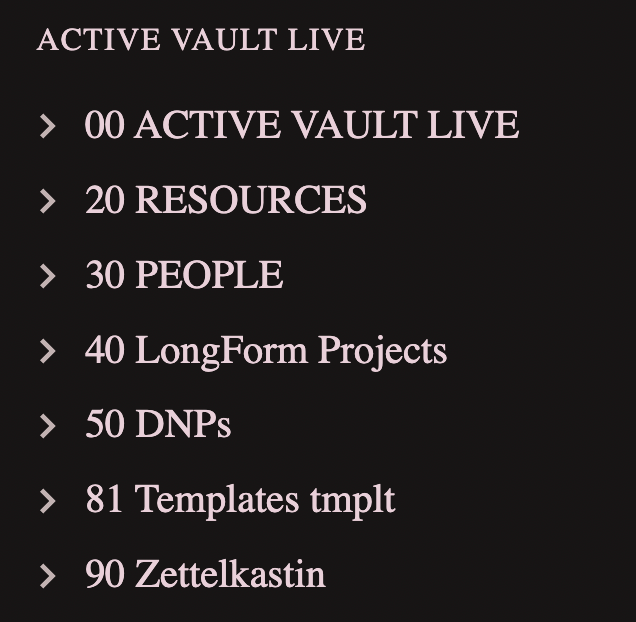
Notice below, the case sensitivity of the folder name
✅ FROM “30 PEOPLE” 🚫 FROM “30 People”
Also, notice folder names must be within double-quotes.
FROM & WHERE filters using folder names
With a FROM-filter, folder names are enclosed in double-quotes.
This is also true when used with the WHERE-filter. However, the folder name itself is not enough because it doesn’t make up a full expression.
You must use an expression that basically states — select from a folder named “30 PEOPLE”. The format is:
WHERE file.folder = “30 PEOPLE”
The field file.folder is one of those implicit fields mentioned above in the FIELD section.
✅ FROM “30 PEOPLE” ✅ WHERE file.folder = “30 PEOPLE”
Note: An implicit field requires a comparison and comparison can be done only with a WHERE-filter. Thus, implicit fields cannot be used with a FROM-filter.
✅ WHERE file.ctime<date(today) — dur(1 day) 🚫 From file.ctime<date(today) — dur(1 day)
Note that it is possible that “30 PEOPLE” is both a file name and folder name within a vault. If so, Obsidian will assume it’s a folder. If you really want the file, then you need to specify the full path and file name INCLUDING the file’s extension “.md”
✅ FROM “30 PEOPLE/30 PEOPLE.md”
9) SORT command
The next line in the DVQ format is SORT.
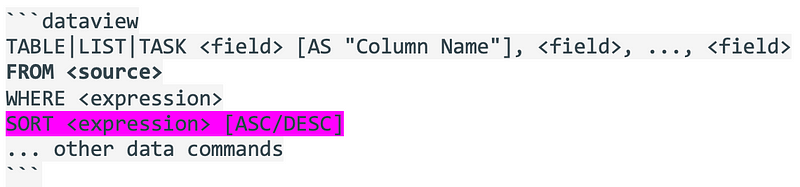
You can sort by any field either ascending or descending. Sort orders can be spelled out, or abbreviated (ASC or DESC).
Note: the format says to use an expression. Although according to the documentation, a field is a type of expression, it just makes more sense to me, when I put “field” there instead.
✅ Sort Name Ascending ✅ Sort Name Asc
You can do multiple sorts as well
✅ Sort Name Ascending, Address Desc
10) What’s Left
There are plenty of other data commands that are well beyond the scope of this article, and most beginners won’t miss them, anyway.
But there are a few other tidbits that might help you avoid the dreaded “Parsing Failure” or “No data found” errors and get the results you intended.
You can select on a field, but not render that field in the final output
Say you want notes in your “20 RESOURCE” folder that have a tag #greatread
You can list those resources but you don't have to render #greatread on each line.

The above query selects notes based on the tag #greatread but does not list the tag on the report.
Use Templates and Test them
It’s so easy to insert an extra space, miss a colon, or a myriad of other common errors. If you use a template, your field names will be consistent, and you’ll have tested them in various DATAVIEW queries.
✅ Use a template whenever possible
Watch your P&Q’s (spaces, commas, parenthesis)
Watch out for extraneous, well, anything: commas, spaces, dashes, parens.
This is a programming language, so every character counts. If your query isn’t working, this is the best place to start.
The example below is just one of many things that can go wrong if you don’t mind your P&Qs.
✅ TABLE Name, Address 🚫 TABLE Name, Address, Note the extra comma at the end of the line
Excluded Files Setting
In your Obsidian settings, you can exclude certain files from showing in search, graph view, and unlinked mentions; and to appear less noticeable in quick switch and linked mentions.
However, these excluded files are NOT excluded in a DVQ.
For example, let’s say I have my “81 Templates tmplt” folder in the excluded files area of Obsidian settings. To exclude this folder from my DVQ, the query looks like this:
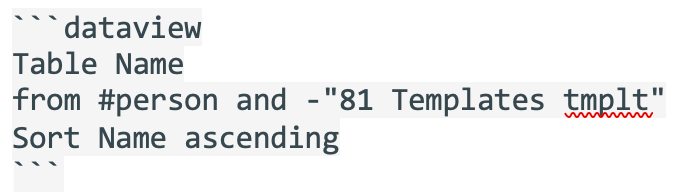
That DVQ will search out all records that have the tag #person but will ignore anything in the "81 Templates" folder. The negative sign that is in front of "81 Templates" basically says to ignore this templates folder.
More on YAML
- YAML field-names and field-values that are set apart from the rest of the note by three dash before and after the YAML fields.
- They must appear at the top of a note before anything else.
- Use one colon in a Yaml field, instead of two (as in an inline field).
- Yaml field-values should be enclosed within double quotes and are case sensitive. If the field-value is a #tag, it too should be enclosed in quotes and should include the "#", as in “#goodreads”
Yaml field examples:
✅ status: “new”
✅ tag: “#new”
🚫 status:: “new”
🚫 tag: "new"
At the very top of your note, the full Yaml would like this:
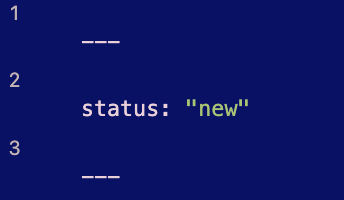
Update DATAVIEW with Obsidian settings
DATAVIEW developers update DATAVIEW frequently. Thus, it’s important to remember to update your plugin. This does not happen automatically — you have to trigger the update manually. Go to Obsidian “Settings => Community plugins” then hit that “Check for Updates” button and then “Update” if it finds any! And it’s always a best practice to close Obsidian and reopen it, to make sure the updates take.
Special thanks to @scholarintraining on the Obsidian Forum for reminding me of this important activity.
Copy/Paste — plain text only
I debated about whether to put this section last or first. Since it was my very first mistake, I thought maybe it should go first.
If you spend time on the Obsidian Hub, or Obsidian Forum you’ll have the opportunity to cut and paste DVQ’s that others have used. And I recommend this.
But sometimes copy-and-paster’s think copy and paste is all they need. But it isn’t. A solid understanding of the basics will get you much further. So in the end (pun intended 😁), I decided this section should be at the end of the article — after you read the basics.
But if you’re a dunce, like me, copy and paste did not work. 🥴 Why?
It took me a while to figure out why the queries didn’t run after I copied and pasted them.
Well, turns out, that you can’t just “Paste” into your note. As any tech person knows, when you “Paste” it leaves minuscule particles of dust (that’s a very techie term🤣) that dirties up the codeblock and causes the query to fail.
Solution: Using “Paste as plain text” leaves it nice and clean, and your DVQ will work!
Use the Right-click options to find “Paste as Plain Text” rather than “CTRL V” (on a MAC) ✅ USE THIS:

🚫 NOT THIS:

That about covers all the mistakes I made when starting with DATAVIEW. Yes, I made a lot of them! I hope it has helped you avoid some of the frustration I experienced.
For a summary checklist of all these tips click here. More great resources below if you want to learn more.
Thank you for your time and attention.
I hope I’ve offered some value. If so, 🙏 please let me know by 👏 Clap,💬 Comment, and a Follow. 😘
Become a member and read every story with a Medium Membership. If you use my link, I’ll earn a small commission and it will cost you nothing. Thanks!
Dataview Resources
Documentation and Articles
Summary Checklist of this article - Introduction to Dataview on Obsidian Hub - Dataview Overview - Official DATAVIEW Documentation - Dataview Plugin Snippet Showcase - Obsidian-dataview Github site - Practical Uses of Dataview with examples
Dataview Examples in a Vault you can download from SAM on discord
Dataview Videos - Video of this article - Part 1 2.0k: Metadata and Basic-to-Intermediate Dataview - Part 2 1.0k: More advanced Dataview stuff - Dataview Plugin: How To Use This Powerful Obsidian Plugin (With Examples)


