
Easy guide to configure and use Databricks command-line interface (CLI)
Guide to install, configure, and use Databricks CLI on your local terminal. Step-by-step instructions for seamless interaction with the Databricks workspace, including examples.
What is Databricks CLI?
The Databricks command-line interface (or the Databricks CLI) utility provides an easy-to-use interface to automate the Databricks platform from your terminal/command prompt. For example, you can start/stop or deploy a new cluster, create a new job, run/monitor an existing databricks job, and deploy files/libraries from the local system to DBFS. It also helps to automate Databricks tasks.
The Databricks CLI wraps the Databricks REST API, an application programming interface (API) that uses a REST perspective to automate Databricks account and workspace resources and data.
Table of contents
- Install Databricks CLI?
- Initial Setup
- Connect to Databricks Workspace
- Execute Databricks CLI commands
- References

Install Databricks CLI?
The following steps outline the installation of Databricks CLI on a Windows machine using Winget
- Open Command Prompt and run the following two
wingetcommands to install the CLI:
winget search databricks
winget install Databricks.DatabricksCLI
2. Restart Command Prompt
3. Confirm the Databricks CLI is installed correctly using the below command:
databricks -v
You can read about other ways to install on Windows, Linux, and macOS here
Initial Setup
To connect to Databricks workspace from Databricks CLI you need Databricks Hostname and Databricks Personal access token (PAT).
I. Databricks Hostname: Databricks Hostname is the same as the workspace URL. Example: https://adb-xxx.azuredatabricks.net
II. Databricks Personal Access Token: You need to generate Databricks Personal Access Token to authenticate.
Follow the below steps to generate a Databricks Personal Access Token: i. Login to Databricks Workspace ii. Click on your user name at the right-top corner iii. Click on User Settings iv. Browse to Settings > Developer settings > Access Tokens v. Click on Generate new token vi. Provide your comment ‘Access Token for Databricks CLI’ and provide a Lifetime for token in days. vii. Copy the token
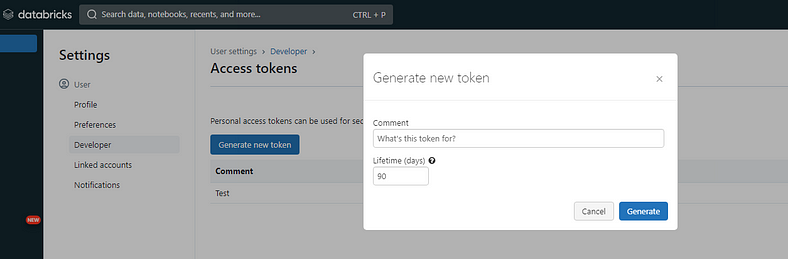
Note: The token will expire after the Lifetime days. You can generate a new token and replace it in the Databricks Config file if the old token expires.
Connect to Databricks Workspace
- Use the Databricks CLI to run the following command:
databricks configure
The above command creates a Databricks configuration profile with the name DEFAULT. This procedure overwrites your configuration profile if you already have a default profile.
To create a configuration profile with a name other than DEFAULT, add --profile <configuration-profile-name> or -p <configuration-profile-name> to the end of the following databricks configure command.
databricks configure --profile DEV
2. For the prompt Databricks Host, enter your Databricks workspace instance URL, for example https://adb-xxx.azuredatabricks.net
3. For the prompt Personal Access Token, enter the Databricks personal access token created above.
After you enter your Databricks personal access token, a corresponding configuration profile is added to your .databrickscfg file. If the Databricks CLI cannot find this file in its default location, it creates it for you first and then adds this configuration profile to the new file. The default location for this file is in your ~ (your user home) folder on Unix, Linux, or macOS, or your %USERPROFILE% (your user home) folder on Windows.
You can now use the Databricks CLI’s --profile or -p option followed by the name of your configuration profile, as part of the Databricks CLI command call to execute the command on the specific Databricks Workspace. Example databricks clusters list -p <configuration-profile-name>
To view the names and hosts of any existing configuration profiles, run the command databricks auth profiles

Execute Databricks CLI commands
Now you are all set to execute Databricks CLI commands.
a. List Databricks CLI command groups
List the command groups by using the --help or -h option. For example:
databricks -h
b. List Databricks CLI commands
List the commands for any command group by using the --help or -h option. For example, to list the clusters commands:
databricks clusters -h
c. Get Databricks CLI command help
Get help for command by using the --help or -h option. For example, to display the help for the clusters list command:
databricks clusters list -h
d. List the contents of a directory
databricks fs ls dbfs:/

# To execute databricks list command on DEV profile
databricks fs ls dbfs:/ --profile DEV

# or this
databricks fs ls dbfs:/ -p DEV
e. Print the contents of a file
databricks fs cat dbfs:/tmp/babynames.csv

# To execute databricks cat command on Test profile
databricks fs cat dbfs:/tmp/babynames.csv --profile Test

# or this
databricks fs cat dbfs:/tmp/babynames.csv -p Test
You can read about all the available Databricks CLI commands and understand their usage here.


