
Easiest Way to Scrape Football Fixtures from Flashscore

Today we will look at a super simple way to scrape match info from flashscore using python.
Lets dive straight into it.
First import the necessary packages, you can check some of my other tutorials for an actual list of these.
Obviously like before you will need to download chromedriver, make sure the downloaded chromdriver version matches your current chrome version.
We will create a function that holds all of our logic to create a new chromedriver instance. Simply replace the PATH TO CHROMEDRIVER with your path.
def driver_code():
    Capabilities = DesiredCapabilities.CHROME
    Capabilities["pageLoadStrategy"] = "normal"
    options = ChromeOptions()

    useragentarray = [
        "Mozilla/5.0 (Linux; Android 13) AppleWebKit/537.36 (KHTML, like Gecko) Chrome/113.0.5672.76 Mobile Safari/537.36"
    ]

    options.add_argument("--disable-blink-features=AutomationControlled")
    options.add_argument("--no-sandbox")
    options.add_argument("--disable-dev-shm-usage")
    # options.add_argument(f"--user-data-dir=./profile{driver_num}")

    options.add_experimental_option("excludeSwitches", ["enable-automation"])
    options.add_experimental_option("useAutomationExtension", False)
    options.add_argument("disable-infobars")
    options.add_argument("disable-blink-features=AutomationControlled")

    driver = webdriver.Chrome(
        'PATH TO CHROMEDRIVER',
        options=options,
        desired_capabilities=Capabilities,
    )
    driver.execute_script(
        "Object.defineProperty(navigator, 'webdriver', {get: () => undefined})"
    )

    driver.execute_cdp_cmd(
        "Network.setUserAgentOverride", {"userAgent": useragentarray[0]}
    )
    driver.set_window_size(390, 844)
    options.add_argument("--disable-popup-blocking")
    #     driver.execute_script(
    #         """setTimeout(() => window.location.href="https://www.bet365.com.au", 100)"""
    #     )
    driver.get("https://www.flashscore.com/football/england/premier-league/fixtures/")
    time.sleep(1)
    return driver
We have two more functions, one to accept cookies on flashscore and the other simply will remove any special characters in strings and convert them to lowercase.
def accept_cookies(driver):
    cookies = driver.find_elements(By.ID, "onetrust-accept-btn-handler")
    if(len(cookies) > 0):
        cookies[0].click()
    else:
        print("No Cookies to Click")

def sort_string(string):
    string = ''.join(e for e in string if e.isalnum())
    string = string.lower()
    return string
We can then initialise our driver instance and accept the cookies. I will create some arrays and search for the elements we will be scraping.
driver = driver_code()
accept_cookies(driver)

home_team_names = []
away_team_names = []
match_dates = []
match_times = []

date_elements = driver.find_elements(By.CSS_SELECTOR,".event__time")
home_teams = driver.find_elements(By.CSS_SELECTOR,".event__participant--home")
away_teams = driver.find_elements(By.CSS_SELECTOR,".event__participant--away")
The below code just simply splits the date and time into individual strings adds the year to the date and does some formatting on both. If for some reason there are issues with the date/time we can instead just append N/A to our arrays
for i in date_elements:
    try:
        date_split_string = (i.text).split()
        date_with_year = date_split_string[0] + "2024"
        match_dates.append(date_with_year)
        split_time = date_split_string[1]
        match_times.append(split_time)
    except:
        match_dates.append("N/A")
        match_times.append("N/A")
The following iterates through our team elements, formatting and adding them to our arrays.
for i in range(len(home_teams)):
    home_team = sort_string(home_teams[i].text)
    home_team_names.append(home_team)
    away_team = sort_string(away_teams[i].text)
    away_team_names.append(away_team)
We now have all of our data so we can create a dataframe to hold this data and we can finally quit our driver instance.
league = ["English Premier League"] * len(home_team_names)
my_columns = ['Match Date','Match Time','Home Team','Away Team','League']
new_dataframe = pd.DataFrame(columns = my_columns)
new_dataframe['Match Date'] = match_dates
new_dataframe['Match Time'] = match_times
new_dataframe['Home Team'] = home_team_names
new_dataframe['Away Team'] = away_team_names
new_dataframe['League'] = league
new_dataframe
driver.quit()
Our final dataframe should look like the below
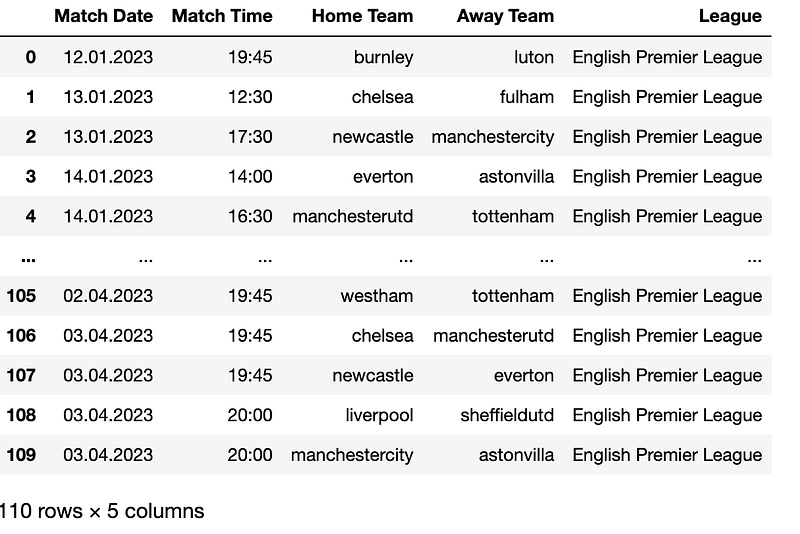
Full Jupyter Notebook can be found here.
That was quite easy wasnt it? If you have any issues or questions re this code please reach out. You can find me @PaulConish on X/Twitter.
If you enjoyed please consider leaving a clap and following.


