
Dynamic Row Level Security with Organizational Hierarchy in PowerBI
Problem Statement: 4 levels of Org Hierarchy [Mocked up data]
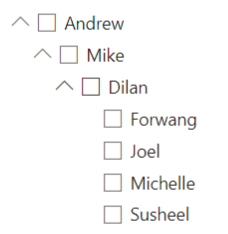
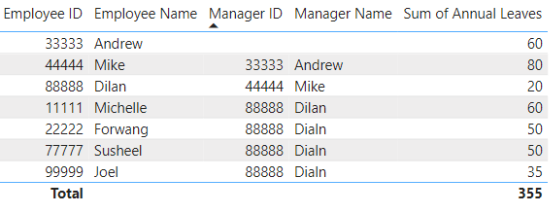
In the organization chart above, When a user accesses the PowerBI report
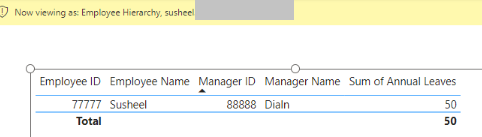
- Susheel should see only one record of data.
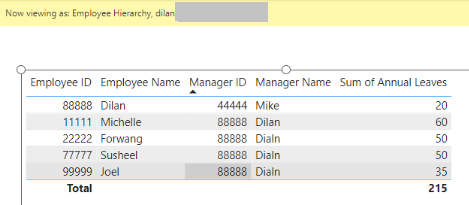
- Dilan should see 5 records; 1 record for himself, and 4 records from Forwang, Joel, Michelle and Susheel (because they all report to Dilan directly).
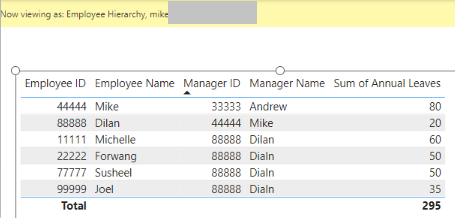
- Mike should see 6 records; one record for Himself, 1 record for Dilan, and 4 records for Forwang, Joel, Michelle and Susheel. This is how the hierarchical organizational row-level security is required to work.
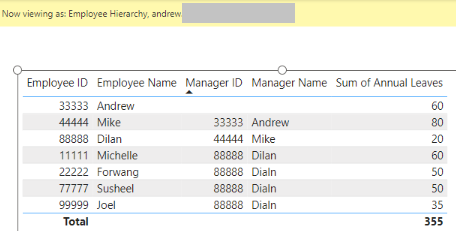
- Andrew should see all the data; 7 records
Solution:
Data Model:

Employee Hierarchy Table:
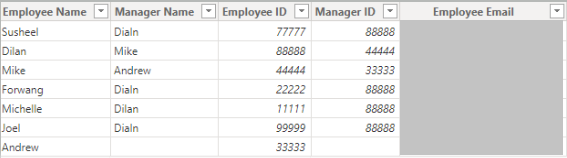
Leaves Table:
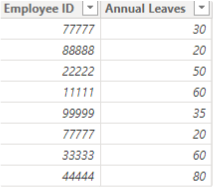
The Visual:
Steps before configuring RLS:
For implementing row-level security in this scenario, one of the most common ways is using Path functions in DAX. Path functions are powerful functions that can navigate through an unknown level of hierarchy based on an ID, and Parent ID structure. the structure of your data table usually is constructed based on two columns; Employee ID and Manager ID
Create new calculated columns:
Path() Function: This function will go through an Employee ID, and parent ID structure, and reveal the whole hierarchical path in a string-type delimited style. to use this function you can simply create a calculated column in the user table with the below expression
Path = PATH(‘Employee Hierarchy’[Employee ID],’Employee Hierarchy’[Manager ID])

This function will give you the whole path for the hierarchy with a delimited text value. The ID of every employee in the path is separated in this text by a vertical line (|).
PathItem() The PathItem() function will give you the specific item in a path. if you want to see who is the manager level 1, level 2 or 3, you can use PathItem to fetch it. Here is an example
Lvl 1 = LOOKUPVALUE( 'Employee Hierarchy'[Employee Name] , 'Employee Hierarchy'[Employee ID], PATHITEM('Employee Hierarchy'[Path],1,1) )
Lvl 2 = LOOKUPVALUE( 'Employee Hierarchy'[Employee Name] , 'Employee Hierarchy'[Employee ID], PATHITEM('Employee Hierarchy'[Path],2,1) )
Lvl 3 = LOOKUPVALUE( 'Employee Hierarchy'[Employee Name] , 'Employee Hierarchy'[Employee ID], PATHITEM('Employee Hierarchy'[Path],3,1) )
Lvl 4 = LOOKUPVALUE( 'Employee Hierarchy'[Employee Name] , 'Employee Hierarchy'[Employee ID], PATHITEM('Employee Hierarchy'[Path],4,1) )
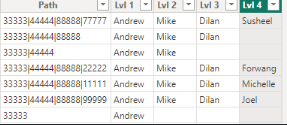
To get the Employee Level Ranking PathLength() function can be used
Create a new calculated column
Employee Level Ranking = PATHLENGTH(‘Employee Hierarchy’[Path])
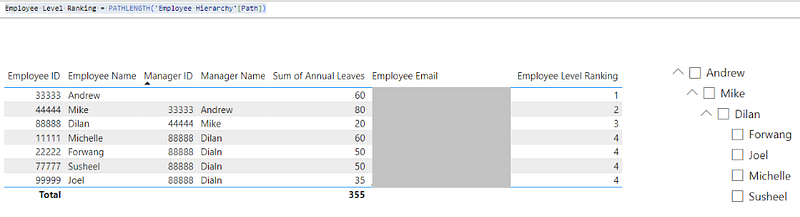
Configuring RLS with Managed Roles:
PathContains() : PathContains will check if an ID exists in the path or not. This is the function that we need to implement row-level security in Managed Roles
Employee ID in PathContains functions is used to check if the user’s ID exists in a path or not.
Create a new Role:
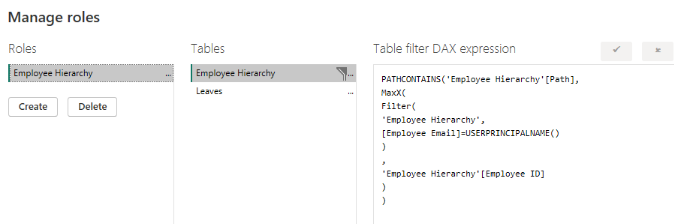
PATHCONTAINS(‘Employee Hierarchy’[Path], MaxX( Filter( ‘Employee Hierarchy’, [Employee Email]=USERPRINCIPALNAME() ) , ‘Employee Hierarchy’[Employee ID] ) )
This DAX expression will check the full path of the organization hierarchy to see if there are any records in the user table which has this Employee ID in their Path column or not.
End Result: Output
- When Susheel accesses the report:
- When Dilan accesses the report:
- When Mike accesses the report:
- When Andrew accesses the report:
Summary
Applying row level security has many variations. In this post, you’ve learned about how to use organization hierarchy and Path functions in DAX to implement row level security based on a hierarchy.


