
Drawing on Jetpack Compose Canvas — Android
Hey! Take your cup of coffee ☕️ and let’s see how to draw on Canvas using Jetpack Compose.
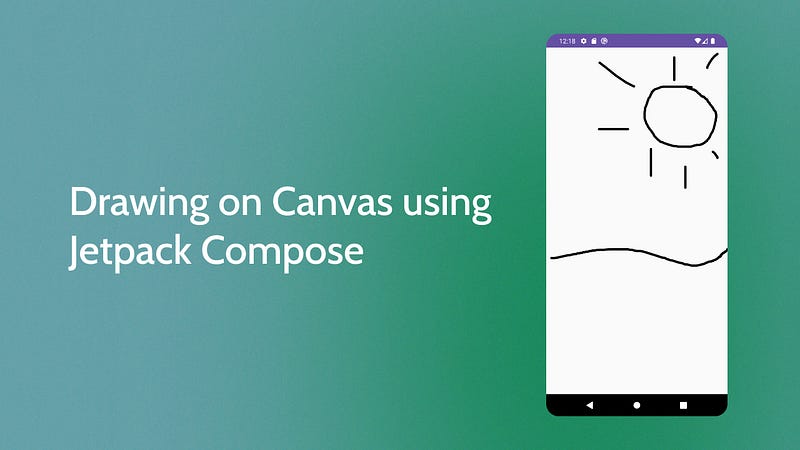
What is a Canvas?
The Canvas is used to draw elements with precise control over their style and location. You can easily create a Canvas by using it as any other Jetpack Compose UI element.
Creating the app
Let’s start by creating a Line data class that holds the following parameters: start, end, color, strokeWidth. This class is used to easily hold the data that we get from dragging the pointer on the screen.
pointer — A pointer is a physical object you can use to interact with an application such as your finger, a mouse, or a trackpad.
data class Line(
    val start: Offset,
    val end: Offset,
    val color: Color = Color.Black,
    val strokeWidth: Dp = 5.dp
)
After that, create a DrawingScreen composable that contains a mutableStateListOf line.
@Composable
fun DrawingScreen() {
    val lines = remember { mutableStateListOf<Line>() }
}
Now let’s create the Canvas composable that fills the whole screen and it has a pointerInput modifier. This modifier is very useful when we are dealing with gestures that aren’t out of the box.
Canvas(
    modifier = Modifier
    .fillMaxSize()
    .pointerInput(Unit) {
        /*TODO*/
    }
) { /*TODO*/ }
In the pointerInput modifier let’s use the detectDragGestures function in order to receive data on the pointer position on the screen.
.pointerInput(Unit) {
    detectDragGestures { change, dragAmount ->
        // Make sure to consume the event
        change.consume()

        val line = Line(
            // Determines the starting position of the line
            start = change.position - dragAmount,
            end = change.position
        )

        // Add it to the list
        lines.add(line)
    }
}
change.position — This is constantly updated when the pointer moves on the screen.
dragAmount — The distance between the current touch position and its initial position.
The last thing we have to do is to draw the lines. To do that we have to iterate through the lines list and use the drawLine function.
Canvas(
    // ...
) {
    lines.forEach { line ->
        drawLine(
            color = line.color,
            start = line.start,
            end = line.end,
            strokeWidth = line.strokeWidth.toPx(),
            cap = StrokeCap.Round
        )
    }
}
I hope this article helped in your development journey. Remember to stay updated on my latest content by following me and subscribing to the newsletter. Thank you for reading!
I also run a YouTube channel dedicated to Android Development where I share informative content. If you’re interested in expanding your knowledge in this field, be sure to subscribe to my channel.
If you want to support me, I would appreciate a coffee! ☕️


