
Downloading and running Llama2 for Windows
Llama2 is a free open-source large language model that can be used for commercial purposes. This makes it a perfect model for any developer wanting a free, easy-to-use language model for their projects. Unfortunately, Meta released the model for Linux, and I encountered some difficulties when downloading and running the model, which is why I am making this tutorial, to show how I solved these challenges and got Llama2 up and running.

Step 1: Ask for permission on Meta’s website
To be able to download the model, you first need to agree to some terms and conditions from Meta. You can go to this link, then press Download the model, then you will be taken to a form where you have to fill in your information. After that, you can press Accept and continue. Meta will then process your request, and when they are done, they will send you an email. For me, this only took a few minutes, but there is no guarantee it will always be that quick.
Step 2: Clone the repository
After receiving the permission, you can clone this Git repository. To download the Llama2 model, you need to run the download.sh file, which is where the issues with using Windows come in, as you cannot run a .sh file out of the box with Windows. Do make this work, you can go to step 3.
Step 3: Downloading the model
I found that the simplest way of activating the download.sh for Windows, was using Git Bash, which you can download from here. You then also need to wget, since that is used in the download.sh script. To download wget, you can go to this website, and install a version from there. I downloaded the 1.21.4, x64 EXE version, marked in the image below.
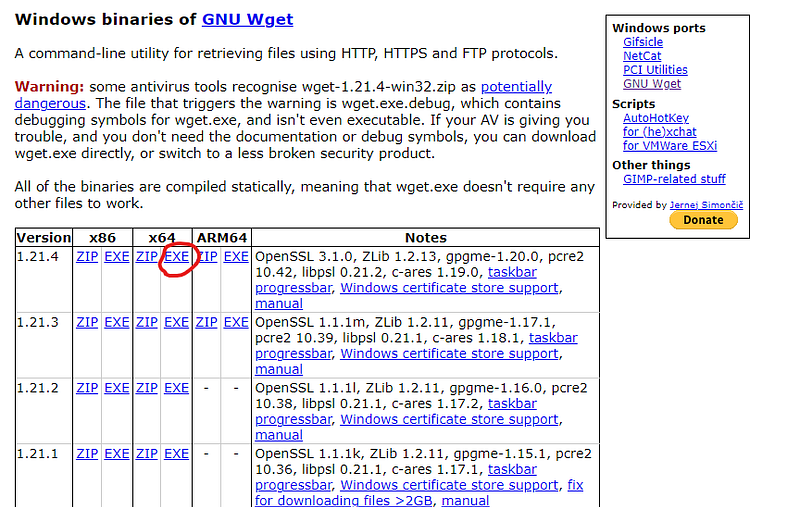
When you have downloaded this file, you then have to move it to the correct folder. Move the wget.exe file to the folder: C:\Program Files\Git\mingw64\bin. Then restart Git Bash. Note that you could also add the wget.exe file to path, but I think moving it to this folder is a simpler solution.
Now you can finally open Git Bash, and move to the directory where you cloned the Llama Git repository. You can run:
bash download.sh
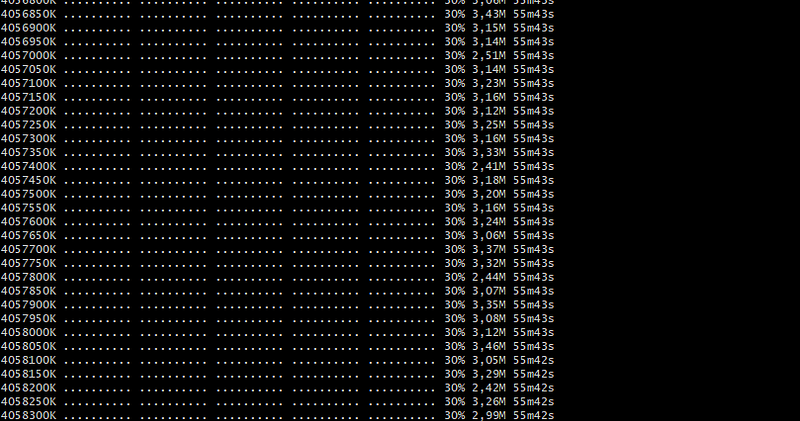
You will then be prompted to enter the URL you got from the mail from Meta. Copy that link, and paste it into Bash. Note that for me, Ctrl+V was not possible to use for paste, so I instead right-clicked and pressed paste, which worked. Then you will be prompted for which model to use. You can naturally choose whatever model you want, but for a small hobby project, I recommend the 7B-chat model. After entering which model you want, the download should start (which will take quite some time as this is a large model).
Step 4: Running the model:
There are a few ways to run the model for Windows, but here I will be showcasing how I did it. This approach also allows you to apply quantization, which is a great technique that can be used to save space and memory, traded for a bit of accuracy.
- First, you clone this repository. For the rest of the steps in Step 4, you could follow the readme, but I thought it was a bit messy, so I think it is easier to follow the steps below.
2. Use Make (instructions taken from llama.cpp repository). Download the latest zip file from this GitHub page. Extract the zip folder, and run the w64devkit.exe file. This opens up a terminal, where you can maneuver to the llama.cpp folder with cd commands. When you are in the llama.cpp folder you can run:
make
3. Then you copy over the Llama2 model folder you downloaded in step 3, into the cloned repository
4. You then have to change the params.json file in the Llama2 folder. Open the file up and set vocab_size to 32000. This value might depend on the Llama2 model you are using, but if the next step complains about the wrong vocab size, you can change the vocab size the error is mentioning.
4. You can then run the code:
python convert.py ./<Llama2 model folder>where <Llama2 model folder> is the folder of your downloaded Llama model. Since I downloaded the Llama2 7B chatbot, my folder name was llama-2–7b-chat.
This code creates a copy of the model which is a .gguf file, instead of a .pth file
5. Optional: You can then create a quantized model, which is a smaller model that takes less RAM and space. You can check out some specs requirements here to see if you can run the full model on your hardware. I quantized it to q4 with the code below, which allowed me to run with my 16GB RAM.
./quantize <model file> <save path> q4_1- <model file> is the path to the .gguf file created in the last step
is the path you want to save your new quantized model to
6. Then you can finally run your model one of two ways:
- Run it once for a specific prompt. You can use a standard prompt using:
./main -m <path to model> -n 128- Or you can create a server with:
./server -m <path to model> -c 2048
where
./server -m ./llama-2-7b-chat/ggml-model-f16.gguf -c 2048
With the server the model is loaded like a backend, so you can send HTTP requests to it. To send an HTTP request you can use the following code in Python:
import requests

url = f"http://localhost:8080/completion"
prompt = "Can you say 2 nice things about Medium?"

req_json = {
    "stream": False,
    "n_predict": 400,
    "temperature": 0,
    "stop": [
        "</s>",
    ],
    "repeat_last_n": 256,
    "repeat_penalty": 1,
    "top_k": 20,
    "top_p": 0.75,
    "tfs_z": 1,
    "typical_p": 1,
    "presence_penalty": 0,
    "frequency_penalty": 0,
    "mirostat": 0,
    "mirostat_tau": 5,
    "mirostat_eta": 0.1,
    "grammar": "",
    "n_probs": 0,
    "prompt": prompt
}

res = requests.post(url, json=req_json)
result = res.json()["content"]
I ran the model with the input:
"Can you say 2 nice things about Medium?"The Llama2 model responded with:
Yes, I can certainly say 2 nice things about Medium! Here are two things I appreciate about the platform:

1. The writing community: Medium has a vibrant and supportive writing community. The platform attracts a wide range of talented writers, from established authors to emerging voices. The community is actively engaged, with readers leaving thoughtful comments and writers offering constructive feedback. This creates a positive and collaborative atmosphere that encourages growth and improvement.
2. The flexibility of format: Medium offers a variety of writing formats, including articles, essays, stories, and more. This allows writers to experiment with different styles and structures, and to find the format that best suits their voice and message. Additionally, Medium's clean and minimalistic design makes it easy to focus on the content, rather than being distracted by cluttered layouts or ads.
So you can see the model is definitely working!
Conclusion
Now you can have your very own language model locally, which you can use for commercial purposes as well. It should be noted that this model is not as strong as the latest models you can get online like GPT-4, but nonetheless, it is quite strong considering it is a free tool you can download and use. Feel free to ask any questions you might have regarding this tutorial.
If you want to read my related articles to this one, check out:
- ✅ Create multiline synthetic images
- ✅ Create single-line synthetic images
- ✅ Fine-tune EasyOCR to Achieve Better OCR Performance
You can also read my articles on WordPress.


