
iOS / iPhone
Download the IPA File for Any iOS App on Your iPhone
This is how you can discover the URL scheme for each app
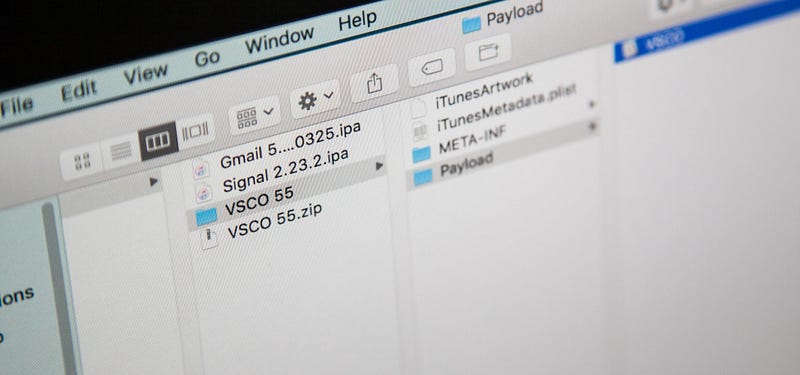
A long time ago, Apple made it extremely easy to get the IPA version of any app on your iPhone by syncing the device with iTunes. That changed in 2017 with the release of iTunes 12.7. The good news is that there is a simple way to get IPAs for your favorite apps — it’s just not very obvious.
Whenever you need to dig into an IPA file, whether it’s to reverse engineer it or find the URL scheme name to use with Shortcuts or app icon customization, you’ll need to use another Apple app on your Mac.
That app is Apple Configurator, and it’s available for free in the App Store. It’s primarily used by schools and businesses to install mobile device management profiles on iOS devices and quickly configure many devices at once with the data, apps, and settings of their choosing. But you can also use it to update your iPhone, rearrange icons on your home screen, and more.
We’ll be focusing on getting the IPA files of apps installed on your iPhone for this guide.
Once you’ve installed Apple Configurator on macOS 10.15.6 or later (sorry, there is no Windows version of this tool), you can use the steps below to download and save IPAs on your computer.
Step 1: Log in to Your Apple Account
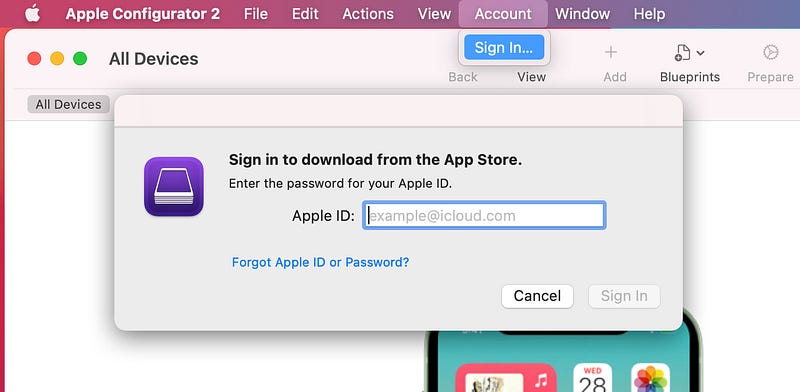
Open up the Apple Configurator application, select “Account” from the menu bar, then choose “Sign In.” In the pop-up, enter the Apple ID that matches what your iPhone is using, then hit the “Sign In” button. Next, enter the password for the account, hit “Sign In” one more time, enter the six-digit verification code you were sent if you have two-factor authentication set up, and that’s it for this step.
Step 2: Connect Your iPhone
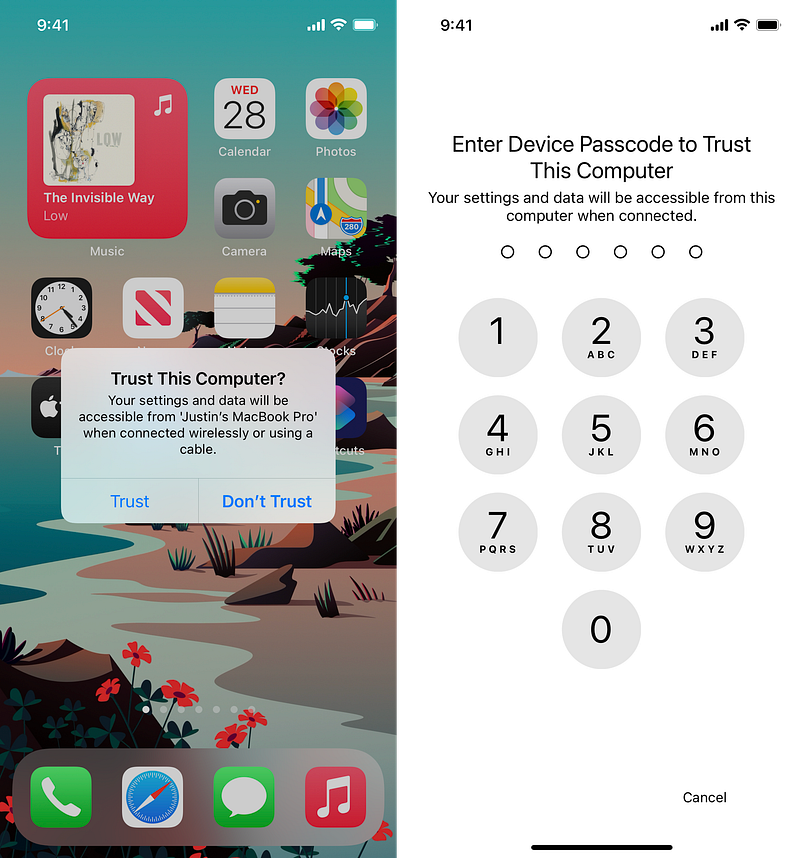
Now just connect your iPhone to your Mac using its USB cable, then “Trust” the connection from your iPhone if it’s not already trusted; you’ll need to enter your iPhone’s passcode to finish the trusting process.
Step 3: Locate the Destination Folder
There’s a specific place in macOS where temporary IPAs reside, and it’s nowhere near obvious. If you open the directory up now, you can watch the IPAs appear when you download them, or you can just go there later.
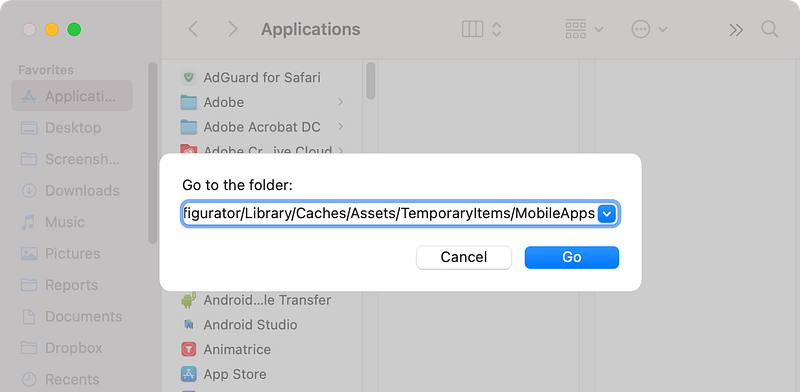
You’ll have to dig into your user library files, and the easiest way to do this is to open up your Finder, select “Go” from the menu bar, then “Go to Folder” (or use the Command-Shift-G shortcut instead).
In the box that pops up, paste the below directory path inside, then click on the “Go” button, and it should take you right there.
~/Library/Group Containers/K36BKF7T3D.group.com.apple.configurator/Library/Caches/Assets/TemporaryItems/MobileApps
If that doesn’t take you anywhere, it’s because there are currently no downloaded files from Apple Configurator. In that case, go to the “Assets” folder instead. The TemporaryItems/MobileApps directory will appear once an app file downloads from Apple Configurator.
~/Library/Group Containers/K36BKF7T3D.group.com.apple.configurator/Library/Caches/Assets
Alternatively, you can:
- Select “Go” from the menu bar, choose “Library,” and navigate to Group Containers –> K36BKF7T3D.group.com.apple.configurator –> Library -> Caches -> Assets -> TemporaryItems -> MobileApps. (If you don’t see “Library,” hold down the Option key first.)
- If you’ve made the “Library” folder on your Mac unhidden forever, you can use the keyboard shortcut Command-Shift-L to jump there. Then, navigate to the MobileApps directory.
- You can also open your Mac up under “Locations” in Finder’s sidebar and navigate to Macintosh HD –> Users –> [Username] –> Library. Then, navigate to the MobileApps directory. (If you don’t see “Library,” press Command-Shift-. (i.e., Command-Shift-Period) to unhide all hidden folders and files.)
Step 4: Download the App’s IPA File
Back in Configurator, click on the big image of your iPhone, then select “Apps” in the sidebar. Next, click “+ Add” and pick “Apps” from the pop-up.
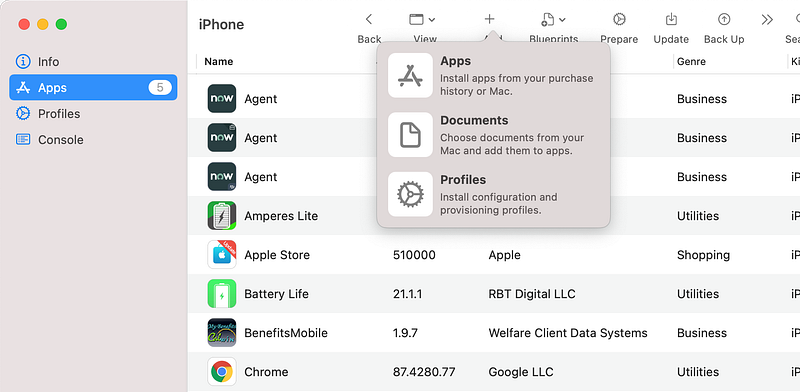
A box will appear with all of the apps from your purchase history. You won’t be able to filter by apps already installed, so it’s not very obvious which ones are on your iPhone right now.
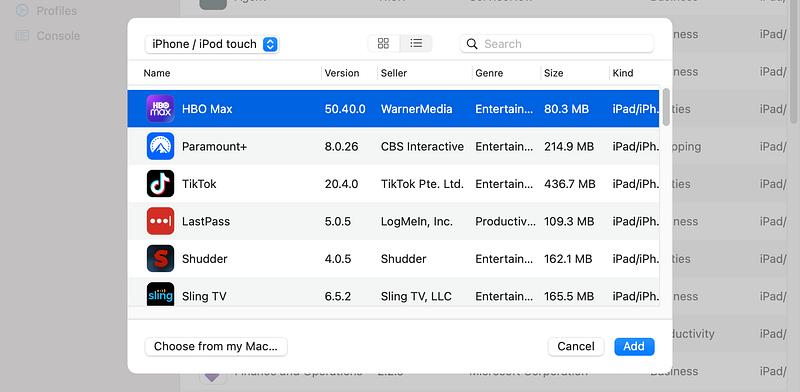
Browse or search for the app you want an IPA for, then highlight it and click the “Add” button. It will immediately start sideloading the app to your iPhone, but one of two things will happen:
- If the app isn’t on your device, the IPA file will only appear for seconds, making it difficult to copy or move the file before it vanishes. (The GIF below shows how quick it can be.)
- If the app is already on your device, the IPA won’t disappear until you’re ready because it will stop the process, telling you that you already have the app and asking whether you want to replace it or stop. So you have as much time as you need to copy or move it. (The GIF below shows this in action too.)
Step 5: Copy or Move the App’s IPA File
Once you’re in the “Mobile Apps” folder, click on the temporary folder within it. Each of the randomly numbered folders is an app, and each one has another randomly numbered folder within it that contains the IPA.
If you installed an app that wasn’t already on your iPhone, you would only have seconds to copy or move the IPA. That’s why it’s best to add apps that are already on your device since it halts the process before it auto-deletes the file. So if it disappears on you before you can copy or move it, repeat the process above, and you’ll have all the time in the world.
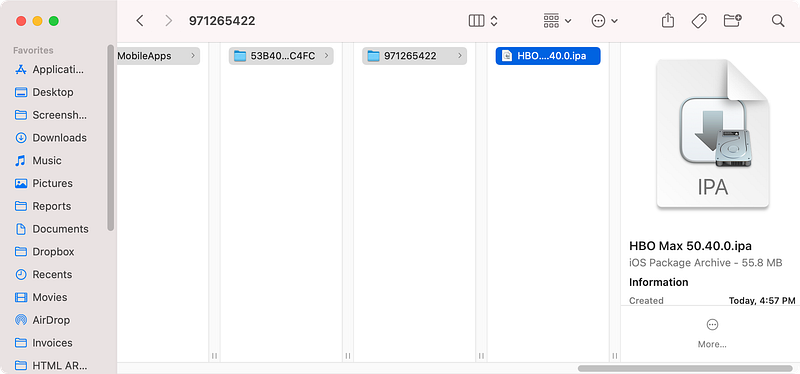
Copy (Command-C) the file, then paste it (Command-V) in another folder on your “Desktop,” in “Documents,” or wherever else you want. Or just drag and drop the IPA to another location.
Step 5: Repeat as Necessary
If the prompt is still up for you to replace or stop the update, choose an option. Then, you can repeat the process for any other app you want the IPA for. You can also select multiple apps at the same time instead of doing it one by one.
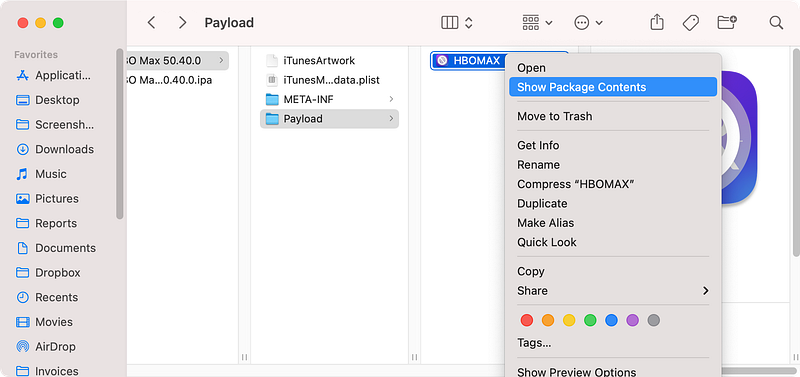
To open the IPA, change its file extension from .ipa to .zip, then unzip it and browse its files for what you need. For instance, if you need a deep link URL scheme name, open the “Payload” folder, right-click on the app name and choose “Show Package Contents,” then hunt for the PLIST file that lists the URL types.
There’s Another Way to Do It
If you want to get IPAs for all of the apps on your iPhone that need to be updated, you can click “Update” in the toolbar in Configurator. It will tell you how many apps you’ll be updating, but you can change that to “Only some apps” to pick and choose specific ones. Then, hit “Update.”
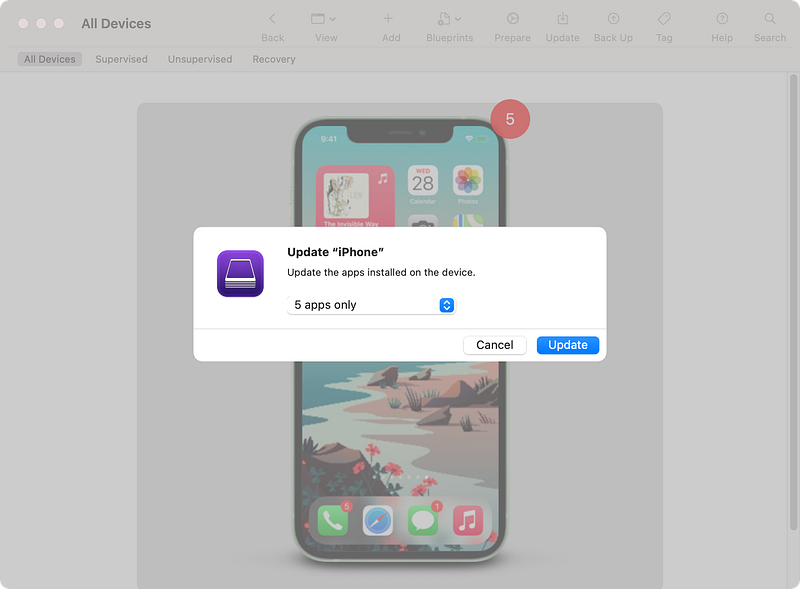
When you update apps like this, the temporary IPA files won’t always disappear right away from the MobileApps temporary folder, so you may have enough time to copy or move them.
The files may auto-delete after a certain period of time, after you close Configurator down, or even after you restart your computer. But if they’re vanishing fast, right in front of your eyes, you need to be quick or try the “Add” method above to give yourself more time.
Using the Schemes you find in IPAs
If you’re building an app or shortcut and you want to link to another app to perform actions or open menus, URL schemes and URLs are where it’s at. Check out the articles below for more information.


