Don’t wait Code Interpreter for ChatGPT! Use this instead!
Uploading Files to ChatGPT Made Easy
Are you intrigued by the ability to upload files using Code Interpreter, but it is not available for you too?
These days, ChatGPT has become a significant player, featuring a potent language model based on the GPT-3.5 architecture.
It’s not just a chatbot; it’s a tool that can be integrated into various projects, enhancing their capabilities and making them more efficient. One such feature is the ability to upload files into ChatGPT by using Code Interpreter.
Content Table
∘ Code Interpreter
· ChatGPT File Uploader
  ∘ What does this code do?
  ∘ Which formats does it accept?
  ∘ What to do next?
  ∘ Uploading Code Without Coding
· Key Takeaways
· My Cheat Sheets and Source Codes
Code Interpreter
After seeing the Code Interpreter plug-ins screenshot, I was really amazed. Its capability really became endless to me. Yet, to access it, you should fill out the form. Of course, I filled it out, yet it has not been accessible to me since then.
I daily checked my ChatGPT to see whether this plug-in would be available for me or not.
Yet, after a while, I lost my hope. But yesterday, after watching this video, I found my hope again.
Once I’ve successfully done this, I decided to write about this, of course, to share this with you.
If you are suffering from the lack of a Code interpreter like me, this article is really for you.
ChatGPT File Uploader
Let’s first see the output.
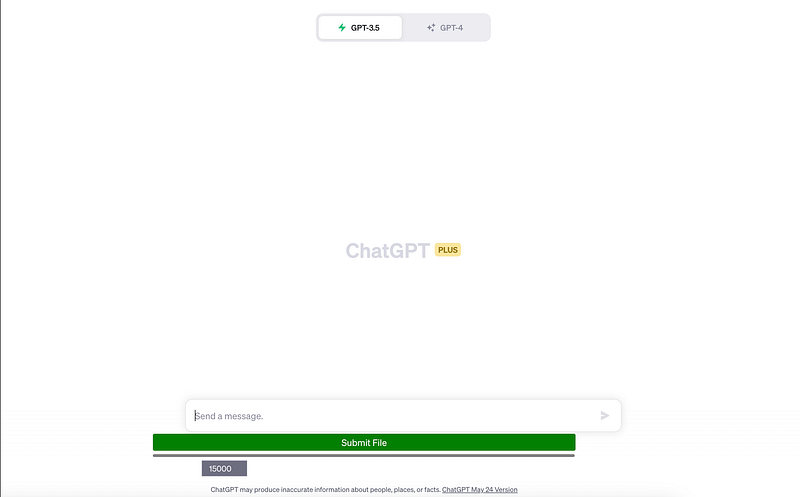
You can do this by prompting JavaScript code to the console. First, let’s click right-click on the page.
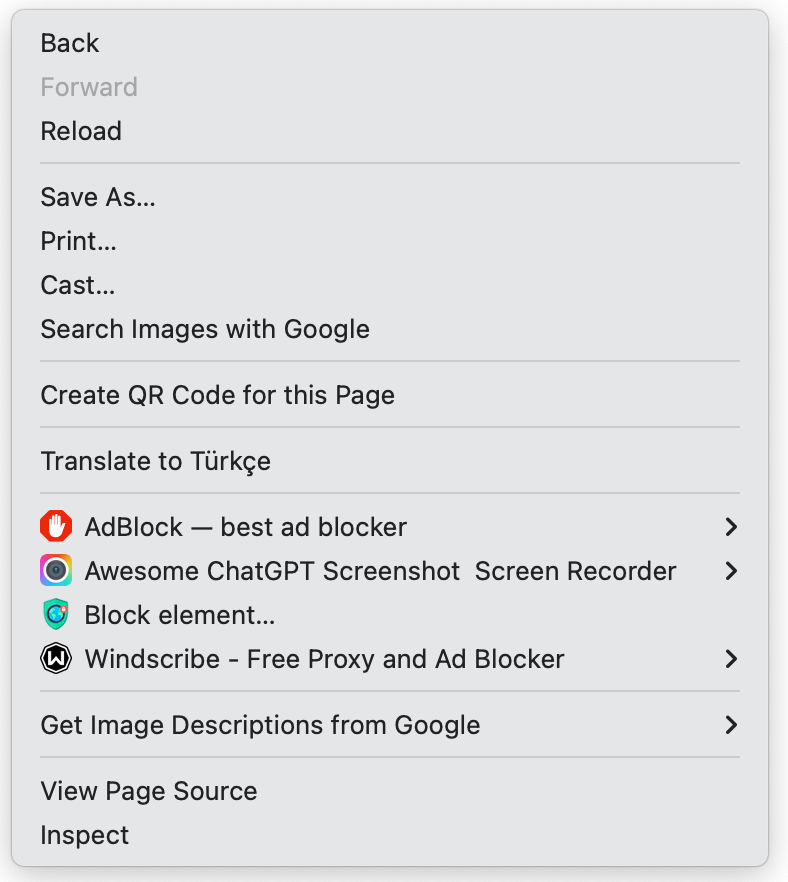
Okay, now it is time to click inspect and then find the console and click on it.

Here you can click the button the left of the top.
After that, enter the following code there;
// Create the button
const button = document.createElement('button');
button.textContent = 'Submit File';
button.style.backgroundColor = 'green';
button.style.color = 'white';
button.style.padding = '5px';
button.style.border = 'none';
button.style.borderRadius = '5px';
button.style.margin = '5px';

// Create the progress element
const progress = document.createElement('progress');
progress.style.width = '99%';
progress.style.height = '5px';
progress.style.backgroundColor = 'grey';

// Create the progress bar inside the progress element
const progressBar = document.createElement('div');
progressBar.style.width = '0%';
progressBar.style.height = '100%';
progressBar.style.backgroundColor = 'blue';

// Append the progress bar to the progress element
progress.appendChild(progressBar);

// Find the target element
const targetElement = document.querySelector('.flex.flex-col.w-full.py-2.flex-grow.md\\:py-3.md\\:pl-4');

// Insert the button and progress element before the target element
targetElement.parentNode.insertBefore(progress, targetElement);
targetElement.parentNode.insertBefore(button, targetElement);

// Add click event listener to the button
button.addEventListener('click', async () => {
  // Create the file input element
  const fileInput = document.createElement('input');
  fileInput.type = 'file';
  fileInput.accept = '.txt, .js, .py, .html, .css, .json, .csv';

  // Function to handle file selection
  fileInput.addEventListener('change', async (event) => {
    const file = event.target.files[0];
    if (file) {
      const reader = new FileReader();
      reader.onload = async (e) => {
        const fileContent = e.target.result;
        const chunks = chunkText(fileContent, 15000);
        const numChunks = chunks.length;

        for (let i = 0; i < numChunks; i++) {
          const chunk = chunks[i];
          const part = i + 1;

          await submitConversation(chunk, part, file.name);
          progressBar.style.width = `${((i + 1) / numChunks) * 100}%`;
        }

        progressBar.style.backgroundColor = 'blue';
      };

      reader.readAsText(file);
    }
  });

  // Trigger the file input dialog
  fileInput.click();
});

// Function to split text into chunks
function chunkText(text, chunkSize) {
  const chunks = [];
  for (let i = 0; i < text.length; i += chunkSize) {
    chunks.push(text.slice(i, i + chunkSize));
  }
  return chunks;
}

// Function to submit a conversation
async function submitConversation(text, part, filename) {
  const textarea = document.querySelector("textarea[tabindex='0']");
  const enterKeyEvent = new KeyboardEvent('keydown', {
    bubbles: true,
    cancelable: true,
    keyCode: 13,
  });
  textarea.value = `Part ${part} of ${filename}:\n\n${text}`;
  textarea.dispatchEvent(enterKeyEvent);

  // Check if ChatGPT is ready
  let chatgptReady = false;
  while (!chatgptReady) {
    await new Promise((resolve) => setTimeout(resolve, 1000));
    chatgptReady = !document.querySelector('.text-2xl > span:not(.invisible)');
  }
}
After entering the code above, you can finally submit files to ChatGPT.
What does this code do?
The script will take the data of that file and submit it into ChatGPT. If it’s a large file, the script will take the data, break it into chunks, and feed it into ChatGPT.
Which formats does it accept?
When the button is clicked, it creates an input element of type ‘file’ that accepts ‘.txt’, ‘.js’, ‘.py’, ‘.html’, ‘.css’, ‘.json’, and ‘.csv’ files.
What to do next?
Now it is time to do your analysis. Since ChatGPT knows your data, you can ask it anything you want, as we all know, the sky is the limit.
Uploading Code Without Coding
If you are not familiar with javascript, inspect the console, or maybe you are familiar, but you want to do it without hustle.
You can download the ChatGPT file uploader Google extension here.
After installing your extension, just click on the extension, and the submit file button will be available.
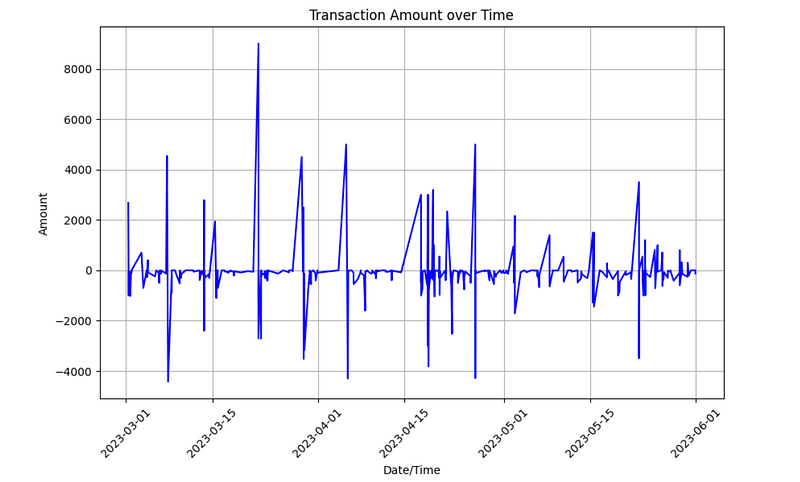
My Prompt: Now, I want you to give me the codes to create graphs for me to see trends over time.
Here is the code it gives to me ;
import pandas as pd
import matplotlib.pyplot as plt

# Read the data from the CSV file into a DataFrame
df = pd.read_csv('/Users/randyasfandy/Downloads/transactions.csv', delimiter=',')

# Convert the date column to a datetime data type
df['Date/Time'] = pd.to_datetime(df['Date/Time'], format='%Y-%m-%d %H:%M:%S')

# Set the date column as the index of the DataFrame
df.set_index('Date/Time', inplace=True)

# Line Plot
plt.figure(figsize=(10, 6))
plt.plot(df.index, df['Transaction Amount'], color='blue')
plt.title('Transaction Amount over Time')
plt.xlabel('Date/Time')
plt.ylabel('Amount')
plt.xticks(rotation=45)
plt.grid(True)
plt.show()

# Bar Plot
plt.figure(figsize=(10, 6))
df_grouped = df.resample('M').sum()  # Group data by month and calculate the sum of amounts
plt.bar(df_grouped.index, df_grouped['Transaction Amount'], color='green')
plt.title('Total Transaction Amount by Month')
plt.xlabel('Month')
plt.ylabel('Total Amount')
plt.xticks(rotation=45)
plt.grid(True)
plt.show()
I used Jupyter Notebook to see if this code worked.
Here is the graph. I analyzed my transactions between times, according to the statement that the bank sent to me.
Of course, I sent it to ChatGPT by using the method above.
Key Takeaways
- Versatility of ChatGPT: ChatGPT can handle various types of files, providing accurate responses based on the content of these files.
- JavaScript Script for File Submission: A detailed JavaScript script can create a ‘Submit File’ button and a progress bar, facilitating the file upload process.
- Progress Tracking: The progress bar updates after each chunk is submitted, providing a visual representation of the upload progress.
- Submit Button Disappearing : After refreshing browser, the submit file button will disappear. You can overcome this issue by bookmarking your current page, or you can click anytime you want to submit file.
My Cheat Sheets and Source Codes.
If you’ve made it this far, thank you!
I continually update and add new Cheat Sheets and Source Codes for your benefit. Recently, I crafted a ChatGPT cheat sheet, and honestly, I can’t recall a day when I haven’t used ChatGPT since its release.
Also, here is my E-Book, explains, how Machine Learning can be learned by using ChatGPT.
Feel free to select one of the Cheat Sheets or projects for me to send you by completing the forms below.
Here is my daily newsletter about AI and Data Science.
Here is my NumPy cheat sheet.
Here is the source code of the “How to be a Billionaire” data project.
Here is the source code of the “Classification Task with 6 Different Algorithms using Python” data project.
Here is the source code of the “Decision Tree in Energy Efficiency Analysis” data project.
Here is the source code of the “DataDrivenInvestor 2022 Articles Analysis” data project.
In case you’re not yet a Medium member and want to expand your knowledge through reading, here’s my referral link.
Here is my E-Book: How to Learn Machine Learning with ChatGPT?
“Machine learning is the last invention that humanity will ever need to make.” Nick Bostrom