
Docker — The Most Loved Platform Every Developer Must Learn
Actually, the 2nd most loved platform by developers according to the Stack Overflow survey.
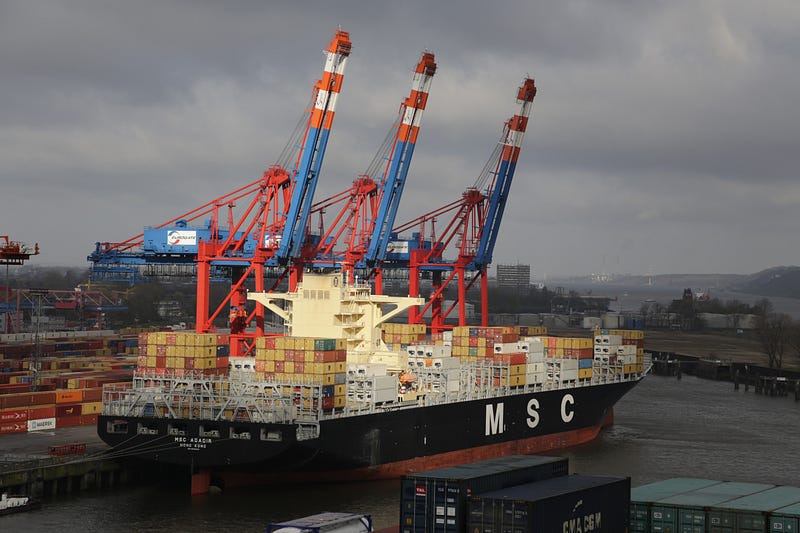
Have you ever wondered why we moved on to container-based applications in an era where we have virtual machine applications? How does docker make the task of development easier? Some of the top tech companies like Google, Amazon Web Services (AWS), Intel, Tesla, and Juniper Networks have their own custom version of container engines. They heavily rely on them to build, run, manage, and distribute their applications. Before trying to judge the usefulness, you should get to know the most important elements and tools around the Docker ecosystem when getting started. Let’s see what is Docker and know its concepts.
What the heck is Docker?
Docker is a light weighted alternative to a virtual machine (VM) which is designed to make it easier to create, deploy and run applications by using containers. Wikipedia defines Docker as,
“an open-source project that automates the deployment of software applications inside containers by providing an additional layer of abstraction and automation of OS-level virtualization on Linux.”
On any Host OS, we have a docker engine that runs the multiple containers present on it. These docker containers have an application running on them which in turn is equipped with all the binaries and libraries needed to run the application.
But why Docker?
Before Docker, industries were facing challenges where an application developed in one machine worked in a developing environment but not in a testing or production environment. This is due to the difference in the computing environment between development and production. This is when dockerization makes our task easier.
Docker provides a consistent environment throughout the whole Software Development Life Cycle (SDLC) thereby providing better productivity throughout the life cycle.
Containerization vs Virtualization
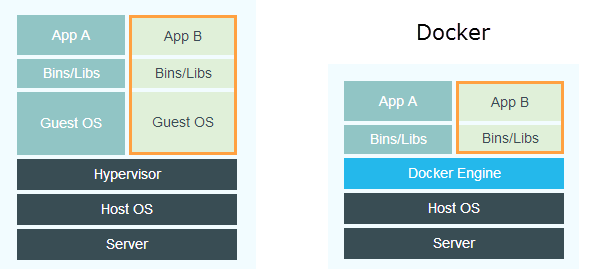
In virtualization, every application runs on VM and this VM imports a guest operating system on top of the host OS. This way we can run a different application on the same machine. Now you might be wondering what the problem with virtualization is? One major drawback is that running many VMs on the same host system will degrade the performance of the system. Guest OS running on this host OS has its own set of kernel libraries and dependencies which take up a large number of resources like hard disk processor and RAM and takes up much time to boot up when comes to real-time applications.
Thus containerization was introduced. Here there is no guest OS required, instead, the application will utilize the host OS. Hence, each container will share the host OS and each will have its own application and libraries in it. RAM and disk space will be utilized by the containers according to their requirements thereby boosting the performance of the system considerably.
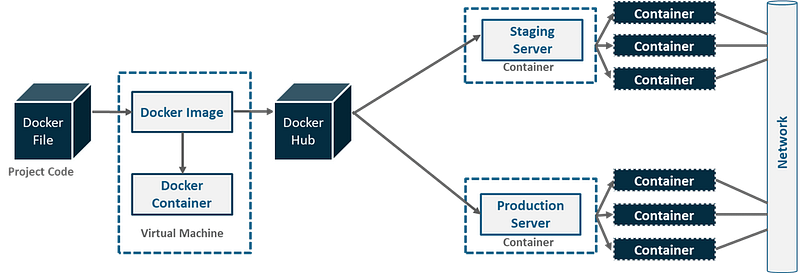
Pictorial Overview of Docker Networking
Dockerfile
Dockerfile is a text file (without any .txt extension) that is used to build a docker image that contains all the project code. This is the file that includes commands and arguments to customize a docker image. Docker can build images automatically by reading the instructions from a Dockerfile.
Commands used in Dockerfile
- FROM → defines a base image to be used to start the build process.
- MAINTAINER → name and email of the maintainer of this image.
- COPY → copies a file or a directory into the image.
- ADD → the same as COPY, which contains two arguments source and destination path.
- RUN → takes command as an argument and runs it to form the image, such as apt-get install.
- CMD → default command to run when the container is initiated. Can be overridden with command line parameters.
- ENV → sets an environment variable in the container.
- EXPOSE → exposes ports from the container. Must be explicitly exposed by the run command to the Host with -p or -P.
- VOLUME → specifies a directory that is used to store file contents related to the container.
- ENTRYPOINT → is used to override the cmd command. When the container is run, this command is the first one to be executed for the image which is built.
- USER → sets the user for RUN, CMD and ENTRYPOINT.
- WORKDIR → sets the working directory for RUN, CMD, ENTRYPOINT, ADD and COPY.
Docker Image
An image is a blueprint from which an arbitrary number of brand-new containers can be started. It reads only templates (Dockerfile) used to create containers. It contains all the dependencies and requirement for a particular application.
Docker Container
Imagine you’d like to run a command isolated from everything else on the system. It should only access exactly the resources it is allowed to (storage, CPU, memory), and does not know there is anything else on the machine. The process running inside a container thinks it’s the only one and only sees a barebones Linux distro of the stuff which is described in the image.
That sounds an awful lot like VMs, right? Yup. Only containers start faster and have less resource overhead. It is a run time instance of a Docker image. It contains everything needed to run the applications. One or more images can be used to build a container. A machine running the container should not have to care about what’s inside too much, and the dockerized app does not care if it’s on a Kubernetes cluster or a single server, it will be able to run anyway. A container can run more than a single process at a time. But I would preferably limit it to one and I’ve not seen anything doing that. You could package many services into a single container (let’s say Nginx) and have them all run side by side.
Docker Volumes
Images never change, just that you create new ones, but that’s it. Containers, on the other hand, leave nothing behind by default. Any changes made to a container, given that you don’t save it as an image, are lost as soon as it is removed. Hence, containers are ephemeral in nature.
But isn’t having data persist really useful? Yup. That’s where docker volumes come in. When starting a Docker container, you can specify that certain directories are mount points for either local directories (of the host machine), or for volumes. Data written to host-mounted directories is straightforward to understand (as you know where it is), volumes are for having persistent or shared data, but you don’t have to know anything about the host when using them. You can create a volume, Docker makes sure that it’s there and saved somewhere on the host system.
Docker Hub
Docker Hub is a service provided by Docker for finding and sharing container images with your team. It is also known as a container registry.
It provides the following major features:
- Repositories: Push and pull container images.
- Teams & Organizations: Manage access to private repositories of container images.
- Official Images: Pull and use high-quality container images provided by Docker.
- Publisher Images: Pull and use high-quality container images provided by external vendors. Certified images also include support and guarantee compatibility with Docker Enterprise.
- Builds: Automatically build container images from GitHub and Bitbucket and push them to Docker Hub.
- Webhooks: Trigger actions after a successful push to a repository to integrate Docker Hub with other services.
Captivated yet? Let’s Install Docker
In order to install Docker, you can go to their official website.
You can also use the official playground for docker where you can try out the below commands to get started and to get comfortable with docker.
Commands for working with Docker
Now that you’ve installed Docker or signed in to the playground, try out the below commands and see what happens. You can read tonnes of blogs but you will only learn by doing unless you are Stephen Strange having a photographic memory.
Commands for interacting with images:
- docker images: show all images.
- docker import: creates an image from a tarball.
- docker build: creates an image from Dockerfile.
- docker commit: creates an image from a container.
- docker rmi: removes an image.
- docker history: list changes of an image.
Commands for interacting with containers:
- docker -v: shows the currently installed version of docker
- docker –help: lists the commands available in docker
- docker pull: pulls an image to the docker hub repository
- docker run -it -d: creates a container from an image
- docker ps: lists the running containers
- docker ps -a: shows all the running and exited containers
- docker exec -it bash: accesses the running container (useful for checking logs)
- docker stop: stops a running container
- docker kill: kills the container by stopping its execution immediately
- docker login: logins to the docker hub repository
- docker push: pushes an image to the docker hub repository
- docker images: lists all images in the local repository
- docker build: builds an image from a specified docker file
- docker export: exports a container’s file system as a tar archive
- docker import: imports the contents from a tarball to create a filesystem image
- docker container: performs the various operation on containers
- docker container logs: logs with the specified container
- docker container kill: kills the container
- docker container rm: deletes the stopped container
- docker container start: starts a container
Wait, there are disadvantages?
Applications with different operating system requirements cannot be hosted together on the same Docker host. For example, let’s say we have 4 different applications, out of which 3 applications require a Linux-based operating system and the other application requires a Windows-based operating system. In such a scenario, the 3 applications that require a Linux-based operating system can be hosted on a single Docker Host, whereas the application that requires a Windows-based operating system needs to be hosted on a different Docker Host.
That’s a Wrap!
Hope you got some insights about Docker and its usefulness. Since Docker has been used everywhere now, it can be a bit overwhelming. According to the 2020 Stack Overflow survey, Docker is the 2nd Most loved Platform by the developers. Hope you get the gist of why Docker is so important and why every Developer must learn this. Of course, this article won’t make you a Docker Jedi, you can learn more in their official documentation.
If you enjoyed reading this, you might also find the below articles worth your time.