
Docker Desktop-1: Installing and Running Ubuntu with WSL (Windows Subsystem for Linux) and Docker Desktop on Windows 10/11
We will install a complete Ubuntu terminal environment in minutes with Windows Subsystem for Linux (WSL) on Windows 10/11. So you can develop cross-platform applications, improve your data science or web development workflows, and manage IT infrastructure without leaving Windows. Then, We will install Docker Desktop on Windows. After making the necessary settings in the Docker Desktop, we will run Docker commands in the Windows terminal, and run a container. We will observe and examine the running of the container in the browser and Docker Desktop.

Topics we will cover:
1. What are the Docker, Docker Desktop, and WSL? 2. System requirements (WSL 2 backend) to Install Docker Desktop 3. Installing Ubuntu 20.04 (WSL) and WSL version 1.1.3.0 or later 3. a. Setting Up “Windows Feature” 3. b. Download and Install the Linux kernel update package(wsl_update_x64.msi) 3. c. Setting WSL 2 as your default version 3. d. Installing Ubuntu 20.04 (WSL) on Windows by using the WSL install command 3. e. Installing by using the Microsoft Store 3. f. Setting your Linux username and password 3. g. Updating and Upgrading packages for the default Ubuntu distribution using apt 4. Installing Docker Desktop on Windows 5. Starting and Setting Docker Desktop on Windows 6. Checking Docker Desktop’s running 7. Configuring Resources 8. Configuring Desktop’s Docker Daemon in the Docker Engine
9. As a result 10. Next post 11. References
If you like the article, I will be happy if you click on the Medium Following button to encourage me to write more, and not miss future articles.
Your clap, follow, or subscribe, they help my articles to reach the broader audience. Thank you in advance for them.
1. What is the Docker, Docker Desktop and Docker in WSL2?

Docker is an open-source container technology that allows us to build independent and isolated containers on the same operating system and test our application, as shown in Figure 1. Docker enables you to separate your applications from your infrastructure so you can deliver software quickly. By taking advantage of Docker’s methodologies for shipping, testing, and deploying code, you can significantly reduce the delay between writing code and running it in production. (1)

Docker Desktop is a one-click-install application for your Mac, Linux, or Windows environment that lets you build, share, and run containerized applications and microservices. It provides a straightforward GUI (Graphical User Interface) that lets you manage your containers, applications, and images directly from your machine, as shown in Figure 2. Docker Desktop can be used either on its own or as a complementary tool to the CLI. Docker Desktop reduces the time spent on complex setups so you can focus on writing code. (2)

What is WSL? WSL allows you to install and run Linux distributions on Windows. This can be a bit confusing since Linux, like Windows, is an operating system (operating system)… so you’re basically running two operating systems integrated with each other. (3)

Using Docker in WSL 2: This new Docker architecture works a lot like Visual Studio Code’s WSL remote development support in that the Docker CLI running on the host machine executes commands within the Docker Integration Package, which runs on the remote WSL VM. DockerD runs directly within WSL so there’s no need for the Hyper-V VM and all Linux containers run within the Linux userspace on Windows for improved performance and compatibility, as shown in Figure 4.
2. System requirements (WSL 2 backend) to Install Docker Desktop
I. WSL version 1.1.3.0 or later. We will do this step by step in the next item 3. II. Turn on the WSL 2 feature on Windows. For detailed instructions, refer to the Microsoft documentation. We will do this step by step in the next item 3. III. Windows 10 64-bit: Home or Pro 21H2 (build 19044) or higher, or Enterprise or Education 21H2 (build 19044) or higher.
Open About settings to check the version of Windows you are currently running and, if necessary, update to a new version. For this, press the Windows Key + X to open the power user menu and click on system. You should be able to see your system type under device specifications.
VI. Windows 11 64-bit: Home or Pro version 21H2 or higher, or Enterprise or Education version 21H2 or higher. V. The following Hardware Prerequisites are required to successfully run WSL 2 on Windows 10 or Windows 11:
- 64-bit processor with Second Level Address Translation (SLAT) 4GB system RAM
- 4GB system RAM
- BIOS-level hardware virtualization support must be turned on in the BIOS settings. Check it, as shown in Figure 5. For more information, see Virtualization.

3. Installing Ubuntu 20.04 (WSL) and WSL version 1.1.3.0 or later.
I installed Ubuntu 20.04 (WSL) on my own system from Microsoft Store, as shown in Figure 6.

If you want to install Ubuntu 20.04 (WSL) too, follow the steps below:
3. a. Setting Up “Windows Feature”
Go to the Start menu > Settings app > Apps & features > Programs and Features > Apps. Here, click on “Turn Windows features on or off”.
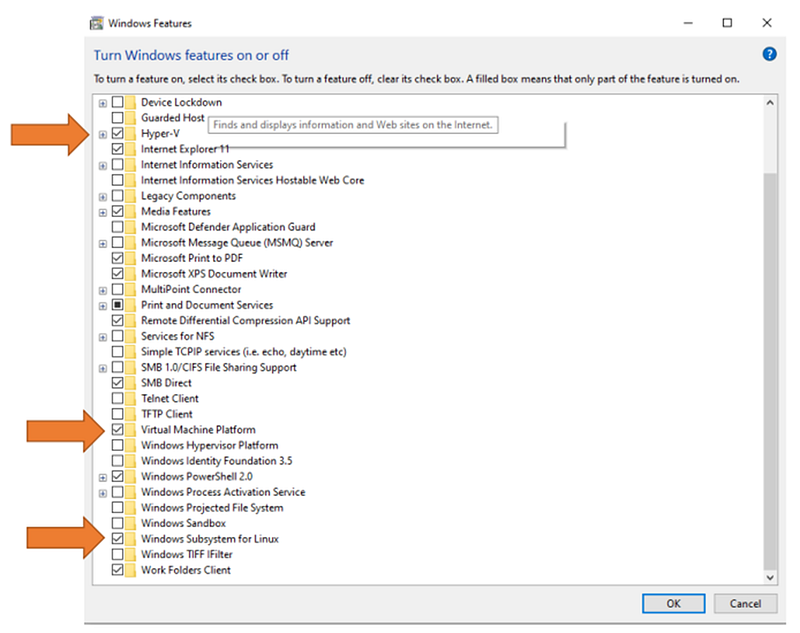
Before installing Ubuntu 20.04 (WSL), make sure that the three boxes marked below are selected in Windows. Check the Windows Subsystem for Linux, Hyper-V, Virtual Machine Platform checkboxes as marked, as shown in Figure 7.
Then, click on the “Ok” button, and click on the “Restart now” button. These will become active after restarting your computer.
3. b. Download and Install the Linux kernel update package (wsl_update_x64.msi)
Download the Linux kernel update package (the WSL 2 feature) on Windows. For this, you should download the file named WSL2 Linux kernel update package for x64 machines, to download, click on this address. When the download is finished, double-click on the “wsl_update_x64.msi” file to start the installation, and install it on your device, as shown in Figure 14.

Note: Check this link for Troubleshooting Windows Subsystem for Linux
3. c. Setting WSL 2 as your default version
Open PowerShell and run this command to set WSL 2 as the default version when installing a new Linux distribution:
wsl --set-default-version 2

# Check to output:
wsl.exe -l -v
3. d. Installing Ubuntu 20.04 (WSL) on Windows by using the WSL install command

- Open PowerShell or Windows Command Prompt in administrator mode by right-clicking and selecting “Run as administrator”. (4)
- Enter your command:
wsl --install, as shown in Figure 8. - To start using WSL, you need to restart your machine after this installation.
Note: Check this link for basic WSL commands.
- The command
wsl --installinstalls the Ubuntu distribution of Linux by default. You can choose a different Linux distribution from the list available in the Microsoft Store. You can also install additional Linux distributions after installing the default Ubuntu. To choose an alternative to the default Ubuntu distribution or to install additional distributions from the repository, use the command:wsl --install --distribution <Distribution Name>, as shown in Figure 9. (5)https://learn.microsoft.com/en-us/windows/wsl/install#change-the-default-linux-distribution-installed
Note: To see which distributions are currently available through the repository, enter the command: wsl --list --online

3. e. Installing by using the Microsoft Store
- Start the Microsoft Store application, as shown in Figure 10.

Select the version of Ubuntu (WSL) you want to install, as shown in Figure 11.
It installs a complete Ubuntu terminal environment in minutes with Windows Subsystem for Linux (WSL). Develop cross-platform applications, improve your data science or web development workflows and manage IT infrastructure without leaving Windows.

Click the Install(yükle) button, as shown in Figure 12. When the installation is finished, start Ubuntu (WSL) by clicking the “Ubuntu 20.04.6 LTS” icon in the Start menu.

Ubuntu (WSL) will start automatically after the installation is finished.
3. f. Setting your Linux username and password
After starting Ubuntu, you have to create a user account on Ubuntu now. (5)(after it’s installed you can find it in the Windows search menu).
- Type in the username and press, as shown in Figure 9.
- Then, type in a new password for the username you picked and press.
- Then, retype the password and press. A new user for Ubuntu should be created.
- Finally, you can run any Ubuntu Linux command here. I ran the
lsb_release -acommand and as you can see in the screenshot below, I am runningUbuntu 20.04.6 LTSon Windows 10 through WSL, as shown in Figure 13.

3. g. Updating and Upgrading packages for the default Ubuntu distribution using apt
- Open Ubuntu (after it’s installed you can find it in the Windows search menu).
- Enter your command:
sudo apt update && upgrade - Updating and upgrading packages requires elevated “sudo” (superuser do) permissions, so you must also enter the password you created for the Linux distribution. (6)
4. Installing Docker Desktop on Windows
Firstly, download and install the latest version of Docker Desktop for Windows click the link. (7)
Double-click on the downloaded “Docker Desktop Installer.exe” file to start the installation. Installation starts, as shown in Figure 15.

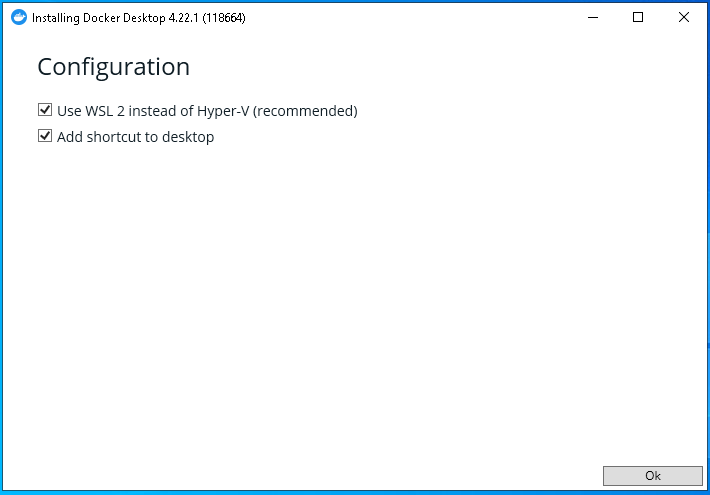
When prompted, ensure the “Use WSL 2 instead of Hyper-V”(required) and “Add shortcut to desktop”(optional) options on the Configuration page are selected, as shown in Figure 16. And then click on the “Ok” button.
Installation continues, as shown in Figure 17.

When the installation is successful, select Close to complete the installation process, as shown in Figure 18.

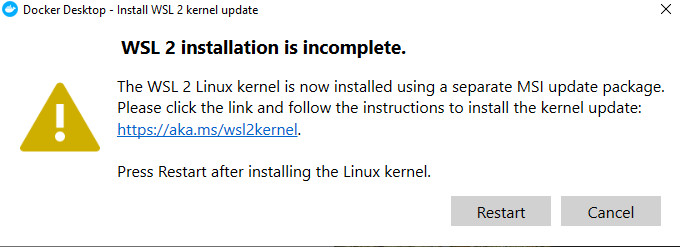
Note: If you get the error indicated in the screenshot (as shown in Figure 19), you need to install the Linux kernel for Windows. We can download it from the specified link and complete the installation, as described in item 2. g.
5. Starting and Setting Docker Desktop on Windows
Docker Desktop does not start automatically after installation. To start Docker Desktop:
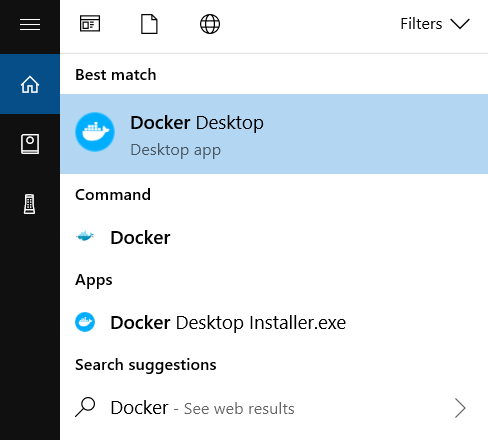
- Search for Docker, and select Docker Desktop in the search results, as shown in Figure 20, OR Double-click on the
“Docker Desktop”icon on your desktop, and then accept to Service Agreement, as shown in Figure 21.

Choose the ones that suit you in “What’s your role?” and “What will you use Docker for?”, as shown in Figure 22.

Click on the “gear” button, as shown in Figure 23.

Go to the “Resource > WSL integration” tab and check, whether the box of “Enable integration with my default WSL distro” is ticked, as shown in Figure 24.

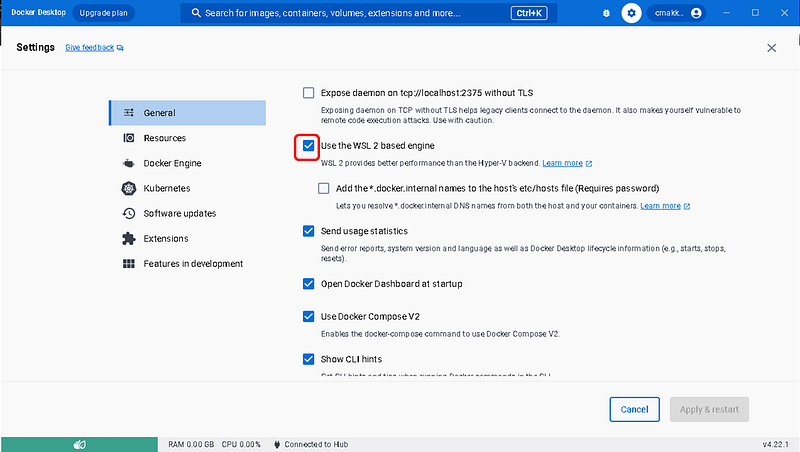
Go to the General tab and make sure that the “Use the WSL 2 Based Engine” field is checked, as shown in Figure 25.
Our Docker installation is complete. Now you can run your codes from the CMD screen, as shown in Figure 26.

6. Checking Docker Desktop’s Running
Then start a container to verify your setup is working, following the command in Windows PowerShell, as shown in Figure 27.
docker run -d -p 80:80 docker/getting-started

We checked that our container was created in Docker Desktop, as shown in Figure 28.

In the “Containers” tab, Your new container should appear in the Docker Desktop UI. Clicking the ellipsis icon to the right of the table displays a list of actions you can perform within Docker Desktop, such as opening a terminal within the container or visiting published ports in your browser. We selected “Open in the browser”, as shown in Figure 29.

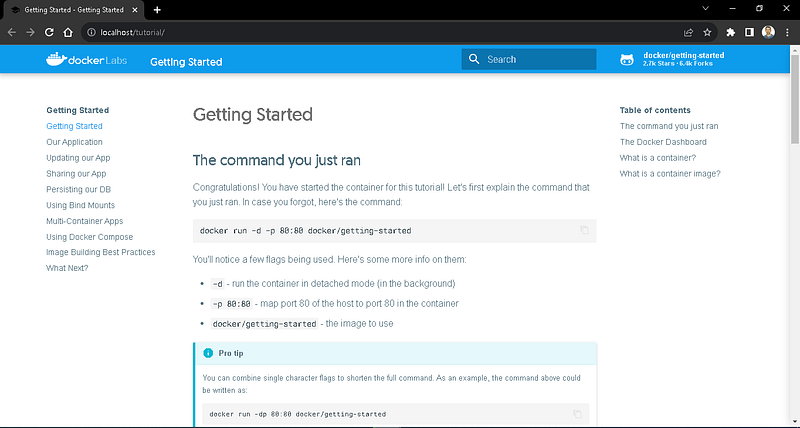
The page of the image in the container is opened in our browser, as shown in Figure 30.
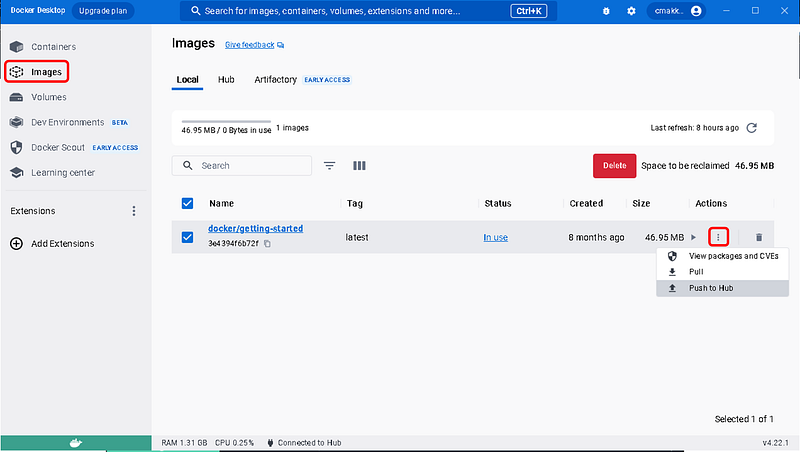
The “Images” tab on the left side of the screen provides a table of all container images available on your server. Controls are available to delete, push and pull images between different registries, as shown in Figure 31.
7. Configuring Resources
The “Resources > Advanced” tab on the left side of the screen allows you to configure CPU, memory, disk, proxies, network, and other resources. We can configure limits on the memory, CPU, and swap size allocated to WSL 2 in a “.wslconfig” file, as shown in Figure 32. (8)
The “Resources > Proxies” tab allows you to configure HTTP/HTTPS proxies.
The “Resources > Network” tab, Docker Desktop uses a private IPv4 network for internal services such as a DNS server and an HTTP proxy. In case Docker Desktop’s choice of subnet clashes with IPs in your environment, you can specify a custom subnet using the Network setting.

8. Configuring Desktop’s Docker Daemon in the Docker Engine
The Docker Engine tab allows you to configure the Docker daemon used to run containers with the Docker Desktop. You can customize the Docker daemon configuration used by Desktop by clicking the settings gear icon in the title bar and going to the Docker Engine tab on the left of the screen, as shown in Figure 33. (8)

For example: To allow Docker Registry insecure connections on Windows, enter the Docker Client program and go to the Docker Engine tab from the Settings page and add the following parameter to the end of the configuration. Replace and save the IP address and port of the device you installed Docker Registry with, and restart the Docker service, as shown in Figure 34.
"insecure-registries" : ["IPADDRESS:PORT"]
9. As a result
We successfully installed a complete Ubuntu terminal environment in minutes with Windows Subsystem for Linux (WSL) on Windows. Then, We installed Docker Desktop on Windows. After making the necessary settings in the Docker Desktop, we run Docker commands in the Windows terminal.
If you liked the article, I would be happy if you click on the Medium Following button to encourage me to write and not miss future articles.
Your clap, follow, or subscribe, they help my articles to reach the broader audience. Thank you in advance for them.
For more info and questions, please contact me on Linkedin or Medium.
10. Next post
In the next post, “Docker Desktop-2: Deploying an application by using Kubernetes Yaml File to Docker Desktop Kubernetes Cluster integrated with VS Code”.
We will enable Kubernetes on Docker Desktop. Docker Desktop has integrated Kubernetes support but it is not enabled by default. And then we will deploy an application by using Kubernetes Yaml File to the Docker Desktop Kubernetes Cluster. We will observe and examine the running of our application in the browser and Docker Desktop.
I hope you enjoyed reading this article. You can share this article with friends in your network and help them to upskill.
I frequently share articles about Cloud and DevOps tools and resources, if you follow me on my Medium or LinkedIn account you don’t miss future articles. I wish you growing success in the DevOps and the Cloud way.
Happy Clouding…
11. References
(1) https://docs.docker.com/get-started/overview/
(3) https://learn.microsoft.com/tr-tr/training/modules/wsl-introduction/what-is-wsl
(4) https://learn.microsoft.com/tr-tr/training/modules/wsl-introduction/install-and-setup
(5) https://learn.microsoft.com/tr-tr/training/modules/wsl-introduction/install-and-setup
(6) https://learn.microsoft.com/tr-tr/training/modules/wsl-introduction/install-and-setup


