
Django: Customize 404 Error Page
Customizing 404 Error Page is one of the best practices in Django projects. Let’s learn how to handle 404 errors with our custom 404 Not Found page.

404 Page Not Found should be the most famous status code. In production, a good Django project has to handle this error with your own customized page. I will show you how to accomplish this with simple steps.
Let’s create a Django project without losing time.
Open your console and write these lines:
$ cd Desktop
$ mkdir mysite
$ cd mysite
Then create a Django project:
$ django-admin startproject mysite .We will execute this line to run the server:
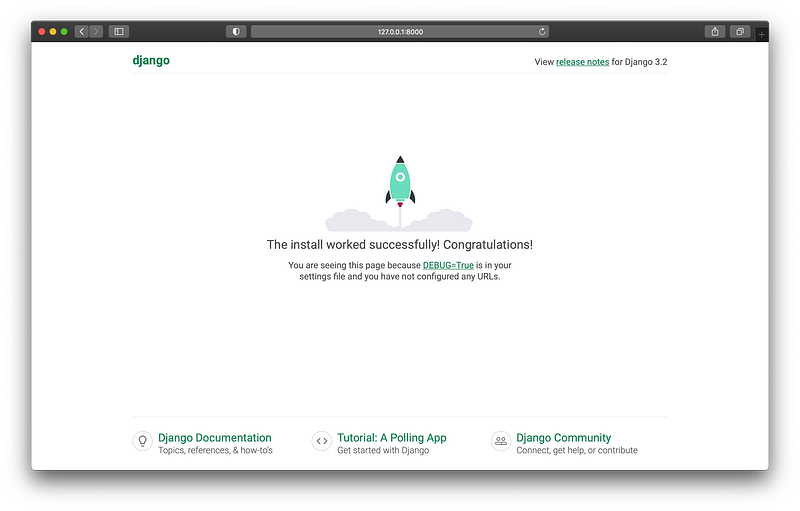
$ python manage.py runserverIf you visit http://127.0.0.1:8000/ you will see the Django welcome page.
Let’s try to go to a non-existing page on our website. For example, I will go to http://127.0.0.1:8000/page.
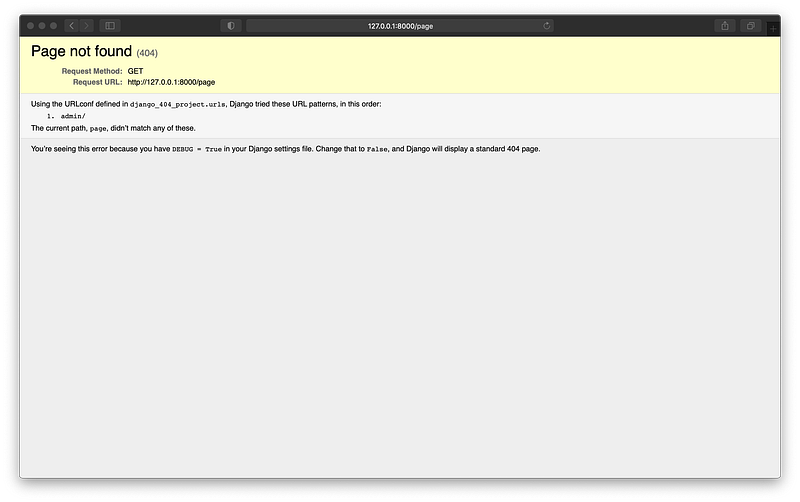
At the bottom of the page, the message says:
You’re seeing this error because you have DEBUG = True in your Django settings file. Change that to False, and Django will display a standard 404 page.Let’s do that by turning off Django debug mode. For this, we need to update the settings.py file.
DEBUG = FalseALLOWED_HOSTS = ['127.0.0.1']Note: In production, you need to change ALLOWED_HOSTS to 'mydomain.com' .
Refresh the page.
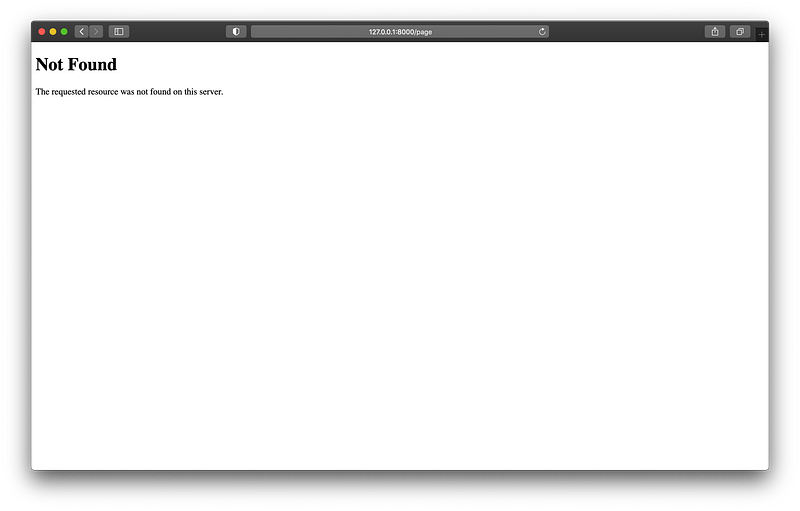
This is the page we are going to customize with our template.
Use this command and create a file under the mysite folder.
$ touch mysite/views.pyI know it is weird to have a views.py file under the project directory. We are always told that views.py is a file that is under each app directory, not the project itself. But this is the suggested way in the official document.
Your Django project should look like this:
.
├── db.sqlite3
├── manage.py
└── mysite
    ├── __init__.py
    ├── __pycache__
    ├── asgi.py
    ├── settings.py
    ├── urls.py
    ├── views.py
    └── wsgi.py
Now we will add a function that handles 404 error by putting these lines to the mysite/views.py file:
from django.shortcuts import renderdef page_not_found_view(request, exception):
return render(request, '404.html', status=404)Don’t forget to add this function to the bottom of mysite/urls.py file:
handler404 = "mysite.views.page_not_found_view"In the end, mysite/urls.pyfile becomes:
from django.contrib import admin
from django.urls import path
urlpatterns = [
path('admin/', admin.site.urls),
]handler404 = "django_404_project.views.page_not_found_view"First, we need to create a templates folder and then we will add a 404.html file to this folder.
$ mkdir templates
$ touch templates/404.html
You need to tell Django where your templates folder is located so update the settings.py file.
import osTEMPLATES = [
{
...
'DIRS': [os.path.join(BASE_DIR, 'templates')],
...
},
]In 404.html you are now able to customize the error message page as you desire. I am keeping it simple:
<h1>404 Page Not Found</h1>
<p>My Custom 404 Page Not Found!</p>
Before refreshing the page, be sure that your project structure should be like this:
.
├── db.sqlite3
├── manage.py
├── mysite
│   ├── __init__.py
│   ├── __pycache__
│   ├── asgi.py
│   ├── settings.py
│   ├── urls.py
│   ├── views.py
│   └── wsgi.py
└── templates
    └── 404.html
Now you can go to any page that does not exist on your website. The 404.html template will handle all of them.
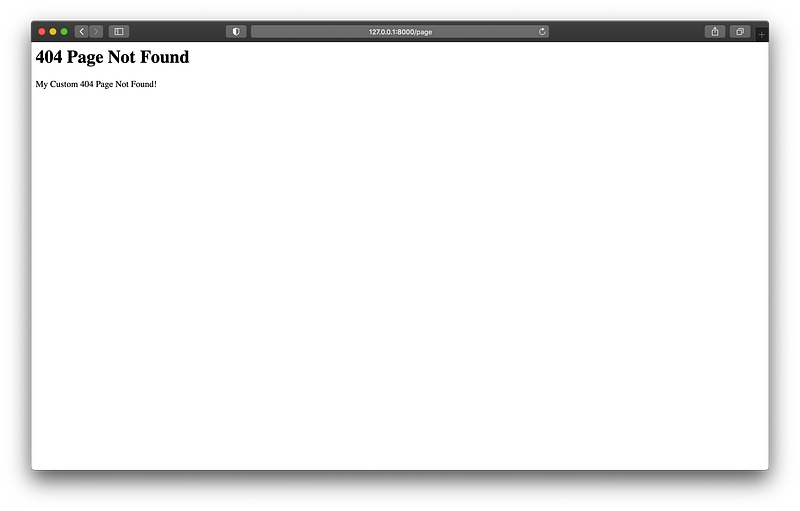
Voila! Our custom 404 Page Not Found is visible for any non-existing page on your website.
Thank you for reading my article. I hope you enjoy it!
You might also be interested in: