avatarCaleb

Free AI web copilot to create summaries, insights and extended knowledge, download it at here

3163

Abstract

essor’ and increase the number of CPUs to at least 2 for better performance.</li><li>Go to ‘Storage’ -> ‘Controller: IDE’, click on the ‘+’ icon beside ‘Optical Drive’, and select ‘Add’.</li><li>Choose the Kali Linux ISO file you downloaded earlier.</li><li>Click ‘OK’ to close the settings window.</li></ol><p id="187e">Now, let’s fire up the VM and install Kali Linux:</p><ol><li>Select the VM and click on ‘Start’. You will be presented with the Kali Linux boot screen.</li><li>Select ‘Graphical Install’ and hit enter.</li><li>Follow the prompts to select your language, location, and keyboard layout.</li><li>When asked to partition disks, select ‘Guided — Use entire disk’ and follow the prompts.</li><li>Set a root password when prompted. This is the ‘master key’ to your Kali Linux system, so keep it safe and secure.</li><li>Once you’ve answered all the questions, the installation will proceed. It’s like building a lego castle, block by block, but you don’t have to do the work.</li><li>Upon completion, the system will reboot, and voila, you now have Kali Linux running in a VM!</li></ol><figure id="aded"><img src="https://cdn-images-1.readmedium.com/v2/resize:fit:800/1*HXuQpoWh7qm8eyYRw6VAQg.png"><figcaption></figcaption></figure><h1 id="3c9f">Conclusion</h1><p id="e161">Congratulations! You’ve just set up your own playground to explore the intriguing world of cybersecurity with Kali Linux. Your journey has just begun. Remember, with great power comes great responsibility. While Kali Linux arms you with tools to probe and penetrate digital systems, always obtain necessary permissions before testing any networks or systems.</p><ol><li><a href="https://www.virtualbox.org/manual/UserManual.html"><i>VirtualBox User Manual</i></a><i>: This is the complete user manual provided by the VirtualBox team. It is a goldmine of information that can help you explore the intricacies of VirtualBox.</i></li><li><a href="https://www.kali.org/docs/"><i>Kali Linux Documentation</i></a><i>: This is the official documentation provided by the Kali Linux team. It includes detailed information on every aspect of Kali Linux, including advanced features and capabilities.</i></li><li><a href="https://kali.training/downloads/Kali-Linux-Revealed-1st-edition.pdf"><i>Kali Linux Revealed</i></a><i>: This is a free book provided by the Kali Linux team that can take you from a novice to a professional user.</i></li><li><a href="https://www.cybrary.it/course/kali-linux-fundamentals/"><i>Cybrary — Kali Linux Online Training</i></a><i>: This is a free online course that covers Kali Linux fundamentals.</i></li><li><a href="https://www.youtube.com/watch?v=sB_5fqiysi4"><i>How to use VirtualBox — Complete Tutorial</i></a><i>: This is a comprehensive video tutorial on how to use VirtualBox. It is ideal for visual learners who prefer watching video tutorials.</i></li><li><a href="https://www.nakivo.com/blog/virtualbox-network-setting-guide/"><i>VirtualBox Networking Guide</i></a><i>: Understanding networking in VirtualBox can be a bit tricky. This guide breaks down all the networking modes and how to use them.</i></li></ol><div id="49a6" class="link-b

Options

lock"> <a href="https://medium.com/@calebpr/subscribe"> <div> <div> <h2>Get an email whenever Caleb publishes.</h2> <div><h3>Get an email whenever Caleb publishes. By signing up, you will create a Medium account if you don’t already have one…</h3></div> <div><p>medium.com</p></div> </div> <div> <div style="background-image: url(https://miro.readmedium.com/v2/resize:fit:320/0*LAO3U0VG-zuctneT)"></div> </div> </div> </a> </div><p id="91bd"><i>Enjoyed the read? For more on Web Development, JavaScript, Next.js, Cybersecurity, and Blockchain, check out my other articles here:</i></p><div id="7e3a" class="link-block"> <a href="https://readmedium.com/a-roadmap-to-my-medium-writings-fd04e14cffd7"> <div> <div> <h2>A Roadmap to My Medium Writings</h2> <div><h3>undefined</h3></div> <div><p>undefined</p></div> </div> <div> <div style="background-image: url(https://miro.readmedium.com/v2/resize:fit:320/1*V5HTjUp5TQVxA2HmmdZ4GQ.png)"></div> </div> </div> </a> </div><p id="8496"><i>If you have questions or feedback, don’t hesitate to reach out at [email protected] or in the comments section.</i></p><p id="c73a"><i>[Disclosure: Every article I pen is a fusion of my ideas and the supportive capabilities of artificial intelligence. While AI assists in refining and elaborating, the core thoughts and concepts stem from my perspective and knowledge. <a href="https://readmedium.com/how-does-ai-help-me-write-my-articles-5df265d16527">To know more about my creative process, read this article.</a>]</i></p><div id="a005" class="link-block"> <a href="https://readmedium.com/how-does-ai-help-me-write-my-articles-5df265d16527"> <div> <div> <h2>How Does AI Help Me Write My Articles?</h2> <div><h3>The Medium landscape has seen a transformation, with an increasing number of articles appearing to have the distinct…</h3></div> <div><p>medium.com</p></div> </div> <div> <div style="background-image: url(https://miro.readmedium.com/v2/resize:fit:320/1*sURudlO3SS5ntthELFumcg.jpeg)"></div> </div> </div> </a> </div><h1 id="2596">Stackademic</h1><p id="be67"><i>Thank you for reading until the end. Before you go:</i></p><ul><li><i>Please consider <b>clapping</b> and <b>following</b> the writer! 👏</i></li><li><i>Follow us on <a href="https://twitter.com/stackademichq"><b>Twitter(X)</b></a>, <a href="https://www.linkedin.com/company/stackademic"><b>LinkedIn</b></a>, and <a href="https://www.youtube.com/c/stackademic"><b>YouTube</b></a><b>.</b></i></li><li><i>Visit <a href="http://stackademic.com/"><b>Stackademic.com</b></a> to find out more about how we are democratizing free programming education around the world.</i></li></ul></article></body>

Dive into Cybersecurity with Kali Linux in VirtualBox

Kali Linux is an incredibly powerful tool. Often referred to as the ‘Swiss Army Knife’ of penetration testers and cybersecurity professionals, this Operating System (OS) houses a plethora of tools and applications designed to probe, test, and crack the digital fortresses of our world.

Intrigued? Let me guide you through the installation of Kali Linux in VirtualBox.

This tutorial is designed for the absolute beginner. If you can brew a pot of coffee, you can master this.

Step 1: Prerequisites

Before we start, here’s a simple list of ingredients you’ll need:

  1. A computer running Windows, MacOS or Linux
  2. VirtualBox, a software that lets us run multiple OS side by side like a chorus line of Broadway performers.
  3. The Kali Linux ISO file, the ‘blueprint’ our Virtual Machine will use to build the Kali Linux OS

Now that we have our shopping list ready, let’s get these ingredients!

Getting VirtualBox

  1. Head over to the VirtualBox downloads page.
  2. Download the package suitable for your current OS.
  3. Once downloaded, double-click to install it, accepting the default options.

Getting Kali Linux

  1. Head over to the Kali Linux downloads page.
  2. Download the Kali Linux 64-Bit (Installer) ISO. It’s a hefty file, so it might take a while, depending on your internet speed.

Step 2: Setting up the Virtual Machine

Creating a Virtual Machine (VM) is like carving out a space on your computer where Kali Linux can live. Like a guest bedroom, but for an OS. Here’s how we set that up:

  1. Open VirtualBox and click on “New”.
  2. Name your VM. You can choose anything, but let’s keep it simple and call it “Kali Linux”.
  3. Choose ‘Linux’ for ‘Type’ and ‘Debian (64-bit)’ for ‘Version’.
  4. Allocate RAM to your VM. If your computer’s a high-end beast, feel free to be generous. A minimum of 2GB is recommended, but the more you give, the smoother it will run.

Now, we’ve to create a Virtual Hard Disk where Kali Linux will be installed.

  1. Choose ‘Create a virtual hard disk now’ and click ‘Create’.
  2. Choose ‘VDI (VirtualBox Disk Image)’ and click ‘Next’.
  3. Choose ‘Dynamically allocated’ and click ‘Next’.
  4. Define the size of your virtual hard drive. 20GB should suffice, but like the RAM, the more you give, the more space Kali has to breathe.

Step 3: Installing Kali Linux

Now comes the thrilling part; it’s like we’re about to wake a dragon from its slumber.

  1. On the VirtualBox main window, select your VM and click on ‘Settings’.
  2. Go to ‘System’ -> ‘Processor’ and increase the number of CPUs to at least 2 for better performance.
  3. Go to ‘Storage’ -> ‘Controller: IDE’, click on the ‘+’ icon beside ‘Optical Drive’, and select ‘Add’.
  4. Choose the Kali Linux ISO file you downloaded earlier.
  5. Click ‘OK’ to close the settings window.

Now, let’s fire up the VM and install Kali Linux:

  1. Select the VM and click on ‘Start’. You will be presented with the Kali Linux boot screen.
  2. Select ‘Graphical Install’ and hit enter.
  3. Follow the prompts to select your language, location, and keyboard layout.
  4. When asked to partition disks, select ‘Guided — Use entire disk’ and follow the prompts.
  5. Set a root password when prompted. This is the ‘master key’ to your Kali Linux system, so keep it safe and secure.
  6. Once you’ve answered all the questions, the installation will proceed. It’s like building a lego castle, block by block, but you don’t have to do the work.
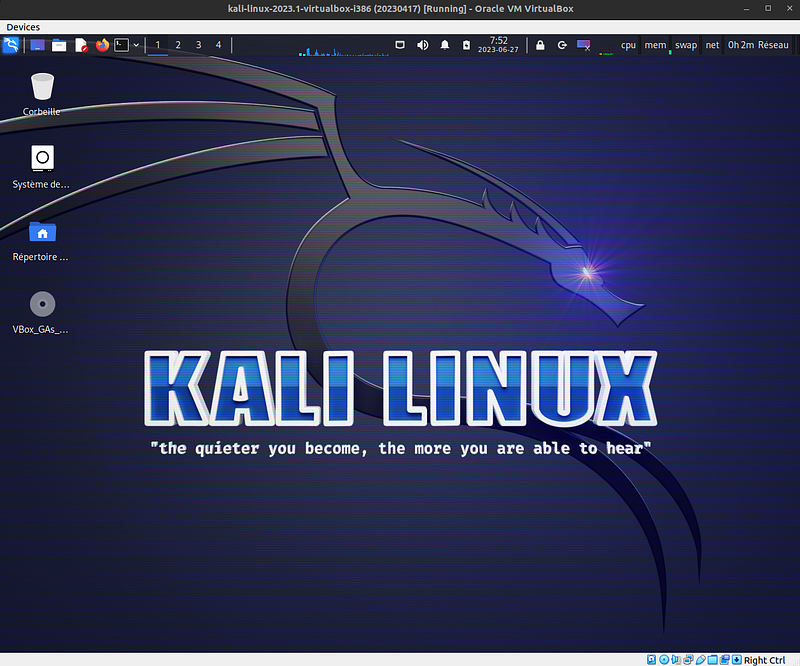
  7. Upon completion, the system will reboot, and voila, you now have Kali Linux running in a VM!
Conclusion

Congratulations! You’ve just set up your own playground to explore the intriguing world of cybersecurity with Kali Linux. Your journey has just begun. Remember, with great power comes great responsibility. While Kali Linux arms you with tools to probe and penetrate digital systems, always obtain necessary permissions before testing any networks or systems.

  1. VirtualBox User Manual: This is the complete user manual provided by the VirtualBox team. It is a goldmine of information that can help you explore the intricacies of VirtualBox.
  2. Kali Linux Documentation: This is the official documentation provided by the Kali Linux team. It includes detailed information on every aspect of Kali Linux, including advanced features and capabilities.
  3. Kali Linux Revealed: This is a free book provided by the Kali Linux team that can take you from a novice to a professional user.
  4. Cybrary — Kali Linux Online Training: This is a free online course that covers Kali Linux fundamentals.
  5. How to use VirtualBox — Complete Tutorial: This is a comprehensive video tutorial on how to use VirtualBox. It is ideal for visual learners who prefer watching video tutorials.
  6. VirtualBox Networking Guide: Understanding networking in VirtualBox can be a bit tricky. This guide breaks down all the networking modes and how to use them.

Enjoyed the read? For more on Web Development, JavaScript, Next.js, Cybersecurity, and Blockchain, check out my other articles here:

If you have questions or feedback, don’t hesitate to reach out at [email protected] or in the comments section.

[Disclosure: Every article I pen is a fusion of my ideas and the supportive capabilities of artificial intelligence. While AI assists in refining and elaborating, the core thoughts and concepts stem from my perspective and knowledge. To know more about my creative process, read this article.]

Stackademic

Thank you for reading until the end. Before you go:

  • Please consider clapping and following the writer! 👏
  • Follow us on Twitter(X), LinkedIn, and YouTube.
  • Visit Stackademic.com to find out more about how we are democratizing free programming education around the world.
Cybersecurity
Hacking
Programming
Kali Linux
Linux
Recommended from ReadMedium