
How to Design and Upload Discord Profile & Server Graphics
An easy-to-follow guide to level up your look on Discord
Introduction
Make your Discord Server an extension of your Twitch or YouTube channel by customizing your server and profile graphics. This Discord graphics reference guide is intended for anyone who wants to use high-quality graphics to make their Discord profile and server stand out from the crowd. This guide covers the recommended dimensions and file formats for profile pictures, banners, emojis, server icons, and banners. There are also tips for designing graphics that effectively represent the user or brand, align with the server’s theme or purpose, and offer best practices for optimizing graphics for faster loading times.
Discord Profile Graphics
When designing graphics for a Discord profile, it’s important to keep in mind the recommended dimensions and file formats for each element:
- Profile Picture: 128 x 128 pixels, PNG or JPG file format
- Banner: 960 x 540 pixels, PNG or JPG file format
- Emojis: 32 x 32 pixels, PNG file format with a transparent background
To design high-quality graphics that effectively represent the user or brand, consider the following tips:
- Use high-resolution images that are clear and easy to see.
- Keep the design simple and uncluttered.
- Use colors and fonts that align with the user or brand’s overall aesthetic.
To upload graphics to a Discord profile, follow these steps:
- Click on the user settings icon in the bottom left-hand corner of the Discord window.
- Select “Edit Profile” from the dropdown menu.
- Click on the profile picture or banner section to upload a new image.
- Drag and drop the image file into the designated area, or click on “Upload” to select a file from your computer.
- Click “Save Changes” to apply the new graphics to the profile.
Discord Server Graphics
When designing graphics for a Discord server, it’s important to keep in mind the recommended dimensions and file formats for each element:
- Server Icon: 512 x 512 pixels, PNG, JPG, or GIF
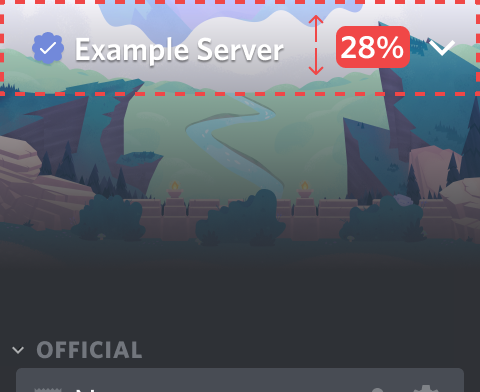
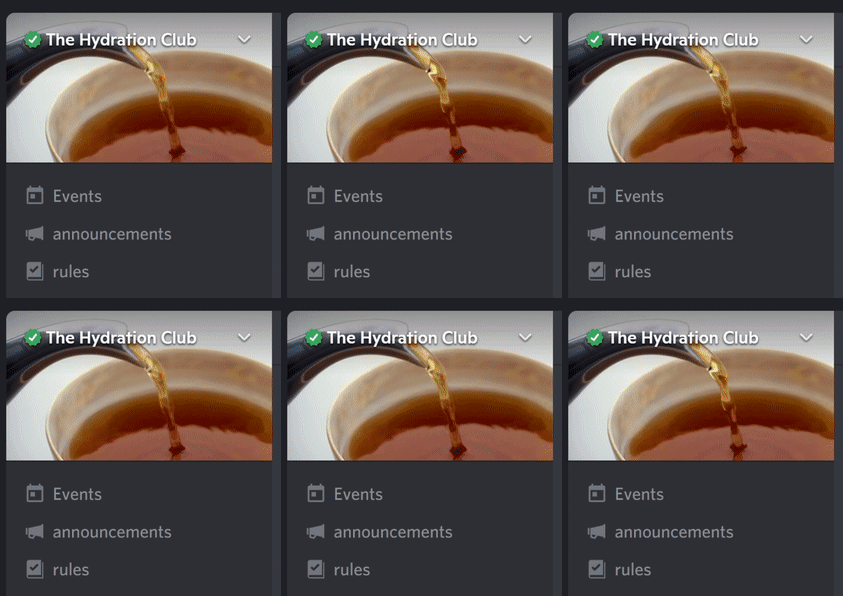
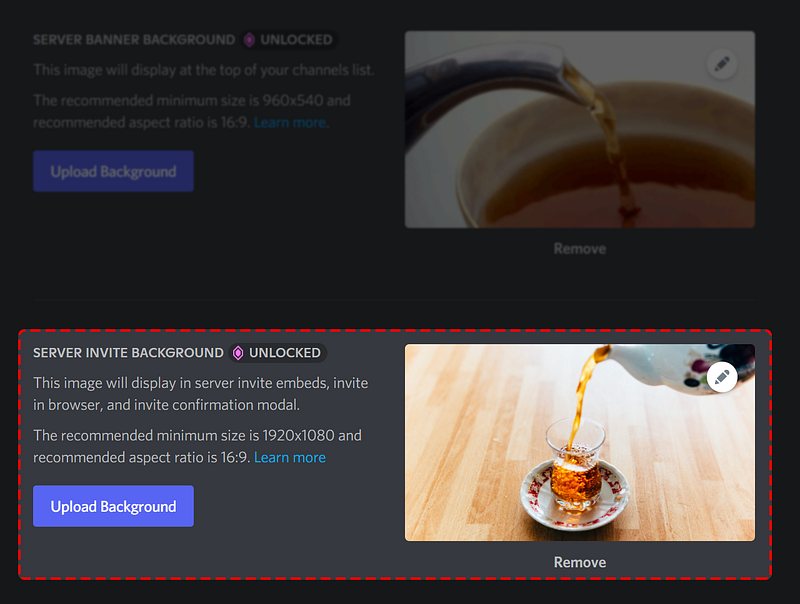
- Banner: 960 x 540 pixels, PNG, JPG, or GIF
- Invite Background: 1920 x 1080 pixels, PNG
- Emojis: 32 x 32 pixels, PNG orGIF
- Sticker: 320 320 pixels, PNG or APNG
- Role Icon: 64 x 64 pixels, PNG
To design graphics that align with the server’s theme or purpose, consider the following tips:
- Use colors and fonts that align with the server’s overall aesthetic.
- Keep the design simple and uncluttered.
- Use images or icons that represent the server’s topic or purpose.
To upload graphics to a Discord server, follow these steps:
- Click on the ⚙️ server settings icon next to the server name.
- Select “Server Settings” from the dropdown menu.
- Click on the “Server Settings” tab, then select “Overview.”
- Click on the server icon or banner section to upload a new image.
- Drag and drop the image file into the designated area, or click on “Upload” to select a file from your computer.
- Click “Save Changes” to apply the new graphics to the server.
Best Practices for Both Profile and Server Graphics
To ensure that graphics are optimized for faster loading times, consider the following best practices:
- Keep file sizes as small as possible without sacrificing quality.
- Use compression tools to reduce file sizes.
- Avoid using too many graphics, as this can slow down loading times.
When designing graphics, consider the following examples of good and bad design practices:
DO
- Use a simple and uncluttered design, using high-quality images, and using colors and fonts that align with the user or brand’s overall aesthetic.
- Keep file sizes as small as possible without sacrificing quality. Use compression tools to reduce file sizes.
DON’T
- Use low-quality images, using too many colors or fonts, and using a cluttered or confusing design.
- Use too many graphics, as this can slow down loading times.
Free and paid resources and tools for creating and editing graphics for Discord:
- Kapwing — Try for FREE* CLICK HERE
- Adobe Illustrator — CLICK HERE
- Canva — Try for FREE CLICK HERE
- GIMP — Download for FREE CLICK HERE
Conclusion
In conclusion, designing and uploading graphics for Discord profiles and servers can enhance the user experience and make the user or brand more memorable. By following the recommended dimensions and file formats, considering design best practices, and optimizing graphics for faster loading times, users can create high-quality graphics that effectively represent themselves or their brand.

Graphics Checklist
To ensure that Discord graphics meet all the recommended guidelines, use this Discord Graphics Checklist:
- Profile Picture: 128 x 128 pixels, PNG or JPG file format for static PFP or GIF for animated PFP.
- Banner: 960 x 540 pixels, PNG or JPG file format for static banner or GIF for animated banner.
- Emojis: 32 x 32 pixels, Transparent background PNG file format for standard/static emoji or GIF for animated emoji
- Server Icon: 512 x 512 pixels, PNG or JPG file format for static icon or GIF for animated server icon.
- Server Invite Background: 1920x1080 pixels, JPG or PNG file format
- Role Icon: 64x64 pixels, PNG file format
- Sticker: 320 320 pixels, PNG format for static/standard or APNG file format for animated
References & More Info
Discord Help Center
#MadeByMELO | MELOGRAPHICS
A NOTE FROM MELOGRAPHICS
All opinions are my own. I only partner with products and services based on personal experience and research. This article may include affiliate links which, at no additional cost to you, may support me with a small commission. See shop.melo.graphics for details.


