
Digital Minimalism On iPhone, In-Depth Guide
You will spend nine years of your life using your phone. If you are worried on your phone addiction and seek a solution to overcome this issue then you are in the right place.
Our lives have been occupied by so many clutters which is unwanted and many people are seeking to minimalism as a solution. More than often, our constant desire to live up to others’ expectations.
Digital minimalism is one solution amidst many guides to live a meaningful life.
We are living in the 21st century. The rise of the internet has united all people around the world to have the possibility of sharing the goodness in life. We have endless opportunities to share the most fruitful parts of ourselves — the knowledge to live a better happier life.
The unfortunate situation we got ourselves in has forced us to misuse the technology more than before. The most endearing asset in anyone’s’ life is their time. Yet, it is spent living in a fake digital facade covering the bright beautiful appearance of ourselves.
The majority of our time is wasted on our smartphones. The iPhone can be a tremendous utility to help us grow our knowledge and become better versions of ourselves.
The journey to turn our iPhone from a device that wastes time, to an asset that makes time begins here.
Quick Note
This guide is inspired by my previous article which centers around digital minimalism for Mac. To read that guide, check the last section of this article where I have put the link for easy access.
The Promise of Minimalism
The definition of minimalism is engraved throughout many helpful websites. My approach to minimalism is to question everything in life, find out the root cause of why certain behaviors exist. Filter out the clutter, and try to deeply understand if something adds value to your life — if it doesn’t then remove it.
The Promise of Digital Minimalism
Tons of books, articles, and videos help one learn the definition of digital minimalism. What I particularly like is how the author Cal Newport defines it:
Digital minimalism is a philosophy that helps you question what digital communication tools (and behaviors surrounding these tools) add the most value to your life.
If you learn to incorporate the practices of digital minimalism into your life, then you will see drastic changes in your behaviors, and how much time you’ll save and what useful activities can be replaced by them.
Every minute you don’t waste on your iPhone, can be easily replaced by a purposeful activity like reading a book or participating in an online class to learn the skill you have always dreamt of pursuing but never commit.
Before We Begin

It is extremely helpful if you visit the minimalists website and navigate to the value worksheet where you’ll learn about the different types of values and think about which ones are the most important to you.
Once you get the worksheet, and you complete the placeholders with what you consider your values, you will have a much clearer mindset on the true important matters in your life.
Preparation
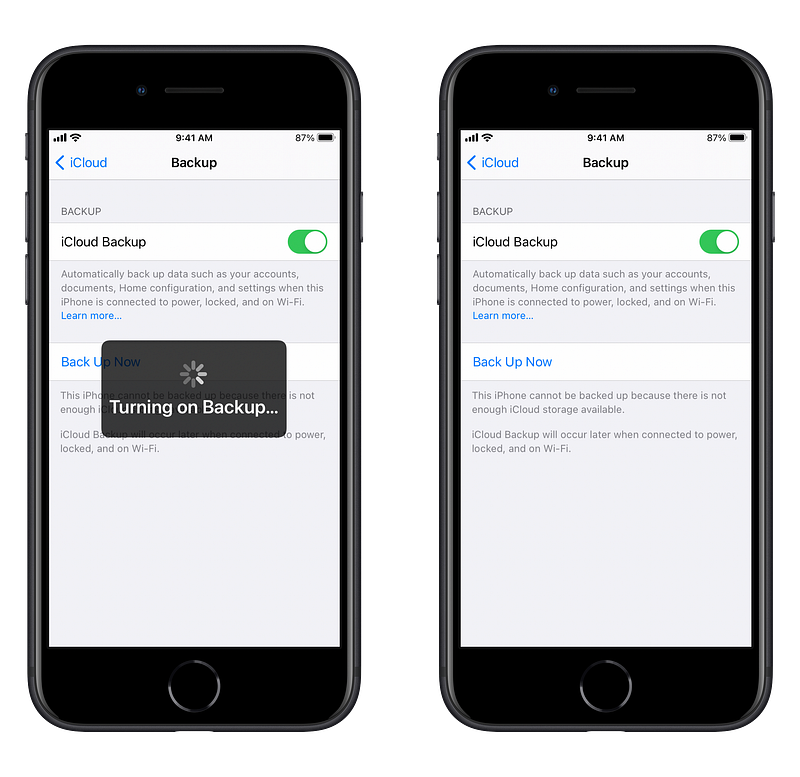
The importance of having a backup is immense specially when you want to achieve drastic changes on your device. Currently, there are two methods of backing up your iPhone.
- Online using iCloud Backup
- Offline using Finder’s Backup
The Pros and Cons of Online Backup
Online backup through iCloud is convenient only if your internet connection is fast, unlimited, and capable of high upload speed. To determine the speed and the quality of your network, use apps like SpeedTest by Ookla. The iCloud backups tend to take some time and requires your iPhone to be connected to the Wi-Fi and plugged in to a charger. Depending on your storage, the process might take longer than expected.
How To Back up Using iCloud
- Plug your iPhone to the charger
- Connect to Wi-Fi
- Open Settings
- Tap on your name which is the first item in the settings menu
- Choose iCloud
- Scroll to find iCloud Backup
- Enable iCloud Backup by switching the toggle
The Pros and Cons of Offline Backup
Offline backup through Finder requires a Mac, a lightning to usb-c cable (depending on your MacBook’s available ports) and free storage on your device. If you own a 128 GB iPhone, and if your iPhone’s storage is half full, then you will need at least 64 GB of storage available on your Mac. This method is faster since you are going to use the lightning cable to connect to your Mac, however, if something happens to your device, and you lose the backup, it is gone forever.
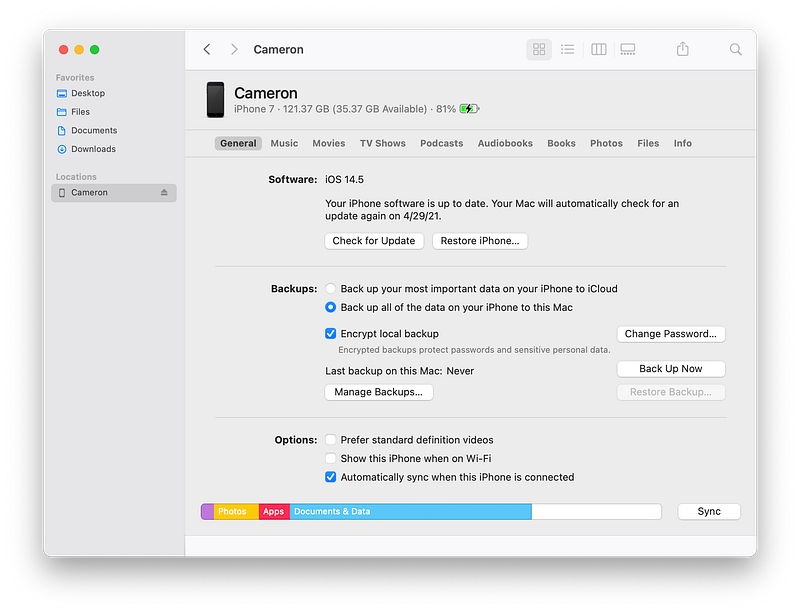
How To Back Up Using Finder
- Connect your iPhone to your Mac using the cable
- Open Finder
- On the SideBar, Click on your iPhone
- Under the General tab, within the Backups section Click on “Back up all of the data on your iPhone to this Mac”
- Under the same section, Check “Encrypt local backup”
- Click on the button “Back Up Now”
- Depending on your iPhone’s storage and how much of it is used, the backup process might take some time
Specify The Real Use Case

What am I going to use this iPhone for?
The iPhone is more powerful than many us believe. The system on a chip design of Apple’s hardwares can easily help us do a range of complex tasks without breaking a sweat.
The mindset of owning many apps can vary person by person, be that as it may, most people I came across with have tons of apps and use only 10 to 20% of them. The apps you don’t use take advantage of your device. They connect to the internet, run services and many invade your privacy.
We don’t want any corporation tracking our data. To regain our privacy back, one thing we can do is to stop using things that don’t add value — exactly what I believe minimalism says.
My friend with an iPhone XS 256 GB of storage had more 100 apps. He only used his phone for following up with the news, taking photos and videos, listening to podcasts, and occasionally playing games. Apparently, the fact that his iPhone came with an A12 processor made him believe that he has to have the best and most of the apps and games, even though he didn’t need most of them. So, I told him: What do you really use this iPhone for? Is it mainly used to help you with your life? Or is it just another distraction since you seem to be very shy at social gatherings? To be honest, I wasn’t this direct since it might have offended him but as a friend, I asked kindly asked him if he is doing anything to overcome the issue with being in a social environments.
So… Ask yourself, does this device really adds value to my life or is it subtracting me from facing the real issues that need work.
Don’t Be Afraid Of Change
Why are we so afraid of change? Science has many explanations for it. What I read about it explains the root cause of it. We like things that have been around a while. We fear due to the uncertainty new things bring.
“People would rather be unhappy than uncertain.” — Tim Ferris
The solution? I think if we deeply believe we have the capability of accepting new things, and most of the time change happens for our betterment then we are going to have an easier time adjusting.
With this mindset, the whole process of digital minimalism for your iPhone will be easier.
Part I. Apps
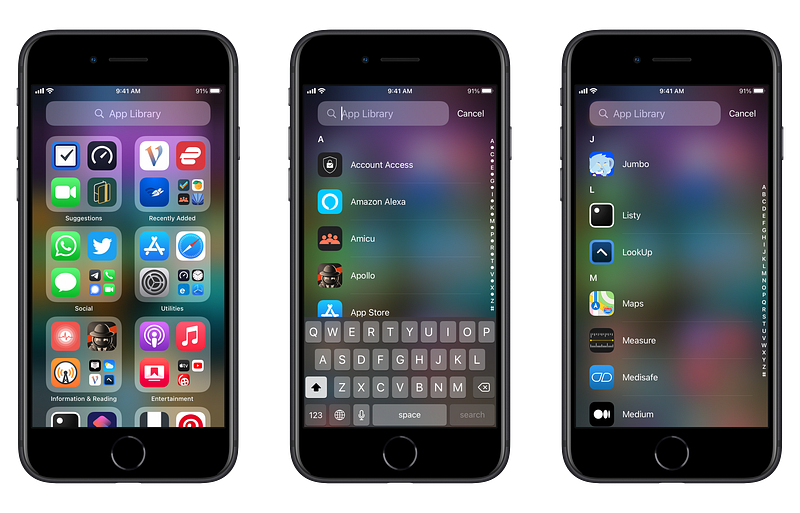
The first part discusses towards your approach with apps. We will see if an app brings joy, get rid of the old ones, and of course, the ones you don’t need.
Tip 1. Does it spark joy?
When it comes to digital minimalism, The Konmari method is fantastic. Most of us have tons of applications on our iPhones. One of the best ways to decide whether they deserve being kept on our devices is to ask this simple question:
Does this application spark joy?
If the answer is yes, then keep it, otherwise it is probably a good idea to get rid of it. Many apps have terrible user experiences. Some have ugly user interfaces. We don’t want to spend our time with something that makes us either dislike the time spent on our phone because it is buggy or not good looking.
Tip 2. Delete apps you don’t need
We have the tendency to keep and own more than we need. To get rid of the clutter we need to observe every app and ask ourselves: “Do I really need this app?”
Questions such as these also help:
- Can I stop using this app and still get on with my life?
- Can I use the website of this app and still get the same benefit?
- Does this app satisfy a need in my day-to-day actions?
Tip 3. Delete apps you haven’t used
You probably use up to a limited set of apps on your iPhone. Try to remember the last time you used an app on your iPhone. If it was a longtime, then you probably don’t need it in the first place.
Here is my rule for this: If you haven’t used an app for over a month and won’t be doing so in the next month then it doesn’t deserve to be on your iPhone.
Tip 4. Get rid of Just-In-Case apps
Occasionally, we have the just in case apps which add to the anxiety.
I have an app called EarthQuake Pro, it has a scary sound which alerts me when there has been an earthquake nearby. I live in a city which is surrounded by faults which have been inactive for many years. Whenever a 4.0 and higher earthquake happens I get super scared and keep on checking my phone to see if there is another one coming soon. Scientifically we can’t predict quakes but because of how worried I am, I keep on checking the app… What happens when I keep doing that? I intentionally add more fuel to the fire. The stress levels goes up.
That is unhealthy and this app is a Just-In-Case app. I hope by now you realized how just-in-case apps could be hurtful to us.
On the other hand, we can use the Just-For-When apps. The Day One app which is a journaling application is a great example of that. Every night I open the app and write my reflections of the day in it. I use the app on a specific time for when I need to clear my thoughts and reflect on the events of the day.
This is healthy because it helps builds something and adds value to my life. Apps like these are worth keeping.
Part II. Contacts
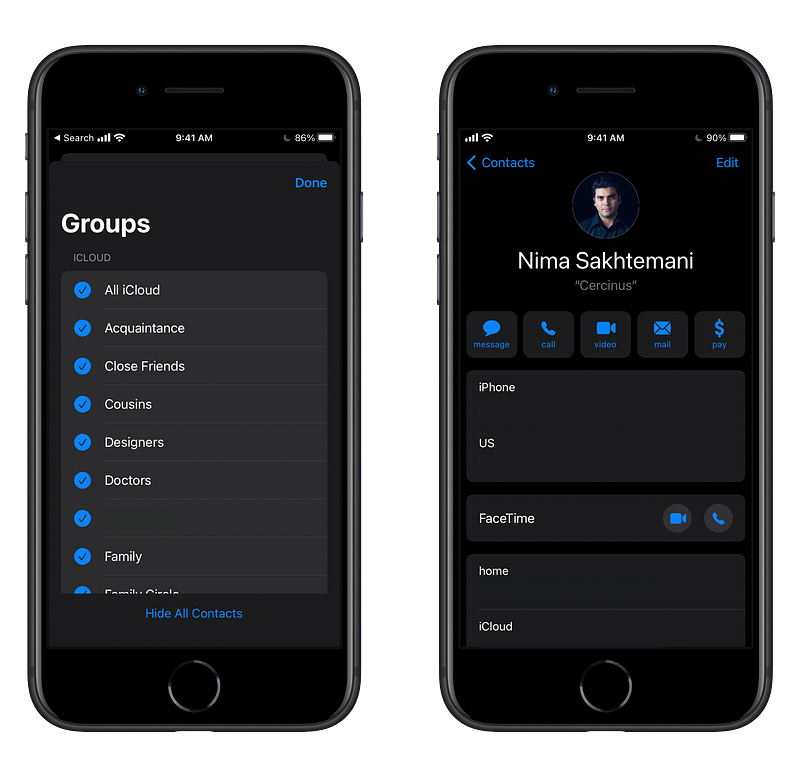
We are social animals. We are inherently social and tend to be in touch and connect with others. Not only that, but we are similar among many territorial animals, and we share the establishment of hierarchy. In this part I’ll be explaining different ways to disconnect from those you haven’t come in contact with and assign more information to those you value and contact.
Before going on with the tips, make sure to back up your contacts on a cloud storage of your choice. My suggestion is to back them up on the iCloud Drive and store them on a folder named archive where later on you’ll be able to easily access in case you want to reach someone specific.
Here is how you can back up all your contacts:
- Go to icloud.com on your Mac or iPhone
- Log in with your Apple ID and Password
- Click on Contacts
- At the bottom left of the screen click the gear icon and choose Select All
- Click the gear icon again and choose Export vCard
- A vCard file will be downloaded
- Upload the file to your preferred cloud storage
Tip 1. Delete people you haven’t talked to in a long time
If you’ve not been in contact with someone for a long time, you are probably not going to speak to them. Sometimes in our lives our path crosses people who share like-minded behaviors, and we created connections with them, albeit most of those relationships are temporary. When we are occupied by work, classes, and everyday events, usually we don’t connect with those people.
Analyze each contact and see if you have talked to them in the last 6 months. If you haven’t, then you might probably be better deleting that contact.
Tip 2. Delete most of whom you don’t like to contact (with exception)
Go to the Contacts app and open each individual contact. Analyze and try to see if that person has the two important qualities: 1. Cares about you 2. Hasn’t created a toxic relationship. Once you have decided you don’t want to connect with them, delete the contact and reduce the clutter.
Tip 3. Group contacts
Once your contacts are all the people you care about and those who value your relationship, create groups and associate them with those groups. I have professors from my university whom I contact with every month or so and I have created a group called “University Professors” and put them all there. That way once I want to look for a contact, I don’t have to search and scroll the list.
Tip 4. Fill up as much information about them
If you have followed the guide, by now you have fewer people on your contact list. It is great, and you only have kept those you value, however, there is one more thing to do: adding information about them in the app.
Information like birthday dates, social media handles, addresses, relationship, and notes are super useful. Once you put a birthday date on a contact, your Calendar app will automatically send you notification on the day of their birthday, so you won’t forget to congratulate them.
Part III. Notifications
Notifications are double-edged swords. On one hand, they bring our attention to an event, on the other, they distract us. While we are busy working, many times we go into the zone, and we are extremely productive and focused on our job, but a notification comes and distracts us. So, maybe the problem is not the notification itself rather what is considered as notification?
I believe the notification doesn’t have a global definition. Every person has to go through the route of figuring out what counts as being notified, and what do they consider a notification?
As a writer who has the Medium app on his iPhone, I wouldn’t hate to be alarmed when someone responds to my articles, so I could go, check it out and reply. I like to connect with similar-minded people. I like to answer questions that challenge me. These are in part my values and I consider any notification in that regard a good one. But there is a point to notice, and that is how I receive them and whether they should be audible or visual. I’ll talk more in-depth about them in this section.
Tip 1. Turn it off for all social media apps
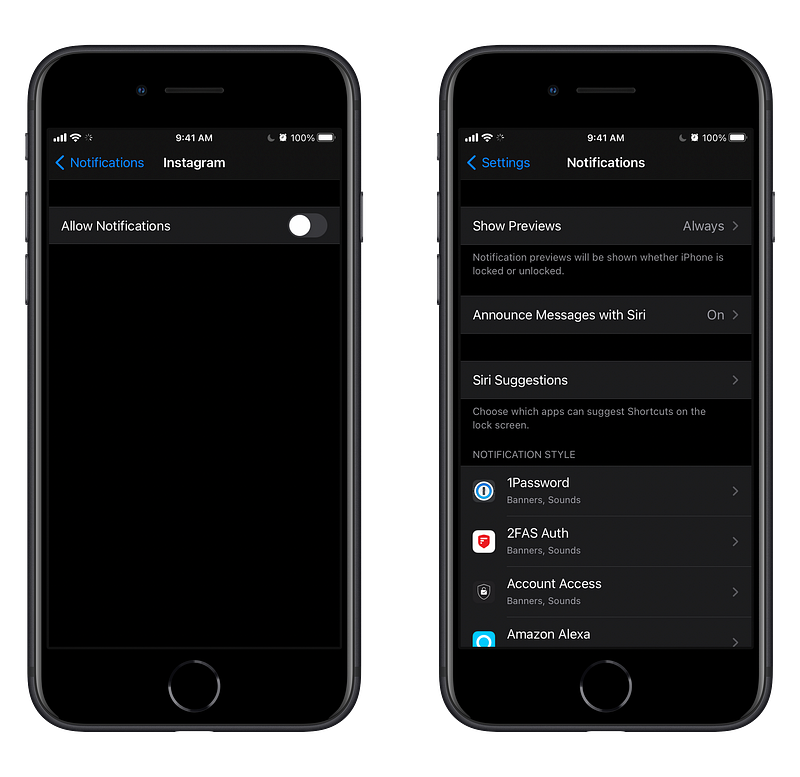
Social media apps are designed to distract us. They deceive us, and are designed in a way to be addictive. If you want to save time and work on things that add value to your life, reduce your usage of these apps. Their algorithms are data-hungry and feed from your usage.
So, if you have FaceBook, Twitter, Pinterest, and any other social media apps, do the following:
- Open settings
- Go to Notifications
- Find the app
- Tap on it
- Disable the first item which shows “Allow Notifications”
For an added value to this article, I suggest deleting social media apps altogether and install them once you need them. The friction of opening the app store and searching for it and installing the app makes you less desired to check up on them.
Tip 2. Turn off badge notifications for all apps
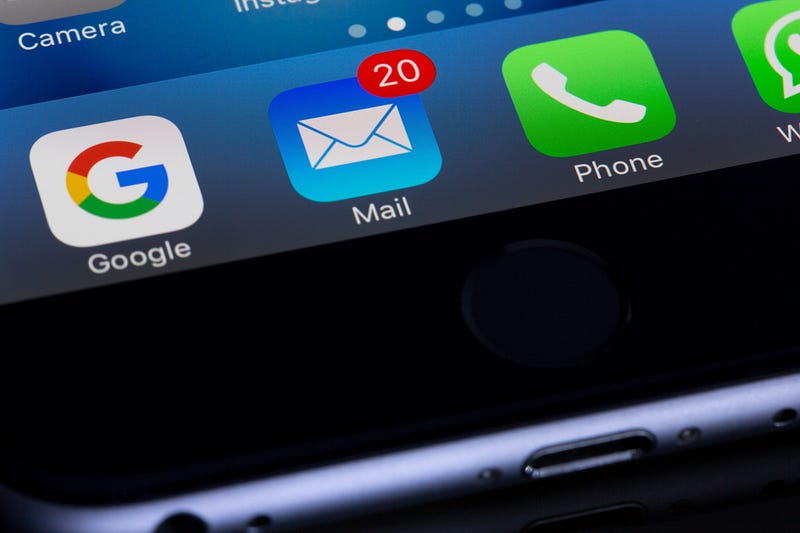
Badges are awful. The big red dot that expands as the number of notifications increase. I get anxious when a red dot shows on my home screen. I guarantee that not having them is much better. It will result in getting a clear home screen.
You can turn off the notification badge in the same screen where you manage your notifications settings.
Tip 3. Turn off sound notifications for most apps
There is nothing worse than hearing a buzzing sound from your phone while trying to do something important. That is why I suggest turning sound notifications off for almost all the apps. Why almost all? There are certain apps that need your attention because their nature is important for some parts of our lives.
For example, you might be a network admin working at a startup that requires your presence online for when things go down on the network. That is why turning on the sound for apps your team uses like Slack is not a bad idea.
I currently allow my task manager, the Home app, Calendar, Find My, and FaceTime to have sound notifications. The rest of the apps are always silent.
You can disable sound notifications from the same screen where you manage your notification settings.
Tip 4. Stop notifications on your lock screen
The lock screen is a private place. It should mostly reveal your wallpaper and the time. The rest could be notifications that are exceptionally important. Ones such as missed calls, iMessages and work-related apps.
The more notifications you receive on the lock screen, the more you are hooked onto your phone. That is not the goal here. We want an approach that makes us use our phones less and less.
Part IV. The Home Screen
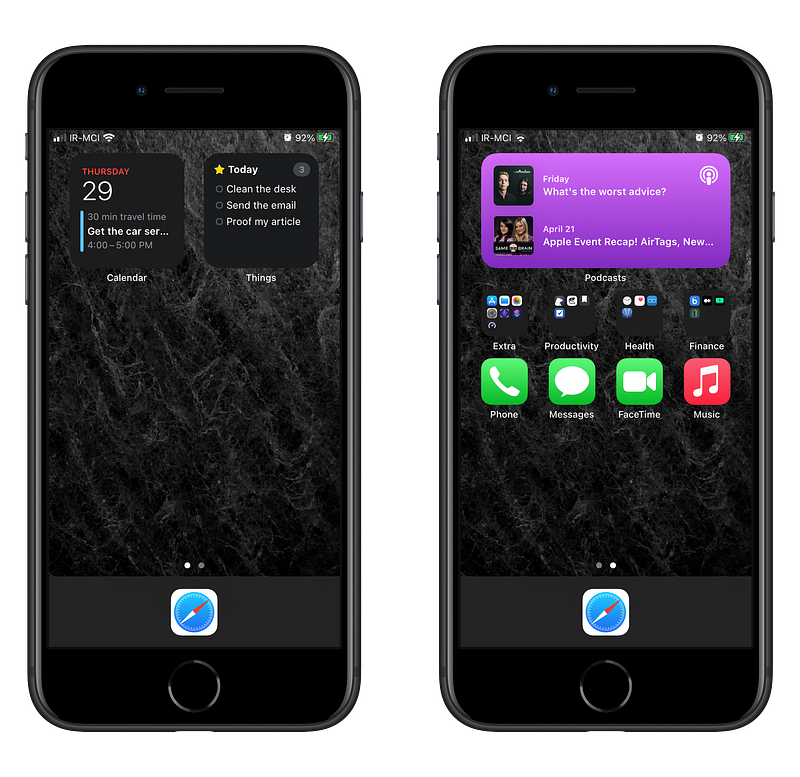
Our home screen dictates how we use our phone. The messier it is, the more havoc we deal with daily. A screen with no notification badge, minimal clutter and a great clean wallpaper makes the phone feel modern and an extension to our life rather than a device to add clutter.
In this final part we will talk about wallpapers, the approach for a clean dock, using widgets, creating folders, and making the phone look unique.
Tip 1. Set a minimal image as your wallpaper
A minimal wallpaper has lots of empty spaces within it. When you look at it, you feel free, you can breathe. You are not distracted by a subject. It is an image that doesn’t make you feel stressed. It is not an image that is designed to show how great of a screen your iPhone has. Furthermore, it merely radiates simpleness, and an abstract concept.
If you are looking for some websites to find minimal wallpapers then I suggest Unsplash and Pexels as their images can be used for free and are usually uploaded in high resolution.
Tip 2. Use only one app in the dock
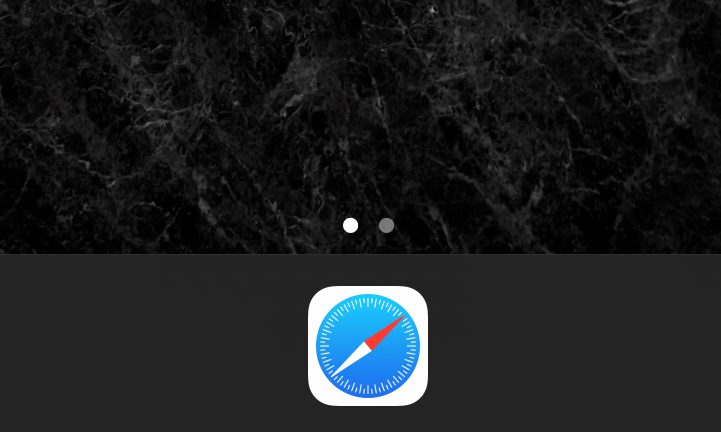
This tip is not a necessity as different people might be used to different setups but my experience with a dock that only shows one app reveals calmness throughout the time I have used my iPhone.
The fact that my mind only associates one app, in this case the Safari browser as the way to do a certain task makes things feel natural. I subconsciously tap at the bottom of my screen to browse the web.
In terms of appearances, I came to realize that saving only one app in the dock makes the home screen feel more minimalistic.
Tip 3. Use widgets
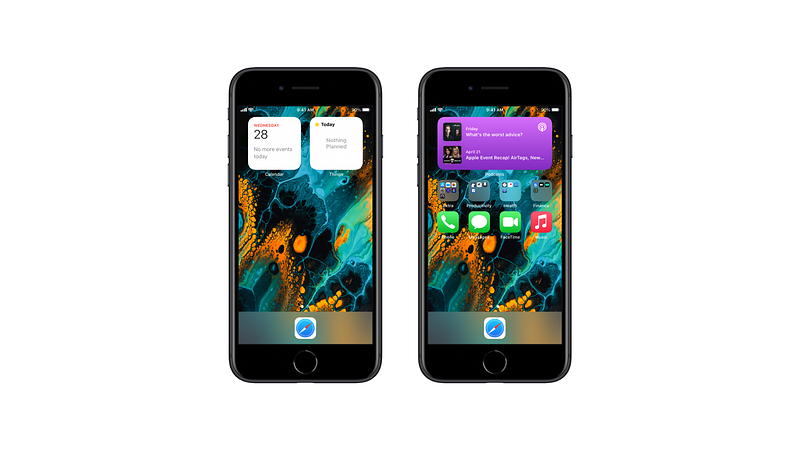
The iOS 14 introduced home screen widgets. At first, many apps brought their lock screen widgets to the home screen section, and the result was a half-baked widget that didn’t really fit with the whole aesthetic of iOS. They also didn’t feel like a home screen widget. After some time, developers implemented way better widgets, ones that suit the home screen and how users use their iPhone. They provided widgets in different sizes, and they varied by functionality. I have loved how iOS developers follow Apple’s guides and documentations to bring an exceptional experience for the users. Now, many apps have widgets that are suitable to place on our home screen.
If an app provides certain functionality through a widget, and you like the way it looks then I suggest removing the app icon from the home screen and replacing it with its widget.
Just a warning that too many widgets is like having mini apps open on your home screen, and they eventually distract you. Hence, be super selective about which ones you want to keep.
I love widgets and I hope in the next version of iOS, Apple makes them interactive as well.
Tip 4. Create no more than four folders
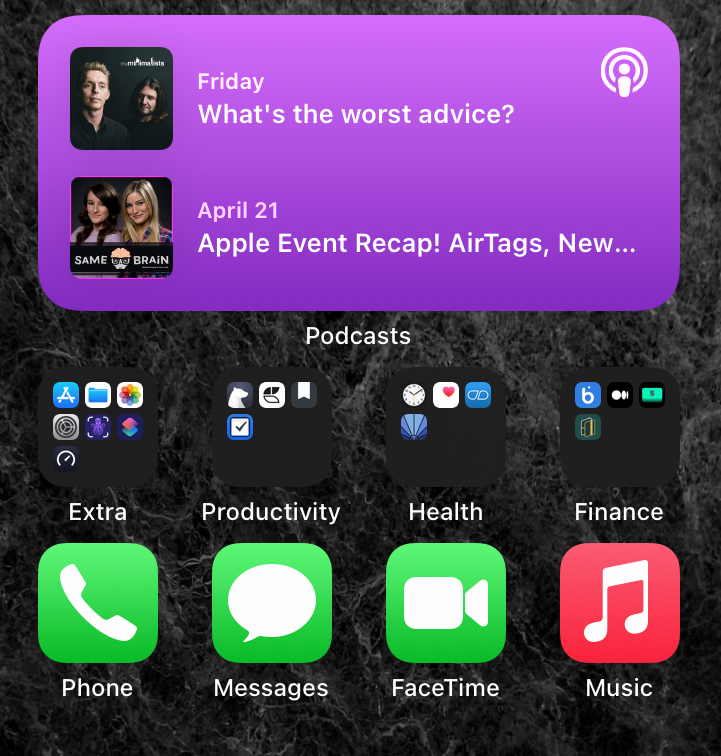
I have only four folders on the second screen. They are:
- Extra (Apps I open daily because I need them)
- Productivity (Apps that help me become more productive)
- Health (Apps that help me monitor my health)
- Finance (Apps I need for my transactions and statistic information)
They are intentionally created to reduce the friction of having to swipe to the app library and opening the app.
Be careful and don’t create too many folders. Don’t put too many apps in a folder. Put a limit on the number of apps and folders you need. Depending on your iPhone’s model you might be able to put more apps and folders on a row, but that shouldn’t force you to put apps you don’t need.
Tip 5. Make it unique, make it yours
A unique device where you are not blindly following anyone because of a trend, a device in which the distinction is apparent from the rest could make one feel exceptional.
I suggest the following tips to create a unique experience for yourself:
- Use custom icons which are available for iOS 14 users.
- Create your own minimal wallpaper.
- Create or find a unique custom ringtone and notification sound.
I have scoured the internet for a good ringtone. Something minimal and beautiful. The quest was long but joyful. I suggest you do the same. If you are not as picky as I am, I believe your job will be easier and take less time.
Finding custom icons for iOS 14 is easy, although many of the good ones require payment and setting app icons is a little complicated. Fortunately, many apps allow you to change the icon within their settings, but for a different look, you might be interested to find and purchase custom-made ones.
In this article we talked about minimalism, then we jumped straight into digital minimalism and how its practices can improve your life. We learned how to make backups, got rid of many apps, organized our contacts, limited the number of notifications we receive, and made a unique home screen that made us enjoy using our phone.
After applying the tips in this article, using your phone might feel a little strange. As time passes by, your mind gets used to it, and you won’t like to change many things as your iPhone now provides more comfort and adds value to your life.
I want to thank you for reading this article. I hope you have learned something from it. If you have any feedbacks, and questions then let me know in the response section. I will be happy to connect with you.


