avatarFuji Nguyen

Free AI web copilot to create summaries, insights and extended knowledge, download it at here

2162

Abstract

/h2><ol><li>Login STS Admin UI</li><li>Navigate to Api Resources</li><li>Click on Add Api Resources (see Figure 2)</li></ol><figure id="c456"><img src="https://cdn-images-1.readmedium.com/v2/resize:fit:800/1*4BVu6s_zuDFnjXH4gFbPxA.png"><figcaption>Figure 2— Api Resource maintenance screen for listing and adding Web API projects</figcaption></figure><h2 id="b308">Task 2 — Register WebAPI as an Api Resources in STS</h2><ol><li>Complete the Api Resource form as shown in Figure 3</li><li>Click on Save Api Resource button</li></ol><figure id="3ea9"><img src="https://cdn-images-1.readmedium.com/v2/resize:fit:800/1*qLlgEqsVA6zqrlRg8lTGSw.png"><figcaption>Figure 3— Api Resource form</figcaption></figure><h2 id="42f2">Task 3 — Set up two example scopes</h2><ol><li>On the Api Resource screen, click on Manage Api Scopes (see Figure 4)</li><li>Setup app.api.employeeprofile.read (see Figure 5)</li><li>Setup app.api.employeeprofile.write (see Figure 6)</li></ol><figure id="0303"><img src="https://cdn-images-1.readmedium.com/v2/resize:fit:800/1*SKjAr523FDYRx3wTtd7JcA.png"><figcaption>Figure 4— Button Manage Api Scopes on the Api Resource detail page</figcaption></figure><figure id="94da"><img src="https://cdn-images-1.readmedium.com/v2/resize:fit:800/1*_wkSlQyhLAiMG_7lt9dHUQ.png"><figcaption>Figure 5— Setup of “app.api.employeeprofile.read” scope</figcaption></figure><figure id="1722"><img src="https://cdn-images-1.readmedium.com/v2/resize:fit:800/1*W8zyPpgXlzA2MZZQiIMtdA.png"><figcaption>Figure 6— Setup of “app.api.employeeprofile.write” scope</figcaption></figure><h2 id="972a">Task 4 — Setup an Api Secret key (optional)</h2><ol><li>Click on “Manage Api Secrets” button (see Figure 4)</li><li>Set up a secret key value 0a2e472b-f263–43fd-8372–3b13f5acf333 (see Figure 7). Notice that this secret key is used by the WebAPI for back-channel JWT validation. Check the appsettings.json in the ASP.NET WebAPI Employee Profile project for usage.</li></ol><figure id="94f9"><img src="https://cdn-images-1.readmedium.com/v2/resize:fit:800/1*nPdv4cuedEmuehWCYfV4wg.png"><figcaption>Figure 7— Api Secret form</figcaption></figure><h1 id="3889">Part 2 — Regist

Options

er Angular SPA as a Client in the IdentityServer4</h1><h2 id="ad46">Task 1 — Register the Angular SPA in STS, follow the steps below</h2><ol><li>Log in STA vis Admin UI</li><li>Navigate to Clients screen</li><li>Click on Add Client (See Figure 8)</li></ol><figure id="481c"><img src="https://cdn-images-1.readmedium.com/v2/resize:fit:800/1*Vygz8QWp_f6gZFOJOTuUOg.png"><figcaption>Figure 8— Client management screen, including client listing and add new</figcaption></figure><h2 id="9354">Task 2 — Set up a new client, on the client Settings screen</h2><ol><li>Enter the ClientId. For the tutorial purpose, enter “devkit-clients-spa.pkce”. See <b>Figure 9</b>. In production, you might want to use a GUI instead.</li><li>Enter the Client Name. For the tutorial purpose, enter “ Sample SPA.PKCE”</li><li>Select Single Page Application — Javascript Authorization Code Flow with PKCE</li><li>Click on Save Client</li></ol><figure id="7fa4"><img src="https://cdn-images-1.readmedium.com/v2/resize:fit:800/1*v5qbQykhJAEls8PalN_lqg.png"><figcaption>Figure 9— Enter new client form</figcaption></figure><h2 id="2999">Task 3 — Setup Allowed Scopes</h2><ol><li>Navigate to the client and click on the Basics menu tab</li><li>Setup the Allowable scope as shown in Figure 10</li></ol><figure id="c224"><img src="https://cdn-images-1.readmedium.com/v2/resize:fit:800/1*Zd953aL3DISDt7yGtIaWkA.png"><figcaption>Figure 10— Setup client Allowed Scopes</figcaption></figure><h1 id="e8e7">Related Tutorials</h1><p id="4f61"><a href="https://fuji-nguyen.medium.com/rapid-prototype-asp-net-708df7a59a3">Rapid Prototype Asp.Net Core REST API using KissApi Template</a> — use Visual Studio template to generate Clean Architecture solution based on Repository Pattern, Unit of Work, Dapper, SQLKata, and Swagger.</p><h1 id="a54b">Summary</h1><p id="3c29">In this tutorial, you learned how to use the STS Admin UI to register a sample WebAPI and Angular SPA. To view all other related tutorials, visit <a href="https://medium.com/@fuji.nguyen/devkit-webapi-security-d7a45e34a5cd?source=friends_link&amp;sk=d995ee034b01e79077b77925e5bae1b2">DevKit WebAPI Security</a>.</p></article></body>

IdentityServer4 Register Clients and ApiResources | Tutorial 2

Photo by René DeAnda on Unsplash

In tutorial 1, it provides step by step instructions to set up the Admin UI fo for the IndentityServer4. In tutorial 2, you will learn how to register a client (Angular SPA) and an API resource (ASP.NET WebAPI) via the Admin UI. Figure 1 shows the scope and relationship between tutorials 1 and 2.
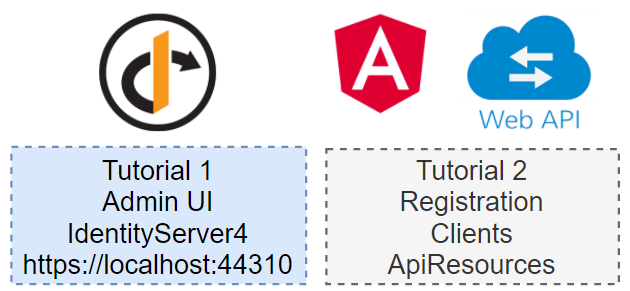
Figure 1 — Tutorial Outline

Prerequisites

  1. IdentifyServer4 with Admin UI. Notice: if you do not have an instance of IdentityServer4 with Admin UI, follow the instructions in Tutorial 1.
  2. Familiarity with oAuth2 terminologies such as Client (ex. Angular SPA), Resource Server (ex. ASP.NET WebAPI), and Token Server (ex. IdentityServer4)
  3. Familiar with oAuth2 grant flow such as PKCE and Client Credential

Tutorial Content

The tutorial is divided into two parts:

  1. Register a sample of Angular SPA in STS. The repo of the sample Angular can be found at https://github.com/workcontrolgit/devkit-clients-angular-auth-oidc-client
  2. Register Angular SPA as a Client in IdentityServer4

Part 1 — Register ASP.NET WebAPI project as Api Resource

Note — If you have WebAPI and Angular SPA ready, you should register the ASP.NET WebAPI as API Resources in STS first. The oAuth2 scopes will be referenced later one when setting up the Angular SPA client

Task 1 — Navigate to Api Resource management screen in STS to register WebAPI project

  1. Login STS Admin UI
  2. Navigate to Api Resources
  3. Click on Add Api Resources (see Figure 2)
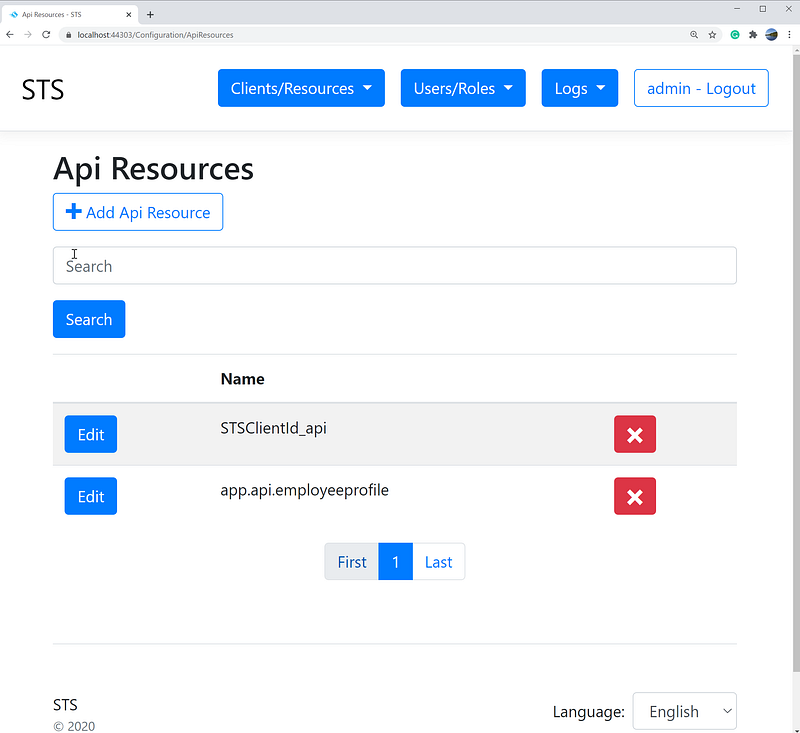
Figure 2— Api Resource maintenance screen for listing and adding Web API projects

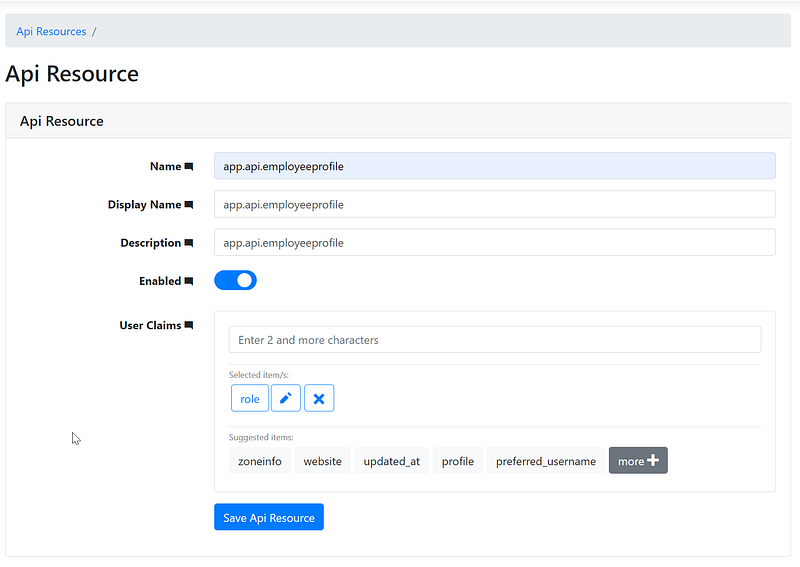
Task 2 — Register WebAPI as an Api Resources in STS

  1. Complete the Api Resource form as shown in Figure 3
  2. Click on Save Api Resource button
Figure 3— Api Resource form

Task 3 — Set up two example scopes

  1. On the Api Resource screen, click on Manage Api Scopes (see Figure 4)
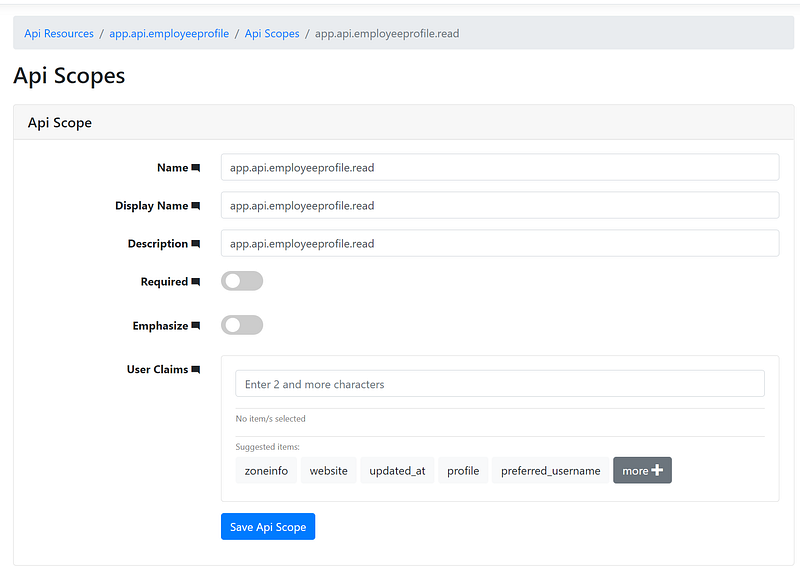
  2. Setup app.api.employeeprofile.read (see Figure 5)
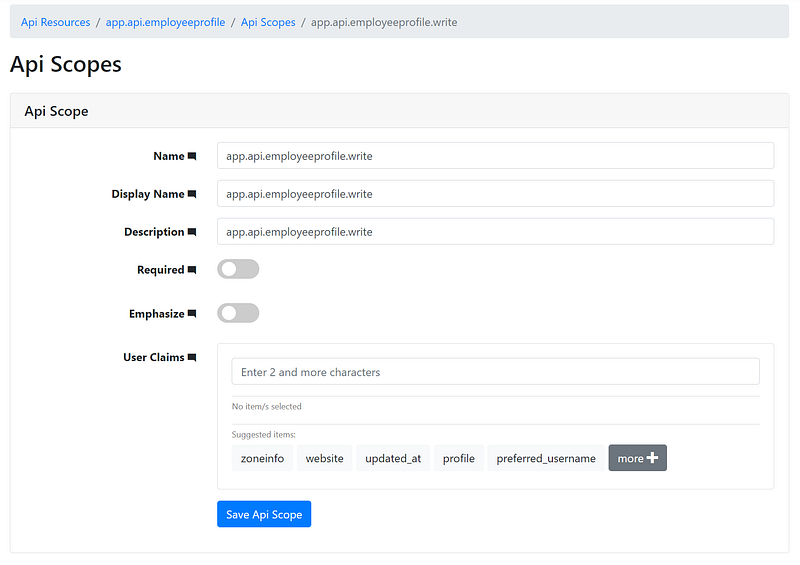
  3. Setup app.api.employeeprofile.write (see Figure 6)
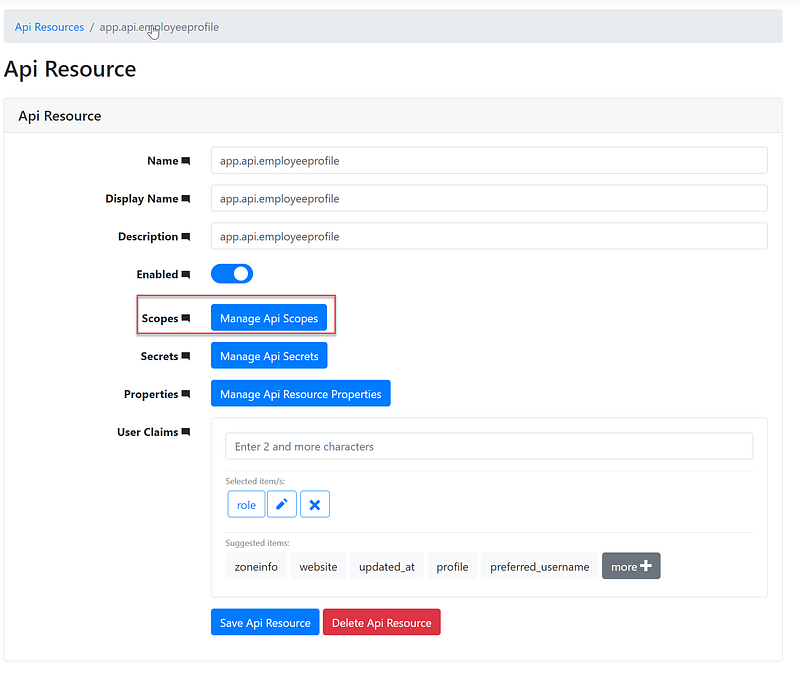
Figure 4— Button Manage Api Scopes on the Api Resource detail page
Figure 5— Setup of “app.api.employeeprofile.read” scope
Figure 6— Setup of “app.api.employeeprofile.write” scope

Task 4 — Setup an Api Secret key (optional)

  1. Click on “Manage Api Secrets” button (see Figure 4)
  2. Set up a secret key value 0a2e472b-f263–43fd-8372–3b13f5acf333 (see Figure 7). Notice that this secret key is used by the WebAPI for back-channel JWT validation. Check the appsettings.json in the ASP.NET WebAPI Employee Profile project for usage.
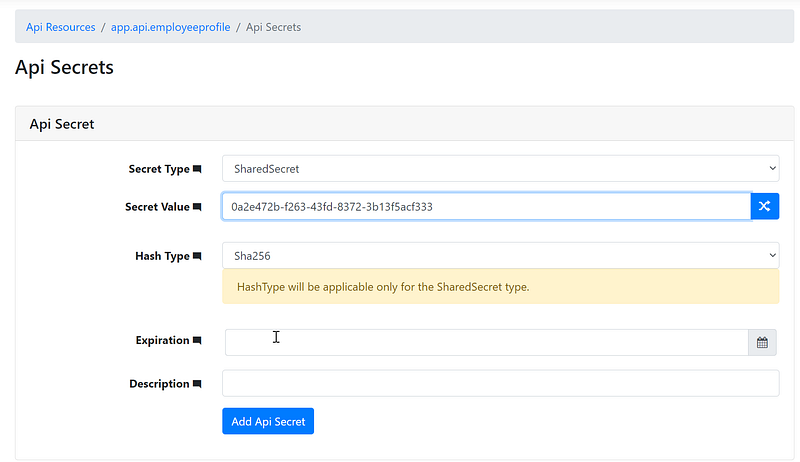
Figure 7— Api Secret form

Part 2 — Register Angular SPA as a Client in the IdentityServer4

Task 1 — Register the Angular SPA in STS, follow the steps below

  1. Log in STA vis Admin UI
  2. Navigate to Clients screen
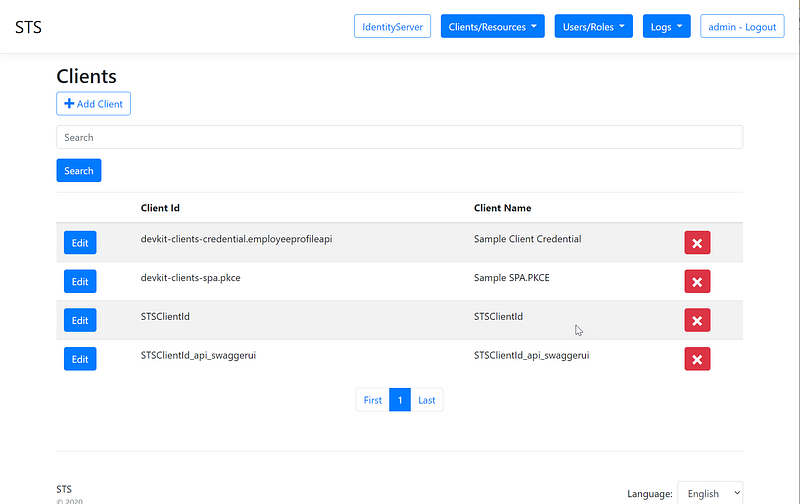
  3. Click on Add Client (See Figure 8)
Figure 8— Client management screen, including client listing and add new

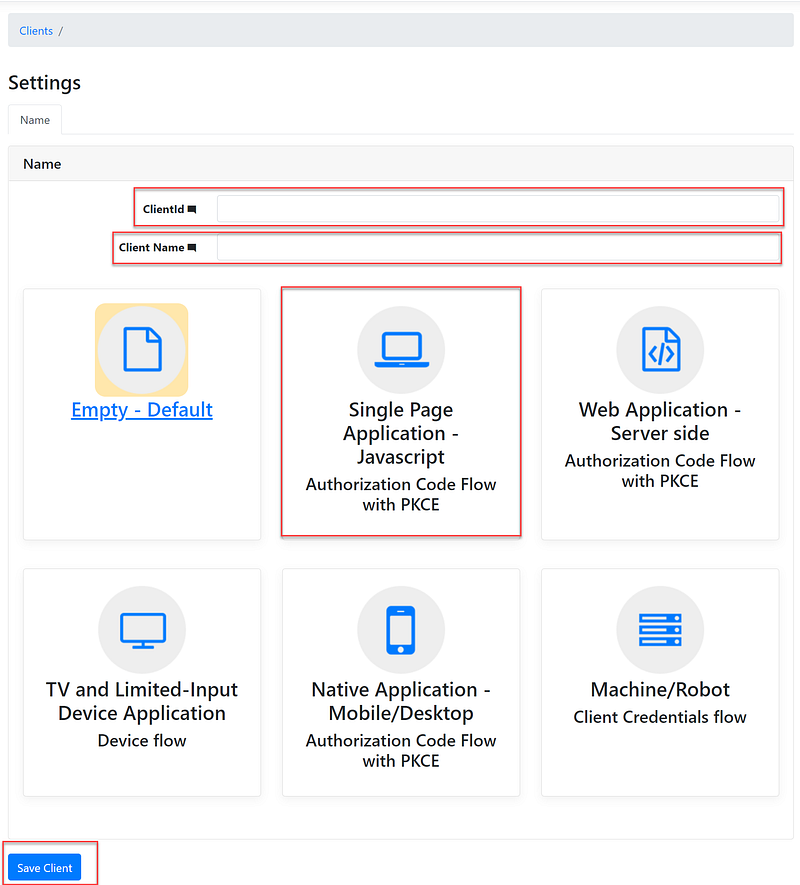
Task 2 — Set up a new client, on the client Settings screen

  1. Enter the ClientId. For the tutorial purpose, enter “devkit-clients-spa.pkce”. See Figure 9. In production, you might want to use a GUI instead.
  2. Enter the Client Name. For the tutorial purpose, enter “ Sample SPA.PKCE”
  3. Select Single Page Application — Javascript Authorization Code Flow with PKCE
  4. Click on Save Client
Figure 9— Enter new client form

Task 3 — Setup Allowed Scopes

  1. Navigate to the client and click on the Basics menu tab
  2. Setup the Allowable scope as shown in Figure 10
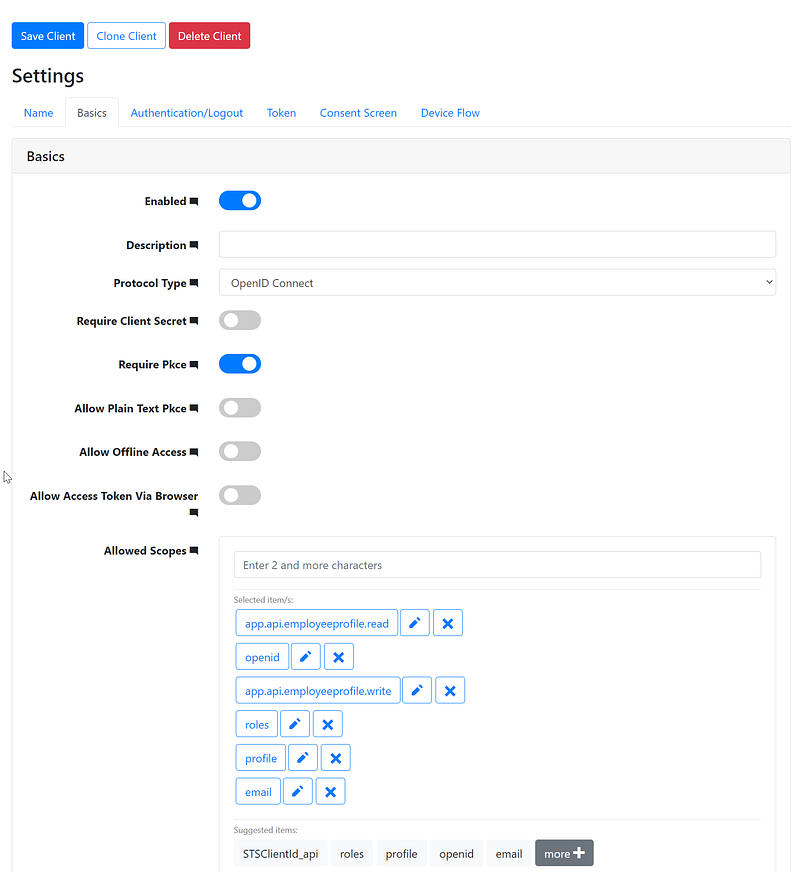
Figure 10— Setup client Allowed Scopes

Related Tutorials

Rapid Prototype Asp.Net Core REST API using KissApi Template — use Visual Studio template to generate Clean Architecture solution based on Repository Pattern, Unit of Work, Dapper, SQLKata, and Swagger.

Summary

In this tutorial, you learned how to use the STS Admin UI to register a sample WebAPI and Angular SPA. To view all other related tutorials, visit DevKit WebAPI Security.

Recommended from ReadMedium