
Dev 101: Terminal velocity
In the Dev 101 series I cover some basic concepts of computer programming for a broad audience. I guess it’s the explanation I was looking for myself, when I first started out as a programmer…
Introduction
When you ask a developer to remove a folder from their filesystem, chances are small she will use a file manager and drag and drop that folder to the trash. More often than not, she will simply fire up a terminal window and type a command like so:
~$ rm myfolder/ -rBut why would a developer prefer the terminal’s plain layout and cryptic commands over the appealing design and user-friendliness of a file manager? It’s not even usual for beginning programmers to avoid graphical user interfaces at all costs — depriving themselves deliberately of the “easy way” to do things, in order to master the so-called “command line interface”.
So why is that?
Operating system, terminal and shell
Before we can answer these questions, we need to cover some basics.
Most of us are familiar, at least on an elemental level, with the concept of an operating system (OS). It is a collection of system software that manages both computer hardware and other software. Hardware means that it handles the computer’s input/output-devices, i.e. everything from your keyboard and mouse to the Wi-Fi and display. Software involves managing the computational resources applications can access, scheduling tasks, processor time and memory allocation. The most popular operating systems are Microsoft Windows, macOS and Linux.
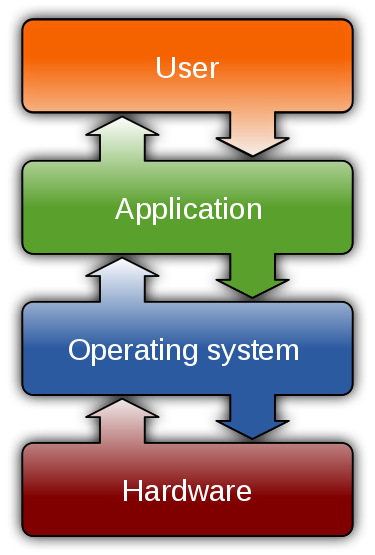

An operating system is made up of different components. Closest to the hardware, is the kernel, the core OS software, which has complete control over everything in the system. Closest to the user, is the shell, aptly named because it is the outermost layer around the operating system.
A shell is a computer program which exposes an operating system’s services to a human user or other programs. Shells provide access to the OS either via a command-line interface (CLI) or a graphical user interface (GUI). The latter is what non-professional computer users are most familiar with; manipulating programs graphically, with operations such as opening and closing windows, and manipulating files like documents on a desk, thus mimicking an “electronic desktop”.
CLI shells are where our terminal comes in. In the early days of computing, a terminal was a separate hardware device that allowed for entering data into a computing system. Nowadays, the word “terminal” actually refers to an emulation of that (hence “terminal emulator”) — a computer interface for text entry and display that can run several kinds of applications, such as a terminal-based editor like vi, or, indeed, a command line interpreter, which is the concrete manifestation of our shell.
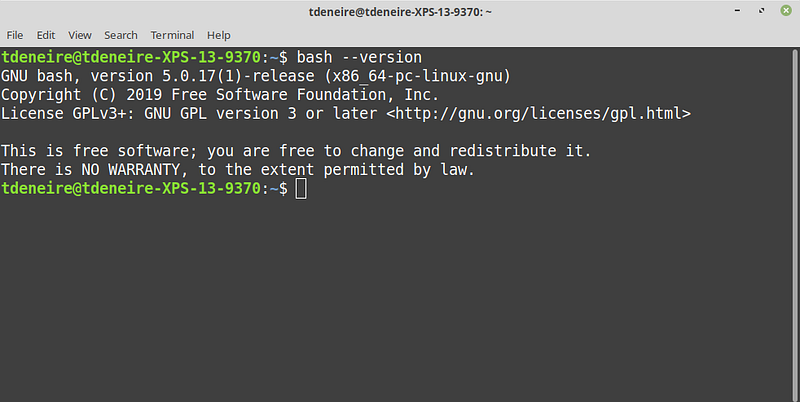
Shells come in two different flavors: those for UNIX-like systems, such as Bourne-Again shell (bash), preinstalled on most Linux varieties, and Z shell (zsh, backward compatible with bash), the default shell on macOS since Catalina; and Windows shells on the other hand: cmd.exe (a.k.a. “command prompt”) and PowerShell.
Unix commands
The remainder of this article will deal with the Unix shell exclusively for two reasons. First, I have little to no professional experience with Windows for software development. Second, even Windows programmers often need to use Unix shell commands because Linux server distributions such as Red Hat or CentOS are very popular.
A UNIX shell is both an interactive command language and a scripting language — in other words, we can use it not only to execute short commands on the command line, but also to write complex script files that can be executed in the same environment or by other software. This is a “Hello, World!”-program, for instance:
echo "Hello, World!"Using a shell, though, implies knowledge of the shell commands (and syntax, but that’s beyond the scope of this article). Some of these may vary according to the shell flavor you are using, but a wide range of commands are guaranteed on every Unix system by the Single UNIX Specification.
So let’s have a look at some of these commands.
Filesystem
The first set deals with navigating and manipulating the filesystem. Common commands are:
cd(change directory)ls(list files or directories)mv(move),cp(copy) andrm(remove)cat(print file content)
For example:
~$ cd tmp~/tmp$ cd Medium~/tmp/Medium$ ls
hello_world.sh~/tmp/Medium$ cat hello_world.sh
echo "Hello, World!"Redirection
You see that the output of these commands is printed in the terminal. Technically, we say that when a command is executed via an interactive shell, the computer’s standard streams are connected to the text terminal on which the shell is running. These three input/output (I/O) connections are called standard input (“stdin”), standard output (“stdout”) and standard error (“stderr”).
The neat thing, however, is that the shell allows you to redirect these streams with these operators:
|(pipe output to another command)<(redirect input)>(redirect output)
Like so (using the content of hello world.sh as input for the Shell interpreter sh)
~/tmp/Medium$ sh < hello_world.sh
Hello, World!
Another way to do the same is to pipe the content of hello world.sh tosh :
~/tmp/Medium$ cat hello_world.sh | sh
Hello, World!
The resulting output can then be redirected to a file (myresult.txt)
~/tmp/Medium$ sh < hello_world.sh > myresult.txt
~/tmp/Medium$ cat myresult.txt
Hello, World!
Searching
Searching the filesystem can be done with commands like find , for instance find all *.tmp files recursively, i.e. in the present directory (.) and its subfolders:
~/$ find . -type f -name '*.tmp'Another classic is grep which allows you to search text files or streams for lines that match a regular expression:
$ find . -type f -name '*.tmp' | grep "dropbox"
./.dropbox/logs/1/1-a186-604bb260.tmp
./.dropbox/logs/1/1-f683-604bb261.tmp
./.dropbox/logs/1ro/1-67bf-5e0d9feb.tmp
Text processing
Besides grep there are many other Unix utilities for text processing, some of which are programming languages on their own like AWKor sed. Some of the more straightforward commands are:
wc(word or line count)headandtail(display the beginning/end of a file)more(view the contents of a file one page at a time)
Other
Other utilities include listing active processes and interrupting them with ps and kill respectively, or an interface to the documentation of Unix commands with man . (Just try man ps , for instance). Most commands also support the flag --help , like so:
$ ls --help | head --lines=3Usage: ls [OPTION]... [FILE]...
List information about the FILEs (the current directory by default).
Sort entries alphabetically if none of -cftuvSUX nor --sort is specified.And of course, there is a plethora of other CLI applications out there, just waiting for you to install and use them alongside the standard utilities.
Unix philosophy
Now that we are familiar with some Unix commands, we can return to our main question. Given the learning curve and lack of visual appeal, why do developers prefer a CLI over GUIs?
If you consider the above examples, you’ll notice that they share a common perspective, a basic idea about how software should work. We call this the Unix philosophy, based on the experience of leading developers of the Unix operating system. It advocates minimalist, modular software development, and is often summarized as follows:
- Write programs that do one thing and do it well.
- Write programs to work together.
- Write programs to handle text streams, because that is a universal interface.
Let’s take cat as an example. It is a very simple command that prints a text file’s content to standard output. However, it is excellent at its job; offering no small amount of options like numbering the output lines, suppressing empty lines, show non-printing characters, etcetera. Moreover, it can easily be combined with other commands like grep and works well with redirection. For instance, want to filter a bunch of CSV files on a value and save the result?
$ cat *.cvs | grep "myvalue" > result.csvDeveloping software with such simple, modular, reusable tools indeed leads to understandable, maintainable, elegant code that is extremely powerful to boot.
CLI versus GUI
So let’s summarize the advantages of the commands line interface versus its graphical counterpart.
Efficiency
First of all, graphical user interfaces lack the efficiency of the command line. Applying commands to multiple files, combining commands or even writing full-fledged Shell scripts allow for a much more efficient way to do things. Let’s say I want to scan my computer for JPEGs and move them all to one folder:
~/$ find . -type f -name '*.jpeg' -exec mv -t myfolder {} +Good luck doing that with Finder or Windows Explorer!
(A tip for understanding more complex commands like the one above: you can have them analysed by a tool like explainshell.com!)

Consistency
Apart from being efficient, the command line is also very consistent. GUIs come and go, their interfaces change, but terminals and shell commands stay the same. This means that I can execute the same commands and shell code I know from my laptops (Linux Mint and Ubuntu), in the shell of my Raspberry Pi, which I use as a home server, or in the shell of my company’s development and production servers, which run RHEL.
Necessity
When it comes to servers, it is clear that using GUIs is just not an option. No one in my team even has physical access to our company’s servers! And besides, there is no regular display or other I/O hooked up to them. All server access goes through a cryptographic network protocol called SSH, which is short for … “Secure Shell”.
Moreover, whenever you need to start a process, execute a script or an executable from within a programming language, this is also impossible without the shell. In Python, for instance, one way to do this is with os.system() or with os.popen() which returns stdout, like this:
import os
result = os.popen('ls -la').read()
print(result)
Text
One final advantage of using the shell is the fact that it is a text interface. At first this might seem as a drawback to GUIs, but it is actually an incredible benefit. Text commands can be saved, which makes them shareable and reproducible. Imagine a friend coming to you for help saying “I did something in Finder and now my Documents folder is gone!”, compared to him being able to enter history into the terminal and give you a complete list of all commands leading up to the problem…
Conclusion
Being familiar with shell commands and using a terminal emulator are indispensable skills for any software developer. They offer quick and dependable access to highly complex commands that are difficult or even impossible to execute using graphical applications.
More information
You can read more about this subject in the amazing GitHub repo: The Art of the Command Line
Hi! 👋 I’m Tom. I’m a software engineer, a technical writer and IT burnout coach. If you want to get in touch, check out https://tomdeneire.github.io