
Deploy a Python Visualization Panel App to Google Cloud Run
Google Cloud Run, Google Cloud Build, and Terraform

Related article: Deploy a Python Visualization Panel App to Google Cloud App Engine: Google Cloud App Engine and Github Actions.
In my last blog post, I wrote about how to deploy a Python visualization Panel App to Google Cloud App Engine. App Engine works well, but it can be expensive because the app runs continuously whether anyone is using it or not. Luckily, there is a cheaper option called Cloud Run that only runs when receiving requests.
In this article, I will walk you through how to deploy a Python app or dashboard to Google Cloud Run with three simple scripts, and also how to automate your Google Cloud setup via Cloud Build and Terraform.
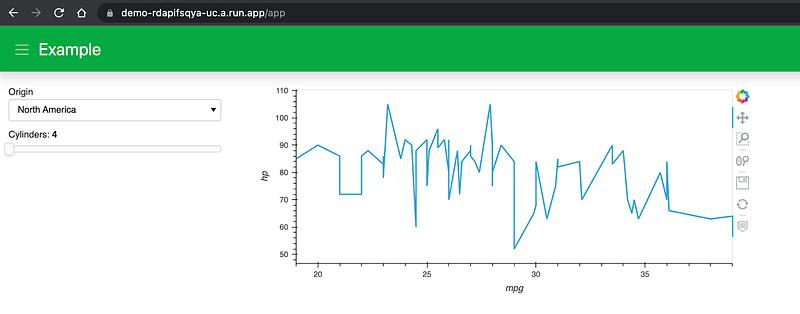
Here is what my very simple example app looks like. It is hosted here, where it will be live for 3 months after this article appears. For more examples and inspirations on Panel apps, check out awesome-panel.org, panel.holoviz.org, and my previous blog post on HoloViz tools.
1. Setup
Set up your Google Cloud account:
The Cloud Run documentation describes the following steps you need to take to enable running a project:
- Select or create a Google Cloud Project (which we will assume the project name and ID are both “your-project”)
- Enable Billing
Install and initialize the Google Cloud SDK on your local machine:
- Install Google Cloud SDK: The instructions differ by operating system, or you can simply do
conda install -c conda-forge google-cloud-sdk- Initialize gcloud:
gcloud init- Set project to “your-project” (or whatever name/ID you used for yours):
gcloud config set project your-project2. Create a Panel App
Make a new directory and either create the following three files in this directory or get them from my repo: https://github.com/sophiamyang/panel_cloud_run.
app.py
This is the Python file that creates the Panel App. To run this app locally, you can simply do conda install panel hvplotand run panel serve app.py.
requirements.txt
This file lists all the package dependencies of our Panel app.
Dockerfile
The Dockerfile installs Python and this project’s dependencies, then runs the command panel serve to run our Panel app.
3. Deploy App to Google Cloud Run
Deploy your app (choose the service folder):
gcloud run deployAfter gcloud works hard to set up your project for a few minutes, you should be able to see your dashboard live on the service URL that you see in the command line, which will be something like “service-xxx-uc.a.run.app”.
4. Deploy App to Google Cloud Run via Cloud Build and Terraform
This step is not necessary for our simple app. But when your application gets complicated and when you have a lot of apps to manage, it’s often a good practice to use Terraform. Terraform is an “open-source infrastructure as code software tool”.
In step 3 when we deploy the app via gcloud run deploy, we made a lot of decisions in the command line. For example, we set the region of the project, enabled some needed APIs, and we allowed unauthenticated invocations to service. Terraform allows us to capture all those decisions in code so that we have a place to see how the infrastructure is set up.
To use Terraform with Google Cloud Run, there are two parts:
Part 1 is to use the cloudbuild.yaml file to build a container image to execute your app ( i.e., the “build image” step) and push your container image to Artifact Registry (i.e., the “push image” step).
cloudbuild.yaml
Run the following commands:
- You might need to authenticate
gcloud auth application-default login gcloud builds submit
to submit a build using Google Cloud Build. After this step, your should see your container image listed at https://console.cloud.google.com/gcr/images/your-project/global/docker given your-project is your project ID and docker is the service name we defined in the cloudbuild.yaml file.
Part 2 is to use terraform to create a Google Run Service from the container image we just created.
main.tf
This terraform configuration file creates a “project” variable for us to define the project on the command line, enables the cloud run service, specifies the cloud run service to run the container image we just created in part 2, sets the service public, and return a service URL.
Run the following commands:
- if you are running it locally:
conda install -c conda-forge terraform - Initialize Terraform:
terraform init - Create an execution plan and give us a chance to review:
terraform plan -var project=your-project - Execute the Terraform plan:
terraform apply -var project=your-project
After a few minutes, you should see your app URL showing up in the command line: demo-xxx-uc.a.run.app.
And then if you’d like to remove the Cloud Run service, terraform destroy -var project=your-project or delete the entire project.
Furthermore, as mentioned in this Google Cloud blog post, for development with continuous deployments, check out “Managing infrastructure as code with Terraform, Cloud Build, and GitOps”.
Overall, this article uses three simple scripts to deploy a visualization Panel app to Google Cloud Run and uses another two files to set up Google Cloud Build and Terraform.
For those who are interested in a video tutorial, here is the video version of this article:
References:
- https://cloud.google.com/run/docs/quickstarts/build-and-deploy/python
- https://cloud.google.com/blog/topics/developers-practitioners/predictable-serverless-deployments-terraform
- https://github.com/GoogleCloudPlatform/serverless-expeditions/tree/main/terraform-serverless
- https://cloud.google.com/solutions/managing-infrastructure-as-code
Acknowledgment: Thank you Jim Bednar for your guidance and support!
By Sophia Yang on Dec. 24, 2021


