
Demystifying Bluehost: Primary Domains, Parked Domains, Subdomains, and Add-On Domains
This post contains affiliate links. I get a small commission for helping you start your website if you click on them.
So there’s something that took me WAY TOO LONG to understand about Bluehost, and it has caused me many hours worth of confusion over the years.
Let me be clear — I love Bluehost. They offer a great service for first-time and even experienced website owners. But if you are thinking about starting a website with them, I strongly recommend a full read of this post before doing so.
When you signup for a Bluehost account, you are asked to register a domain. A major selling point for Bluehost is that when you sign up for any of the shared hosting plans, you get 1 FREE domain name for a year.
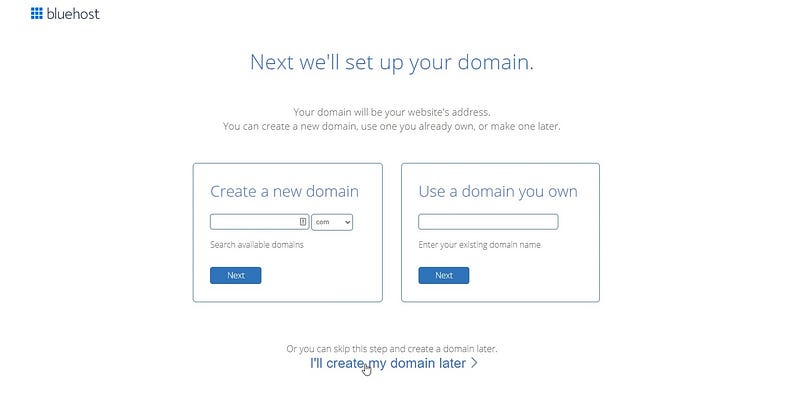
In my opinion, this is a great value proposition as it eliminates the need to register a domain on your own, which has a bit of a learning curve.
Unfortunately, this simplicity can sometimes turn into confusion when you attempt to make changes to the website(s) in your Bluehost account.
The concept of a “Primary Domain”
What you will later realize after you have signed up for a Bluehost plan is that your account is directly associated with something called a “primary domain”. You can see what your primary domain name is by visiting your profile — https://my.bluehost.com/hosting/account_center#profile

My primary domain for this account is www.bluehostpluswordpress.com.
There are a few important things you should know about primary domains:
- The domain you register during the Bluehost signup process will become your primary domain (see the picture at the top of this post).
- If you click “I’ll create my Domain Later” instead of registering a new domain during signup, you will be automatically assigned a temporary domain by Bluehost, which will be set as your primary domain. I do not recommend doing this; especially if you are signing up for a Basic plan. Having a temporary domain as your primary domain is confusing when working in the Bluehost Dashboard.
- The primary domain on your account can only be changed by contacting Bluehost support (and will take up to 5 hours to finalize).
- The primary domain will be used for ALL of your websites (more on this in a second)
Why does the primary domain matter so much?
The primary domain matters because it points to the public_html folder on your server, which contains ALL of your websites (if you have a Plus, Choice Plus, or Pro Plan).
Huh??
It’s okay if this doesn’t make sense — it sounded like a foreign language to me too when I started.
In order to understand primary, add-on, parked, and subdomains in Bluehost, we need to understand how they relate to each other and how Bluehost stores your website files.
Since 99% of the people who sign up for Bluehost are doing so in tandem with WordPress, let’s take a look at what WordPress really is. This will in turn help us understand these domain concepts a bit. Let’s start simple:
WordPress is just a bunch of files.
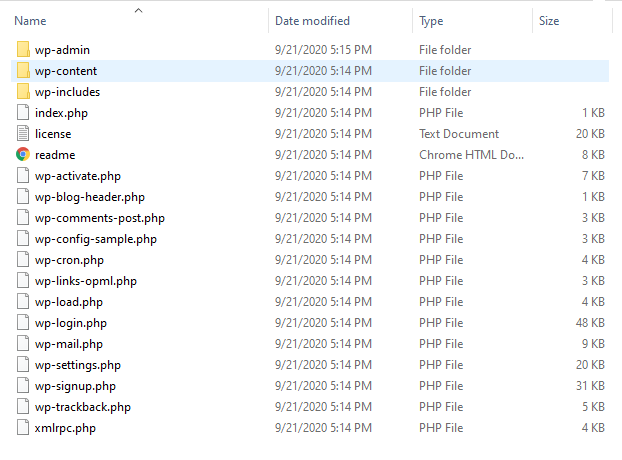
So the question we need to answer is, how do we get these files on the internet for people to see when they go to www.bluehostpluswordpress.com?
We’re going to need two things:
- A host
- A domain name
Luckily enough, Bluehost has both of those for us!
But what exactly are these, and how do they accomplish our goal of getting those WordPress files online for people to view? And furthermore, at the correct domain?
Take a look at the diagram below:
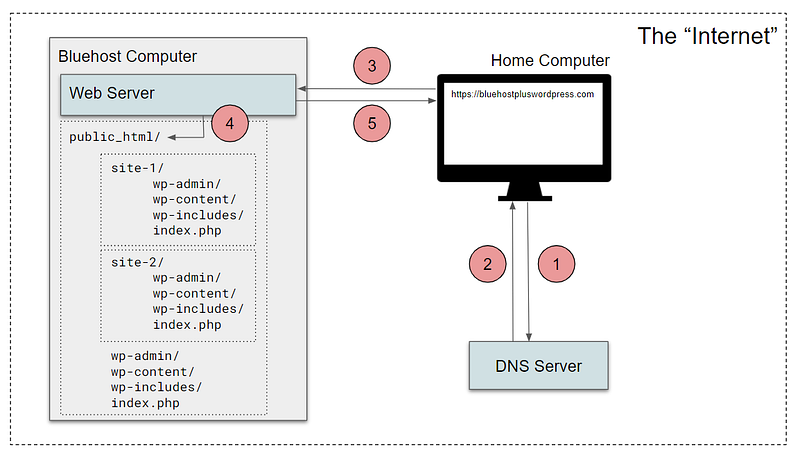
To understand primary domains, parked, add-on, and subdomains, we need at least a general understanding of this diagram. This diagram certainly leaves a lot of the details out, but I think you will find it helpful when trying to keep these concepts clear in your head.
In the diagram, we have a small cast of characters:
- The Bluehost Computer — This represents a computer sitting in a Bluehost server room pictured below. It doesn’t look like a normal computer, but it stores files just like your laptop does.

- The Web Server — This is a computer program running inside our Bluehost computer. This program runs at all times and is constantly listening for incoming internet activity.
- The DNS Server — DNS, or “Domain Name System” is how computers know where to find websites. This server probably looks similar to our Bluehost server, but instead of hosting websites, its sole responsibility is to listen and respond to domain name lookup requests. This server has a big database of domain names that have been registered. Think of this as the map of the internet.
- The Home Computer — This represents your computer at home.
Let’s follow each numbered step in our diagram above from the perspective of these characters.
- Home Computer: “Hey DNS server! I’m looking for a domain name called
www.bluehostpluswordpress.com. Do you have any idea where I can find that?” - DNS Server: “Hey Home Computer! Give me a second… I think someone registered that one today, but I need to look it up in my database. Ahh… Yep, I found it. Here’s the IP address for that domain — it is owned by Bluehost and the server is in Kansas”
- Home Computer: “Hey Web Server that runs on the Bluehost Computer! The DNS server told me where you lived, so I thought I’d drop by. You know anything about this domain called
www.bluehostpluswordpress.com?” - Web Server running on Bluehost Computer: “Of course I know about that domain. I keep detailed records of the domains and subdomains that point to my IP address. Let me pull up my records real quick”
- Web Server running on Bluehost Computer: “Ahh, found it. Since you’re requesting
www.bluehostpluswordpress.com, my records indicate that you are looking for thepublic_htmlfolder, which has a bunch of WordPress files! Let me load theindex.phpfile for you. That file is extra special and knows exactly how to load the entire WordPress site in your web browser.” - Home Computer: “Thanks Web Server running on the Bluehost Computer! That’s a pretty cool site you are running… I’m going to read it for a bit and might come back tomorrow!”
Back to the question: Why does the primary domain matter so much?
Now that we’ve gone through our cheesy sounding interaction between computers, we are equipped to understand the relevance of a primary domain on Bluehost.
First, understand that the primary domain points to a single IP address. In this case:
www.bluehostpluswordpress.com ==> 162.241.30.122This means that any time someone with an internet connection types www.bluehostpluswordpress.com in the address bar of their browser, a DNS server will resolve this and return 162.241.30.122 to the requesting computer.
And once the requestor has the IP address, it will go to that IP address, which is the Bluehost Computer. That computer has a Web Server running that has a list of “DNS Rules”.
When you first set up a Bluehost account, the only rule that this Web Server knows is this:
If I receive a request for the primary domain (www.bluehostpluswordpress.com), I need to return the WordPress site that exists in the public_html folder in my filesystem.
Quick Recap — Then we will add some more “DNS Rules”
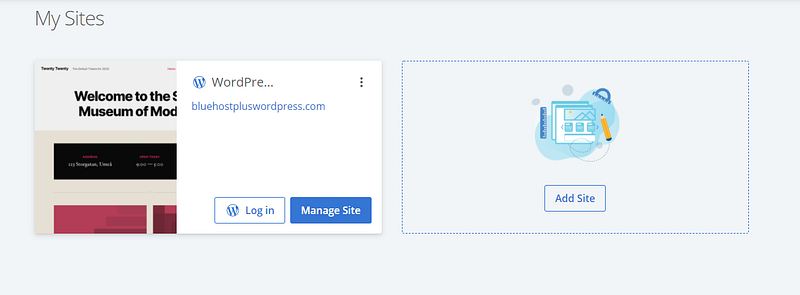
So far, we have established one rule that our Bluehost Computer’s Server follows. Every time it receives a request for the primary domain, it will return the contents of the public_html folder in its filesystem. This is by default the folder in which your first WordPress site is saved to when you set up your Bluehost account. To visualize, here is the filesystem of an actual Bluehost Computer:
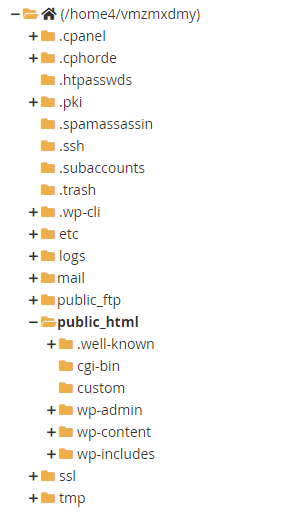
Don’t worry about all the extra folders that don’t make sense. Just direct your attention to the contents of thepublic_html folder, which has a WordPress site installed in it. That WordPress site is pictured below in the “My Sites” section of my Bluehost dashboard:
Let’s add a “parked” domain
So I’ve got this WordPress site hosted at www.bluehostpluswordpress.com, but for some crazy reason, I wake up one morning and decide that I need to buy the domain www.bluehostpluswordpress.website, and direct all traffic coming to this new domain to my main WordPress site.
Since I have the Basic Bluehost Plan, I only get 5 parked domains, which describes a domain that “points to” the primary domain. In other words, it looks like this:
www.bluehostpluswordpress.website ==> 162.241.30.122Notice how this parked domain points to the same IP address (Bluehost Computer) as the primary domain. Here is how this would play out in real life:
- Somebody using a laptop types
www.bluehostpluswordpress.websiteinto their browser bar. - Their laptop gets the IP address of this from a DNS server (162.241.30.122)
- Their laptop follows that IP address, which represents the Bluehost computer running the server that has a bunch of “DNS rules”
- In addition to the first DNS Rule we discussed, our Bluehost server now has an additional rule. Every time it receives a request from
www.bluehostpluswordpress.website, it knows to forward this request towww.bluehostpluswordpress.com, which then knows to look in thepublic_htmlfolder for the WordPress website. - Having found the WordPress website, the server returns it to the user of the laptop and they view the site
In summary, we now have two domains:
www.bluehostpluswordpress.com ==> 162.241.30.122
www.bluehostpluswordpress.website ==> 162.241.30.122
Remember, the first step is for your home computer to get the IP address of a given domain name from the DNS server. This helps your home computer find the Bluehost computer that has the WordPress site you are looking for.
Once your home computer reaches that WordPress site, the Web Server running on the Bluehost computer follows these two “DNS Rules” to return the home computer the appropriate WordPress site (in this case, the same site):
www.bluehostpluswordpress.com ==>
       Return site from public_html/ folder
www.bluehostpluswordpress.website ==>
Return whatever the primary domain returns (aka public_html)Pause. We need some background info before continuing.
We need to learn the different parts of a URL. The best way to do that is by example:
I have a golf instructional website called The DIY Golfer. It is hosted at the domain name, www.thediygolfer.com
Here are the technical terms for the different parts of this domain:

In most cases, when you purchase a domain name, you are purchasing the combination of the “Domain Name” and “Top Level Domain” pictured above. We will call this the root domain. Most of the time, websites are hosted at the subdomain www, but this is just a web standard. If you wanted, you could technically host your site as bbb.mysite.com — but good luck getting people to remember that!
So continuing the example…
In addition to the golf instructional site, I also have an application that helps golfers track their statistics. It is associated with the main site, so without paying for an additional domain name, I just hosted this app on the subdomain training.thediygolfer.com
The word “training” was 100% arbitrary. I could have picked any word I wanted! For example, I could have used something like app.thediygolfer.com.
So as we continue, keep these pieces of the URL separate in your head.
Let’s Add a Subdomain
This is where we are going to really put our knowledge to work.
Let’s say that one day, I decide I want to add a photo gallery WordPress site to gallery.bluehostpluswordpress.com. Additionally, I don’t really want to use the existing WordPress site that I have running at www.bluehostpluswordpress.com because the WordPress theme isn’t great for photo galleries. So here’s what I’m going to do:
- Create a brand new WordPress site (and make sure I pick a theme that is good for photo galleries)
- Create a new “DNS Rule” for the Bluehost Web Server that says, “Every time I get a request for
gallery.bluehostpluswordpress.com, I want to return the WordPress site that is in the folderpublic_html/gallery-site/.
Step 1: Add a new WordPress site
With Bluehost, adding a new WordPress site is SUPER EASY.
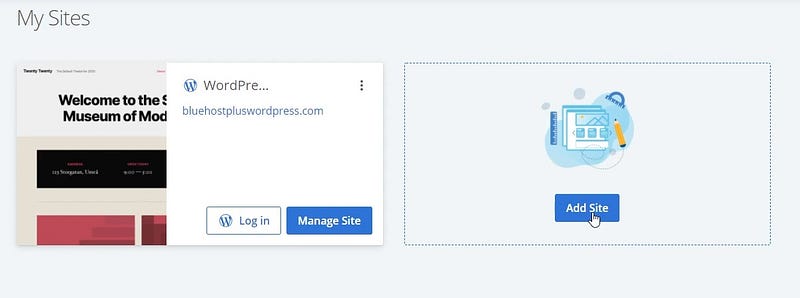
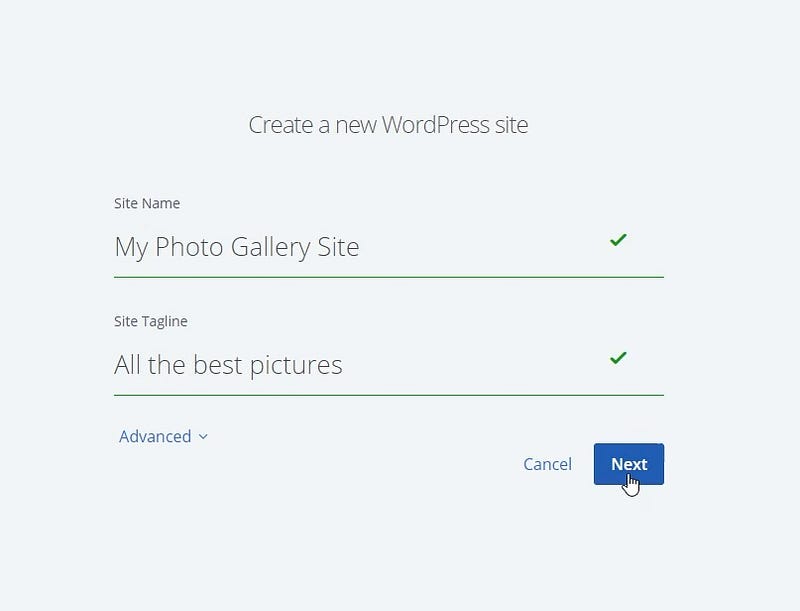
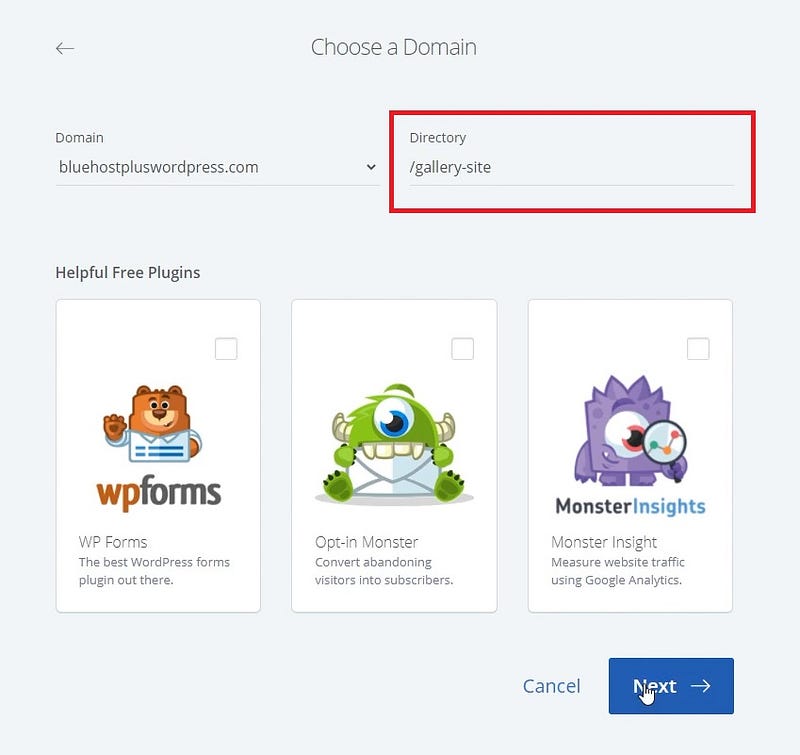
There is one very important detail to notice. When we create the new WordPress site, we need to specify that it will live at the URL www.bluehostpluswordpress.com/gallery-site. We cannot use the main URL of www.bluehostpluswordpress.com since there is ALREADY a WordPress site hosted at it.
And way off in the background, our Bluehost Computer was doing some work… Look at how our filesystem changed:
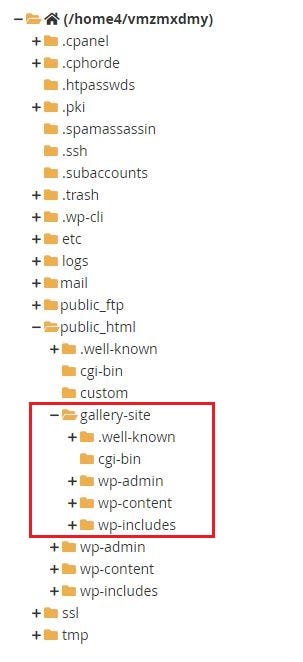
We now have a new WordPress site, but interestingly, it is within the public_html directory.
Now, we have 3 DNS Rules that our Web Server running on the Bluehost Computer knows about.
- Rule 1: When the web server receives a request for the primary domain,
www.bluehostpluswordpress.com, it will return the contents of thepublic_htmlfolder (which is our first WordPress site). - Rule 2: When the web server receives a request for
www.bluehostpluswordpress.website, it knows to return the contents of the primary domain, which as we saw in Rule 1, waspublic_html(still our first WordPress site). - Rule 3: When the web server receives a request for
www.bluehostpluswordpress.com/gallery-site, it knows to return the contents ofpublic_html/gallery-sitefrom the filesystem.
Wow! Our Web Server is getting smarter every day! But it still has a few more rules to learn.
Step 2: Set up the Subdomain
Setting up a subdomain is also pretty straightforward in Bluehost. To do so, visit your subdomain management console at https://my.bluehost.com/cgi/dm/subdomain.
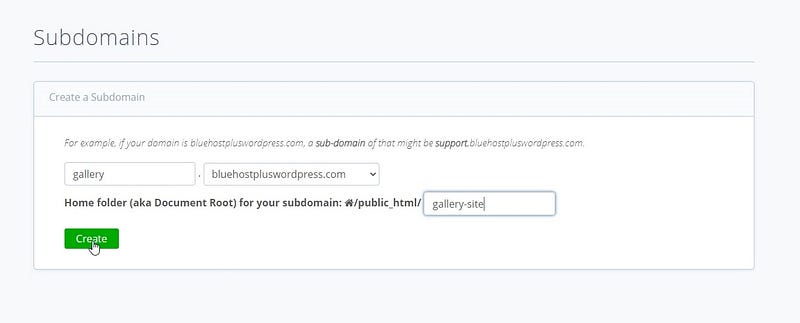
What I am doing here is adding another rule to the Web Server that says:
“Hey Web Server! Every time you receive a request for gallery.bluehostpluswordpress.com, can you please load the contents of the public_html/gallery-site folder in your filesystem?”
At this point, we have four total rules that the Web Server knows about:
- Rule 1: When the web server receives a request for the primary domain,
www.bluehostpluswordpress.com, it will return the contents of thepublic_htmlfolder (which is our first WordPress site). - Rule 2: When the web server receives a request for
www.bluehostpluswordpress.website, it knows to return the contents of the primary domain, which as we saw in Rule 1, waspublic_html(still our first WordPress site). - Rule 3: When the web server receives a request for
www.bluehostpluswordpress.com/gallery-site, it knows to return the contents ofpublic_html/gallery-sitefrom the filesystem. - Rule 4: When the web server receives a request for
gallery.bluehostpluswordpress.com, it knows to return the contents ofpublic_html/gallery-sitefrom the filesystem.
If you have been reading intently, you may notice a few things about these rules. Firstly, they all load something from the public_html folder of the Bluehost Computer. Some load nested folders like public_html/gallery-site, while others just load the root directory public_html.
Secondly, you might notice that Rule 1 and Rule 2 are similar, just like Rule 3 and Rule 4 are similar. Although they are different URLs, they load the same WordPress site.
And this leads us to our final discussion.
Bringing this full circle: Primary vs. Parked vs. Subdomain vs. Add-On
By now, you most likely understand what a primary, parked, and subdomain is. We haven’t talked about add-on domains yet, but I think you’ll find them pretty easy after that long-winded explanation above.
An Add-On domain follows the same concepts as the subdomain that we set up, but instead of gallery.bluehostpluswordpress.com as the URL, an add-on domain is a totally separate domain such as www.mybluehostwordpressgallery.com.
If we wanted to use this URL as an add-on, we would simply register the domain, assign it to the public_html/gallery-site, and instead of Rule #3 and #4 using the URL gallery.bluhostpluswordpress.com, it would use www.mybluehostwordpressgallery.com.
I will remind you though — An add-on domain is only available to Plus, Choice Plus, and Pro Plan users.
Review: Primary Domain
The primary domain is what you’ll see on your profile:
This domain always loads the contents of public_html folder that is simply a folder sitting on the Bluehost computer that “hosts” your website.
Another way of saying it: The Bluehost Computer’s Web Server always assigns the following DNS Rule to the primary domain:
Web Server running on Bluehost Computer: “I’m always listening for HTTP requests from laptops/phones/computers across the world, but I’m pretty selective. The only time I respond is if someone is requesting a URL that fits one of my rules. But I’ve got one rule that never changes (since I’m a Bluehost server)! Every time I see a request for the primary domain, I’m going to find all the folders and files in the public_html directory of my filesystem and send those files back to the computer that requested the primary domain.”
Review: Parked Domain
A parked domain can be any domain name. Even with the Basic Plan that only allows 1 Website, you can have up to 5 parked domains.
For example, on the Basic Plan, you could purchase all of the following domains:
www.bluehostpluswordpress.com
www.bluehostpluswordpress.website
www.bluehostandwordpresstutorial.com
www.wordpress-bluehost.com
www.wpandbluehost.com
The catch?
Remember — Parked domains will always load the same files that the primary domain loads, which is always the contents of the public_html folder (remember our Server’s “DNS Rules”). So in the example above, all 5 of these domains will load the SAME WordPress website.
Review: Subdomain
A subdomain, as we discussed earlier, is nothing more than a derivation of the main domain.
If bluehostpluswordpress.com is the main domain, all of the following are valid subdomains:
app.bluehostpluswordpress.com
support.bluehostpluswordpress.com
gallery.bluehostpluswordpress.com
store.bluehostpluswordpress.com
With the Basic Plan, you get 25 of these, which is plenty (trust me on this)!
And little do many people know, even with the Basic Plan that only allows “1 Website”, you could run 25 separate WordPress websites (as long as they share the same main domain, and you don’t run over your SSD cap of 50GB).
Let’s say you implemented all 4 of those subdomains above, and they all pointed to different WordPress sites. Here is what your filesystem on the Bluehost computer would look like:
public_html/
     wp-admin/
     wp-content/
     wp-includes/
     index.php
     app-site/
     support-site/
     gallery-site/
     store-site/
And here would be the Server’s “DNS Rules” after adding these:
- If URL is
www.bluehostpluswordpress.com, loadpublic_html. - If URL is
www.bluehostpluswordpress.com/app-site, loadpublic_html/app-site - If URL is
www.bluehostpluswordpress.com/support-site, loadpublic_html/support-site - If URL is
www.bluehostpluswordpress.com/gallery-site, loadpublic_html/gallery-site - If URL is
www.bluehostpluswordpress.com/store-site, loadpublic_html/store-site - If URL is
app.bluehostpluswordpress.com, loadpublic_html/app-site - If URL is
support.bluehostpluswordpress.com, loadpublic_html/support-site - If URL is
gallery.bluehostpluswordpress.com, loadpublic_html/gallery-site - If URL is
store.bluehostpluswordpress.com, loadpublic_html/store-site
So… Why does Bluehost make this so complicated?
If I had to guess (and yes, this is a guess based on my own logic), Bluehost uses this system of “primary domains” to save IP addresses, logically separate their customers, and more efficiently use server space.
There are several ways that they could have done this, but by assigning a customer a primary domain, and mapping that domain to a single folder on a single computer (IP address), it is easy to keep track of where each customer’s sites are located. Additionally, it allows Bluehost to take advantage of the “Domain Name System” (DNS). Instead of mapping each domain name to a different IP address (physical computer) and hosting each WordPress site on a different computer, they can keep all of your WordPress sites on a single IP Address (physical computer) and point ALL of your (and other people’s) domain names to that single IP Address. Then, they use Web Server logic (Apache2 to be specific) to find the correct folder to load based on the URL request received.
Next Steps
If you learned ANYTHING here today, give this post a clap please :)
If after reading this, you want to build yourself a website using Bluehost, sign up here.