avatarJanitha Tennakoon

Free AI web copilot to create summaries, insights and extended knowledge, download it at here

5579

Abstract

livery streams</b> which is the second option.</p><figure id="94e6"><img src="https://cdn-images-1.readmedium.com/v2/resize:fit:800/0*z1MSig2Q0Qwv4bwq.png"><figcaption></figcaption></figure><p id="d96d">Provide a name for the Delivery stream name. Under source Select <b>Direct PUT or other sources</b>. This option will create a delivery stream that producer applications write directly to. If <b>Kinesis stream</b> is selected, then the delivery stream will use a Kinesis data stream as a data source. For simplicity of this post, we have select first option.</p><figure id="93b9"><img src="https://cdn-images-1.readmedium.com/v2/resize:fit:800/0*RuqzH10Qo00bTX7l.png"><figcaption></figcaption></figure><h2 id="f43f">Transform records</h2><p id="a27d">In the next page, we will need to configure data transformation configurations. Kinesis Firehose can invoke a Lambda function to transform incoming source data and deliver the transformed data to destinations. Blueprints for Lambda functions are provided by AWS. But before creating a Lambda function let’s look at the requirements we need to know before transforming data.</p><p id="2a98">All transformed records from the lambda function should contain the parameters described below.</p><ul><li><b>recordid </b>— the record ID passed from Kinesis Firehose to Lambda during the invocation. The transformed record should contain the same id.</li><li><b>result </b>— the status of the data that have been transformed by the Lambda function.</li><li><b>data </b>— the transformed data</li></ul><p id="9b7c">There are several Lambda blueprints provided for us that we can use to create out Lambda function for data transformation. We will use one of these blueprints to create our Lambda function.</p><figure id="51aa"><img src="https://cdn-images-1.readmedium.com/v2/resize:fit:800/0*uXw0GE5U5huTo4RI.png"><figcaption></figcaption></figure><p id="5dfd">In the page of <b>Process record</b>s in <b>Transform source records with AWS Lambda</b> select Enabled. This will prompt you to choose a Lambda function. Select Create new. Here we are provided with the Lambda blueprints for data transformation. Select <b>General Firehose Processing</b> as our blueprint.</p><figure id="d156"><img src="https://cdn-images-1.readmedium.com/v2/resize:fit:800/0*JnjTn9Lbzo03IdwD.png"><figcaption></figcaption></figure><p id="4b4b">This will land us to Lambda function creation page. Provide a name for our function. Then we need to provide an IAM role which is able to access our Firehose delivery stream with permission to invoke <b>PutRecordBatch </b>operation.</p><figure id="5826"><img src="https://cdn-images-1.readmedium.com/v2/resize:fit:800/0*OJaZwoGd-QPWW31Y.png"><figcaption></figcaption></figure><p id="8272">In View Policy Document, choose Edit and add the following content to the policy.</p><div id="61ef"><pre>{ <span class="hljs-string">"Effect"</span>: <span class="hljs-string">"Allow"</span>, <span class="hljs-string">"Action"</span>: [ <span class="hljs-string">"firehose:PutRecordBatch"</span> ], <span class="hljs-string">"Resource"</span>: [ <span class="hljs-string">"arn:aws:firehose:your-region:your-aws-account-id:deliverystream/your-stream-name"</span> ] }</pre></div><p id="c1fe">Make sure to edit<b> your-region, your-aws-account-id, your-stream-name</b> before saving the policy.</p><figure id="b123"><img src="https://cdn-images-1.readmedium.com/v2/resize:fit:800/0*YRuMSuC80Jqy1rqn.png"><figcaption></figcaption></figure><p id="d83d">After creating the IAM role we will be redirected back to the Lambda function creation page. Here choose the created role. After that, we need to write our own Lambda function code in order to transform our data records. Lambda blueprint has already populated code with the predefined rules that we need to follow.</p><p id="90d0">As mentioned above our streaming data will be having the following format.</p><div id="3368"><pre>{<span class="hljs-string">"TICKER_SYMBOL"</span>:<span class="hljs-string">"JIB"</span><span class="hljs-punctuation">,</span><span class="hljs-string">"SECTOR"</span>:<span class="hljs-string">"AUTOMOBILE"</span><span class="hljs-punctuation">,</span><span class="hljs-string">"CHANGE"</span><span class="hljs-symbol">:-0.15</span><span class="hljs-punctuation">,</span><span class="hljs-string">"PRICE"</span>:<span class="hljs-number">44.89</span>}</pre></div><p id="2392">For the simplicity of this post, we will do a simple transformation for this records. We will ignore “CHANGE” attribute when streaming the records. So our transformed records will have attributes <b>ticker_symbol</b>, <b>sector </b>and <b>price </b>attributes only. Paste the following code to your Lambda function to achieve this.</p><div id="84c0"><pre><span class="hljs-meta">'use strict'</span>; <span class="hljs-variable language_">console</span>.<span class="hljs-title function_">log</span>(<span class="hljs-string">'Loading function'</span>);</pre></div><div id="6751"><pre><span class="hljs-built_in">exports</span>.<span class="hljs-property">handler</span> = <span class="hljs-function">(<span class="hljs-params">event, context, callback</span>) =></span> { <span class="hljs-comment">/* Process the list of records and transform them */</span> <span class="hljs-keyword">const</span> output = event.<span class="hljs-property">records</span>.<span class="hljs-title function_">map</span>(<span class="hljs-function">(<span class="hljs-params">

Options

record</span>) =></span> { <span class="hljs-variable language_">console</span>.<span class="hljs-title function_">log</span>(record.<span class="hljs-property">recordId</span>); <span class="hljs-keyword">const</span> payload =<span class="hljs-title class_">JSON</span>.<span class="hljs-title function_">parse</span>((<span class="hljs-title class_">Buffer</span>.<span class="hljs-title function_">from</span>(record.<span class="hljs-property">data</span>, <span class="hljs-string">'base64'</span>).<span class="hljs-title function_">toString</span>()))</pre></div><div id="0eb7"><pre> const resultPayLoad = { <span class="hljs-attr">ticker_symbol</span> : payload.ticker_symbol, <span class="hljs-attr">sector</span> : payload.sector, <span class="hljs-attr">price</span> : payload.price, };

    <span class="hljs-keyword">return</span>{
        <span class="hljs-attr">recordId</span>: record.recordId,
        <span class="hljs-attr">result</span>: <span class="hljs-string">'Ok'</span>,
        <span class="hljs-attr">data</span>: (<span class="hljs-built_in">Buffer</span>.from(JSON.stringify(resultPayLoad))).toString(<span class="hljs-string">'base64'</span>),
    };
});
<span class="hljs-built_in">console</span>.<span class="hljs-built_in">log</span>(<span class="hljs-string">`Processing completed.  Successful records <span class="hljs-subst">${output.<span class="hljs-built_in">length</span>}</span>.`</span>);
callback(<span class="hljs-literal">null</span>, { <span class="hljs-attr">records</span>: output });

};</pre></div><p id="0033">After creating the Lambda function go back to delivery stream create page. Here select the new Lambda function that we have just created.</p><figure id="2c4e"><img src="https://cdn-images-1.readmedium.com/v2/resize:fit:800/0*LWfavL94jO_4d5D7.png"><figcaption></figcaption></figure><h2 id="ca35">Destination</h2><p id="98b3">In the next page, we will be prompted to select the destination. In this post, we are going to save our records to S3.</p><figure id="88ba"><img src="https://cdn-images-1.readmedium.com/v2/resize:fit:800/0*pz7DULNM43Dgt5aN.png"><figcaption></figcaption></figure><p id="2dab">In S3 destination choose the S3 bucket that we are going to store our records. If you haven’t created an S3 bucket yet, you can choose to create new. If you want to back up the records before the transformation process done by Lambda then you can select a backup bucket as well.</p><figure id="e017"><img src="https://cdn-images-1.readmedium.com/v2/resize:fit:800/0*NAmp39pP3TCOy-jB.png"><figcaption></figcaption></figure><p id="601a">After selecting our destination we will be redirected to configurations page. Here we can first select a buffer size and a buffer interval, S3 compression and encryption and error logging. Keep the default values to all the configuration settings except for IAM role. We need to provide an IAM role for Kinesis to access our S3 buckets. If you already have an IAM role you can choose it if you don’t create new.</p><figure id="8833"><img src="https://cdn-images-1.readmedium.com/v2/resize:fit:800/0*W3gKF2R8wJPU8z7a.png"><figcaption></figcaption></figure><p id="6fea">After reviewing our configurations and click <b>Create delivery stream</b> to create our Amazon Kinesis Firehose delivery stream. The new Kinesis Firehose delivery stream will take a few moments in the <b>Creating </b>state before it is available for us. After the delivery stream state changed to <b>Active </b>we can start sending data to it from a producer.</p><figure id="a81e"><img src="https://cdn-images-1.readmedium.com/v2/resize:fit:800/0*IrVADvyGoo_eBkW6.png"><figcaption></figcaption></figure><figure id="ea48"><img src="https://cdn-images-1.readmedium.com/v2/resize:fit:800/0*q_pKrIvonFBRYiV6.png"><figcaption></figcaption></figure><p id="270b">Now we have created the delivery stream. Let us now test our created delivery stream. For that click on the delivery stream and open Test with demo data node.</p><figure id="addb"><img src="https://cdn-images-1.readmedium.com/v2/resize:fit:800/0*dyvFPCnunzx-n2_f.png"><figcaption></figcaption></figure><p id="4930">Click on <b>Start sending demo data</b>. This will start records to be sent to our delivery stream. After sending demo data click in <b>Stop sending demo data</b> to avoid further charging. Note that it might take a few minutes for new objects to appear in your bucket, based on the buffering configuration of your bucket. To confirm that our streaming data was saved in S3 we can go to the destination S3 bucket and verify. Verify whether the streaming data does not have the Change attribute as well. All the streaming records before transform can be found on the backup S3 bucket.</p><figure id="6e4b"><img src="https://cdn-images-1.readmedium.com/v2/resize:fit:800/0*_0JvmFQB0p09xZyQ.png"><figcaption></figcaption></figure><figure id="a825"><img src="https://cdn-images-1.readmedium.com/v2/resize:fit:800/0*0kyNbMEdE99_nRSf.png"><figcaption></figcaption></figure><p id="9ead">We have now created successfully a delivery stream using Amazon Kinesis Firehose for S3 and have successfully tested it. You can look more into Kinesis Firehose where the destination might be Amazon Redshift or the producer might be a Kinesis datastream. Follow this <a href="https://docs.aws.amazon.com/firehose/latest/dev/what-is-this-service.html">documentation </a>to go more depth on Amazon Kinesis Firehose.</p></article></body>

Delivering Real-time Streaming Data to Amazon S3 Using Amazon Kinesis Data Firehose

In this post let us explore what is streaming data and how to use Amazon Kinesis Firehose service to make an application which stores these streaming data to Amazon S3. As a hands-on experience, we will use AWS Management Console to ingest simulated stock ticker data from which we will create a delivery stream and save to S3. Before going into implementation let us first look at what is streaming data and what is Amazon Kinesis.

Streaming data is data that is generated continuously by many data sources. These can be sent simultaneously and in small sizes. These streaming data can be gathered by tools like Amazon Kinesis, Apache Kafka, Apache Spark, and many other frameworks. Some examples of streaming data are

  • log files generated by an application
  • customer interaction data from a web application or mobile application
  • financial stock market data
  • IOT device data (sensors, performance monitors etc.. )

Amazon Kinesis is a service provided by Amazon which makes it easy to collect,. process and analyze real-time, streaming data. At present, Amazon Kinesis provides four types of Kinesis streaming data platforms.

  • Kinesis Data Streams — used to collect and process large streams of data records in real time
  • Kinesis Data Firehose — used to deliver real-time streaming data to destinations such as Amazon S3, Redshift etc..
  • Kineses Data Analytics — used to process and analyze streaming data using standard SQL
  • Kinesis Video Streams — used to fully manage services that use to stream live video from devices

Amazon Kinesis Data Firehose

Amazon Kinesis data firehose is a fully managed service provided by Amazon to delivering real-time streaming data to destinations provided by Amazon services. At present, Amazon Kinesis Firehose supports four types of Amazon services as destinations.

  • Amazon S3 — an easy to use object storage
  • Amazon Redshift — petabyte-scale data warehouse
  • Amazon Elasticsearch Service — open source search and analytics engine
  • Splunk — operational intelligent tool for analyzing machine-generated data

In this post, we are going to look at how we can use Amazon Kinesis Firehose to save streaming data to Amazon Simple Storage (S3). Before start implementing our application let us first look at the key concepts of Amazon Kinesis Firehose.

Kinesis Data Firehose delivery stream — the underlying entity of Kinesis Data Firehose.

Data producer — the entity which sends records of data to Kinesis Data Firehose. (ex:- web or mobile application which sends log files)

Record — the data that our data producer sends to Kinesis Firehose delivery stream.

Buffer size and buffer interval — the configurations which determines how much buffering is needed before delivering them to the destinations.

Now that we have learned key concepts of Kinesis Firehose, let us jump into implementation part of our stream. The following diagram shows the basic architecture of our delivery stream. Data producers will send records to our stream which we will transform using Lambda functions. After that, the transformed records will be saved on to S3 using Kinesis Firehose. We will also backup our stream data before transformation also to an S3 bucket.
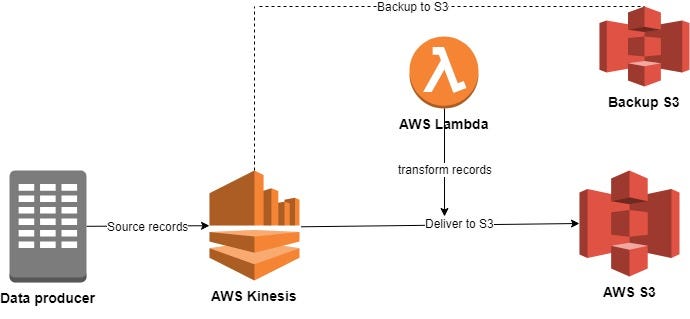
For this post, we are going to create a delivery stream where the records will be stock ticker data. We will use the AWS Management Console to ingest simulated stock ticker data and S3 as our destination. The simulated data will have the following format.

{"TICKER_SYMBOL":"JIB","SECTOR":"AUTOMOBILE","CHANGE":-0.15,"PRICE":44.89}

Creating an Amazon Kinesis Data Firehose delivery stream

Kinesis Firehose delivery streams can be created via the console or by AWS SDK. For our blog post, we will use the ole to create the delivery stream. We can update and modify the delivery stream at any time after it has been created.

First go to Kinesis service which is under Analytics category. If you have never used Kinesis before you will be greeted with the following welcome page.
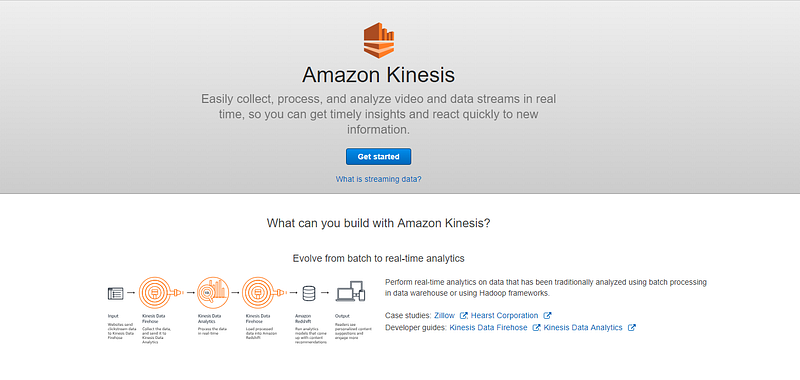
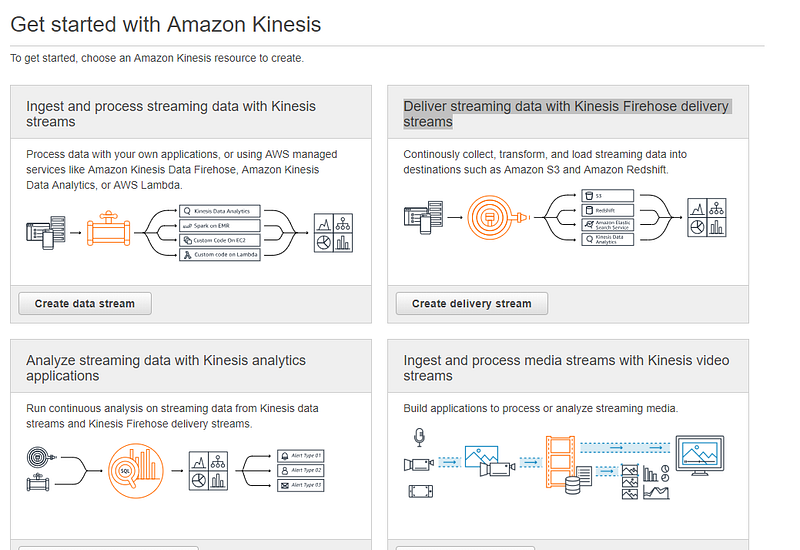
Click Get started to create our delivery stream. In the next page, you will be given four types of wizards to create Kinesis streams for four types of data platform service. For this post what we are using is Deliver streaming data with Kinesis Firehose delivery streams which is the second option.
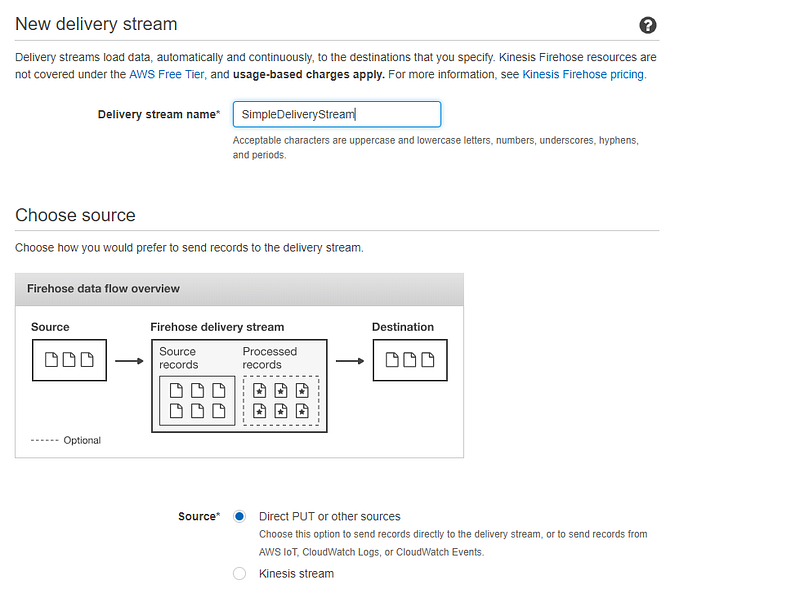
Provide a name for the Delivery stream name. Under source Select Direct PUT or other sources. This option will create a delivery stream that producer applications write directly to. If Kinesis stream is selected, then the delivery stream will use a Kinesis data stream as a data source. For simplicity of this post, we have select first option.
Transform records

In the next page, we will need to configure data transformation configurations. Kinesis Firehose can invoke a Lambda function to transform incoming source data and deliver the transformed data to destinations. Blueprints for Lambda functions are provided by AWS. But before creating a Lambda function let’s look at the requirements we need to know before transforming data.

All transformed records from the lambda function should contain the parameters described below.

  • recordid — the record ID passed from Kinesis Firehose to Lambda during the invocation. The transformed record should contain the same id.
  • result — the status of the data that have been transformed by the Lambda function.
  • data — the transformed data

There are several Lambda blueprints provided for us that we can use to create out Lambda function for data transformation. We will use one of these blueprints to create our Lambda function.
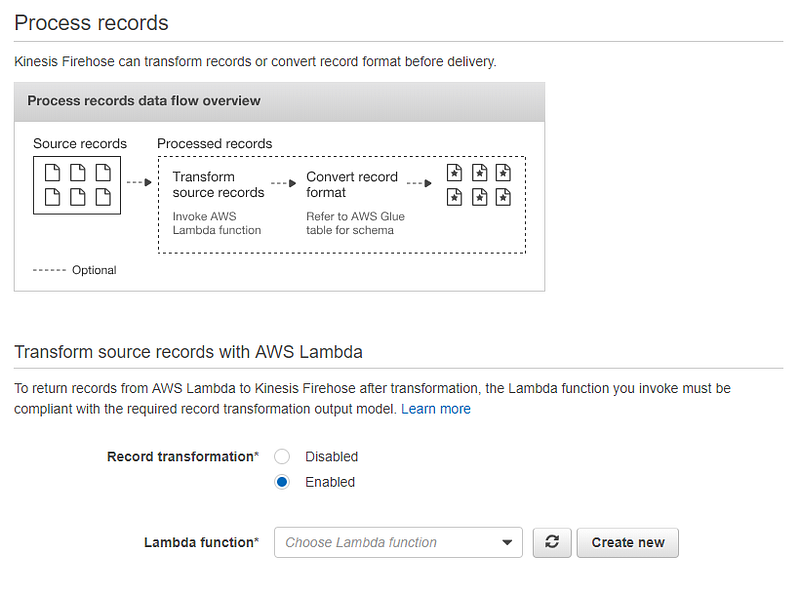
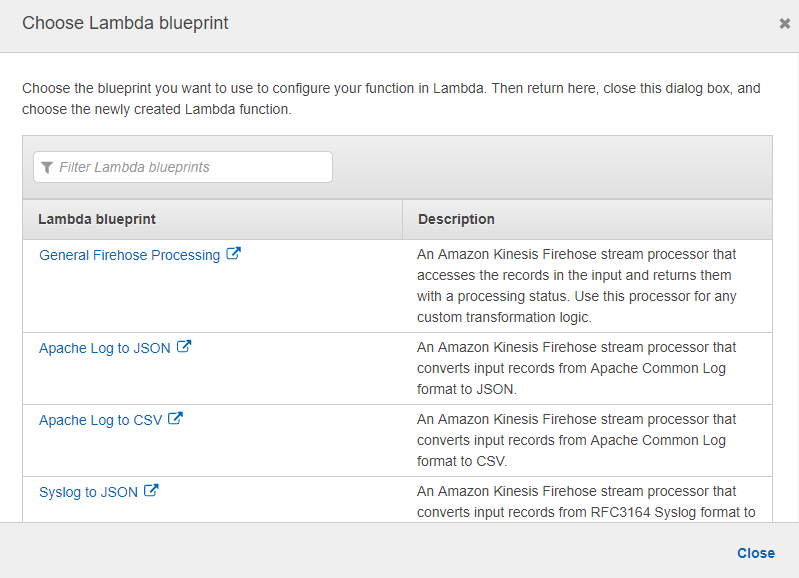
In the page of Process records in Transform source records with AWS Lambda select Enabled. This will prompt you to choose a Lambda function. Select Create new. Here we are provided with the Lambda blueprints for data transformation. Select General Firehose Processing as our blueprint.
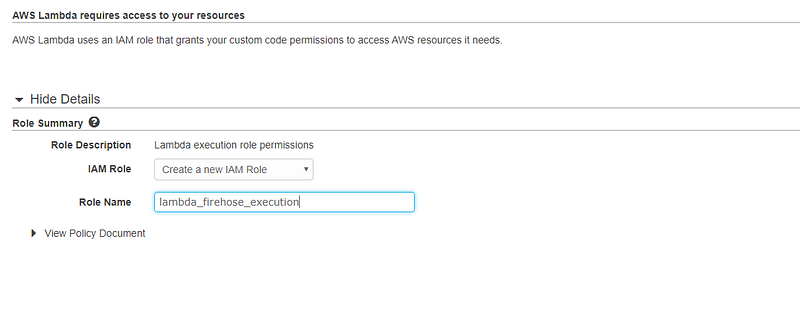
This will land us to Lambda function creation page. Provide a name for our function. Then we need to provide an IAM role which is able to access our Firehose delivery stream with permission to invoke PutRecordBatch operation.
In View Policy Document, choose Edit and add the following content to the policy.

{
            "Effect": "Allow",
            "Action": [
                "firehose:PutRecordBatch"
            ],
            "Resource": [
                "arn:aws:firehose:your-region:your-aws-account-id:deliverystream/your-stream-name"
            ]
        }

Make sure to edit your-region, your-aws-account-id, your-stream-name before saving the policy.
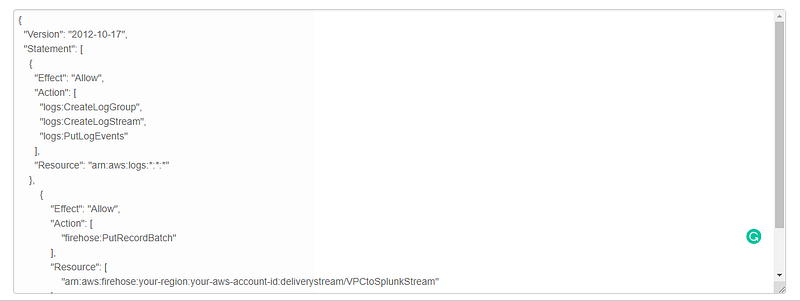
After creating the IAM role we will be redirected back to the Lambda function creation page. Here choose the created role. After that, we need to write our own Lambda function code in order to transform our data records. Lambda blueprint has already populated code with the predefined rules that we need to follow.

As mentioned above our streaming data will be having the following format.

{"TICKER_SYMBOL":"JIB","SECTOR":"AUTOMOBILE","CHANGE":-0.15,"PRICE":44.89}

For the simplicity of this post, we will do a simple transformation for this records. We will ignore “CHANGE” attribute when streaming the records. So our transformed records will have attributes ticker_symbol, sector and price attributes only. Paste the following code to your Lambda function to achieve this.

'use strict';
console.log('Loading function');
exports.handler = (event, context, callback) => {
    /* Process the list of records and transform them */
    const output = event.records.map((record) => {
        console.log(record.recordId);
        const payload =JSON.parse((Buffer.from(record.data, 'base64').toString()))
        const resultPayLoad = {
                ticker_symbol : payload.ticker_symbol,
                sector : payload.sector,
                price : payload.price,
            };
            
        return{
            recordId: record.recordId,
            result: 'Ok',
            data: (Buffer.from(JSON.stringify(resultPayLoad))).toString('base64'),
        };
    });
    console.log(`Processing completed.  Successful records ${output.length}.`);
    callback(null, { records: output });
};

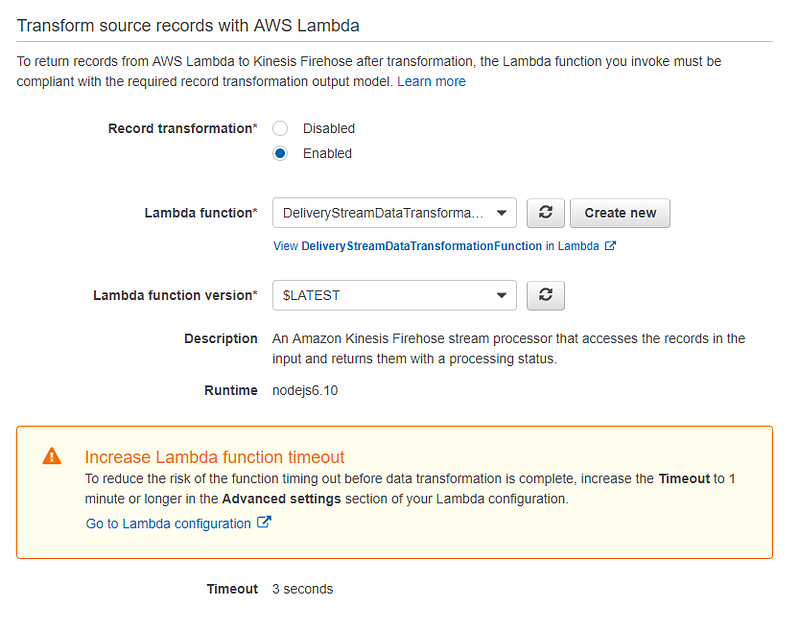
After creating the Lambda function go back to delivery stream create page. Here select the new Lambda function that we have just created.
Destination

In the next page, we will be prompted to select the destination. In this post, we are going to save our records to S3.
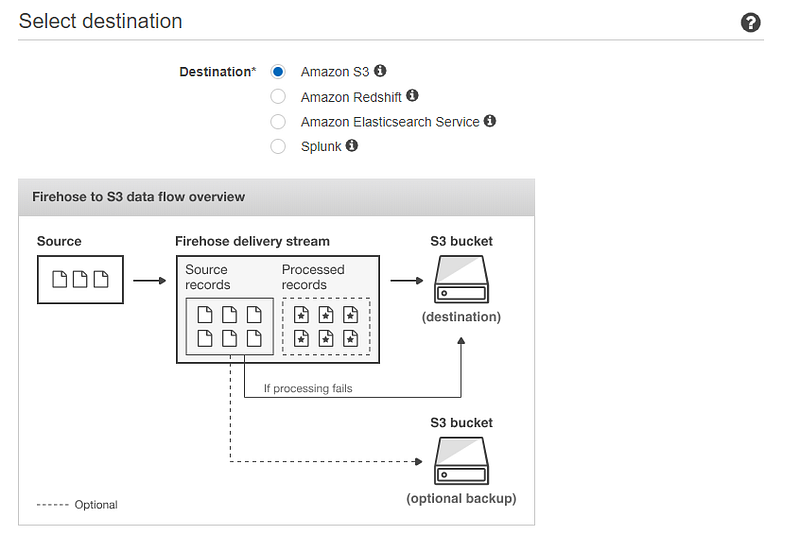
In S3 destination choose the S3 bucket that we are going to store our records. If you haven’t created an S3 bucket yet, you can choose to create new. If you want to back up the records before the transformation process done by Lambda then you can select a backup bucket as well.
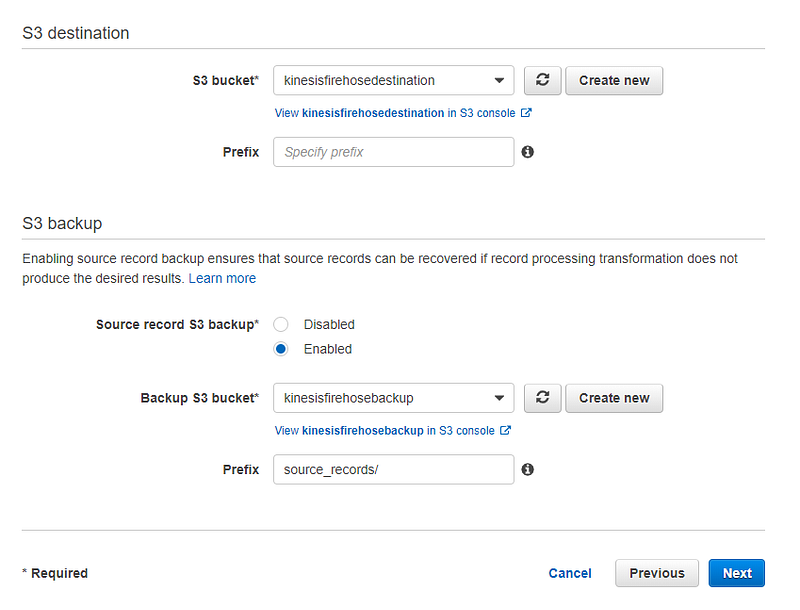
After selecting our destination we will be redirected to configurations page. Here we can first select a buffer size and a buffer interval, S3 compression and encryption and error logging. Keep the default values to all the configuration settings except for IAM role. We need to provide an IAM role for Kinesis to access our S3 buckets. If you already have an IAM role you can choose it if you don’t create new.
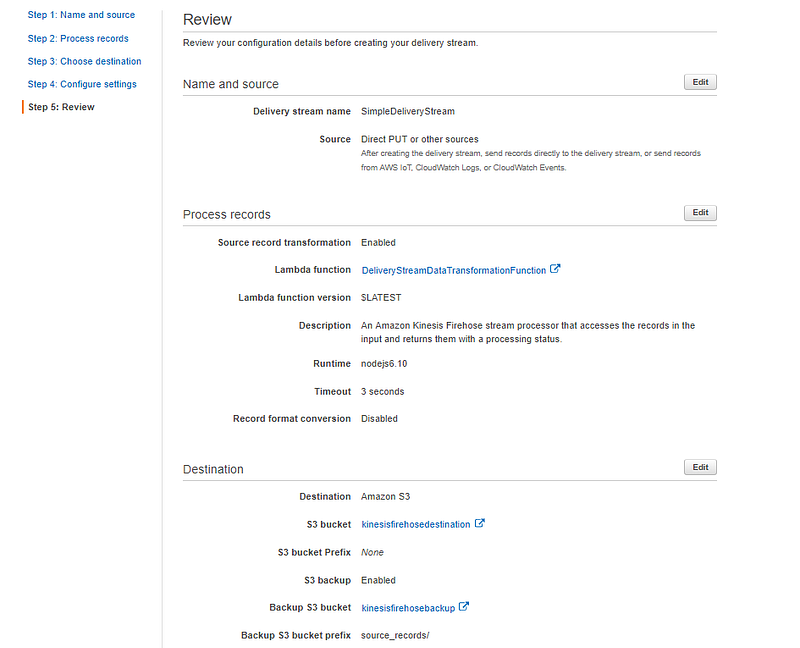
After reviewing our configurations and click Create delivery stream to create our Amazon Kinesis Firehose delivery stream. The new Kinesis Firehose delivery stream will take a few moments in the Creating state before it is available for us. After the delivery stream state changed to Active we can start sending data to it from a producer.
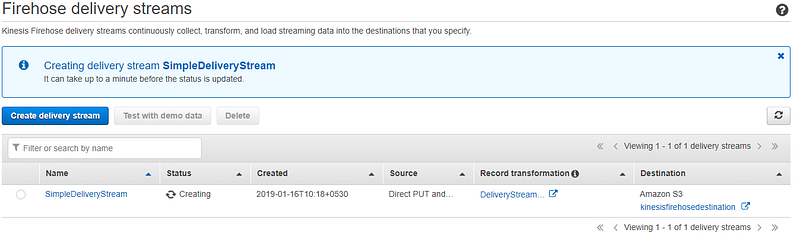
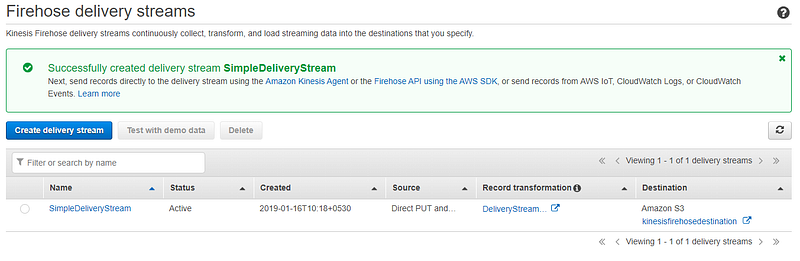
Now we have created the delivery stream. Let us now test our created delivery stream. For that click on the delivery stream and open Test with demo data node.
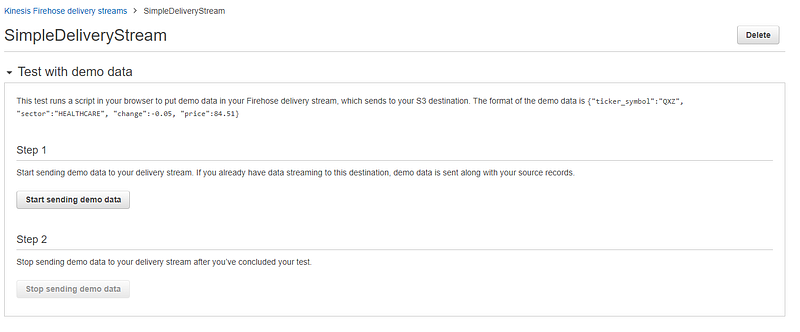
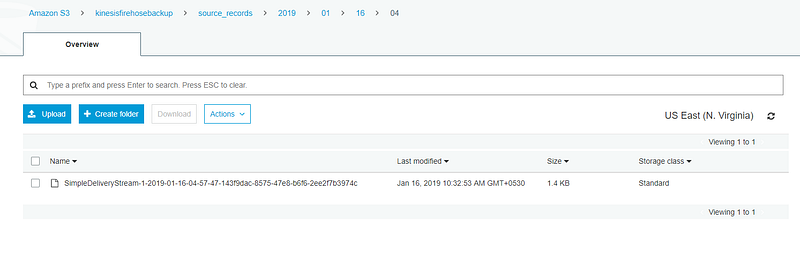
Click on Start sending demo data. This will start records to be sent to our delivery stream. After sending demo data click in Stop sending demo data to avoid further charging. Note that it might take a few minutes for new objects to appear in your bucket, based on the buffering configuration of your bucket. To confirm that our streaming data was saved in S3 we can go to the destination S3 bucket and verify. Verify whether the streaming data does not have the Change attribute as well. All the streaming records before transform can be found on the backup S3 bucket.
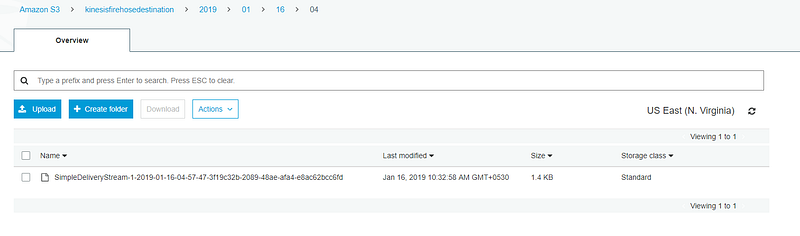
We have now created successfully a delivery stream using Amazon Kinesis Firehose for S3 and have successfully tested it. You can look more into Kinesis Firehose where the destination might be Amazon Redshift or the producer might be a Kinesis datastream. Follow this documentation to go more depth on Amazon Kinesis Firehose.

AWS
Big Data
Kinesis
Recommended from ReadMedium