
Deep Linking in Jetpack Compose — Android
In this article, we’ll learn how to easily implement deep-linking in Jetpack Compose.

What is Deep-Linking?
Deep-linking allows users to navigate to specific content within an app directly from an external source, such as a website or another app.
Dependency
Go ahead to :app/build.gradle.kts and add the navigation dependency.
dependencies {
    implementation("androidx.navigation:navigation-compose:2.5.3")
}
Now let’s go back to the MainActivity.kt and setup the navigation.
Step 1
Create the navController.
val navController = rememberNavController()Step 2
Create the NavHost and the screen.
NavHost(
    navController = navController,
    startDestination = "home"
) {

    composable(
        route = "home"
    ) {
        // ...
    }
}
Now we need to define a Uniform Resource Identifier (URI) for the app. Basically, a URI is a link to our app. When the user opens this link it will be redirected to the app. Here is mine:
val uri = "https://www.ad-coding.com"Let’s also define a deep link to the home screen and get the argument passed. To do this we need to define a list of navDeepLink and use the backStackEntry to get the argument.
composable(
    route = "home",
    deepLinks = listOf(
        navDeepLink {
            uriPattern = "$uri/{id}"
        }
    )
) { backStackEntry ->
    val homeNumber = backStackEntry.arguments?.getString("id")

    Box(
        modifier = Modifier.fillMaxSize(),
        contentAlignment = Alignment.Center
    ) {
        Text(text = homeNumber ?: "No number")
  }
}
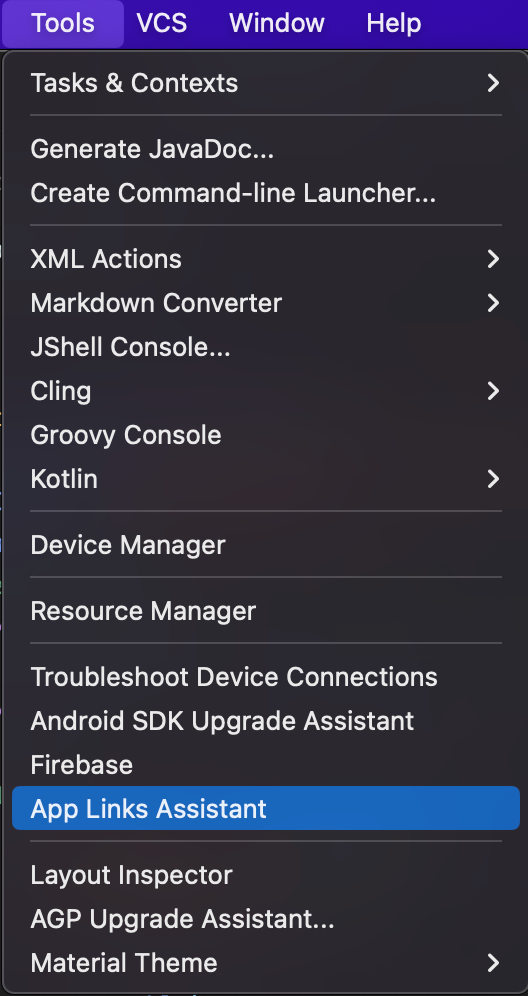
Now we need to link the URI to the app. Open the Tools tab and select the App Links Assistant.
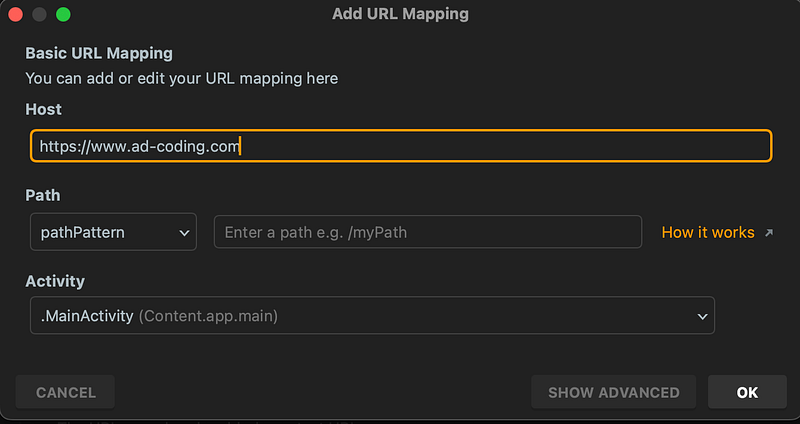
Open the URL Mapping Editor > Click on the + button and add the URI that we defined earlier in the Host field, then click on OK.
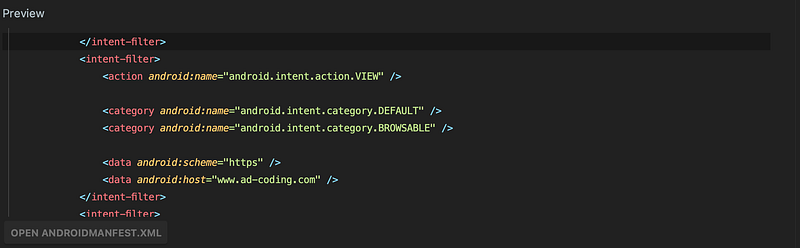
If we click on the host that we created we can see that it added some things in the AndroidManifest.xml .
Action.VIEW— It means that the component can be launched to view a specific piece of content.Category.DEFAULT— Indicates that the component is a typical component that can be launched by default.Category.BROWSABLE— Indicates that the component can be launched from a web browser.android:scheme—https, is the protocol that handles the URLs.android:host—www.ad-coding.com, is the base link.
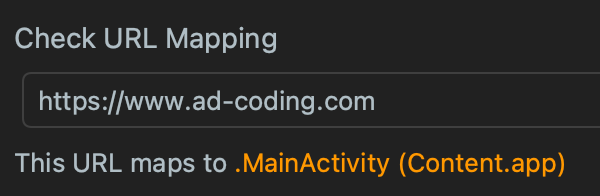
Let’s also check if the URL is mapped to the MainActivity .
The last thing we need to do is to test the URI. Click on Test App Links.
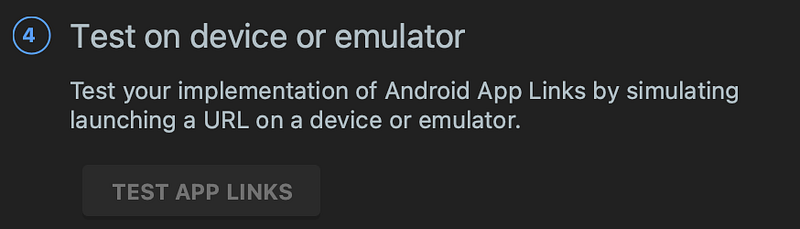
Let’s pass the URI and also the id at the end separated by a / . After that run the test and it should be a successful one.

I hope this article helped in your development journey. Remember to stay updated on my latest content by following me and subscribing to the newsletter. Thank you for reading!
I also run a YouTube channel dedicated to Android Development where I share informative content. If you’re interested in expanding your knowledge in this field, be sure to subscribe to my channel.
If you like my content and want to support me, I would appreciate a coffee!


