
Day 14: Git Workflows: Git Flow, Trunk-Based, and Feature Branching
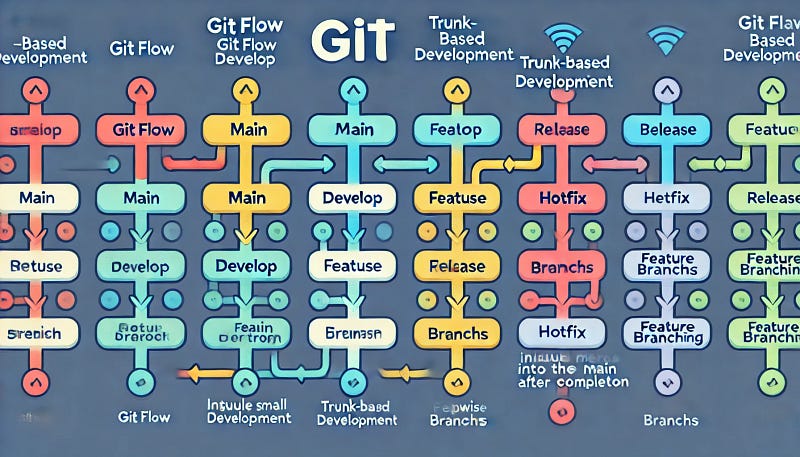
Hey there! Today, let’s dive into something every developer encounters: Git workflows. Whether you’re a seasoned pro or just getting started with version control, understanding how to structure your Git branches can make or break your development process.
So, grab a coffee (or tea, I don’t judge), and let’s talk about Git Flow, Trunk-Based Development, and Feature Branching. By the end of this post, you’ll have a solid grasp of when to use each one, some advanced tips, and a few commands to make your Git game even stronger.
When working on complex software projects, effective version control is paramount to keeping your codebase organized, scalable, and secure. In today’s fast-paced development environment, understanding various Git workflows can save time, reduce conflicts, and streamline deployments. In this post, we’ll explore three popular Git workflows: Git Flow, Trunk-Based Development, and Feature Branching. We’ll dive into advanced concepts and commands to help you decide which workflow best suits your team’s needs.
1. Git Flow: The Powerhouse for Structured Development
If your project feels like a well-oiled machine with regular releases, then Git Flow might just be the workflow for you. This is the “all-in” approach to managing branches, perfect for teams that need to carefully manage releases and stability.
Here’s how it works: Git Flow revolves around two main branches:
main(for your stable production-ready code)develop(where all the fun happens before release)
On top of that, you’ve got supporting branches for features, releases, and hotfixes. Think of Git Flow as the workflow with a clear roadmap — it tells you exactly where you’re headed and how to get there.
Key Commands (You’ll want to bookmark these):
- Initialize Git Flow:
- This command sets everything up —
main,develop, and all those supporting branches. It’s like setting the foundation before you start building your code. - This command sets everything up —
main,develop, and all those supporting branches. It’s like setting the foundation before you start building your code.
git flow feature start <feature-name>Are you ready to develop a new feature? This command creates a dedicated branch from develop, so you’re working in isolation. No risk of messing with the stable stuff.
Finish and Merge that Feature:
git flow feature finish <feature-name>Done with your feature? This merges it back into develop and cleans up your feature branch. Neat and tidy, just the way we like it.
Urgent Hotfix:
git flow hotfix start <hotfix-name>- Did something break in production? No sweat. This starts a hotfix directly from
main, letting you fix the issue and merge it back into bothmainanddevelop. Crisis averted.
Why You’ll Love Git Flow: It’s perfect for projects with planned releases. Everything stays organized, and you’ll never accidentally ship half-baked features to production. The only downside? It can feel a bit heavy if your team is moving fast or doing continuous deployments.
2. Trunk-Based Development: Keep It Simple, Keep It Fast
Now, let’s talk about Trunk-Based Development (TBD) — the no-fuss, fast-moving workflow. If you’re in a high-speed development environment, TBD is your friend. The idea is simple: everyone works directly on a single branch (usually main), and commits are made frequently. Feature branches, if used at all, are short-lived and merged back into main as soon as they’re ready.
TBD works great when you’ve got solid Continuous Integration (CI) and Continuous Deployment (CD) pipelines in place because the code in main is always in a deployable state.
Key Commands:
Small, Frequent Commits:
git commit -m "A tiny but essential change"- The idea is to commit small, incremental changes. You want to avoid big, bulky commits that could cause headaches down the line.
Merge a Feature with No Fast-Forward:
git checkout main git merge --no-ff <feature-branch>Using --no-ff keeps your history clean by preserving the feature branch’s context. You’ll always know which changes came from where, and that’s a good thing.
Squash Commits (for tidiness):
git rebase -i mainIf you’ve got a lot of small commits, you can squash them into one before merging. This makes your commit history much easier to read. No one likes a messy log, right?
Why You’ll Love TBD: This workflow is all about speed and simplicity. You’re not weighed down by a bunch of branches, and merging is usually quick and painless. Just make sure you have your CI/CD game on point, or you’ll end up shipping broken code.
3. Feature Branching: Keep Your Work Separate, Keep It Safe
Next up is Feature Branching, the method where you create a new branch for every task, feature, or bug fix. This is probably the most widely used Git workflow because it’s flexible and easy to grasp.
With feature branching, you can work on multiple features at once without worrying about conflicting changes in the main branch. It’s also great for collaborative work—each team member can work independently, and changes get merged only when they're fully tested and ready.
Key Commands:
- Create a New Feature Branch:
git checkout -b <feature-branch-name>- Boom, just like that, you’re working on a new branch. Now you can safely make changes without touching
main.
Keep Your Feature Branch Updated:
git fetch origin git rebase origin/main
Stay synced with main by rebasing regularly. This helps avoid conflicts later when it’s time to merge.
Merge Your Feature:
git checkout main git merge <feature-branch>When your feature’s good to go, merge it back into main. Simple, right?
Resolve Merge Conflicts (They happen, no big deal):
git mergetool
This command opens a tool to help you fix merge conflicts. Don’t stress it — every dev runs into these from time to time.
Why You’ll Love Feature Branching: It gives you freedom. You can work on multiple features or bugs in parallel, and nothing hits main until it’s 100% ready. Just keep your branches short-lived to avoid huge merge conflicts.
Advanced Concepts to Keep You Ahead of the Curve
- Branch Protection Rules: Ensure your
mainbranch stays safe by enforcing rules like mandatory code reviews or CI tests before any merge.
git branch --set-upstream-to=origin/main mainThis command tracks your main branch to make sure it’s always up-to-date.
- Continuous Integration (CI): Automate your workflow with CI tools like Jenkins, CircleCI, or GitHub Actions. Set up pipelines to automatically run tests and build your code every time you push.
- Git Hooks: Want to ensure that your code follows all the rules before it even gets committed? Git hooks are your answer. Use a pre-commit hook to run linting, for example:
.git/hooks/pre-commit #!/bin/bash eslint .- Rebasing vs. Merging: You’ve probably heard this debate before. In feature branches, rebasing gives you a cleaner history:
git checkout feature-branch git rebase main- But when working with a team, merging (with
--no-ff) might be a better call to preserve full context.
Conclusion: Which Workflow is Right for You?
- Git Flow: Go for this if your project has strict release cycles and you want a structured, well-defined process.
- Trunk-Based Development: Perfect for teams that thrive on speed, CI/CD pipelines, and frequent deployments.
- Feature Branching: Best when you need flexibility to work on multiple tasks simultaneously while keeping everything isolated.
There’s no “one-size-fits-all” when it comes to Git workflows. It’s all about finding the right balance between structure and flexibility for your team. Once you’ve mastered these workflows, you’ll be in full control of your codebase, no matter how complex your project gets.
That’s it for today! Keep experimenting, find what works best for your team, and stay tuned for more tips and tricks coming your way tomorrow.


