
Day 11: Introduction to Git: Why Version Control is Critical
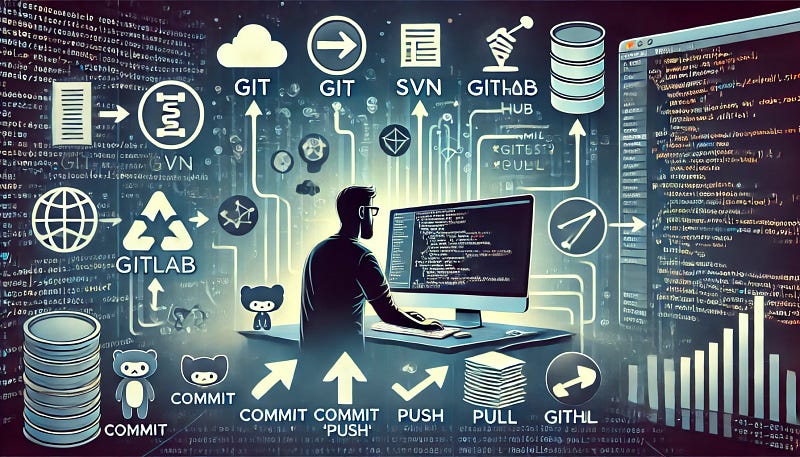
Hey! So, today I want to talk about something that’s absolutely essential if you’re working on any coding project or even just writing documentation for your team — Git. I know version control might sound like some big technical jargon, but it’s actually super useful, and once you get the hang of it, you’ll wonder how you ever managed without it.
Let’s dive into why Git is so important and then look at a few real-world scenarios where it saves the day, plus some basic commands to get you started.
What is Git, and Why Should You Care?
Git is a version control system (VCS), which means it helps you track changes in your code, files, or documents over time. Think of it like a “save game” for your projects. Every time you make changes, Git allows you to save snapshots of your work (called commits), so you can go back and see what’s changed or even roll back to a previous version if something goes wrong.
Without version control, you’d be manually copying files, renaming them like “final_version_v2.1” or “backup_before_changes” — and trust me, that gets messy, fast. Git keeps everything organized and helps teams (or even solo developers) collaborate smoothly.
Real-Life Scenarios Where Git is a Lifesaver
1. Working in Teams
Imagine you’re working on a big project with several other developers. Everyone’s adding new features, fixing bugs, or tweaking the same files. Without Git, you’d have a giant mess of conflicting changes.
With Git, everyone can work on their own version of the project (in what’s called a branch), and then later, you can merge those changes together without losing any work. Git even helps identify conflicts so you can fix them easily before anything breaks.
2. Reverting Changes: “Uh-oh, I broke it!”
Let’s say you’re working on some new feature, but something goes wrong, and now nothing works. With Git, no worries! You can just roll back to the last working version, fix the problem, and try again without losing all your work. It’s like having an undo button for your entire project.
3. Documenting Progress and Understanding Changes
Every time you commit (i.e., save) changes in Git, you add a message explaining what’s been done. These messages build a history of changes that anyone can look at later to understand the progress or figure out why something was changed. It’s like a breadcrumb trail of your work — perfect for future you or someone else jumping into the project later.
Basic Git Commands to Get You Started
Now, let’s jump into the basic Git commands. Don’t worry, it’s pretty simple once you know what you’re doing. Here’s a quick guide to get you started.
1. Setting Up Git
First, make sure Git is installed on your machine. If it’s not, you can install it using the command line:
# On Linux
sudo apt-get install git

# On MacOS (if you have Homebrew installed)
brew install git

# On Windows,
you can download it from git-scm.com
Next, set up your Git configuration by adding your username and email, which will be associated with your commits:
git config --global user.name "Your Name"
git config --global user.email "[email protected]"
2. Initialize a Repository
Once you’re in a project folder, you need to tell Git to start tracking your files. Do this by initializing a new repository:
git initThis creates a hidden folder called .git that tracks all the changes in the project.
3. Add Files to Tracking
Before you can save changes, you need to tell Git which files to track. You can add individual files like this:
git add filename.txtOr, if you want to add all files at once:
git add .4. Commit Your Changes
Now that your files are added, you can commit (save) them, along with a message describing the changes:
git commit -m "Initial commit: Set up project"This creates a snapshot of your project at this point in time.
5. Checking the Status of Your Repo
Want to see what’s going on in your Git repo? You can always check the status to see which files are being tracked, and whether there are any changes:
git status6. Pushing Your Changes to a Remote Repository
If you’re working with a remote Git server like GitHub, GitLab, or Bitbucket, you’ll need to push your local changes to the remote repository so others can see them:
git push origin mainMake sure main is the branch you're working on (it might be master or something else, depending on the repo).
7. Pulling Updates from Remote Repositories
Similarly, if other people have made changes to the remote repo, you can pull those updates into your local version:
git pull origin mainReal-World Git Workflow
Here’s a typical real-life Git workflow scenario:
- Clone a Repo — Say your team is working on a project hosted on GitHub. You first clone the repository to your local machine:
git clone https://github.com/user/repository.git2. Create a New Branch — You’re working on a new feature, so instead of working on the main branch, you create your own branch:
git checkout -b new-feature3. Make Changes and Commit — You edit the code, save your changes, and commit them to your branch:
git add . git commit -m "Add new feature"4. Push Changes to Remote — Once you’re happy with your feature, push it to the remote repository:
git push origin new-feature5. Create a Pull Request — Finally, you create a pull request on GitHub, where your teammates can review and approve your changes before merging them into the main branch.
Why Version Control is Critical
Imagine working on a project without Git:
- Accidental overwrites happen because two people edited the same file.
- You have no idea what changed between versions, so debugging is a nightmare.
- There’s no historical record of who did what and why, making collaboration a hassle.
- Once code breaks, you can’t easily revert back to a stable version.
With Git, these problems disappear. Version control brings structure and accountability to your projects. It’s like keeping a journal of your code’s life, so even months down the line, you can trace back and understand what changed and when.
✅✅feel free to connect with us.
LinkedIn: https://www.linkedin.com/in/karthick-dkk/
Follow my Medium Account (To get valuable information)
For more updates: subscribe to this medium account.


