
Databricks Feature Store

Feature Stores are being used for few years now to manage machine learning data/features. Google’s Feast, an open source feature store or Uber’s Michelangelo, its very own machine learning platform which has a feature data management layer, often fascinate other companies to either implement or buy a centralize feature storage service but, they often get lost in implementation complexities or budget constraints. Along with that, as enterprises are more and more embracing managed Spark services like Databricks, often it becomes challenging to integrate the managed Spark environment with a feature store implementation.
Recently (at the time of this writing) Databricks has introduced an in-built feature storage & management layer in its workspace. This is going to help the users looking for a ready installed feature store to try out. In this blog, we’ll discuss the very basics of features and see how we can leverage Databricks Feature Store to store, retrieve or lookup features to create training dataset and train a univariate time series model.
What is a Feature?
Feature are data attributes — used to develop machine learning training sets. As an example, raw data from NYC Taxi Data can be transformed into following features:
1) Pickup features
Count of trips (time window = 1 hour, sliding window = 15 minutes)
Mean fare amount (time window = 1 hour, sliding window = 15 minutes)2) Drop off features
Count of trips (time window = 30 minutes)
Does trip end on the weekend (custom feature using python code)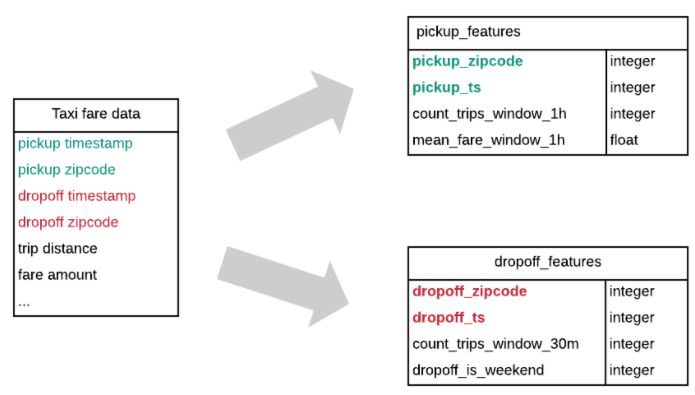
Features are curated, often transformed. Same feature can be used by multiple teams to create multiple ML models.
What is a Feature Store?
A feature store is a data storage layer where data scientists and engineers can store, share and discover curated features. This can be of two types:
Offline Store: Contains features for model training and batch inference. Databricks uses Delta table as its offline storage.
Online Store: Contains features for on-line, real-time inference. Azure Databricks uses Azure Database for MySQL or Azure SQL Database for online storage in Azure cloud.
What is Feature Engineering?
Feature engineering is the process of transforming raw data into features. Often we need the domain knowledge of the data to create features.
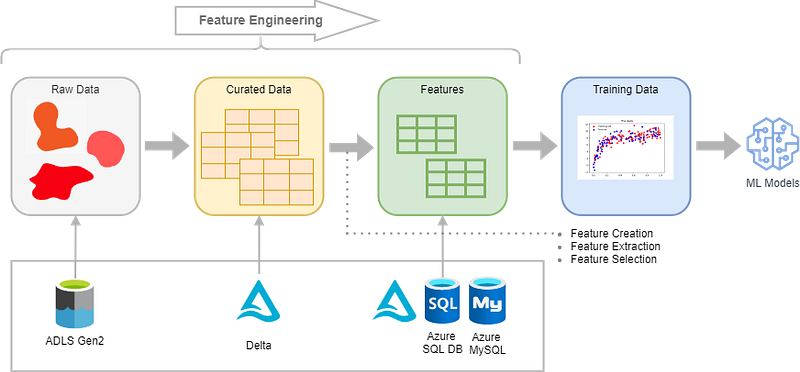
- Feature Creation: Generate features from curated data by transforming or applying logic.
- Feature Extraction: Selecting most useful features from curated data or original features.
- Feature Selection: Selecting a subset of features from original features to reduce model complexity.
Feature Store in action
As the basics are now clear, let’s see Databricks Feature Store in action.
Data preparation
In today’s blog, we’ll only concentrate on adding a time-series feature (historical monthly average temperature of UK) into the feature store and refer it to create an XGBoost univariate model. We’ll not discuss about data collection, validation and curation activities however, the following diagram can help explaining a bit more on the data engineering steps.
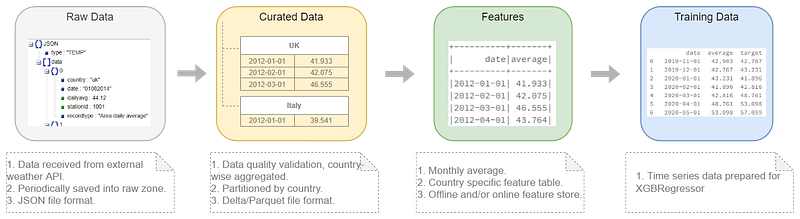
Once the data have been curated, we have monthly average temperature (°F).
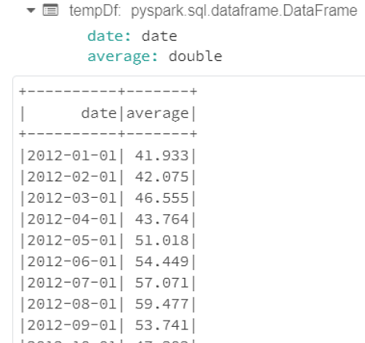
Instantiate a Feature Store client
We need to instantiate databricks.feature_store.client.FeatureStoreClient to interact with the Databricks Feature Store.
from databricks import feature_store
fs = feature_store.FeatureStoreClient()
Create Feature Tables
Once we have a reference of workspace feature store and a Dataframe contains features, we can use FeatureStoreClient.create_feature_table to create a feature table (for different options, refer here).
fs.create_feature_table(
    name="feature_store.uk_avg_temperature_feature",
    keys=["date"],
    features_df=tempDf,
    description="UK Temperature Features"
)
In case, we want to overwrite or merge,
fs.write_table(
  name='feature_store.uk_avg_temperature_feature',
  df = <updated dataframe>,
  mode = 'merge'
)
# 'merge' - upserts rows in df into the feature table.
# 'overwrite' - updates whole table.
Get feature table’s metadata
ft = fs.get_feature_table("feature_store.uk_avg_temperature_feature")print (ft.keys)
print (ft.description)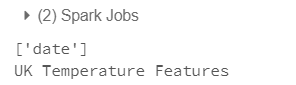
Reads contents of feature table
df = fs.read_table("feature_store.uk_avg_temperature_feature")
display (df)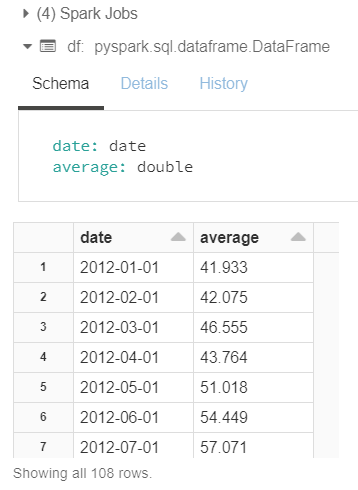
Time Series Forecasting using Features from Feature Store
In previous steps, we have successfully created a feature table which contains monthly average temperature data. We can either directly read the table using fs.read_table, use it to create training data to train our model or, we can use fs.create_training_set to build our training data.
Initially training dataset contains few observations along with the label. Then we enrich the dataset by including few more features from various feature tables. However in our case, for a univariate timeseries dataset, the label is the monthly average temperature itself which we would like to fetch from feature store. That’s why, we’ll create a dummy initial dataset with a date range (based on our need) and a dummy label (e.g. value 1).
import pandas as pd
from pyspark.sql import functions as F
p = pd.date_range(start='2012-01-01', end='2020-12-01', freq = 'MS')datesDF = spark.createDataFrame(\
pd.DataFrame (p)).toDF("date")\
.withColumn("date",\
F.to_date('date', "yyyy-MM-dd"))\
.withColumn('dummy_label', F.lit(1))display (datesDF)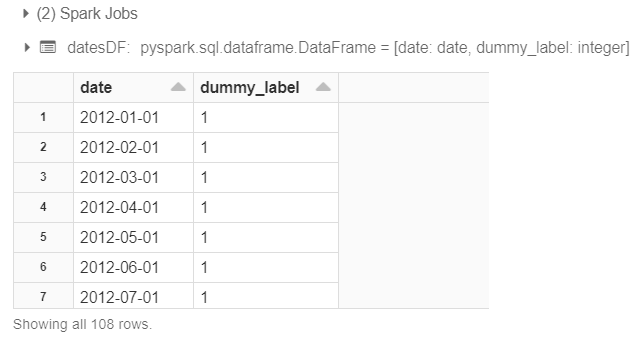
To search relevant feature(s) from Databricks Feature Store we need to construct one/multiple instances of databricks.feature_store.entities.feature_lookup.FeatureLookup. As we have only one feature to lookup, we’ll use the following:
feature_lookups = [
    FeatureLookup(
      table_name = '<Feature table name>',
      feature_name = '<Feature name>',
      lookup_key = '<Key which will be used to join with initial training dataset>'
    )
  ]
Next, we’ll create a TrainingSet (databricks.feature_store.training_set.TrainingSet) object by searching the feature store with the lookup construct, joining the feature table with initial training dataset.
data_set = fs.create_training_set(
  df = <initial training dataset>,
  feature_lookups = <feature lookup constructs>,
  label = '<label col in initial training dataset, mandatory param>'
)
TrainingSet.load_df() will returns a pyspark.sql.dataframe.DataFrame as our final training dataset.
dataDF = data_set.load_df()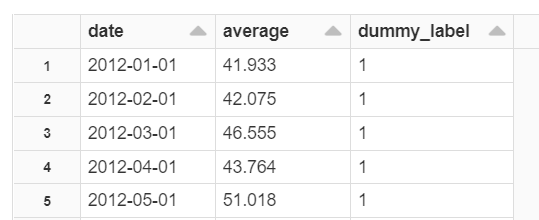
We can drop the dummy label now as this was just used to pull the average temperatures.
The full code will look like the following:
import mlflow
import xgboost
from sklearn.metrics import mean_squared_error
from math import sqrt
from databricks.feature_store import FeatureLookup
from databricks import feature_store
feature_lookups = [
FeatureLookup(
table_name = 'feature_store.uk_avg_temperature_feature',
feature_name = 'average',
lookup_key = 'date'
)
]fs = feature_store.FeatureStoreClient()data_set = fs.create_training_set(
df = datesDF,
feature_lookups = feature_lookups,
label = 'dummy_label'
)dataDF = data_set.load_df()# Drop the dummy label
dataXGB = dataDF.drop('dummy_label').toPandas()
# Restructure the data to be used with xgboost.XGBRegressor
dataXGB["target"] = dataXGB.average.shift(-1)
# Drop the last null column because of shifting
dataXGB.dropna(inplace=True)# Extract features & labels
X = dataXGB.iloc[:,1:2].values
y = dataXGB.iloc[:, -1].valuesfrom sklearn.model_selection import train_test_split
X_train, X_test, y_train, y_test = \
train_test_split(X, y, test_size = 0.12, \
random_state = 0, shuffle=False)# We’ll use MLflow & start it by calling start_run method
with mlflow.start_run():
reg = xgboost.XGBRegressor(objective='reg:squarederror', \
n_estimators=1000)
reg.fit(X_train, y_train) # Logs the model packaged with feature lookup information
fs.log_model(
reg,
"Univariate_Time_Series_XGBoost",
flavor=mlflow.xgboost,
training_set=data_set,
registered_model_name="Univariate_Time_Series_XGBoost"
) # Predicting the Test set results
predictions_xgb = reg.predict(X_test)
rmse_xgb = sqrt(mean_squared_error(y_test, predictions_xgb)) # Explicitly log the metric (optional)
mlflow.log_metric("root_mean_square_error", rmse_xgb)
print("XGBoost - Root Mean Square Error (RMSE): %.3f" % rmse_xgb)
If we plot the predictions against the test data:
import matplotlib.pyplot as plt
import numpy as npplt.figure(figsize=(25,8))
plt.plot(dataXGB.head(len(X_train)).date, dataXGB.head(len(X_train)).average, label='Train')
plt.plot(dataXGB.tail(len(X_test)).date, dataXGB.tail(len(X_test)).average, label='Test')
plt.plot(result_xgb.date, result_xgb.Predictions, label='Prediction')
plt.xticks(dataset["date"], dataset["date"], rotation='vertical')
plt.legend(loc='best')
plt.title("Predictions by XGBoost model")
plt.show()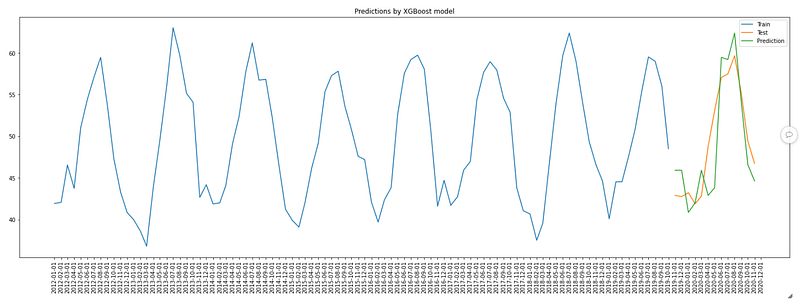
Online Feature Store
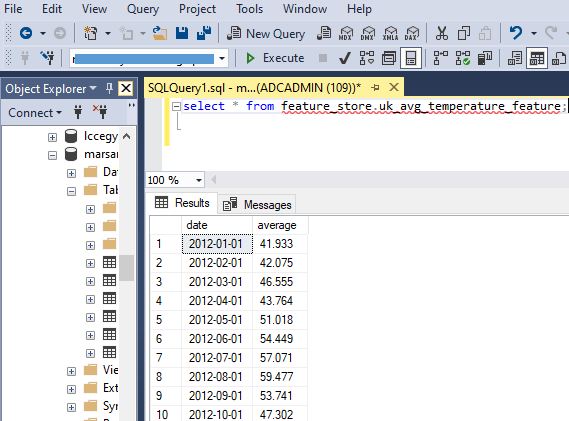
Once we have created a feature table into offline feature store, we can refer that and push the features into various online feature stores supported by Databricks. Here, we’ve chosen Azure SQL Database to store the features.
from databricks.feature_store.online_store_spec \
import AzureSqlServerSpec

hostname = '<Azure SQL Server>.database.windows.net'
port = 1433
user = '<Master User>'
password = '<Password>'
database_name = '<Azure SQL DB>'
# Name of table in online store i.e. in Azure SQL DB
table_name = 'feature_store.uk_avg_temperature_feature'online_store = AzureSqlServerSpec(\
hostname = hostname, \
port = port, \
user = user, \
password = password, \
database_name = database_name, \
table_name = table_name)# Publish features into the online store
fs.publish_table(
name='feature_store.uk_avg_temperature_feature',
online_store=online_store,
mode='overwrite'
)
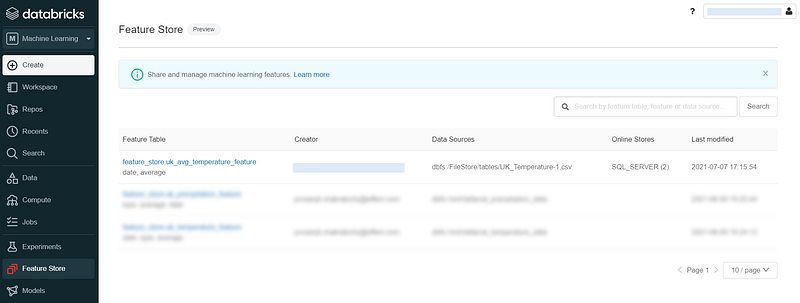
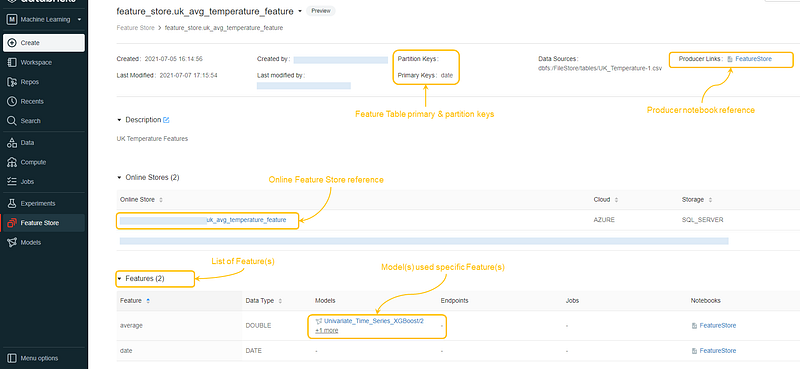
Feature Store Explorer
Databricks added a Feature Store explorer to browse the registered features. The models using the features and the notebooks used to create the feature tables — all are linked and can be browsed.
Conclusion
Introducing feature store into Databricks workspace without any extra installation or cost is a great initiative. Though this is very new and has some limitations. For known limitations refer here. As the current implementation is limited to only a single workspace and can’t be shared/used from other workspaces, an organization-wise centralize feature store can’t be created, which enterprises will look for.
Though, it’s worth to give a try. Otherwise, we can evaluate few more implementations available like Hopsworks Feature Store.
References
Azure Databricks Feature Store
Databricks Feature Store Python API Reference
Feature Store Taxi example notebook
Updates as on August 2023
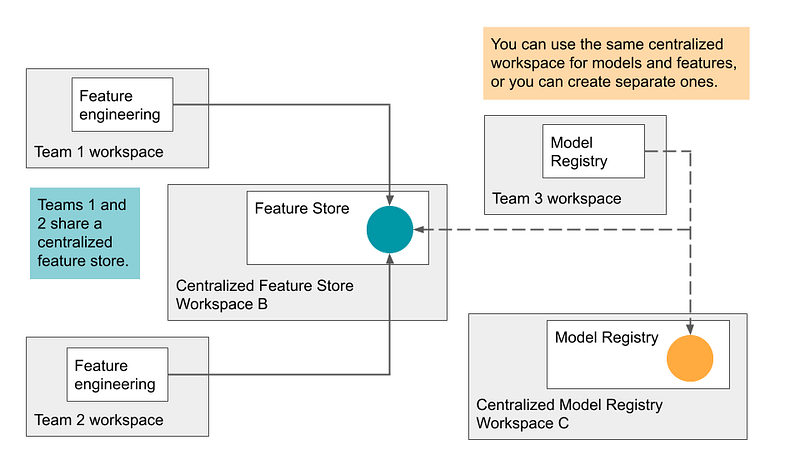
Databricks now supports sharing Feature Tables across multiple Workspaces.
References:
Thanks for reading!! If you have enjoyed, Clap & Share it!! To see similar interesting posts, follow me on Medium & LinkedIn. To read every story from me (and thousands of other writers on Medium), become a Medium member.


