
Database in a Docker container — how to start and what’s it about
With this blog post I would like to present to you how easily you can run database, PostgreSQL as an example, Docker container. Moreover this entry cover pros and cons of such solution. And in the end you’ll find out what is Docker Volume.

Without further ado let’s run PostgreSQL database in a Docker container!
In order to follow next steps you need to have installed Docker on your PC. The instructions for most popular OSs can be found here: Ubuntu, Windows, Mac.
To quick start open a terminal and run the command:
$ docker run --name postgres-docker -e POSTGRES_PASSWORD=postgres -p 5432:5432 -d postgresBasically what it does:
- it pulls the
postgresDocker image from Docker Hub, - sets the
POSTGRES_PASSWORDenvironment variable value topostgres, - names (
--name) the Docker container to bepostgres-docker, - maps container’s internal
5432port to external5432port, so we’ll be able to enter it from outside, - and enables to run the Docker container in the background (
-d).
So now if you wants to enter the database with some GUI application (like pgAdmin, Adminer or so), you should be able to do so.
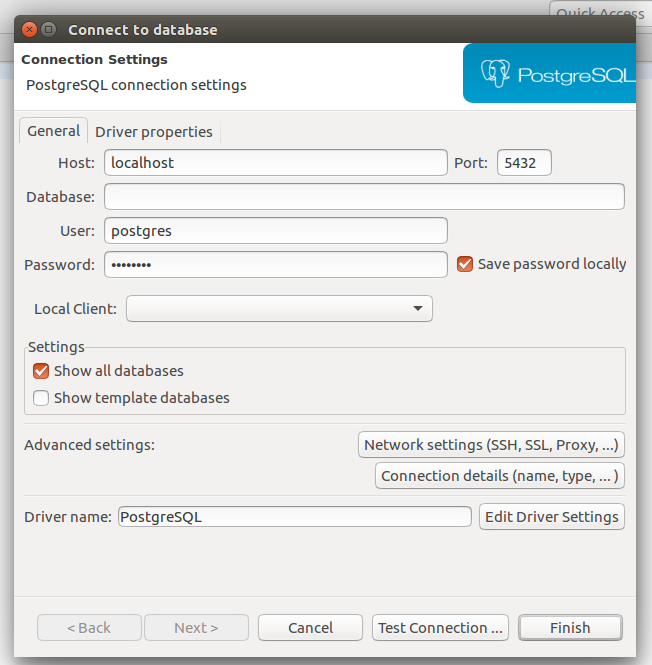
I prefer to use DBeaver but you can pick what you like the most. So, in the app, to connect to the database you need to provide some connection parameters (most of them are set up as defaults in a Docker image). Full summary can be found on a screenshot from DBeaver:
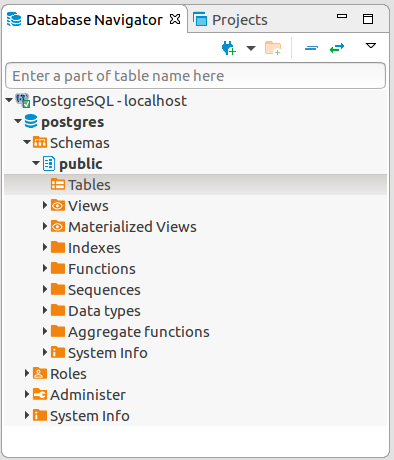
After testing the connection and then connecting to the database you should see what it’s empty and ready to play around with it.
Ok, but what if you’re such a nerd 😜 that you don’t like to use such fancy GUI app and prefer to do stuff in the database in command line? How you could enter the container?
Nothing easier, just type this command in the terminal:
$ docker exec -it postgres-docker bashAnd with exec we’ve entered a postgres-docker image in detached mode -it and started to run it’s bash app (bash).
As a result we’ve enter the command line of the Docker container, so we can login to the database as a postgres user.
root@377ef2b9b13e:/# psql -U postgrespsql (11.4 (Debian 11.4-1.pgdg90+1))
Type "help" for help.postgres=#Here you can do whatever you want, create new databases, new tables populate them with data and so on. For example you can create a simple table:
postgres=# CREATE TABLE public.persons (id int PRIMARY KEY, lastName varchar(255), firstName varchar(255), address varchar(255));But now you can have a question — can I automate creation of a database? Especially when you need to create a complex database including many tables? The answer is: of course!
Create own PostgreSQL Docker image from Dockerfile
To achieve it we’ll need to create own postgres Docker image. And this can be done with a Dockerfile, which is a text document that is used by Docker to build a custom image.
FROM postgres
ENV POSTGRES_PASSWORD postgres
ENV POSTGRES_DB testdb
COPY init.sql /docker-entrypoint-initdb.d/
The above instruction includes four steps, which are:
- first, it tells Docker to pull
postgresimage (we’ve covered it already in previous step), - then we set up values of two environment (
ENV) variablesPOSTGRES_PASSWORDandPOSTGRES_DBto bepostgresandtestdbrespectively (list of all available variables in this image can be found in Docker Hub), - and finally input (
COPY) aninit.sqlfile, located in the same folder as Dockerfile, to the/docker-entrypoint-initdb.d/folder located inpostgresDocker image that we’re using. By default all scripts located in this folder will be automatically ran during container startup.
The last thing that we need to do is to create mentioned init.sql file and put there all SQL scripts. In my case it’s a single script to create a table:
CREATE TABLE public.persons (
    id int PRIMARY KEY,
    firstName varchar(255),
    lastName varchar(255),
    address varchar(255)
);
Now we have two files (Dockerfile and init.sql) set up so we can build our own Docker image. To do so, enter the terminal in the folder where these files are located and run the command:
$ docker build -t my-postgres-image .Sending build context to Docker daemon 62.46kB
Step 1/4 : FROM postgres
---> 79db2bf18b4a
Step 2/4 : ENV POSTGRES_PASSWORD postgres
---> Running in 0e9f8331845e
Removing intermediate container 0e9f8331845e
---> 01fb59dfd17f
Step 3/4 : ENV POSTGRES_DB testdb
---> Running in 2d424d207e71
Removing intermediate container 2d424d207e71
---> 2139195ef615
Step 4/4 : COPY init.sql /docker-entrypoint-initdb.d/
---> d627b332ac02
Successfully built d627b332ac02
Successfully tagged my-postgres-image:latestBasically the above command tells Docker to build an image from Dockerfile with a name my-postgres.To check it you can type:
$ docker images -aREPOSITORY TAG IMAGE ID CREATED
my-postgres-image latest d627b332ac02 About a minute ago Great! Now let’s run it as a container:
$ docker run -d --name my-postgres-container -p 5555:5432 my-postgres-imageAfter connecting to the database using following connectors (password is postgres):
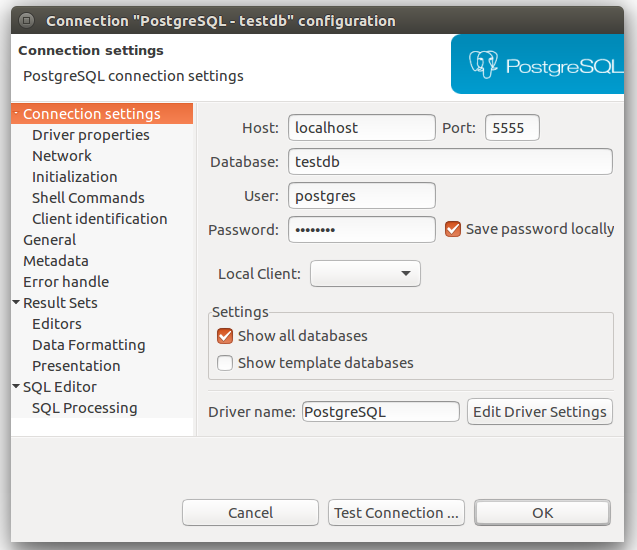
You should get the new database with predefined persons table:
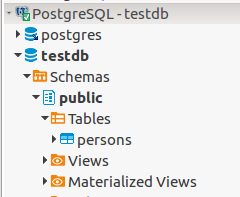
Nice, now let’s test if the data that we insert to the database will survive after shouting down the container. First, we need to insert them, so in your favourite database tool run following command:
INSERT INTO public.persons
    (id, firstname, lastname, address)
VALUES
    (1, 'Luke', 'Skywalker', 'Tatooine'),
    (2, 'Leia', 'Organa', 'Alderaan'),
    (3, 'Han', 'Solo', 'Corellia');
Then go back to terminal and stop running container with:
$ docker stop my-postgres-containermy-postgres-containerNext re-run this container with a command:
$ docker container start my-postgres-containerNow if you refresh your connection to the database you should be able to see data that you have inserted previously.
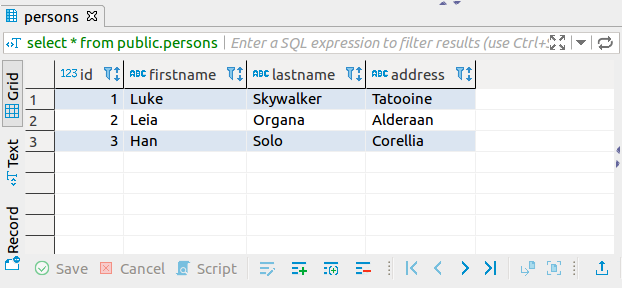
Ok, ok… but what would happen if we used docker run command (like we have done it for a first time) instead of docker container start to re-run the container?
With docker run command we create a new container from an image my-postgres-image so all changes made in my-postgres-container are not saved in new one.
Should I put database into Docker on production?
Ok, but are saved data really persisted? Can we from now on move all databases located on production servers/clouds to Docker containers?
To answer to this question we need first move one step back to understand how data are stored in Docker containers.
Orchestration tools, including Docker, were created with assumption that containers needs to be stateless, which means that they should not save any data in it during the run. They should be treated as functions, which works in the same ways no matter of their state (inner variables). It’s because other tools, like Kubernetes, can multiple number of container instances depending on request traffic. And if containers could be stateful it might ends up with having several containers of certain type act differently even if they are have the same based image.
And that is not acceptable for database containers. There can’t be several containers with the same database but with different data. The only solution to this problem would be to have a single instance of the container in orchestration tool, but with that we loose one of its the most powerful feature — multiplying the number of container instances depending on request traffic and it could become the bottleneck of the entire application speed.
Ok, so containerizing databases is pointless? The answer to this question is not pretty straight forward. In general, if you go with your solution into production don’t put database in Docker. Better solution would be to use the database service provided by one of cloud providers (AWS, GCP, etc.). But if the data are not critical, for example it’s used only for development or testing, you can go with that.
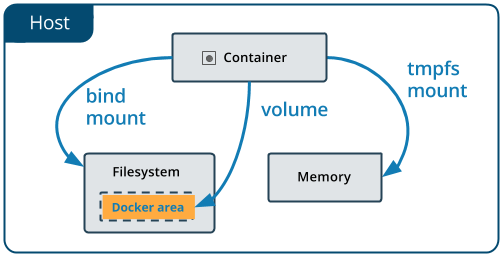
The only question that have left is how Docker is persisting the data? There are three mechanisms for persisting data in Docker, but I want to tell more about the preferred one — volumes. If you want to know more about bind mount and tmpfs mount go check the official documentation.
Docker Volumes
Docker Volumes are directories that are located outside the Docker container on the host machine. Containers only have reference to this path where they save all information.
To check what Volume is assigned to the container run following command:
$ docker container inspect my-postgres-container"Mounts": [{
"Type": "volume",
"Name": "453e993be5d9f6f863313c3e111e5f53dc65eeb34bff42e5b",
"Source": "/var/lib/docker/volumes/453e993be5d9f6f863313c3e111e5f53dc65eeb34bff42e5b/_data",
"Destination": "/var/lib/postgresql/data",
"Driver": "local",
"Mode": "",
"RW": true,
"Propagation": ""
}],Above snippet is only part of a JSON file that prints out in the console. Mounts contains information about mapped folders. Source parameter tells us where on local machine data are persisted and Destination tells the location within Docker container.
Other parameter is Volume Name, which by default is assigned by Docker.. It’s not really readable, but it can be adjusted.
To do so, let’s run a new container from the image that we already created.
$ docker run -d --name my-postgres-volume -p 7777:5432 -v postgres-volume:/var/lib/postgresql/data my-postgres-image2109993939fdc9fe290c3536bdee09dd4cfba2ff369cf15a17bc841afe0c056fThe only thing that was added here (except changing the name of of the container and adjusting the port mapping) was a new flag -v <name>:<destination> (or --volume if you prefer) that it’s responsible for assigning a volume to the Docker container.
Now if you inspect container you should get following information:
$ docker container inspect my-postgres-volume"Mounts": [{
"Type": "volume",
"Name": "postgres-volume",
"Source": "/var/lib/docker/volumes/postgres-volume/_data",
"Destination": "/var/lib/postgresql/data",
"Driver": "local",
"Mode": "z",
"RW": true,
"Propagation": ""
}],Much better! If you would like to know what Volumes run command:
$ docker volume lsDRIVER VOLUME NAME
local 453e993be5d9f6f863313c3e111e5f53dc65eeb34bff42e5b
local postgres-volumeAnother way to create own Volume is to use this command:
$ docker volume create --name my-postgres-volumemy-postgres-volumeVolume created in this way could be attached to the container in the same way as it’s with -v flag during running the container for a first time.
$ docker run -d --name my-postgres-volume-2 -p 2222:5432 -v my-postgres-volume:/var/lib/postgresql/data my-postgres-imageAnother cool feature of a Volume is that we can attach it to different containers at the same time. Like it’s done below, where we attach already in use Volume to a new container.
$ docker run -d --name my-postgres-volume-3 -p 3333:5432 -v my-postgres-volume:/var/lib/postgresql/data my-postgres-imageNow if you inspect both containers you should get the same result in Mount part of a JSON:
"Mounts": [{
    "Type": "volume",
    "Name": "my-postgres-volume",
    "Source": "/var/lib/docker/volumes/my-postgres-volume/_data",
    "Destination": "/var/lib/postgresql/data",
    "Driver": "local",
    "Mode": "z",
    "RW": true,
    "Propagation": ""
}],
But be aware of some limitation of this solution! Like we now have, two of these containers are up and running. And if you insert new data to one of them, e.g. to my-postgres-volume-2 , it doesn’t mean that it will be added to the latter ( my-postgres-volume-3 )! It will be refreshed with new data set only when you stop the second container and rerun it with to of these commands:
$ docker stop container my-postgres-volume-3$ docker start my-postgres-volume-3Clearance of unused volumes
The last thing that I want to mention is how we can get rid of unnecessary volumes. It can be done one-by-one with this command:
$ docker volume rm {volume_name}Or all at once:
$ docker volume pruneAnd that’s it! If you want there are Dockerfile and SQL script available on my GitHub repository:
If you’re interested in Docker topic you can check my other blog posts:
- What’s Docker? And how to start with it
- How to put your Java application into Docker container
- Build and run Angular application in a Docker container


