avatarJennifer Fu

Free AI web copilot to create summaries, insights and extended knowledge, download it at here

5220

Abstract

pWUo1zZgeujWSxHcQ.png"><figcaption></figcaption></figure><ul><li><code>whoami</code> — the name of the user who owns the screen session.</li></ul><p id="b54c">4. The status at the bottom automatically refreshes at reasonable intervals. Clicking <code>F5</code> reloads profile and refreshes status.</p><h1 id="6542">Remote Server State Is Saved</h1><p id="aa34">Byobu handles ssh sessions differently from normal terminal windows. Let’s compare the differences.</p><h2 id="b86f">Normal Terminal Window</h2><p id="0878">We have a remote server that is installed with <a href="https://betterprogramming.pub/an-in-depth-guide-for-create-react-app-5-cra-5-b94b03c233f2">Create React App</a>. We ssh to the server with a normal terminal window, and execute <code>npm start</code>. The remote desktop shows Create React App runs at <code>localhost://3000</code>.</p><figure id="9921"><img src="https://cdn-images-1.readmedium.com/v2/resize:fit:800/1*Ub1TjcZRHXWiR8jHlGGaTg.png"><figcaption>Image by author</figcaption></figure><p id="3046">We execute a command to <code>kill -9 <ssh process id></code>, and the remote process exits along with the ssh session.</p><figure id="0cf8"><img src="https://cdn-images-1.readmedium.com/v2/resize:fit:800/1*_3ssDvQBCB6j6yo0Dibtlg.png"><figcaption>Image by author</figcaption></figure><h2 id="853f">Byobu Terminal Window</h2><p id="09a1">We run the same use case using a <code>byobu</code> terminal window. Execute <code>npm start</code>, and the remote desktop shows Create React App runs at <code>localhost://3000</code>.</p><figure id="0801"><img src="https://cdn-images-1.readmedium.com/v2/resize:fit:800/1*CnxBTQAr1cqbUb_rX-xYWA.png"><figcaption>Image by author</figcaption></figure><p id="d0de">We execute a command to <code>kill -9 <ssh process id></code>, and the remote desktop shows the process continue running, regardless of that the ssh session has exited.</p><figure id="2ca9"><img src="https://cdn-images-1.readmedium.com/v2/resize:fit:800/1*4dqxXSWEN-GuqhZ7dGvgXg.png"><figcaption>Image by author</figcaption></figure><p id="4d3e">Generally speaking, we can use byobu to connect, disconnect, reconnect, and even let other users to access it. The session continues to be alive independent of whether the byobu terminal window exists or not.</p><h1 id="0f9a">Manage Terminal Windows</h1><p id="3ef1">Byobu is a text-based window manager and terminal multiplexer. It manages multiple windows and multiple sessions.</p><p id="e1a7">Clicking <code>Shift-F1</code>, we see the byobu usage:</p> <figure id="2bd3"> <div> <div>

            <iframe class="gist-iframe" src="/gist/JenniferFuBook/0ca3789a219491a5dd51eda8034187c2.js" allowfullscreen="" frameborder="0" height="undefined" width="undefined">
          </div>
        </div>
    </figure></iframe></div></div></figure><p id="5697">We add line 45 to show how to exit the current window, session, or <code>byobu</code> itself.</p><p id="804b">There might be multiple ways to accomplish the same thing. For example, line 7 and line 8 show different ways to move focus among windows.</p><p id="d80d">Some key combinations may not work on a specific platform, due to key binding conflicts on the platform. For example, we are not able to use <code>Ctrl-6</code> to exit on macOS.</p><h2 id="51ac">Tabs on a normal terminal window</h2><p id="e5b4">We can create tabs on a normal terminal window. Clicking <code>Cmd-t</code> can generate a new tab. Tabs coexist on a terminal window, but we can only view one tab at a time.</p><figure id="7ee0"><img src="https://cdn-images-1.readmedium.com/v2/resize:fit:800/1*PP06G3KtgV7eCYZLMxWdBw.png"><figcaption>Image by author</figcaption></figure><h2 id="99dd">Create a new byobu window</h2><p id="fcae">For a <code>byobu</code> terminal window, clicking <code>F2</code> starts a new window, which is similar to a terminal window’s tab. Byobu windows coexist on a byobu terminal window, but we can only view one tab at a time.</p><p id="a2d1">By clicking <code>F2</code> 3 times, we have 4 byobu windows (including the original one). They are named <code>0</code>, <code>1</code>, <code>2</code>, and <code>3</code>. The last one (numbered <code>3</code>) is active.</p><figure id="9629"><img src="https://cdn-images-1.readmedium.com/v2/resize:fit:800/1*aPe-1TtqSxp58QsD3KfnBg.png"><figcaption>Image by author</figcaption></figure><p id="e937">By clicking <code>F3</code> or <code>F4</code>, we can move focus back or forth on different windows.</p><p id="8db6">By clicking <code>F8</code>, we can rename the current window. We rename window <code>2</code> to <code>second</code>, and window <code>3</code> to <code>third</code>. Now 4 windows are named <code>0</code>, <code>1</code>, <code>second</code>, and <code>third</code>.</p><figure id="bbd0"><img src="https://cdn-images-1.readmedium.com/v2/resize:fit:800/1*SMrR-0oCZTmxE4KvMYlvLw.png"><figcaption>Image by author</figcaption></figure><h2 id="6b66">Create a new byobu session</h2><p id="7e3d">Launch another terminal window, and turn it into a byobu terminal window (typing <code>byobu</code>). The new terminal window mirrors the last byobu termi

Options

nal window. We type in one terminal window, and it displays on both terminal windows.</p><figure id="98db"><img src="https://cdn-images-1.readmedium.com/v2/resize:fit:800/1*uS0nU_bxxsj9P0mUMuEGBA.png"><figcaption>Image by author</figcaption></figure><p id="3f64">It is because the two terminal windows share the same session. What if each terminal window needs to have a separate session?</p><p id="e94f">We can create a new session. The byobu menu says that <code>Ctrl-Shift-F2</code> will do the trick, but it does not work on macOS.</p><p id="8dcf">Instead, we can use a command to achieve it. <code>byobu new</code> creates an unname session. <code>byobu new -s <session-name></code> creates a named session.</p><p id="87b9">Type <code>byobu new -s newSession</code> to create a second byobu terminal window. And now, two byobu terminal windows are independent.</p><figure id="788b"><img src="https://cdn-images-1.readmedium.com/v2/resize:fit:800/1*x7ak1lnG_d7FCLoUjJctXA.png"><figcaption>Image by author</figcaption></figure><p id="8a8c">In addition, we see a new status notification for sessions.</p><p id="aacc">session — each byobu session displays a session name, or a session number if it is unnamed.</p><p id="ef82">When we have more than one byobu session, typing <code>byobu</code> asks which session to attach to. We have 4 choices:</p><ol><li>Attach to the existing tmux of the session, <code>1</code>, which has 4 windows.</li><li>Attach to the existing tmux of the session, <code>newSession</code>, which has 1 window.</li><li>Create a new byobu session.</li><li>Run a shell without byobu.</li></ol><figure id="7dd0"><img src="https://cdn-images-1.readmedium.com/v2/resize:fit:800/1*yXpRM9uKKDhKtNqvP4OmCw.png"><figcaption>Image by author</figcaption></figure><p id="e7e1">These choices can also be invoked by the command, <code>byobu-select-session</code>.</p><h2 id="d9c1">Create split byobu windows</h2><p id="da8f">So far, we view one <code>byobu</code> window at a time, similar to a terminal window’s tabs. One of the cool features is to create multiple split byobu windows that can be viewed simultaneously.</p><p id="bf98">Clicking <code>Shift-F2</code> 2 times, and we get 3 horizontally split byobu windows.</p><figure id="d946"><img src="https://cdn-images-1.readmedium.com/v2/resize:fit:800/1*8tlLTuHbmXDVISzisoKeDA.png"><figcaption>Image by author</figcaption></figure><p id="c2fe">We can use <code>Shift-Left</code>/<code>Shift-Right</code>/<code>Shift-Up</code>/<code>Shift-Down</code> to move focus among splits. In each active window, we can perform work. It is wonderful that we can view these windows simultaneously.</p><p id="542f">It works perfect until we try to use <code>Ctrl-F2</code> to create a vertical split. It does not work on macOS. Also, it is a little rough to adjust window sizes. We would like to have the mouse support for split <code>byobu</code> windows.</p><p id="6cc4">What should we do?</p><p id="ec7b">Creating the file, <code>~/.byobu/.tmux.conf</code>, resolves all our problems.</p> <figure id="6fff"> <div> <div>

            <iframe class="gist-iframe" src="/gist/JenniferFuBook/a5176421980b2e765b68f8487efeaeb9.js" allowfullscreen="" frameborder="0" height="undefined" width="undefined">
          </div>
        </div>
    </figure></iframe></div></div></figure><p id="6dee">Line 1 sets up key binding prefix to the back tick (<code>`</code>).</p><p id="0c82">Line 2 enables mouse support.</p><p id="4315">Line 3 sets the terminal color.</p><p id="c62d">Link 4 binds key <code>`r</code> to refresh the configuration file.</p><p id="5589">Link 5 binds key <code>`-</code> to create a vertical split.</p><p id="a49f">Link 6 binds key <code>`|</code> to create a horizontal split.</p><p id="7ac6">With this magic configuration, we are free to create splits and use mouse to select and resize splits.</p><figure id="06af"><img src="https://cdn-images-1.readmedium.com/v2/resize:fit:800/1*wHG9MGLyt0PjEl-0frCiyQ.png"><figcaption>Image by author</figcaption></figure><p id="fef5"><code>Shift-F11</code> zooms into a split, and the same command zooms out of a split.</p><p id="4680">What else?</p><p id="3bba">Can we join split windows?</p><p id="983e">Yes, the easiest way is to exit the unwanted windows (<code>Ctrl-d</code>).</p><h1 id="93e7">Conclusion</h1><p id="823a">We have shown cool features of <code>byobu</code>, a text-based window manager, and terminal multiplexer. It helps us to keep the remote desktop session, even after the ssh session exists. Also, the window splits present a global view of multiple pieces of the current work, which is helpful in today’s microservices cloud environment.</p><p id="e070">You can go to <a href="https://www.byobu.org/">the byobu official site</a> to check out more details.</p><p id="4685">Thanks for reading. I hope this was helpful. If you are interested, check out <a href="https://jenniferfubook.medium.com/jennifer-fus-web-development-publications-1a887e4454af">my other Medium articles</a>.</p><p id="8562"><i>Note: Thanks, Urian Chang and Marc Mercer, for contributing byobu commands and configurations.</i></p></article></body>

Introduction to Byobu: A Window Manager and Terminal Multiplexer

A complete guide on how to use byobu
Dustinkirkland, CC BY-SA 3.0 <https://creativecommons.org/licenses/by-sa/3.0>, via Wikimedia Commons

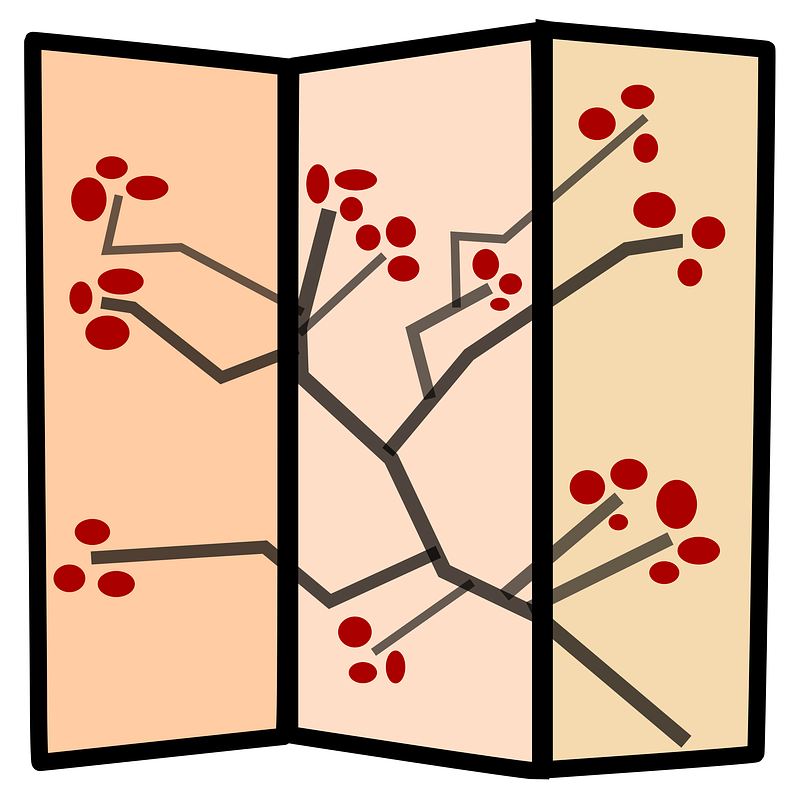
Byobu (pronounced like this) is a Japanese term for decorative, multi-panel screens that serve as folding room dividers. Byobu is also an open source software project, which is a text-based window manager and terminal multiplexer. A Terminal Multiplexer (short for tmux) manages multiple terminal sessions simultaneously.

GNU Screen is a terminal multiplexer that is used on Unix-like operating system. Tmux is another terminal multiplexer that includes most features of GNU Screen. Byobu is an enhancement for GNU Screen or tmux, used with the Linux operating system. Byobu has the following features:

  • It supports status notifications.
  • It saves the state on a remote server.
  • It manages the terminal windows.

Let’s install byobu and explore these features.

Intall Byobu

On macOS, byobu can be installed with brew:

% brew install byobu

The installation output recommends to set BYOBU_PREFIX in the profile:

export BYOBU_PREFIX=/usr/local

In a terminal window, type the following command, and the specific window starts a byobu session.

% byobu

Type the following command, and any newly opened terminal window starts a byobu session automatically.

% byobu-enable
The Byobu window manager will be launched automatically at each text login.
To disable this behavior later, just run:
  byobu-disable

As the output specified, the automatic byobu session can be disabled by byobu-disable.

The rest of this article does not use the automatic byobu session.

Status Notifications

Here is a normal terminal window:
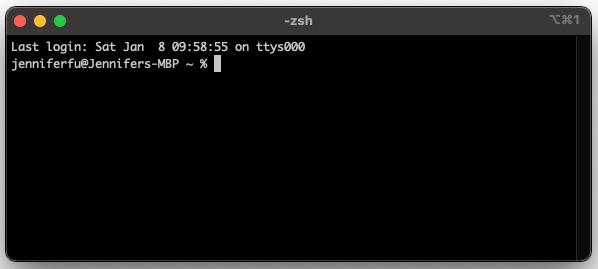
Image by author

As soon as byobu is on, there are some changes:
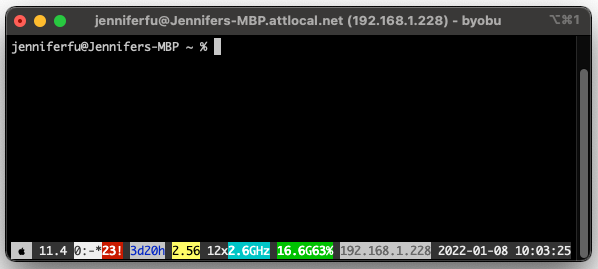
Image by author
  1. The title of the terminal window provides more information about the user and the system IP address.
  2. The bottom of the terminal window shows a number of colorful status information.
  • logo — the operating system’s logo, which is an Apple logo.
  • arch — the system architecture, which is macOS 11.4.
  • windows — each open window is numbered, and the current active window is highlighted and indicated by an asterisk.
  • apport —the symbol displayed if there are pending crash reports, which is 23!.
  • uptime — the total system uptime since last boot, which is 3d20h.
  • load_average — the system load average over the last 1 minute, which indicates 2.56 CPU resources are used.
  • cpu_count — the number of CPU or cores on the system, which is 12. Since 2.56 out of 12 CPUs are used, the system is about 21% utilized.
  • cpu_freq — the current frequency of each CPU, which is 2.6GHz.
  • memory — the total memory available (16.6G) and used percentage (63%) in the system.
  • ip_address — the IPv4 address of the system (192.168.1.228) that can be configured to show the IPv6 address.
  • date — the system date, which is 2022–01–08.
  • time — the system time, which is 10:03:25.

3. The status information can be toggled by Shift-F5.
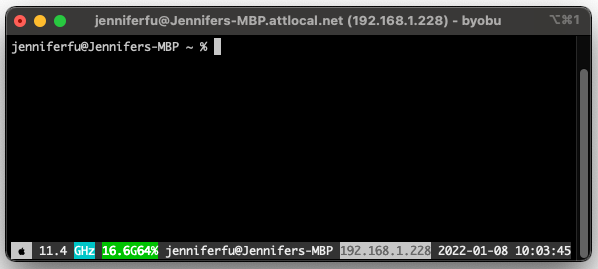
  • whoami — the name of the user who owns the screen session.

4. The status at the bottom automatically refreshes at reasonable intervals. Clicking F5 reloads profile and refreshes status.

Remote Server State Is Saved

Byobu handles ssh sessions differently from normal terminal windows. Let’s compare the differences.

Normal Terminal Window

We have a remote server that is installed with Create React App. We ssh to the server with a normal terminal window, and execute npm start. The remote desktop shows Create React App runs at localhost://3000.
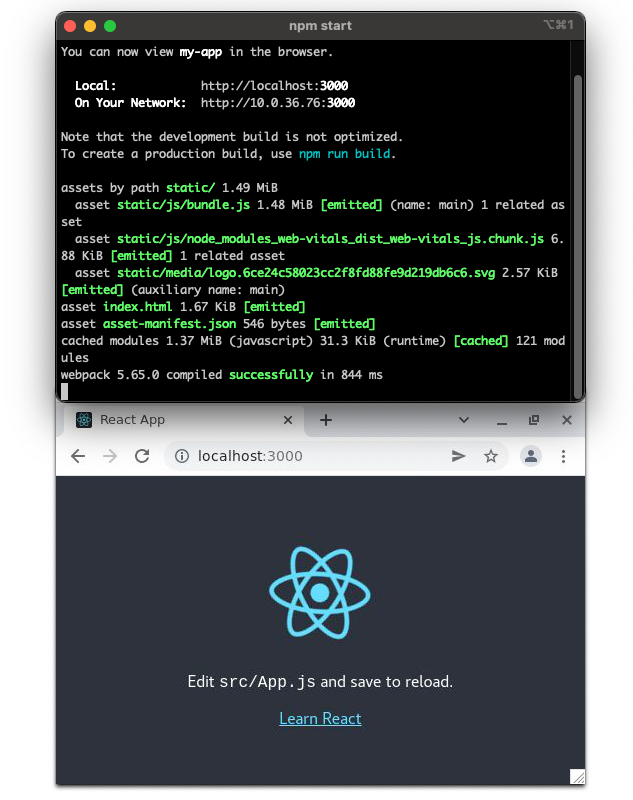
Image by author

We execute a command to kill -9 <ssh process id>, and the remote process exits along with the ssh session.
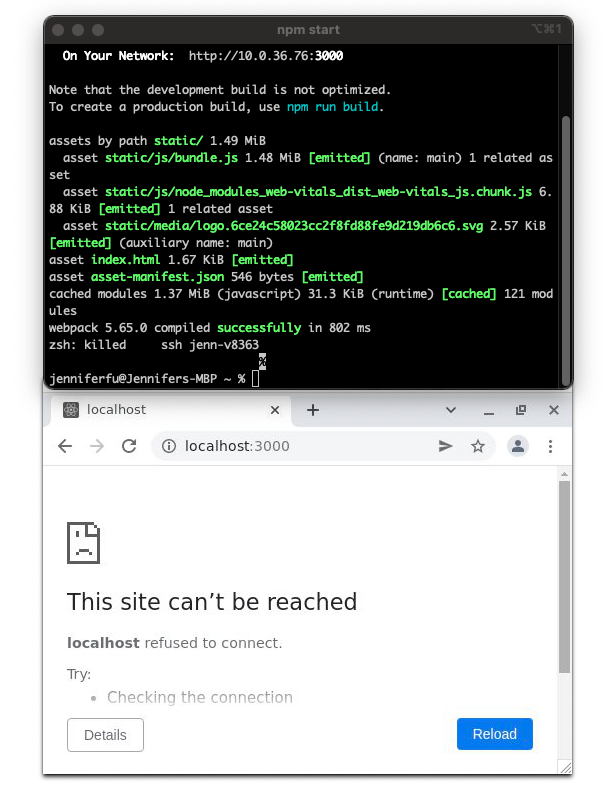
Image by author

Byobu Terminal Window

We run the same use case using a byobu terminal window. Execute npm start, and the remote desktop shows Create React App runs at localhost://3000.
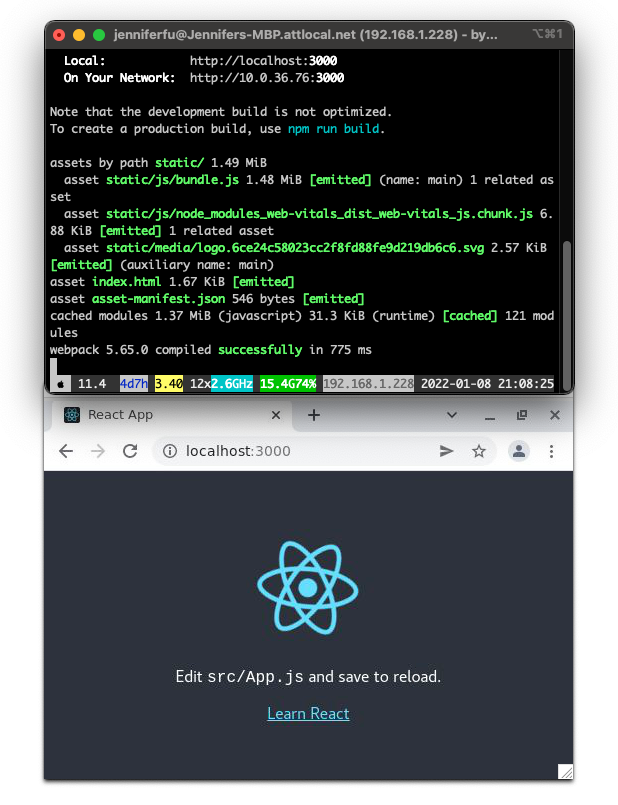
Image by author

We execute a command to kill -9 <ssh process id>, and the remote desktop shows the process continue running, regardless of that the ssh session has exited.
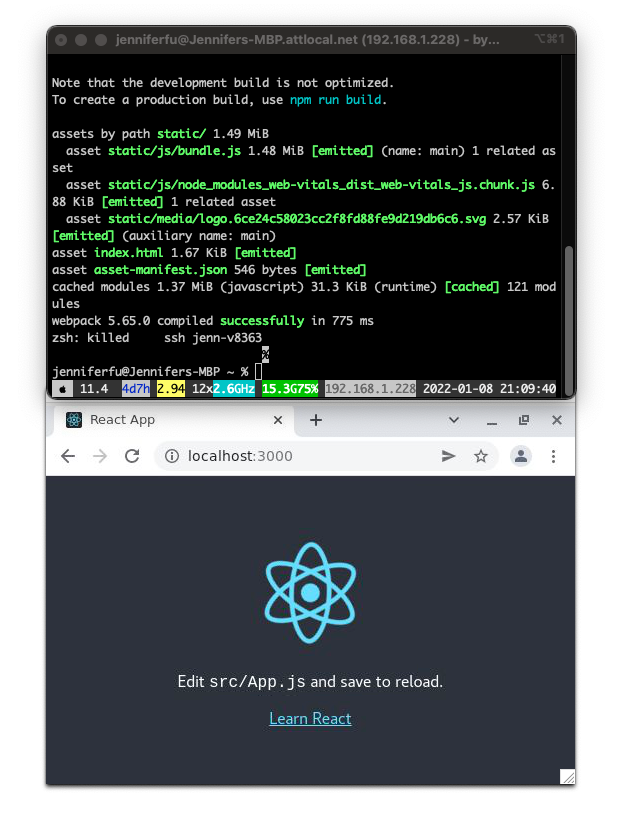
Image by author

Generally speaking, we can use byobu to connect, disconnect, reconnect, and even let other users to access it. The session continues to be alive independent of whether the byobu terminal window exists or not.

Manage Terminal Windows

Byobu is a text-based window manager and terminal multiplexer. It manages multiple windows and multiple sessions.

Clicking Shift-F1, we see the byobu usage:

We add line 45 to show how to exit the current window, session, or byobu itself.

There might be multiple ways to accomplish the same thing. For example, line 7 and line 8 show different ways to move focus among windows.

Some key combinations may not work on a specific platform, due to key binding conflicts on the platform. For example, we are not able to use Ctrl-6 to exit on macOS.

Tabs on a normal terminal window

We can create tabs on a normal terminal window. Clicking Cmd-t can generate a new tab. Tabs coexist on a terminal window, but we can only view one tab at a time.
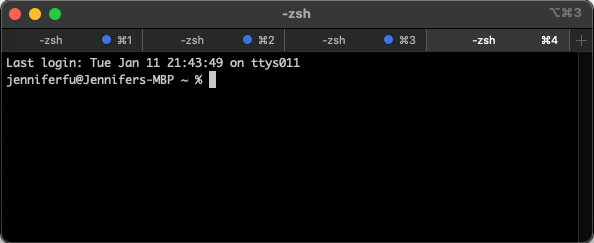
Image by author

Create a new byobu window

For a byobu terminal window, clicking F2 starts a new window, which is similar to a terminal window’s tab. Byobu windows coexist on a byobu terminal window, but we can only view one tab at a time.

By clicking F2 3 times, we have 4 byobu windows (including the original one). They are named 0, 1, 2, and 3. The last one (numbered 3) is active.
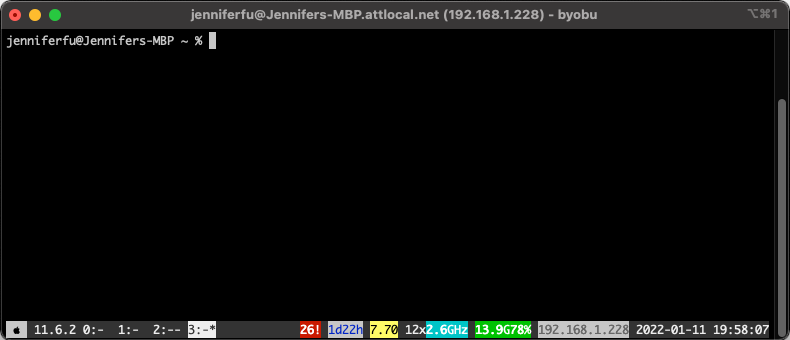
Image by author

By clicking F3 or F4, we can move focus back or forth on different windows.

By clicking F8, we can rename the current window. We rename window 2 to second, and window 3 to third. Now 4 windows are named 0, 1, second, and third.
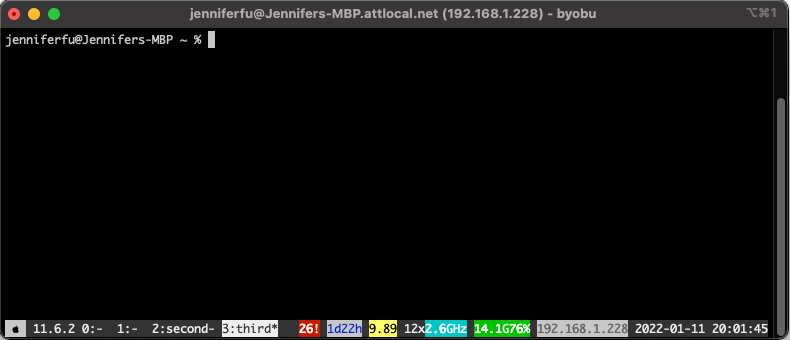
Image by author

Create a new byobu session

Launch another terminal window, and turn it into a byobu terminal window (typing byobu). The new terminal window mirrors the last byobu terminal window. We type in one terminal window, and it displays on both terminal windows.
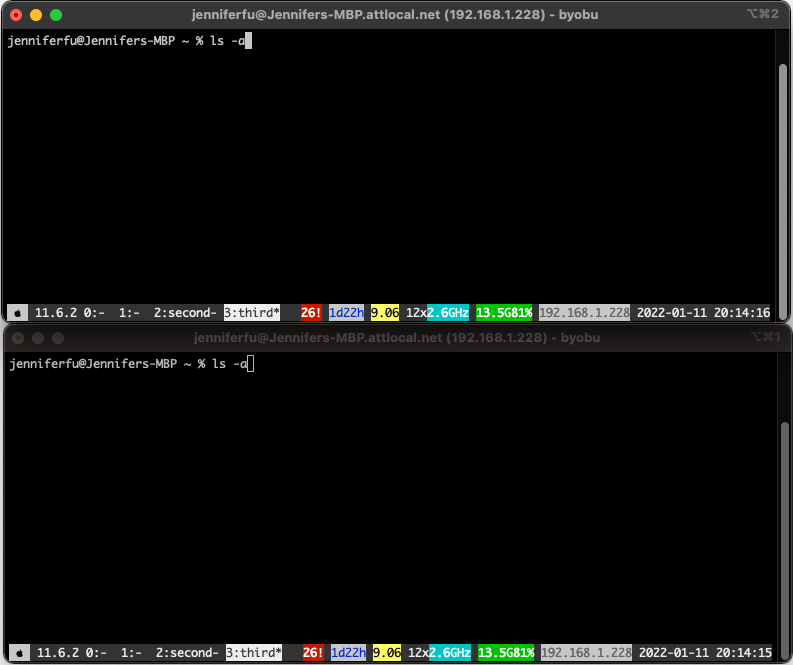
Image by author

It is because the two terminal windows share the same session. What if each terminal window needs to have a separate session?

We can create a new session. The byobu menu says that Ctrl-Shift-F2 will do the trick, but it does not work on macOS.

Instead, we can use a command to achieve it. byobu new creates an unname session. byobu new -s <session-name> creates a named session.

Type byobu new -s newSession to create a second byobu terminal window. And now, two byobu terminal windows are independent.
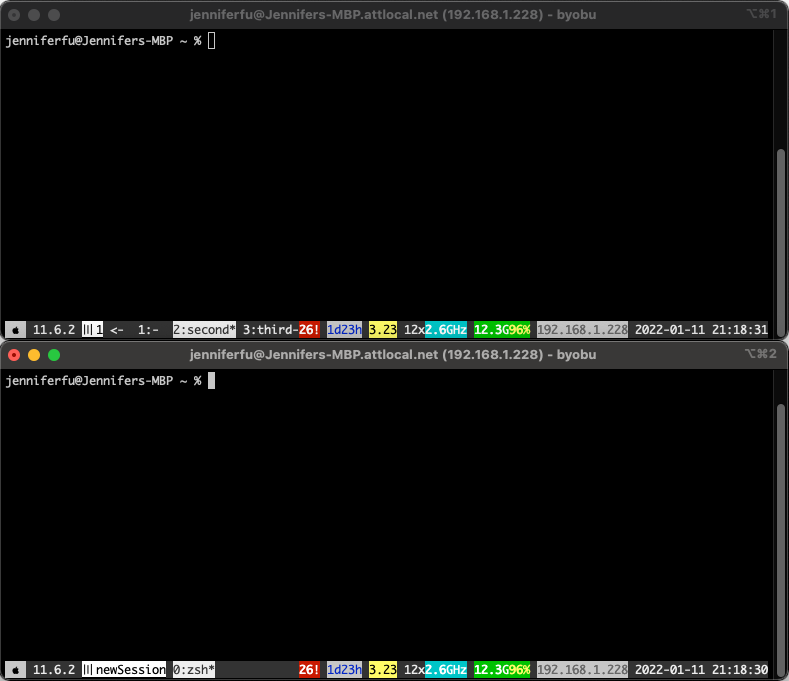
Image by author

In addition, we see a new status notification for sessions.

session — each byobu session displays a session name, or a session number if it is unnamed.

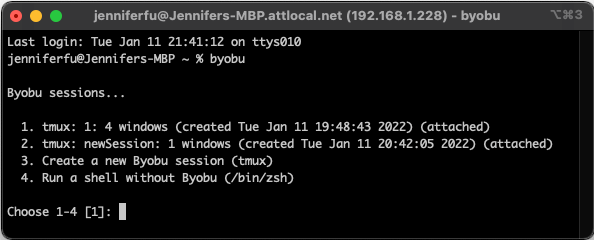
When we have more than one byobu session, typing byobu asks which session to attach to. We have 4 choices:

  1. Attach to the existing tmux of the session, 1, which has 4 windows.
  2. Attach to the existing tmux of the session, newSession, which has 1 window.
  3. Create a new byobu session.
  4. Run a shell without byobu.
Image by author

These choices can also be invoked by the command, byobu-select-session.

Create split byobu windows

So far, we view one byobu window at a time, similar to a terminal window’s tabs. One of the cool features is to create multiple split byobu windows that can be viewed simultaneously.

Clicking Shift-F2 2 times, and we get 3 horizontally split byobu windows.
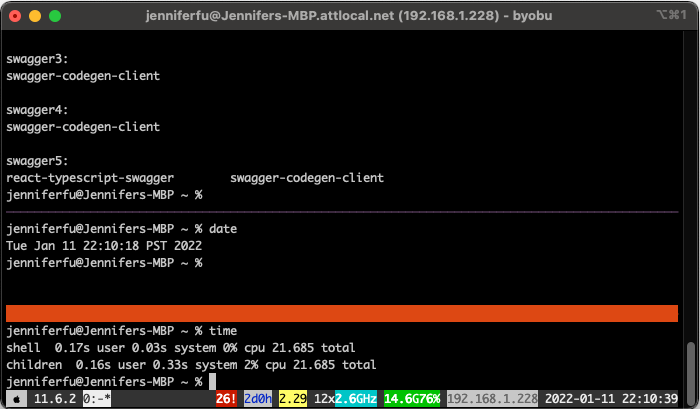
Image by author

We can use Shift-Left/Shift-Right/Shift-Up/Shift-Down to move focus among splits. In each active window, we can perform work. It is wonderful that we can view these windows simultaneously.

It works perfect until we try to use Ctrl-F2 to create a vertical split. It does not work on macOS. Also, it is a little rough to adjust window sizes. We would like to have the mouse support for split byobu windows.

What should we do?

Creating the file, ~/.byobu/.tmux.conf, resolves all our problems.

Line 1 sets up key binding prefix to the back tick (`).

Line 2 enables mouse support.

Line 3 sets the terminal color.

Link 4 binds key `r to refresh the configuration file.

Link 5 binds key `- to create a vertical split.

Link 6 binds key `| to create a horizontal split.

With this magic configuration, we are free to create splits and use mouse to select and resize splits.
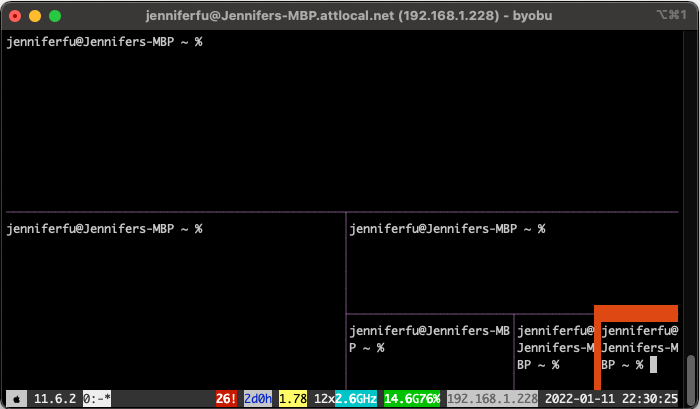
Image by author

Shift-F11 zooms into a split, and the same command zooms out of a split.

What else?

Can we join split windows?

Yes, the easiest way is to exit the unwanted windows (Ctrl-d).

Conclusion

We have shown cool features of byobu, a text-based window manager, and terminal multiplexer. It helps us to keep the remote desktop session, even after the ssh session exists. Also, the window splits present a global view of multiple pieces of the current work, which is helpful in today’s microservices cloud environment.

You can go to the byobu official site to check out more details.

Thanks for reading. I hope this was helpful. If you are interested, check out my other Medium articles.

Note: Thanks, Urian Chang and Marc Mercer, for contributing byobu commands and configurations.

Programming
Terminal
Command Line
Software Development
Software Engineering
Recommended from ReadMedium