
Taking Medium for iOS to the Next Level
In March of 2014 we launched Medium for iOS 1.0, a reading companion for medium.com. We’ve come a long way in the last year and a half.
Today we’re thrilled to bring you Medium 2.0 — a complete experience on mobile, where all you need is a phone and your ideas to read, write, react, and connect with everyone on the Medium network.

The first thing you’ll notice is the new Medium logo. We’re building on our classic M to something with more depth, personality, and perspective — a logo that better represents the diversity of stories and ideas you’ll find on Medium and in our apps.
We’ve also simplified the navigation and organization into a few places that you can quickly access via the new tab bar.

Home
Home is the best place to start reading Medium, and as always, your stream has the best stories from your network, written and recommended by the people you follow. Top stories for you are right there waiting when you open the app, ensuring you never miss out on the best stuff:
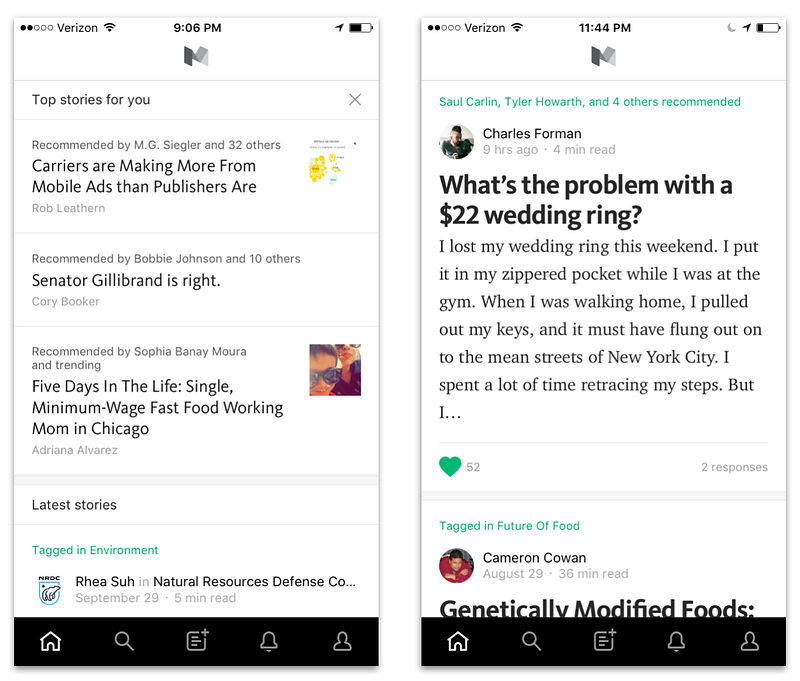
We’ve also updated our typography with a friendlier look and feel and refined the design of posts in the stream. You’ll always clearly see why something is recommended for you, in green — and as you scan through your stream, you will see how many Recommends and Responses a post has received.
Search and Explore
Next to Home is a new tab that we’re calling Explore — your gateway to the best content across all of Medium. Here you’ll find the classic Top stories and your bookmarks, as well as a few new sections like Top responses, Conversation starters, 5-Minute reads, the best stories from featured tags, and more.
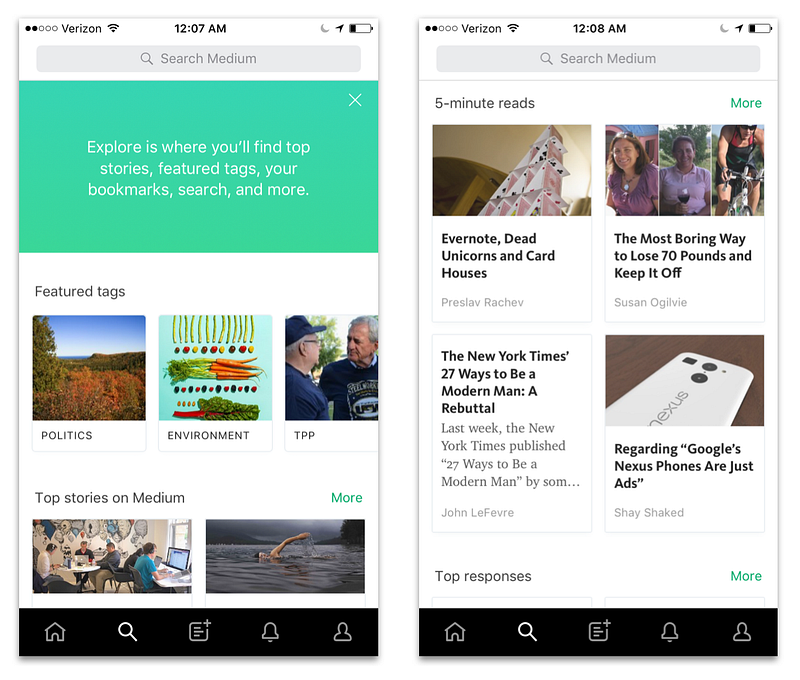
There’s always something new and interesting for you to read in Explore, and it’s the perfect companion to your home stream.
Write…
…and draft, and publish, and edit. We’ve made some big changes to our mobile editor and the on-the-go writing experience that enables you to write whenever and wherever inspiration strikes.
Drafts: First and foremost, you can access and edit all of your Medium drafts on your iPhone and iPad.
Edit: Tap the “Edit” button in the top right of any post you’ve published and you’ll be taken into the mobile editor where you can make changes to your posts.
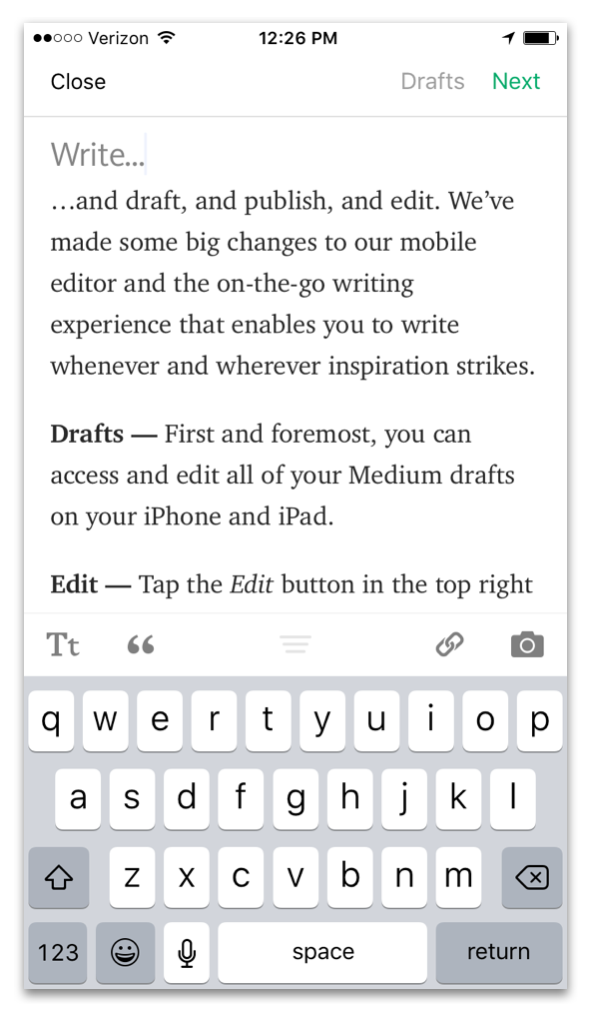
In short, you can start jotting down some ideas on your iPhone, pick ’em up on your iPad, edit on the web, continue writing on your MacBook, edit on the go, and publish from anywhere you’re ready.
Notifications
Once you start writing, the notifications tab is where you’ll find responses to your posts, highlights, mentions, and new followers. It’s your dashboard to all the interactions happening with you and your content on Medium.
We’ve also updated your settings to give you more control over which push notifications you receive and when.
Profiles
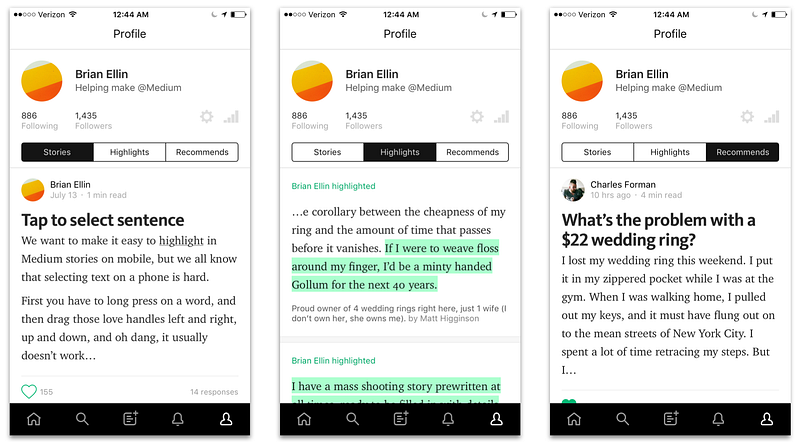
Mobile profiles now make it easy to read your — and everybody else’s — posts, Responses, Highlights, and Recommends. The profile is where people can learn more about you, not only as a writer on Medium, but also as a reader. Here’s a look at mine:
A few more things
- Image zoom: Tap any image in a post to take it full screen and zoom in on details. Just flick it away to continue reading.
- Deep linking: Links that would open in Safari will now open directly in the Medium app on iOS9.
- 3D Touch: Have an iPhone 6s or 6s Plus? Give the new Medium icon a li’l 3D touch for quick access to Write, Explore, and Notifications.
We’re incredibly excited for you to try the new Medium iOS app, which you can get right now on the App Store. Let us know what you think by responding below or dropping a line to [email protected].


