
Create Multiple Measures in Power BI Using Python
A tutorial on how to create multiple DAX measures in Power BI programmatically.
Hello World!

Today we are going to take a look at how to create multiple DAX measures in Power BI programmatically. To do this, we are going to use some PowerShell commands orchestrated by our Python script.
As usual, I'll divide the post into multiple paragraphs, so feel free to skip ahead.
0. Requirements and Target
The requirements for today’s example are:
- Python 3.x
- Power BI Desktop
- PowerShell SqlServer Module
- Pexpect Python module (we are going to install this together in the next paragraph)
The tutorial is targeted at:
- Python intermediate users
- Power BI beginners
1. Installing the requirements
Let’s start by installing the requirements. For this tutorial, I’ll assume that you’ve already installed Python 3 and Power BI. If you need help installing Python, I suggest you take a look at my tutorial:
Let’s start by installing the Pexpect package. Open a command prompt (or PowerShell window) and paste this line:
pip install pexpectAfter that, we’ll also need to install the PowerShell SQL module. To do this open a PowerShell window and paste the following line (you’ll need admin rights for this to work):
Install-Module -Name SqlServer -RequiredVersion 21.0.17099Now you should have everything you need for this tutorial.
2. Creating the PowerShell interface
To create the PowerShell interface, we are going to use a gist I’ve found on GitHub from Mark Baggett (p.s. if you’ll ever read this, thank you!).
So here’s our snippet:
With this interface we can store variables and recall them later as you can see from this example (from the gist):
3. Writing the create_connection function
Now that we have our PowerShell interface, we can start working on our code. As you’ve already seen from the requirements, we are going to use PowerShell to communicate with Analysis Services Tabular (which is the backend of Power BI). We’ve already installed the module we need to talk with Tabular, so now we just need to write the PowerShell commands needed to create our connection to our Power BI:
You’ll need to know the port on which your instance of Tabular (created by Power BI Desktop) is hosted. We’ll take a look at how to obtain this later. For now, by using this function we can connect to our server and database (optional, if omitted it will automatically connect to the first DB in the server instance).
4. Writing the create_measure function
Now we’ve managed the function to connect to our DB, we can start working on the measures:
With this function, we can add a measure to our model. To do this we just need to specify:
- The measure’s name
- The measure’s table
- The measure’s expression
- (optional) The measure’s folder
This function won’t update automatically your model. We’ll update it externally to avoid refreshing it for every measure we add.
5. Getting our Power BI Desktop server port
To get the port of our Power BI Desktop server, we have several ways. For this tutorial, we are going to use the CMD.
The first need we need to do is open a CMD terminal and paste this command:
TASKLIST /FI “imagename eq msmdsrv.exe” /FI “sessionname eq console”You should now see something like this:

Copy the PID shown in your prompt and write the following code using your PID:
netstat /ano | findstr “REPLACE_THIS_WITH_PID”
Now you should see this:
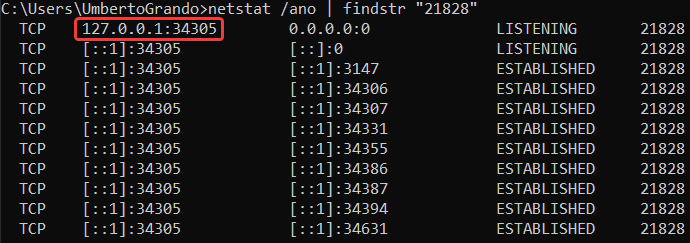
The IP in the red rectangle is the IP:Port of your server. Just copy it and go to the next paragraph.
6. Creating our measures
We can now use every function we’ve created to make our measures:
The first thing you’ll need to change is the server_name variable. You can just paste the string you’ve copied in the previous step or replace the YOUR_PORT part with the port you’ve found before.
After that, we load the Tabular module and create our connection. To create the measure, we run our function: create_measure by passing the parameters we want to use.
If you run the code, you should see the measure inside your Power BI Desktop report.
As usual, you’ll find the code on my (new) GitHub repository:
If you’d like to support me, consider subscribing to Medium using my referral:
Other URLs:
Personal Website:
Social Links:
LinkedIn:
More content at PlainEnglish.io. Sign up for our free weekly newsletter. Follow us on Twitter and LinkedIn. Join our community Discord.


