
Creating Desktop Apps from Python files in 5 Easy Steps
Have you ever created a Python file?
Then you probably know that you can run it from programs like IDLE, Visual Studio Code or command line. But when you are done building your script, wouldn’t it be easier if you could just run it by clicking an icon on your desktop?

In this short tutorial we will go over the steps to transform a Python file to an executable file. You can give the file an icon and place it on your computer’s desktop. Then, when you click it, the Python code will be executed.
This solution should work both on Windows and Mac computers.
Step-by-step
Step 1 — Opening Command Line
If you are on Windows open the Command Prompt. If you are on Mac open the app Terminal.
Step 2 — Installing the Python package pyinstaller
In the command line app that you just opened write:
pip install pyinstaller and press enter.
This will install the Python package pyinstaller, to learn more about Python packages and installing them with pip read:
Step 3 — Prepare the transformation from Python file to executable file
For our tutorial we have a directory (file folder) with a file called main.py with the following content:
import tkinter as tk

window = tk.Tk()

window.title('Dekstop App Example')

window.mainloop()
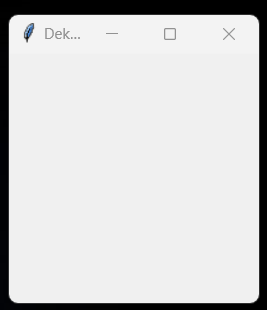
The above script opens a GUI (Graphical User Interface) by using the standard package: tkinter. This serves as a nice example because it gives us something visual: a GUI screen that opens on our screen.
In the same directory I put an icon. An icon is an image with the .ico file extension. The icon will be what we click to start the app.

If you want to create your own icon you can read how I transformed a PNG image to an icon image here:
Step 4 — Use a pyinstaller command to transform a Python file into an executable file
Open the command line again and navigate to the directory where your script and icon are.
You can navigate to a certain directory with the cd command (cd for change directory).
For example:
cd C:\Users\Better_Everything\Documents\Desktop App
In that directory run the following command, in which you have to replace the filenames of the icon and the Python file to the names you used:
pyinstaller -F -w -i good_app.ico main.py
- pyinstaller is the package we installed in step 2 that transforms Python files into executable files
- -F is to make sure our project gets combined into 1 file
- -w is to make sure our program gets run without a command line screen opening
- -i good_app.ico is to tell pyinstaller to use my image with filename
good_app.icoas the icon for the executable file - main.py is the name of my Python file
Step 5 — Clean Up and Testing
After running the command in step 4, two directories should be created: dist and build. In the dist directory you should find an application with the same name as your original Python script.
That is the desktop application, so go ahead an move it to your desktop and try it out by double-clicking it!
Here is how it looks on my desktop:
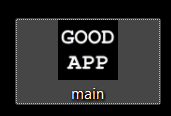
You can of course rename it and you can also remove the created dist and build folders.
If I double-click the application, the script is run, I know that because I can see the GUI-screen open up:
This was all about transforming a Python file into an easily startable application. We will use this method in our Making the Solitaire Game in Python series. You can find the first part of that series here:
Thank you for reading!
You can get full access to all my posts by joining Medium. Your membership fee directly supports me and other writers you read. You’ll also get full access to every story on Medium: