
Creating an Image Gallery with Cloud Storage using Node.js and Express.js
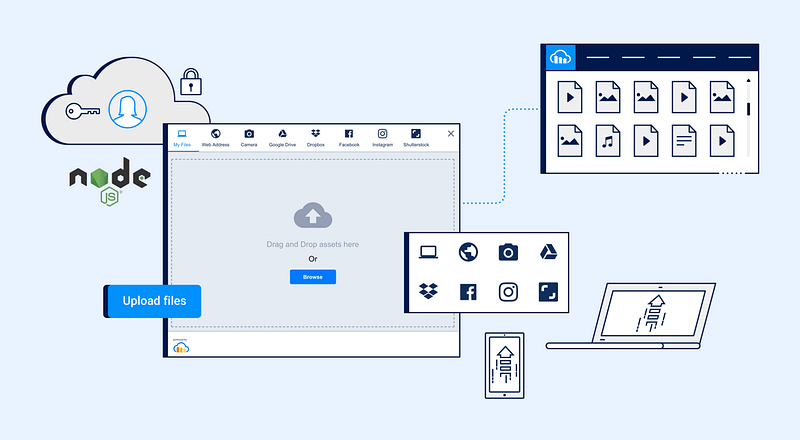
Creating an Image Gallery with Cloud Storage using Node.js and Express.js is a great project! In this tutorial, we’ll build a simple image gallery application that allows users to upload, store, and manage their images using Amazon S3 as the cloud storage service.
Prerequisites
To follow along with this tutorial, you’ll need to have the following installed on your machine:
- Node.js: You can download it from the official website (https://nodejs.org/).
- npm: Node.js comes with npm, the Node Package Manager, pre-installed.
- An Amazon Web Services (AWS) account: Sign up for an account if you don’t have one (https://aws.amazon.com/).
Step 1: Set up the project
Create a new directory for the project and initialize a new Node.js project using npm:
mkdir image-gallery
cd image-gallery
npm init -y
Step 2: Install dependencies
We’ll be using Express.js as our web framework and the aws-sdk package to interact with Amazon S3. Install these packages along with other necessary ones:
npm install express multer aws-sdk
express: A fast and minimalist web framework for Node.js.multer: Middleware for handling multipart/form-data, which is required for image uploads.aws-sdk: The official AWS SDK for JavaScript, which we'll use to interact with Amazon S3.
Step 3: Set up AWS S3
- Go to the AWS Management Console (https://aws.amazon.com/console/) and sign in to your account.
- Navigate to the Amazon S3 service and create a new bucket to store your images. Note down the bucket name, as we’ll need it later.
Step 4: Project structure
Create the following directory structure for our project:
image-gallery
├── node_modules/
├── public/
│   └── index.html
└── index.js
Step 5: Implement the server
In index.js, set up Express and add routes to handle image uploads and listing:
// index.js
const express = require('express');
const multer = require('multer');
const AWS = require('aws-sdk');
const app = express();
const PORT = 3000;

// Configure AWS
AWS.config.update({
  accessKeyId: 'YOUR_AWS_ACCESS_KEY_ID',
  secretAccessKey: 'YOUR_AWS_SECRET_ACCESS_KEY',
  region: 'YOUR_AWS_REGION',
});

const s3 = new AWS.S3();

// Configure Multer to store uploaded files in memory
const storage = multer.memoryStorage();
const upload = multer({ storage: storage });

// Serve the index.html file
app.use(express.static('public'));

// Handle image uploads
app.post('/upload', upload.single('image'), (req, res) => {
  const file = req.file;
  const params = {
    Bucket: 'YOUR_AWS_BUCKET_NAME',
    Key: file.originalname,
    Body: file.buffer,
    ACL: 'public-read',
  };

  s3.upload(params, (err, data) => {
    if (err) {
      console.error(err);
      return res.status(500).json({ error: 'Failed to upload image' });
    }

    return res.json({ imageUrl: data.Location });
  });
});

// Handle listing images
app.get('/images', (req, res) => {
  const params = {
    Bucket: 'YOUR_AWS_BUCKET_NAME',
  };

  s3.listObjectsV2(params, (err, data) => {
    if (err) {
      console.error(err);
      return res.status(500).json({ error: 'Failed to fetch images' });
    }

    const images = data.Contents.map((item) => ({
      imageUrl: `https://${params.Bucket}.s3.amazonaws.com/${item.Key}`,
    }));

    return res.json(images);
  });
});

app.listen(PORT, () => {
  console.log(`Server running on http://localhost:${PORT}`);
});
Make sure to replace the placeholders YOUR_AWS_ACCESS_KEY_ID, YOUR_AWS_SECRET_ACCESS_KEY, YOUR_AWS_REGION, and YOUR_AWS_BUCKET_NAME with your actual AWS credentials and bucket name.
Step 6: Create the frontend
In the public directory, create an index.html file to display the image gallery:
<!-- index.html -->
<!DOCTYPE html>
<html>
<head>
  <title>Image Gallery</title>
</head>
<body>
  <h1>Image Gallery</h1>
  <form id="uploadForm">
    <input type="file" name="image" accept="image/*" />
    <button type="submit">Upload</button>
  </form>
  <div id="gallery"></div>

  <script>
    const form = document.getElementById('uploadForm');
    const gallery = document.getElementById('gallery');

    form.addEventListener('submit', async (event) => {
      event.preventDefault();
      const formData = new FormData(form);
      const response = await fetch('/upload', {
        method: 'POST',
        body: formData,
      });
      const data = await response.json();
      displayImage(data.imageUrl);
    });

    async function fetchImages() {
      const response = await fetch('/images');
      const data = await response.json();
      data.forEach((image) => displayImage(image.imageUrl));
    }

    function displayImage(imageUrl) {
      const img = document.createElement('img');
      img.src = imageUrl;
      gallery.appendChild(img);
    }

    fetchImages();
  </script>
</body>
</html>
Step 7: Run the server
Start the server by running:
node index.jsVisit http://localhost:3000 in your browser, and you should see the image gallery application. You can upload images, and they will be stored in your AWS S3 bucket.
Conclusion
You’ve successfully built an Image Gallery with Cloud Storage using Node.js, Express.js, and Amazon S3. This is a simple example to get you started, and you can expand it by adding features like image management (delete, update), user authentication, and image metadata storage. Continue exploring the AWS SDK and other cloud storage options to create a more robust and scalable image gallery application. Happy coding!
Support me with a coffee: https://www.buymeacoffee.com/sarahdev


