avatarAman Ranjan Verma

Free AI web copilot to create summaries, insights and extended knowledge, download it at here

2111

Abstract

console.aws.amazon.com/iam/</a>.</li><li>In the navigation panel, choose <b>Roles</b>, <b>Create Role</b>.</li><li>In the Select type of trusted entity section, choose <b>Web identity</b>.</li><li>In the Choose a <b>web identity provider</b> section:</li><li>For the Identity provider, choose the <b>OIDC URL for your cluster</b>.</li><li>For Audience, choose <b>sts.amazonaws.com</b>.</li><li>Click <b>Next: Permissions.</b></li><li>In the Attach Policy section, select the policy to use for your service account. Choose <b>Next: Tags</b> -> <b>Next: Review</b>.</li><li>Give your role name choose <b>Create Role</b>.</li><li>After the role is created, choose the role in the console to open it for editing.</li><li>Choose the <b>Trust relationships </b>tab, and then choose <b>Edit trust relationship</b>.</li><li>Edit the OIDC provider suffix and change it from<b> :aud </b>to<b> :sub</b>.</li><li>Replace sts.amazonaws.com with your SERVICE_ACCOUNT_NAME.</li><li>If necessary, change region-code.</li></ol><p id="60c2">The resulting line should look like this.</p><div id="58f2"><pre><span class="hljs-attr">"oidc.eks.region-code.amazonaws.com/id/EXAMPLED539D4633E53DE1B716D3041E:sub"</span><span class="hljs-punctuation">:</span> <span class="hljs-string">"system:serviceaccount:SERVICE_ACCOUNT_NAMESPACE:SERVICE_ACCOUNT_NAME"</span></pre></div><p id="6920">15. Choose Update Trust Policy to finish.</p><h1 id="fb57">Associate the IAM role with a Kubernetes service account</h1><div id="4b55"><pre><span class="hljs-attribute">apiVersion</span><span class="hljs-punctuation">:</span> <span class="hljs-string">v1</span> <span class="hljs-attribute">kind</span><span class="hljs-punctuation">:</span> <span class="hljs-string">ServiceAccount</span> <span class="hljs-attribute">metadata</span><span class="hljs-punctuation">:</span> <span class="hljs-attribute">name</span><span class="hljs-punctuation">:</span> <span class="hljs-string"><ServiceAccountName></span> <span class="hljs-attribute">namespace</span><span class="hljs-punctuation">:</span> <span class="hljs-string"><NameSpace&gt

Options

;</span> <span class="hljs-attribute">annotations</span><span class="hljs-punctuation">:</span> <span class="hljs-attribute">eks.amazonaws.com/role-arn</span><span class="hljs-punctuation">:</span> <span class="hljs-string"><RoleARN_FromTheLastStep></span></pre></div><p id="f97c">The service account should be applied in the namespace where the pods are running.</p><p id="8243">To apply the service account:<code> kubectl -f <sa_file_name.yaml></code></p><h1 id="0c4d">Test</h1><div id="8610" class="link-block"> <a href="https://readmedium.com/access-aws-services-from-eks-using-iam-role-with-pyspark-7f417d38740a"> <div> <div> <h2>Access AWS Services From EKS using IAM Role with PySpark</h2> <div><h3>In this blog, we will read a CSV file from AWS S3 from an EKS cluster using the IAM role. Before we get started, there…</h3></div> <div><p>medium.com</p></div> </div> <div> <div style="background-image: url(https://miro.readmedium.com/v2/resize:fit:320/1*uPp7NR2q-rlkRAvjOVAjaQ.png)"></div> </div> </div> </a> </div><p id="c88d">Now that we are done with the blog, I am hopeful that you had no difficulty following it. In case you faced any difficulty in following the blog, kindly comment below.</p><p id="e605">Reference:</p><div id="61f3" class="link-block"> <a href="https://docs.aws.amazon.com/eks/latest/userguide/specify-service-account-role.html"> <div> <div> <h2>Specifying an IAM role for your service account</h2> <div><h3>In Kubernetes, you define the IAM role to associate with a service account in your cluster by adding the following…</h3></div> <div><p>docs.aws.amazon.com</p></div> </div> <div> <div style="background-image: url(https://miro.readmedium.com/v2/resize:fit:320/)"></div> </div> </div> </a> </div></article></body>

Creating an IAM role for ServiceAccount

Learn how to create a web identity IAM role and attach it with any Service account for an EKS cluster.

When we set up an EKS cluster, we apply rbac(role-based access control) to permit the pods to access the cluster and AWS resources. RBAC includes a ServiceAccount annotated with an IAM role which is finally used by the pod.
Source: AWS, Aman Ranjan Verma

To start with first, we need to set up an Identity provider followed by creating a web identity role. We then add policies to the role and finally attach the role to the service account.

Setting up Identity Provider

  • Open the IAM console at https://console.aws.amazon.com/iam/.
  • In the navigation panel, choose Identity Providers, and then choose Create Provider.
  • For Provider Type, choose Choose a provider type, and then choose OpenID Connect.
  • For the Provider URL, paste the OIDC issuer URL for your cluster.
$ aws eks describe-clustername cluster_name — query “cluster.identity.oidc.issuer” — output text
  • For Audience, type sts.amazonaws.com and choose the Next Step.
  • Verify that the provider information is correct, and then choose to Create your identity provider.
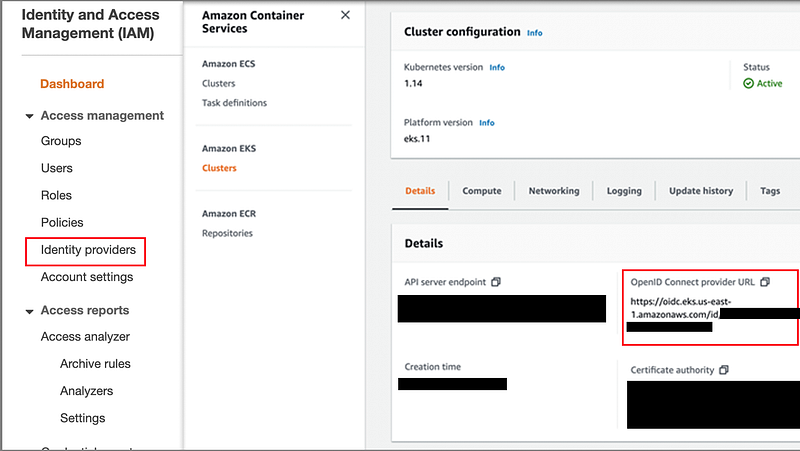
Left- IAM Identity Provider, Right- EKS Cluster | Source: AWS, Aman Ranjan Verma

Create an IAM Role

  1. Open the IAM console at https://console.aws.amazon.com/iam/.
  2. In the navigation panel, choose Roles, Create Role.
  3. In the Select type of trusted entity section, choose Web identity.
  4. In the Choose a web identity provider section:
  5. For the Identity provider, choose the OIDC URL for your cluster.
  6. For Audience, choose sts.amazonaws.com.
  7. Click Next: Permissions.
  8. In the Attach Policy section, select the policy to use for your service account. Choose Next: Tags -> Next: Review.
  9. Give your role name choose Create Role.
  10. After the role is created, choose the role in the console to open it for editing.
  11. Choose the Trust relationships tab, and then choose Edit trust relationship.
  12. Edit the OIDC provider suffix and change it from :aud to :sub.
  13. Replace sts.amazonaws.com with your SERVICE_ACCOUNT_NAME.
  14. If necessary, change region-code.

The resulting line should look like this.

"oidc.eks.region-code.amazonaws.com/id/EXAMPLED539D4633E53DE1B716D3041E:sub": "system:serviceaccount:SERVICE_ACCOUNT_NAMESPACE:SERVICE_ACCOUNT_NAME"

15. Choose Update Trust Policy to finish.

Associate the IAM role with a Kubernetes service account

apiVersion: v1
kind: ServiceAccount
metadata:
  name: <ServiceAccountName>
  namespace: <NameSpace>
  annotations:
    eks.amazonaws.com/role-arn: <RoleARN_FromTheLastStep>

The service account should be applied in the namespace where the pods are running.

To apply the service account: kubectl -f <sa_file_name.yaml>

Test

Now that we are done with the blog, I am hopeful that you had no difficulty following it. In case you faced any difficulty in following the blog, kindly comment below.

Reference:

Iam Roles
Aws Eks
Serviceaccount
AWS
Kubernetes
Recommended from ReadMedium