
Creating an Actually Useful and Reliable Obsidian Homepage
Creating a Reliable Obsidian Homepage
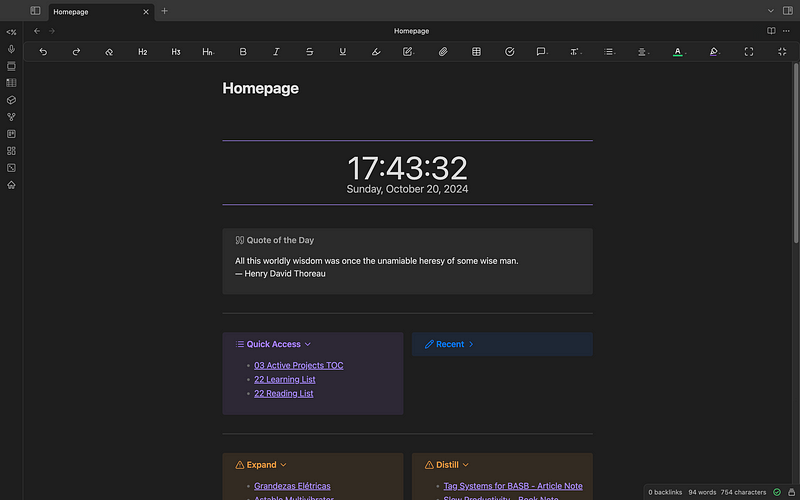
Plugins can break or become obsolete if their development stops or if they fail to keep up with Obsidian updates. If you’ve used Obsidian for a decent amount of time and fell for the plugin rabbit hole you certainly experienced a suddenly broken vault due to some outdated plugin. This can turn your beautiful homepage and other more complex notes into a frustrating mess. That is why I have been trying to create a simple, practical and, most importantly, reliable homepage, that has everything I need and won’t probably break in the near future. I share my process in this article, in case someone else might also be interested in creating an homepage similar to the one in the image above.
Plugins and Snippets
To address these issues and create a truly useful homepage, which is what it should be, we need to focus on practicality. This means designing a homepage that is functional, uses a minimal set of reliable and up-to-date plugins, and remains concise.
Here’s what you’ll need:
- Homepage: This plugin allows you to set a specific note as your default starting homepage. We can also use this plugin to set the homepage to open immediately after start-up and to apply templates to it.
- Dataview: It enables you to create dynamic views of your notes based on queries. I will use this plugin to create lists of notes that I can directly and easily access from my homepage.
- Templater: This plugin allows you to create templates with a few quality of life improvements over the core plugin. We will need templates to implement a random quote that changes every time you open your homepage.
- Multi-Column: Although not a plugin, this is an essential snippet that allows you to organize content into columns, enhancing readability and layout for a more compact homepage.
You can check installation instructions, plugin settings and more detailed information about each plugin in the links I provide in each bullet point.
Note that all of these are very well know and robust plugins. Homepage, Dataview and Templater are maintained by active developers and have a significant user base, making them less likely to break or become unavailable. This ensures that your homepage remains functional over time.
Additionally, using a snippet, such as Multi-Column, instead of a full-fledged plugin, offers additional stability. Snippets are simple pieces of CSS that customise the appearance or behaviour of Obsidian without the overhead of a plugin. Since they don’t depend on the plugin infrastructure, snippets are less likely to break with updates to Obsidian. This makes them a safer and more stable choice for features like multi-column layouts that can easily mess up some obsidian themes (which has actually happened to me in the past).
Creating a Practical Homepage
Bellow I list the features I must have in my Obsidian homepage to keep my sanity:
- Quick Access: I find it useful to have a section dedicated to files I tag specifically for quick access. By tagging regularly used files with a quick access tag, you can use Dataview to quickly showcase these bookmarked files. This can include tags for projects, meeting notes, or specific topics you refer to often.
- Recent Files: I use the Dataview plugin to display the most recently modified or accessed files. This ensures that I can quickly jump back into your latest work without searching through folders.
- Note Tracking: I implement status tags to keep track of notes that need attention. I use Dataview to show files based on their status, such as files waiting to be expanded and files needing to be distilled.
And that’s pretty much it! Everything else I can think of seems a bit unnecessary. I am aware that the quick access and recent files features can both be implemented with core and community plugins directly on the obsidian interface. But i find it more useful to have those features directly in my Homepage.
Additional (But Not Necessary) Features
While the essentials listed above will create a highly functional homepage, there are a few additional features you might consider. In my case I chose to add:
- Widgets for Clock and Countdown Timers: Adding a clock widget can helps me keep track of time. I also added two countdown timers for my next housekeeping sessions, where I organize and distill notes.
- Quote for Inspiration: I like to feel inspired every time I open Obsidian with an inspiring quote.
The Code
I will go over the implementation of the features I outlined earlier.
Because I wanted to add a quote that changes every time I open my homepage, things get a bit more complicated than just creating an homepage file. We actually need to create a homepage template.
To start, create a homepage template file in your templates folder. You can set your templates folder in the Templater plugin settings.

You can then add a templater hotkey for your homepage template.
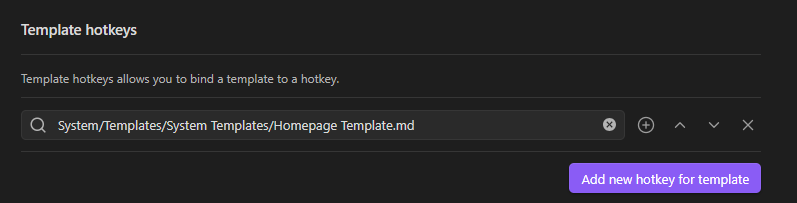
Having set your templater hotkey you can add a command in the homepage plugin settings to apply the template you created automatically in your homepage as soon as it is opened:

This will ensure that everytime the homepage is opened, the template will be applied, refreshing the quote in your homepage. If you don’t do this, your homepage quote will always be the same.
The final thing we need to set up before starting to mess with the template code, is creating an homepage file. After creating an homepage file you can set it in the Homepage plugin settings:

Okay, having set up everything we now have an empty homepage file and an empty homepage template file. We can now work on our template file again. We need to clean the previous homepage contents everytime we open the homepage, so that we can add a new quote. To do that add this to the top of your template file:
```
<%*
var file = await app.workspace.getActiveFile() // retrieves the currently active file
await app.vault.modify(file, "")  // modifies the content of the retrieved file, setting it to an empty string, effectively clearing the note
%>
```
Followed by the clock and quote:
````
```widgets
type: clock
```
<% tp.user.random_quote() %>
````
random_quote() is s user defined templater function, which I created to grab a random quote from the quotable.io api. Templater and other plugins offer similar functions which, from experience, I’ve come to realize break very often. So I decided to create a short .js script for this purpose.
To create Templater scripts you need to set a script folder in the plugin definitions.
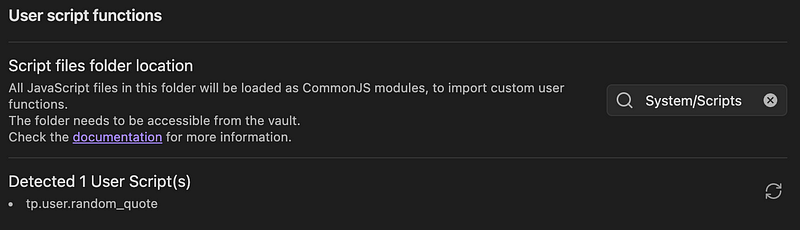
You can place your scripts in the folder you defined. The name of your script will correspond to the function name. I named mine random_quote.js:
const apiUrl = "http://api.quotable.io/random?tags=";

async function start() {
  var quote;
  var cite;
  const response = await fetch(apiUrl);
  const data = await response.json();

  if (response.ok) {
    quote = data.content;
    cite  = data.author;
  } else {
    quote = "An error occurred";
    console.log(data);
  }

  return `>[!quote] Quote of the Day
>${quote}
>— ${cite}`;
}
module.exports = start;
For the compact multi-column layout we need three code blocks. Inside the first block, the Dataview plugin is used to list files tagged with my quick access tag, sorted by creation time in descending order. Inside the other block, we lists all files in the vault, sorted by modification time in descending order (aka recent files).
>[!multi-column]        %% start multi-column callout
>> [!example]+ Quick Access
>> ```dataview
>> LIST
>> FROM #favourites     %% quick access tag
>> SORT file.ctime DESC %% descending order of creation time
>> LIMIT 15             %% 15 element limit so the callout does't get too big
>> ```
>                       %% used to separate left and right callouts
>> [!note]+ Recent
>> ```dataview
>> LIST
>> FROM ""              %% search the whole vault
>> SORT file.mtime DESC %% descending order of modification time
>> LIMIT 15
>> ```
In the last block, the Dataview plugin lists files tagged for expansion and distillation. I limit all lists to 15 files, to prevent them from getting too big.
>[!multi-column]
>> [!attention]+ Expand
>>```dataview
>>LIST
>>FROM #expand
>>LIMIT 15
>>```
>
>> [!attention]+ Distill
>>```dataview
>>LIST
>FROM #distill
>>LIMIT 15
>>```
The complete code for the template file looks like this:
<%*
var file = await app.workspace.getActiveFile()
await app.vault.modify(file, "")
%>

```widgets
type: clock
```

<% tp.web.daily_quote() %>

---

>[!multi-column]
>> [!example]+ Quick Access
>> ```dataview
>> LIST
>> FROM #favourites
>> SORT file.name ASC
>> LIMIT 15
>> ```
>
>> [!note]+ Recent
>> ```dataview
>> LIST
>> FROM ""
>> SORT file.mtime DESC
>> LIMIT 15
>> ```

---

>[!multi-column]
>> [!attention]+ Expand
>>```dataview
>>LIST
>>FROM #expand
>>LIMIT 15
>>```
>
>> [!attention]+ Distill
>>```dataview
>>LIST
>>FROM #distill
>>LIMIT 15
>>```

---

```widgets
type: countdown
date: 2024-10-27 21:00
to:Next Distill/Expand Session
```
---

```widgets
type: countdown
date: 2024-10-27 21:00
to:Next Archive/Organize Session
```
If you are not interested in quotes and want to skip some effort you can create a simple homepage file containing only the multi-column and Dataview code blocks I showed, no template hassle needed!
The Final Product
That’s it! Now you have a simples, practical, reliable and beautiful Homepage for you Obsidian vault. Once you open your homepage file you should see something similar to this:
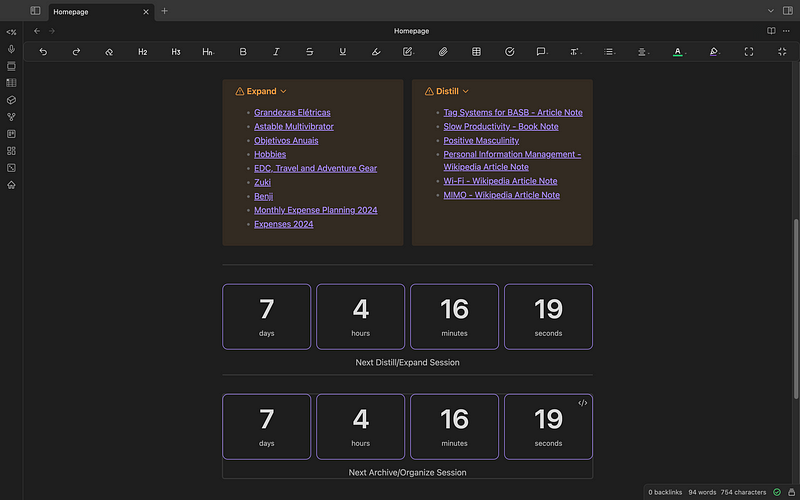
Note: I have hidden my Recent Files column for privacy purposes.


