avatarKhayyon Parker

Free AI web copilot to create summaries, insights and extended knowledge, download it at here

1505

Abstract

fa8"><pre>pip install streamlit</pre></div><h2 id="fa15">Creating Your First Streamlit App</h2><p id="9bb1">Let’s start with a simple example: creating a data dashboard that displays a bar chart. Here’s a step-by-step guide:</p><h2 id="5c0c">Step 1: Import Libraries</h2><div id="7918"><pre><span class="hljs-keyword">import</span> streamlit <span class="hljs-keyword">as</span> st <span class="hljs-keyword">import</span> pandas <span class="hljs-keyword">as</span> pd <span class="hljs-keyword">import</span> matplotlib.pyplot <span class="hljs-keyword">as</span> plt</pre></div><h2 id="4317">Step 2: Create a Title</h2><div id="ca76"><pre>st.title(“My First Streamlit Data Dashboard”)</pre></div><h2 id="0cf8">Step 3: Load Data</h2><div id="7d52"><pre>data = pd.read_csv(‘your_data.csv’)</pre></div><h2 id="1f84">Step 4: Create a Sidebar</h2><p id="95b2">You can add widgets to the sidebar to allow users to interact with your data. For example, let’s add a slider to filter data:</p><div id="03c5"><pre>filter_value = st.sidebar.slider(“Filter Data by Value”, min_value=<span class="hljs-number">0</span>, max_value=<span class="hljs-number">100</span>, value=<span class="hljs-number">50</span>)</pre></div><h2 id="3f6c">Step 5: Display Data</h2><p id="890a">You can display data tables, charts, or other visualizations in the main section of your app. For our example, let’s create a bar chart:</p><div id="bdae"><pre>filtered_data = data[data[‘value’] > filter_value] st.bar_chart(filtered_data[

Options

‘value’])</pre></div><h2 id="c556">Step 6: Running Your App</h2><p id="f1ad">To run your Streamlit app, save your script and run the following command in your terminal:</p><div id="e14c"><pre>streamlit run your_app.py</pre></div><p id="09b3">This will start a local development server, and you can view your app in your web browser.</p><h2 id="a02f">Customizing Your Dashboard</h2><p id="ea75">Streamlit provides a wide range of widgets and customization options to enhance your data dashboard. You can add text, images, interactive maps, and more. Here are some additional features you can explore:</p><p id="fd37">1. Markdown Text: You can add explanatory text using Markdown.</p><p id="1aa2">2. Interactive Widgets: Streamlit provides widgets like sliders, buttons, and text input fields to allow users to interact with your app.</p><p id="724f">3. Data Exploration: Create multiple charts and tables to explore different aspects of your data.</p><p id="4801">4. Deployment: You can deploy your Streamlit app on various platforms, including Heroku, AWS, and Streamlit Sharing.</p><h1 id="4fff">Conclusion</h1><p id="6318">Streamlit is a powerful tool for creating data dashboards and web apps with minimal code. In this blog post, we’ve only scratched the surface of what you can do with Streamlit. As you become more familiar with the library, you can create more complex and interactive data applications to showcase your data science projects. Happy dashboarding!</p></article></body>

Creating a Streamlit-Powered Data Dashboard: A Step-by-Step Guide

In the world of data science and machine learning, presenting your findings and insights in a clear and interactive way is crucial. Streamlit, a Python library, has gained immense popularity for its simplicity and effectiveness in building data dashboards and web applications. In this blog post, we will walk through the process of creating a data dashboard using Streamlit.
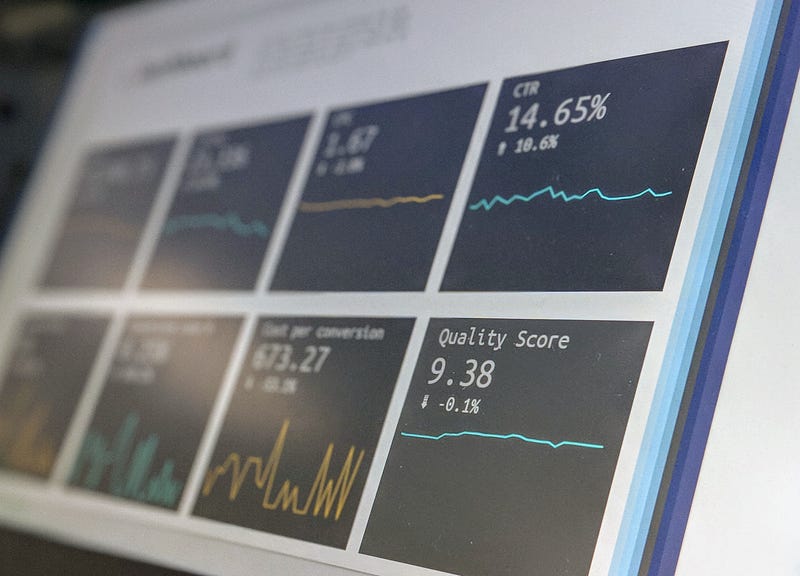
Photo by Stephen Dawson on Unsplash

What is Streamlit?

Streamlit is an open-source Python library that allows you to create web applications for data science and machine learning projects with minimal effort. With Streamlit, you can turn your data scripts into shareable web apps quickly. It’s designed to be easy to use, even for those without extensive web development experience.

Getting Started

Before we dive into building our data dashboard, you’ll need to have Python installed on your machine. You can install Streamlit using pip:

pip install streamlit

Creating Your First Streamlit App

Let’s start with a simple example: creating a data dashboard that displays a bar chart. Here’s a step-by-step guide:

Step 1: Import Libraries

import streamlit as st
import pandas as pd
import matplotlib.pyplot as plt

Step 2: Create a Title

st.title(“My First Streamlit Data Dashboard”)

Step 3: Load Data

data = pd.read_csv(‘your_data.csv’)

Step 4: Create a Sidebar

You can add widgets to the sidebar to allow users to interact with your data. For example, let’s add a slider to filter data:

filter_value = st.sidebar.slider(“Filter Data by Value”, 
min_value=0, max_value=100, value=50)

Step 5: Display Data

You can display data tables, charts, or other visualizations in the main section of your app. For our example, let’s create a bar chart:

filtered_data = data[data[‘value’] > filter_value]
st.bar_chart(filtered_data[‘value’])

Step 6: Running Your App

To run your Streamlit app, save your script and run the following command in your terminal:

streamlit run your_app.py

This will start a local development server, and you can view your app in your web browser.

Customizing Your Dashboard

Streamlit provides a wide range of widgets and customization options to enhance your data dashboard. You can add text, images, interactive maps, and more. Here are some additional features you can explore:

1. **Markdown Text**: You can add explanatory text using Markdown.

2. **Interactive Widgets**: Streamlit provides widgets like sliders, buttons, and text input fields to allow users to interact with your app.

3. **Data Exploration**: Create multiple charts and tables to explore different aspects of your data.

4. **Deployment**: You can deploy your Streamlit app on various platforms, including Heroku, AWS, and Streamlit Sharing.

Conclusion

Streamlit is a powerful tool for creating data dashboards and web apps with minimal code. In this blog post, we’ve only scratched the surface of what you can do with Streamlit. As you become more familiar with the library, you can create more complex and interactive data applications to showcase your data science projects. Happy dashboarding!

Python
Programming
Tutorial
Web Development
Teaching
Recommended from ReadMedium